Getting Started
Softyflow is a low-code platform for business applications. Use it to build forms, define workflows, connect data sources and monitor running processes.
Start with one task, such as a purchase request. List the data you need and the people who must approve it. Decide which systems the app will use. You can build the main parts with visual tools. Some rules and connections may need code.
Learn more about core concepts and explore our tutorials to get started quickly.
Hosting & Deployment OptionsDirect link to Hosting & Deployment Options
Choose where to host your application. Review your access and hosting needs with your team, then read the deployment guide:
Private Cloud (Single-Tenant)Direct link to Private Cloud (Single-Tenant)
- Dedicated infrastructure per customer.
- Hosted in a managed private environment (e.g., AWS VPC).
- Enhanced control over security and performance.
On-PremiseDirect link to On-Premise
- Installed within your own data center.
- Full control over hosting, compliance, and access.
- Suitable for regulated industries (banking, healthcare, defense).
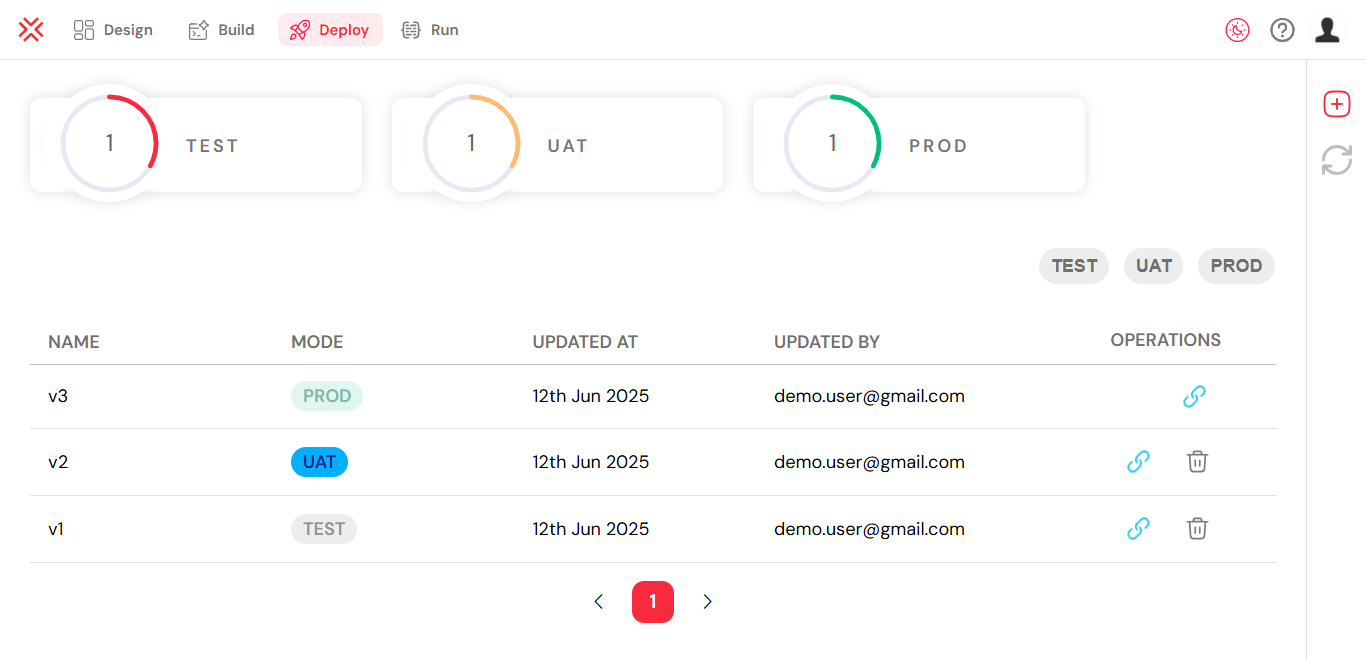
An overview of the version status tracking for different hosting and deployment options.
The Softyflow PlatformDirect link to The Softyflow Platform
Use one workspace to build, test and run your app. Business users can set out the steps and rules. Developers can then add the forms, data and links to other systems.
Get started with your first project setup.
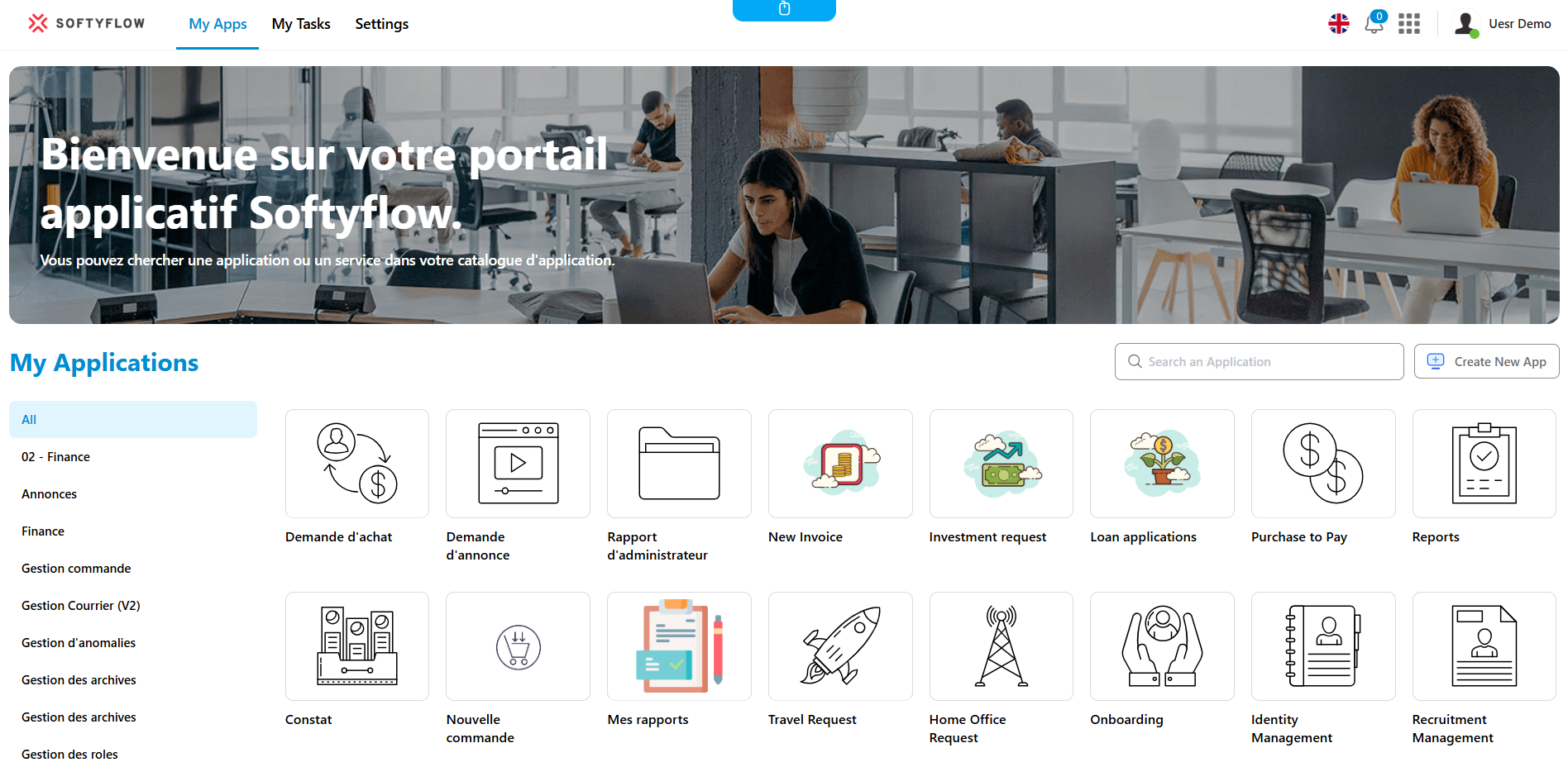
A glimpse of the unified Softyflow platform interface.
Build, automate, deploy, and monitor with SoftyflowDirect link to Build, automate, deploy, and monitor with Softyflow
Softyflow enables you to:
Connect data: Use databases and APIs to read or update records. Start with the integration guide.
Build forms: Drag fields onto a page, then set their rules. Read the web interface guide and try a button widget.
Set up a workflow: Use the BPMN modeler to link tasks and choices. The process guide explains how to use each component.
Store data: Use MongoDB collections to share records between forms and workflows.
Publish an app: Test it, ask users to check it, then release it. Follow the test and deploy guide.
Track a run: View tasks, errors and results. Use the monitoring guide to find the right tools.
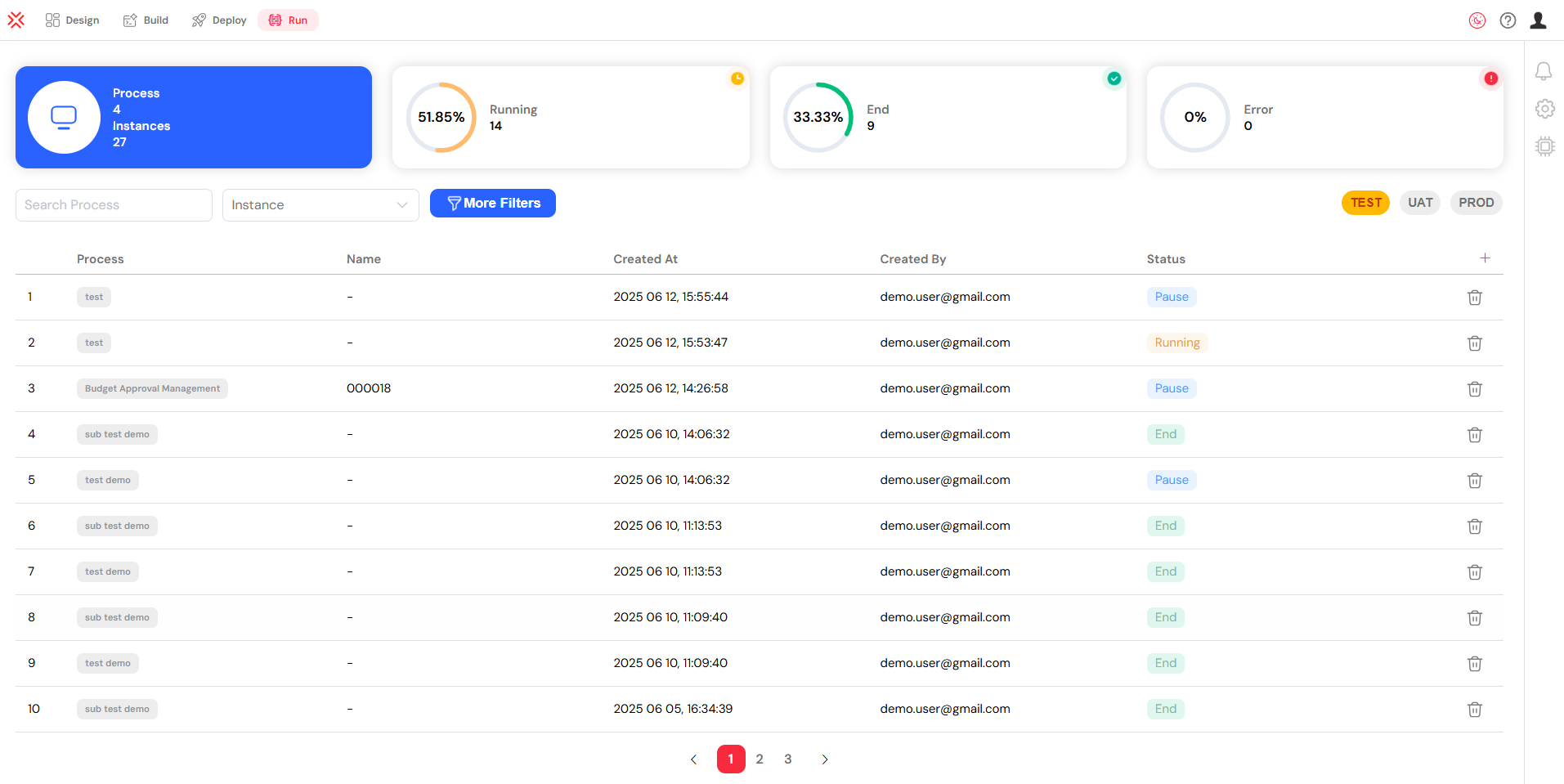
The monitoring dashboard to build, automate, deploy, and monitor applications.
Connect to integrationsDirect link to Connect to integrations
Connect to the systems your application needs. Start with the integration guide and database guide:
Databases : MongoDB, MySQL, PostgreSQL, SQL Server, Snowflake.
External APIs : REST, GraphQL, OAuth2-secured endpoints. See our APIs documentation.
Authentication providers : LDAP, SAML, OAuth2. Learn about authentication setup.
Mail services : Gmail, Outlook, Mailgun, SMTP-based providers. Configure mail settings.
Use separate settings for test and live systems. Set which users can access each connection.
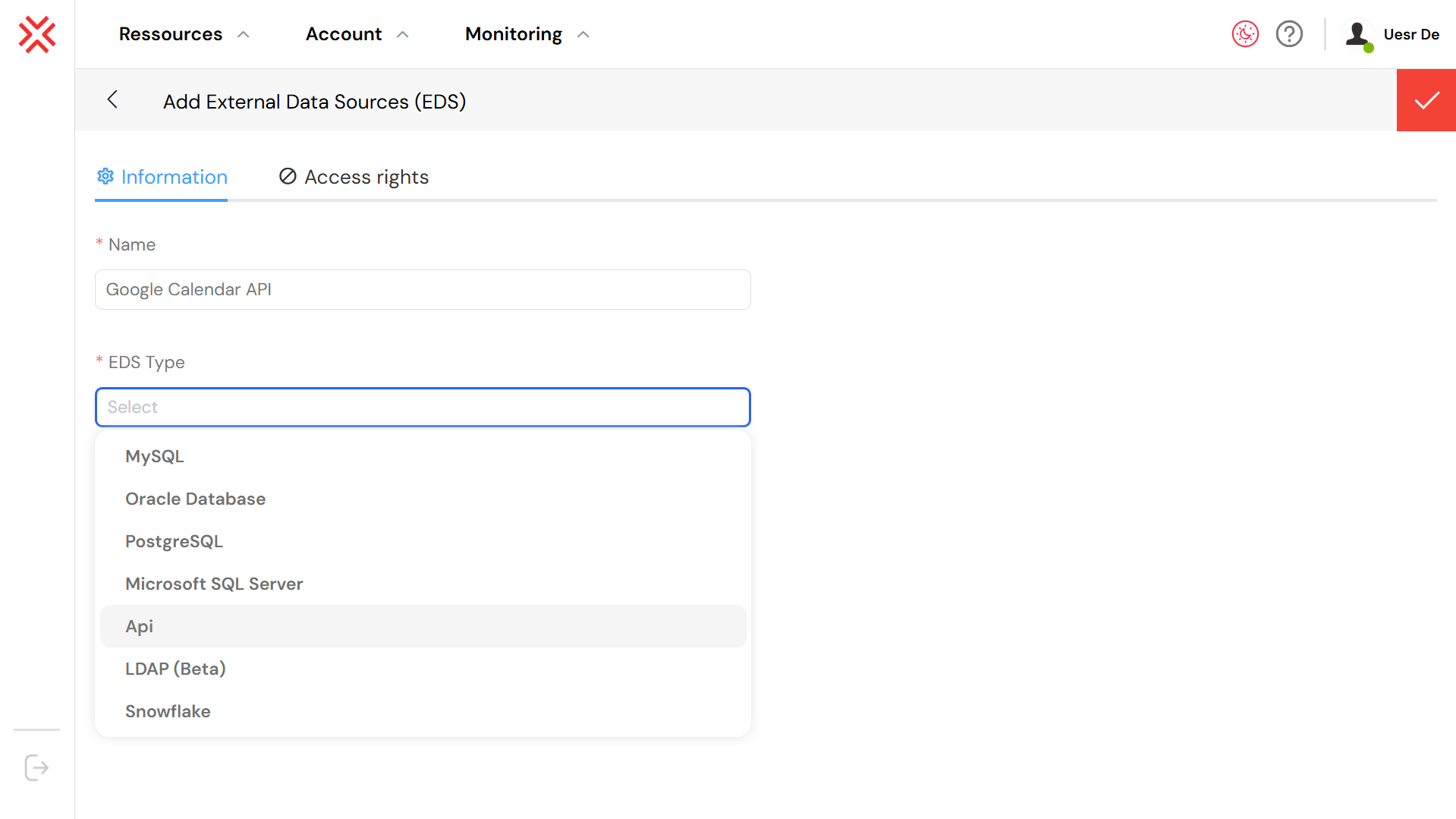
Initial configuration of an API-type External Data Source.
Build dynamic user interfacesDirect link to Build dynamic user interfaces
Build a page with the web interface tools. The web modeler lets you add these parts:
Tables, forms, grids, charts, images, and embedded reports.
Drag-and-drop widget configuration.
Rule-based dynamic behaviors and visibility conditions.
Add JavaScript with the process SDK or web modeler SDK.
Reuse components and share their styles.
Reuse Custom Lists and collections when you build a form.
Choose a widget for each part of the page:
- Buttons, Forms, Tables.
- Input fields, Text areas, Selects.
- Charts, Grids, Tabs.
- Date pickers, Time inputs, Sliders.
- File uploads, PDF viewers, Signatures.
Other widgets cover selection, feedback and page layout:
- Choose a value: Autocomplete, Checkbox, Radio, Switch, Currency and Rate.
- Choose a person or file: User Picker, Group Picker and Google Docs Picker.
- Present content: Title, Text, Image, Icon, Editor and HTML.
- Guide the user: Alert, Popup, Steps, Timer and Widget History.
- Arrange the page: Divider, Spacer and Loop.
Use validation rules to check inputs and the multi-language guide to translate an interface.

The web interface designer for building dynamic user interfaces.
Create and launch powerful APIsDirect link to Create and launch powerful APIs
Create an API when another system needs to call your app. Use it to:
Read a database, call a service or start a workflow.
Use APIs to update a page or link two systems.
Test and monitor API usage through the Softyflow console.
Call an API from a user action or a workflow. Use a schedule to run it at a set time.
Error Handling and Reliability
Decide what should happen if a call fails:
Retry: Set how many times to try again and how long to wait.
Fallback: Choose a default value, another endpoint or a manual task.
Logs: Record the response code, data and error. See the log guide.
Status: Track whether each call passed or failed and how long it took.
Use these records to find failed calls and check the cause.
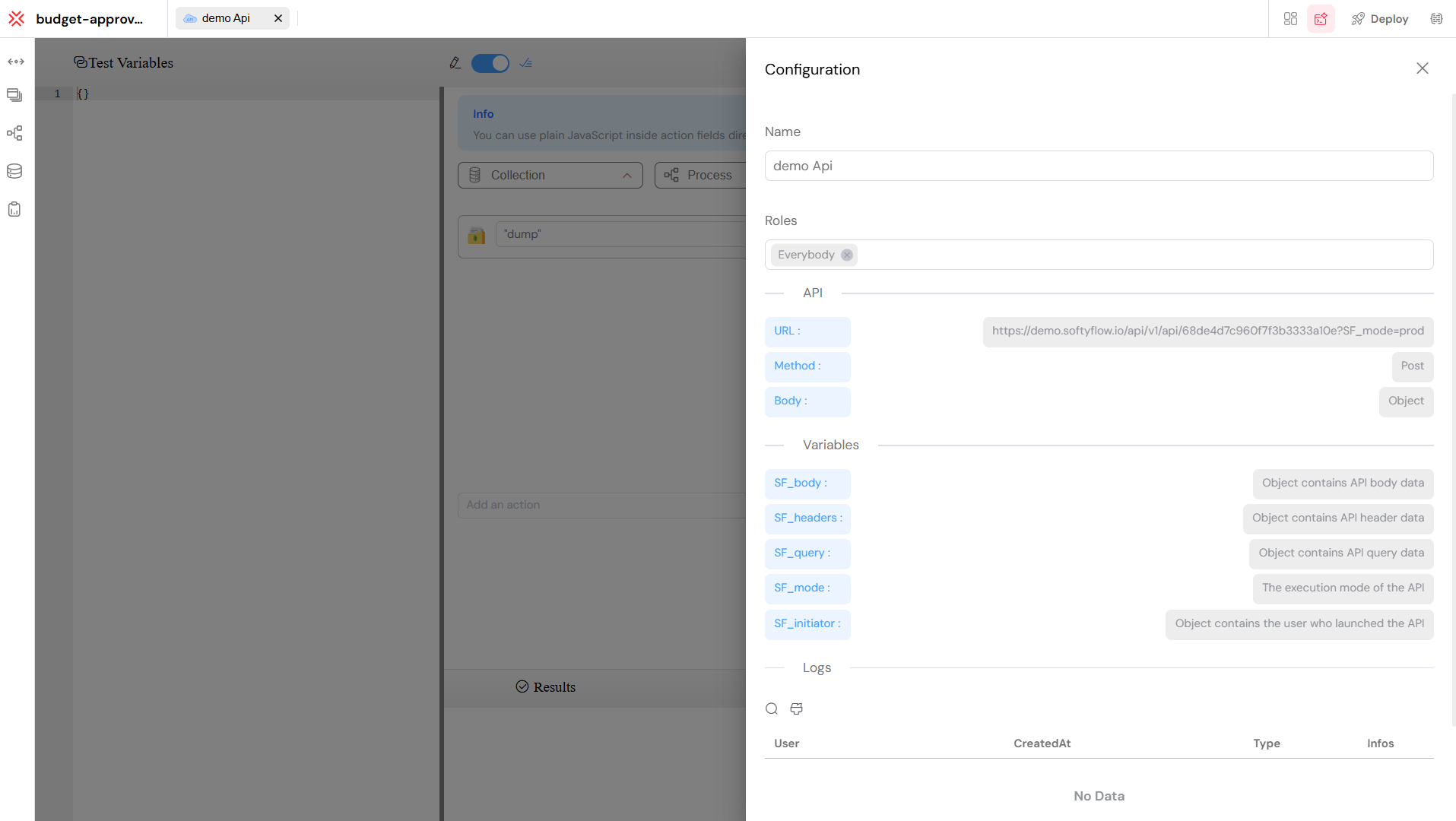
The API implementation interface for creating and launching powerful APIs.
Automate workflowsDirect link to Automate workflows
Draw the steps in the process modeler. A step can be a user task, a rule or a call to another system. Read the process guide to choose the right components.
Set who approves each request and who receives the next task. Add actions to send reminders or update records. Start a workflow from a form or button. You can also start it with a timer, API call or webhook. Each process can include:
Conditional logic and decision branches.
Process variables to carry data between steps with input/output configurations.
Integration steps to call APIs or update external systems.
Delegation rules and SLA-based escalations.
Sub-processes for complex workflow organization.
Measures and KPIs for performance tracking.
The visual tools cover the main workflow steps. Some custom rules may need code. Watch the process videos for examples.
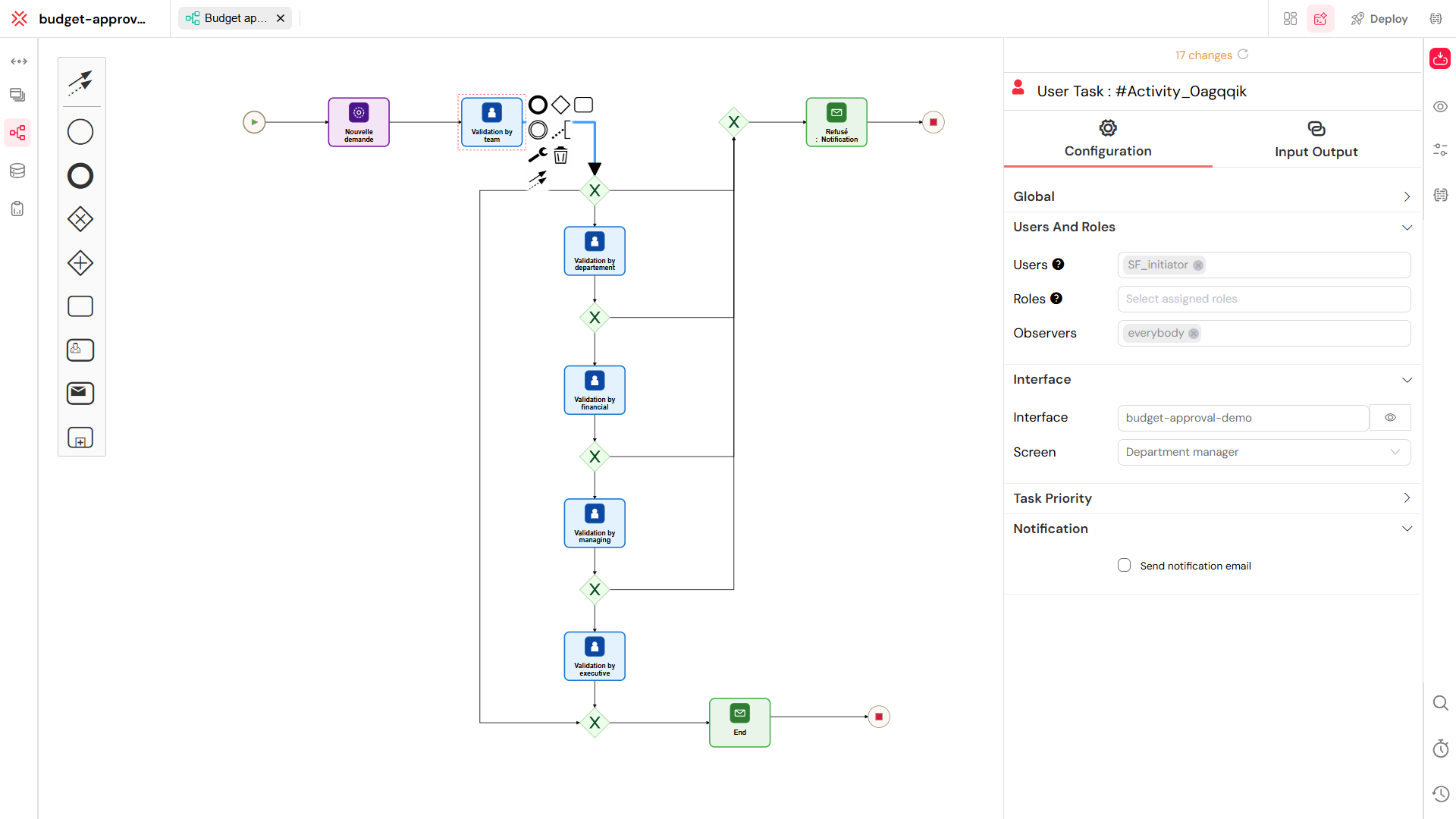
The visual process modeler for automating workflows.
Deploy and manage environmentsDirect link to Deploy and manage environments
Build and check your app before you make it live. The test and deploy guide covers three environments:
TEST: Build the app and check its rules.
UAT: Ask users to test real tasks.
PROD: Run the live app.
Give each environment its own API keys, sign-in settings and access rights. This lets you test changes before users see them.
Key Capabilities
Promote forms, workflows, and reports across environments.
Track every version and roll back if needed.
Set API keys and values for each environment in settings.
Ensure separation of test and production data.
Track changes in the audit logs.
Example: From Draft to Production
Let's say you're building a new Leave Request feature:
- Design & Test (TEST Environment).
Create the form using our web interface tools and workflow with the process modeler.
Simulate approval steps, validate the fields and logic.
Use test accounts to check who gets each task and which values it receives.
- Validate in UAT.
Promote the validated draft to the UAT environment.
Ask HR users to test with real scenarios.
Collect feedback and apply final updates.
Check email messages, access rights and API calls.
- Release to PROD.
Deploy the approved version to production.
All changes are versioned and reversible.
If a check fails, review the issue and restore a prior version if needed.
After release, check the application with the monitoring tools.

A schema showing the structure of versioning and deployment across environments.
Access control and securityDirect link to Access control and security
Set who can view data and run each action. Use users, roles and sign-in settings to control access.
Role-Based Access Control (RBAC)
With RBAC, you define who can see and do what in each part of your workspace:
Give users roles. Each role sets what they can do in forms, processes, APIs and reports.
Grant or restrict access to UI components, actions, or data based on roles.
Set roles for each environment. For example, allow edits in TEST and read access in PROD.
Use roles to control sensitive operations like API creation, workflow deployment, or data export.
Create roles and link them to user groups. Use filters when access also depends on user data.
Additional Security Layers
Access by environment: Set rights for TEST, UAT and PROD.
Authentication providers: Connect to your SSO system using OAuth2, LDAP, or SAML with our authentication setup.
Fields: Choose which fields each role can see.
Task cover: Pass a task to another user when someone is away.
Filters: Use a user’s team or region to control which records they can see.
Review action history and audit logs when you need to find who changed or ran an item.
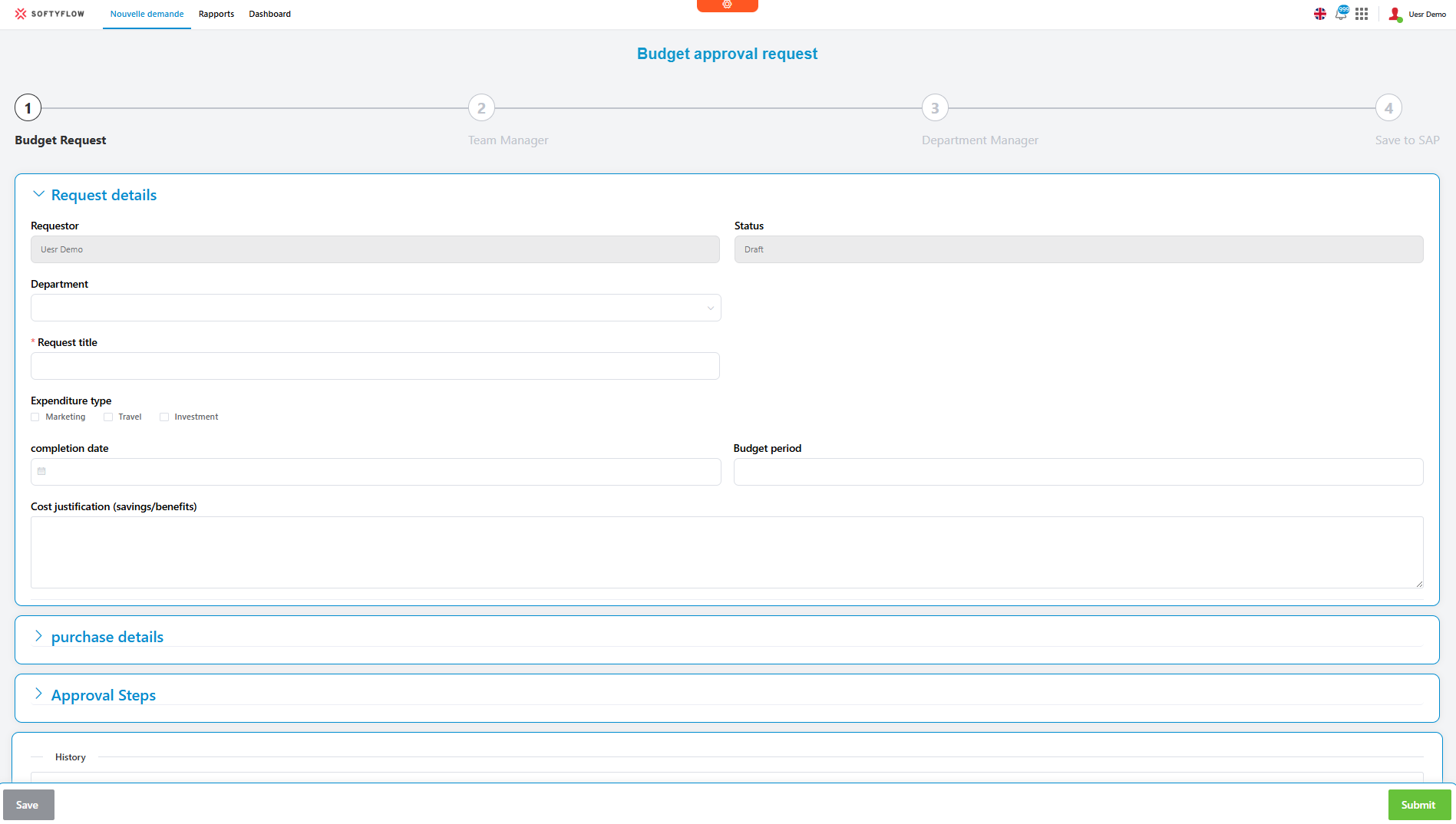
An example of the view interface for access control and security settings.
Audit logs and monitoringDirect link to Audit logs and monitoring
Use logs to follow form submissions and process runs. Read the log guide to find events and the monitoring guide to inspect a run.
What's Tracked
User actions (form submissions, task approvals, deployments).
API calls (including inputs, outputs, status codes).
Workflow executions and scheduled jobs.
Changes made to forms, processes, reports, or settings.
Where to View Logs
Open Monitoring > Run to view activity logs.
Each workflow, task, or API call includes a detailed log tab with:
Execution status (success/failure).
Timestamps.
Triggering user or system.
Input/output payloads.
Error messages (if any).
Filter logs by TEST, UAT or PROD. Export JSON or CSV files when you need to review them in another tool.
External Monitoring
You can enable integrations with observability tools like Datadog, New Relic, or Splunk.
Export logs in real-time via webhooks or periodic batch exports.
Use these tools for alerting, dashboarding, and SLA monitoring.
Use these records to find errors and share the details with the team investigating them.

The audit logs view for monitoring user and system activities.
Version control and deployment historyDirect link to Version control and deployment history
Use the version history to review changes to these items:
User Forms created with our web interface design tools.
Processes built with the process modeler.
Collections and APIs.
Compare two versions to see what changed. Tag a release so you can find it later. Restore a prior version if you need to undo a change.
Saving a change creates a new version. Use the history to:
Find changes by date, user or environment.
Compare current and previous versions side by side.
Give a release a name.
Restore a stable version if you find an issue.
How to Deploy a New Version
Make changes in TEST or UAT. Follow the test and deploy guide.
Save and review the new version in the editor.
Tag the version if needed (e.g., "Release 1.4").
Publish to PROD with the Deploy action.
Check the logs to see whether the release passed.
Rollback at Any Time
If something breaks after deployment:
Go to the version history of the affected item.
Select a previous stable version.
Click "Restore" to immediately roll back.
Confirm the rollback is applied in the PROD environment.
Check the rollback in the logs and verify the restored application. See the monitoring guide for the next steps.
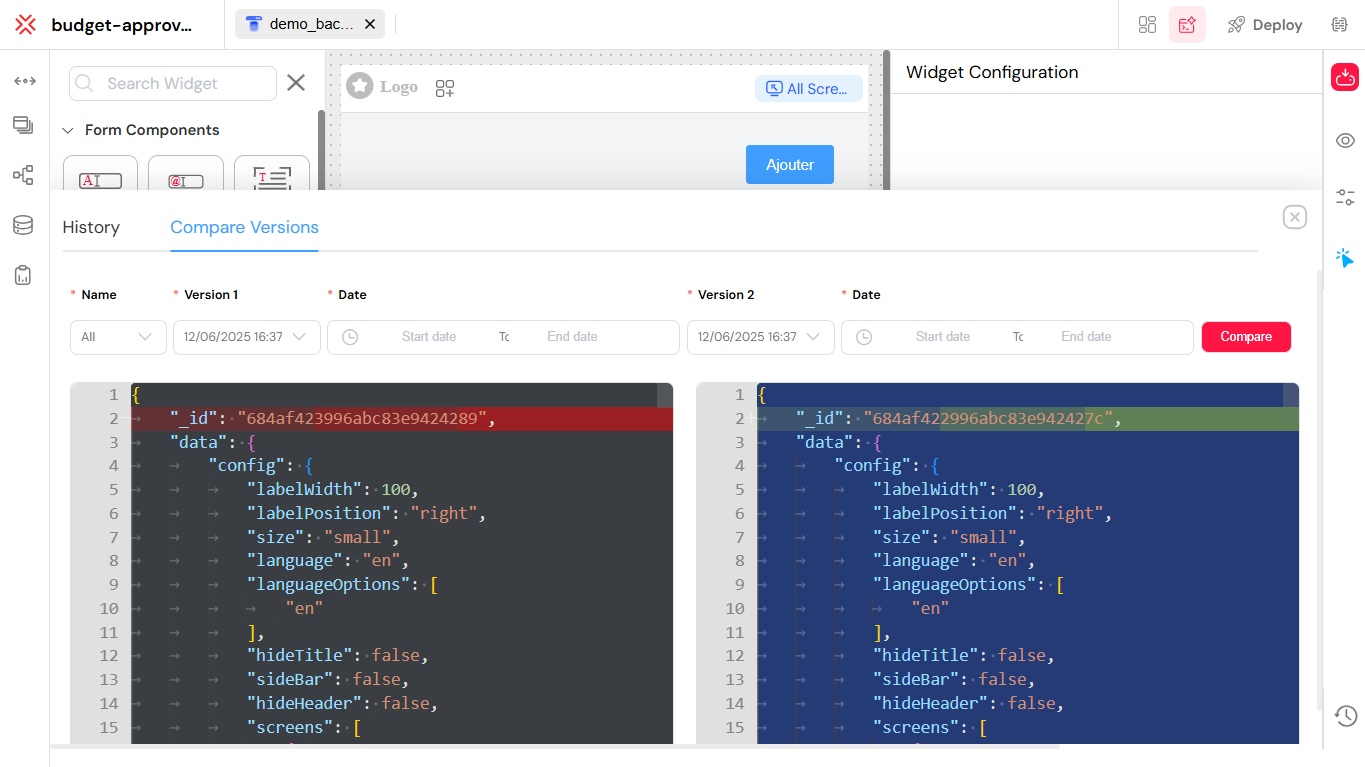
The interface for viewing version control history and comparing deployments.
Next StepsDirect link to Next Steps
Ready to dive deeper? Explore these resources:
- Core Concepts - Understand the fundamental principles behind Softyflow.
- Tutorials - Follow step-by-step guides to build your first applications.
- Project Setup - Get your development environment ready.
- Web Interface Design - Learn to create beautiful, responsive interfaces.
- Process Design - Master workflow automation with BPMN.
- Video Tutorials - Watch our comprehensive video guides.
For technical references, check out our SDK documentation, Web Modeler SDK, and Node.js integration guide.
Stay up to date with the latest features in our release notes.
More referencesDirect link to More references
- Files and PDF generation: work with files and document templates.
- Home page redirection: choose the page shown after login.
- Database video guide: follow the database walkthrough.
- Release v7.1 and release v7.2: review changes for these versions.