Generate PDF
1. Introduction to PDF GenerationDirect link to 1. Introduction to PDF Generation
The Generate PDF module is a powerful feature that enables the creation of dynamic, data-driven PDF documents. These documents can be populated with variables and dynamic tables, making them ideal for generating reports, invoices, certificates, and more. PDFs can be generated within both the Process Modeler and the Web Modeler, providing flexibility for various use cases.
2. Creating a PDF TemplateDirect link to 2. Creating a PDF Template
The first step is to design a reusable template. This template defines the structure, layout, and static content of your PDF.
To begin, navigate to the PDF section and click the Create a PDF button.
2.1. The PDF Editor InterfaceDirect link to 2.1. The PDF Editor Interface
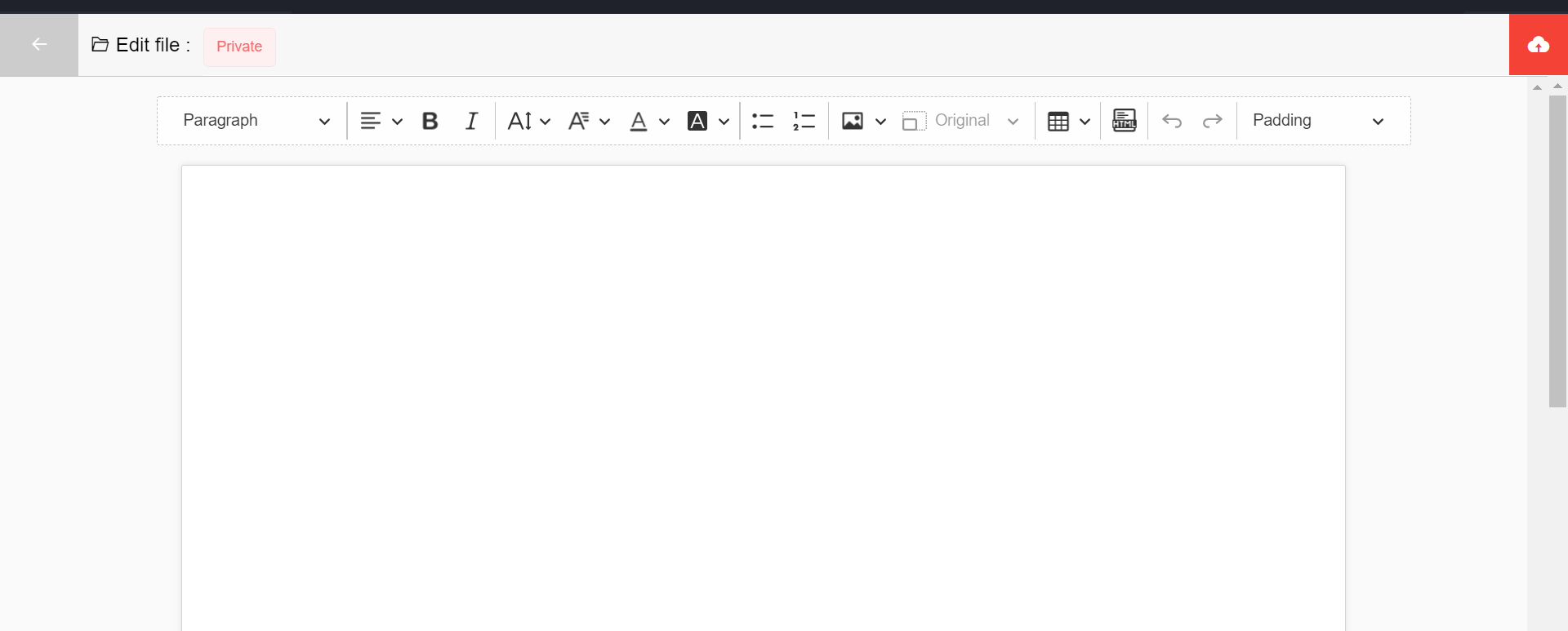
The editor is composed of two main parts: a toolbar at the top and the main editing canvas below.
2.1.1. Toolbar ExplainedDirect link to 2.1.1. Toolbar Explained
The toolbar provides all the necessary tools for designing your template:
- Padding: Adjust the space between the content and the page border.
- Top, Bottom, Left, Right: These CSS-based properties control the padding for each side of the template.
- Insert Table: Allows you to add a table with a specified number of rows and columns.
- Insert Image: You can embed images either from a URL or by uploading a file from your local machine.
- Insert HTML: For advanced users, this opens an editor to insert custom HTML elements directly into the template.
- Text Styling: A rich set of options for formatting text:
- Headings (H1, H2, etc.)
- Text alignment (left, center, right)
- Emphasis (Bold, Italic)
- Font properties (size, family, color, and background color).
- List Types: Add ordered (numbered) or unordered (bulleted) lists.
2.1.2. Editing CanvasDirect link to 2.1.2. Editing Canvas
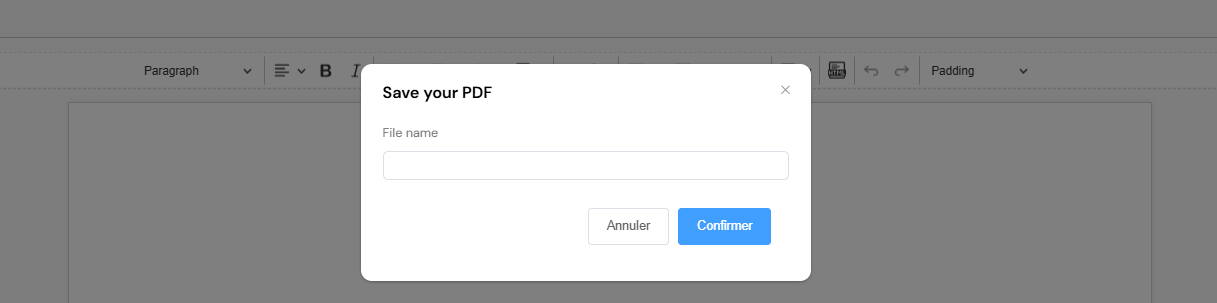
This is the main area where you build your template. Before you start, it's essential to save your work and give the template a descriptive name.
3. Dynamic Content with EJSDirect link to 3. Dynamic Content with EJS
To make templates dynamic, the editor uses Embedded JavaScript (EJS) syntax. This allows you to inject data into the PDF when it's generated. You can find comprehensive documentation on the official EJS website.
3.1. Using VariablesDirect link to 3.1. Using Variables
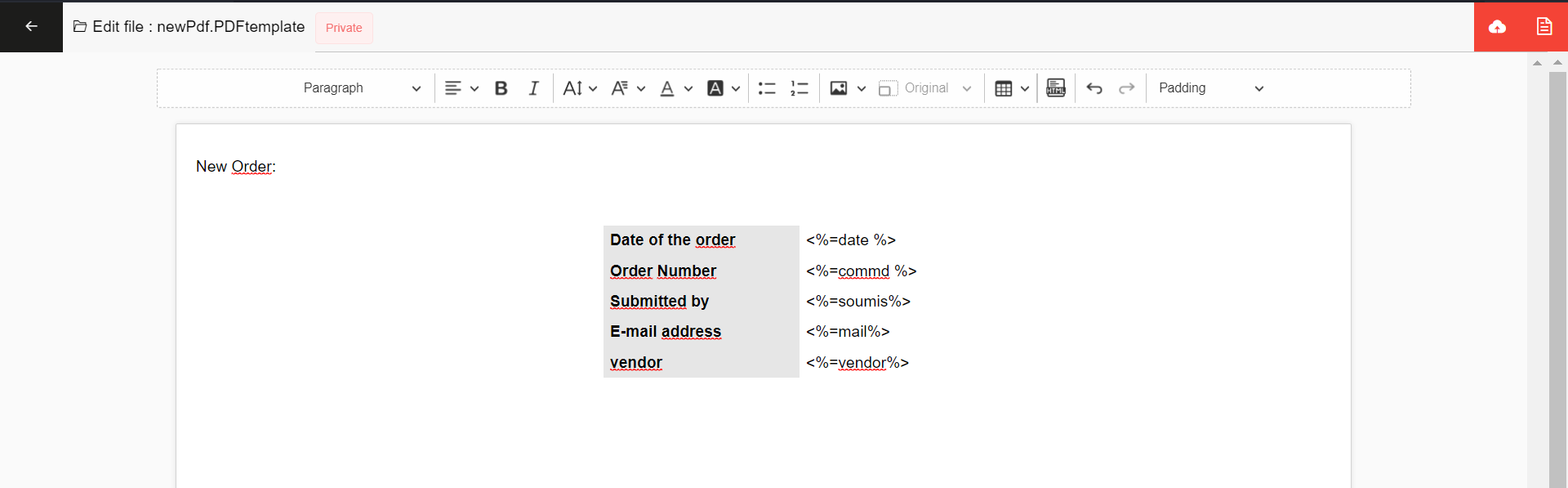
The most basic way to add dynamic content is by inserting variables. The syntax is straightforward:
<%= varName %>
Any variable passed to the generator can be referenced this way.
3.1.1. ExampleDirect link to 3.1.1. Example
Imagine you have an object with user data. Your template could look like this:
Name : <%=name%>
Age : <%=age%>
Country : <%=country%>
When the PDF is generated, <%=name%>, <%=age%>, and <%=country%> will be replaced with the actual values you provide.
3.2. Live Preview and TestingDirect link to 3.2. Live Preview and Testing
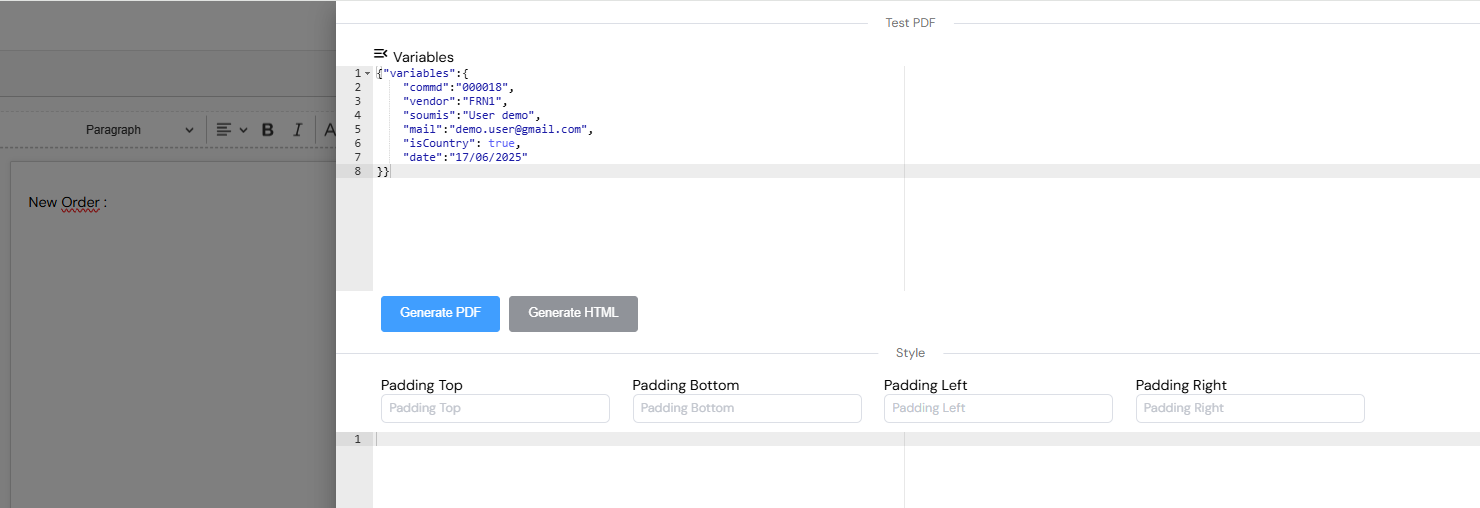
You can test your template without leaving the editor. Click the test icon in the top-right corner to open the Variables pop-up. Here, you can enter sample data for your variables and click Generate PDF to see a live preview.
4. Advanced TemplatingDirect link to 4. Advanced Templating
Beyond simple variables, you can implement more complex logic, such as dynamic tables and conditional rendering.
4.1. Dynamic TablesDirect link to 4.1. Dynamic Tables
To populate a table with data from an array, you can use a special syntax. First, insert a table with at least two rows: one for the header and one for the data row template.
4.1.1. Example 1: Basic TableDirect link to 4.1.1. Example 1: Basic Table
| ID | Name | Age |
|---|---|---|
| #:tableData:# <%=row.id%> | <%=row.name%> | <%=row.age%> |
Let's break down this syntax:
#:tableData:#: This special tag identifies the data source for the table.tableDatashould be the name of an array of objects you provide. The tag must be enclosed in#: : #.<%=row.id%>: This is standard EJS syntax. The editor iterates over thetableDataarray, and for each item, it assigns it to a variable namedrow. You can then access the properties of each object (e.g.,row.id,row.name).
The row variable represents a single item from your data array during the loop. You can use it to access any property of the item.
4.1.1.1. Expected ResultDirect link to 4.1.1.1. Expected Result
Given an array of user objects, the table will dynamically generate a row for each user.
| Id | Name | Age |
|---|---|---|
| 1 | Adam | 50 |
| 2 | Sami | 35 |
| 3 | Ayoub | 10 |
Rendered table from the dynamic template.
4.1.2. Example 2: Table with CalculationsDirect link to 4.1.2. Example 2: Table with Calculations
You can perform calculations directly within your template. For instance, you can calculate the maximum and minimum age from the table data.
| ID | Name | Age |
|---|---|---|
| #:tableData:# <%=row.id%> | <%=row.name%> | <%=row.age%> |
| Max Age | <%=Math.max(...tableData.map(item => item.age))%> | |
| Min Age | <%=Math.min(...tableData.map(item => item.age))%> |
4.1.2.1. Expected ResultDirect link to 4.1.2.1. Expected Result
| Id | Name | Age |
|---|---|---|
| 1 | Ayoub | 50 |
| 2 | Adam | 35 |
| 3 | Sami | 10 |
| Max Age | 50 | |
| Min Age | 10 | |
A dynamic table that includes calculated summary rows.
4.2. Custom Logic and WidgetsDirect link to 4.2. Custom Logic and Widgets
The full power of EJS allows you to create custom structures and conditional logic that go beyond the built-in toolbar widgets.
4.2.1. Example 1: Looping to Create ListsDirect link to 4.2.1. Example 1: Looping to Create Lists
You can iterate over an array to display data in a custom format, such as a list:
<% for (const item of data) { %>
  Name: <%= item.name %>
<% } %>
4.2.2. Example 2: Conditional RenderingDirect link to 4.2.2. Example 2: Conditional Rendering
You can use if conditions to show or hide parts of the template based on a variable's value:
<% if (isInStock) { %>
  Product Name: <%= item.name %> is available!
<% } %>
5. Using Your PDF TemplateDirect link to 5. Using Your PDF Template
Once your template is saved, you can generate PDFs in several ways:
5.1. Via an ActionDirect link to 5.1. Via an Action
Both the Process Modeler and the Web Modeler support a dedicated action for PDF generation.

To configure it, select PreviewPDF: (Generate PDF) from the list of actions. You will need to specify:
- Dump var: The variable that will store the generated PDF data.
- Template Name: The name of the PDF template you created.
- Context: An object containing the values for all the variables used in your template.
5.2. Via a Function (API Call)Direct link to 5.2. Via a Function (API Call)
For more programmatic control, you can call the PDF generation API directly from a script.
async function generateMyPdf() {
  const templateID = "YOUR_TEMPLATE_ID"; // The ID of your template
  const variables = {
    variables: {
      tableData: [
        { id: 3, name: "Saad", age: 10 },
        { id: 2, name: "Ahmed", age: 35 },
        { id: 1, name: "Fouad", age: 50 },
      ],
      country: "US",
      command: "000018",
      isExist: true,
      date: "08/05/2022",
    },
  };

  try {
    const response = await axios.post(
      `https://your-instance.softyflow.io/api/v1/files/generate/content/${templateID}`,
      variables
    );
    const pdfLink = `https://your-instance.softyflow.io/uploads/${response.data._id}/name/${response.data.filename}.pdf`;
    console.log("PDF generated successfully:", pdfLink);
    return pdfLink;
  } catch (error) {
    console.error("Error generating PDF:", error);
  }
}
Remember to replace your-instance.softyflow.io with your actual instance URL.