Users Management
User management in Softyflow is a centralized hub that gives you full control over how people access and interact with the platform. From here, you can create, update, or remove users, assign them to specific roles with granular permissions, define custom metadata to categorize and filter users, and configure delegation rules to ensure that business processes continue to run smoothly even when users are unavailable.
A well-managed user base is the foundation of a secure and efficient Softyflow environment. Before you begin, it's highly recommended that you familiarize yourself with the authentication system to understand how users log in, and that you have configured your global platform settings to match your organization's policies.
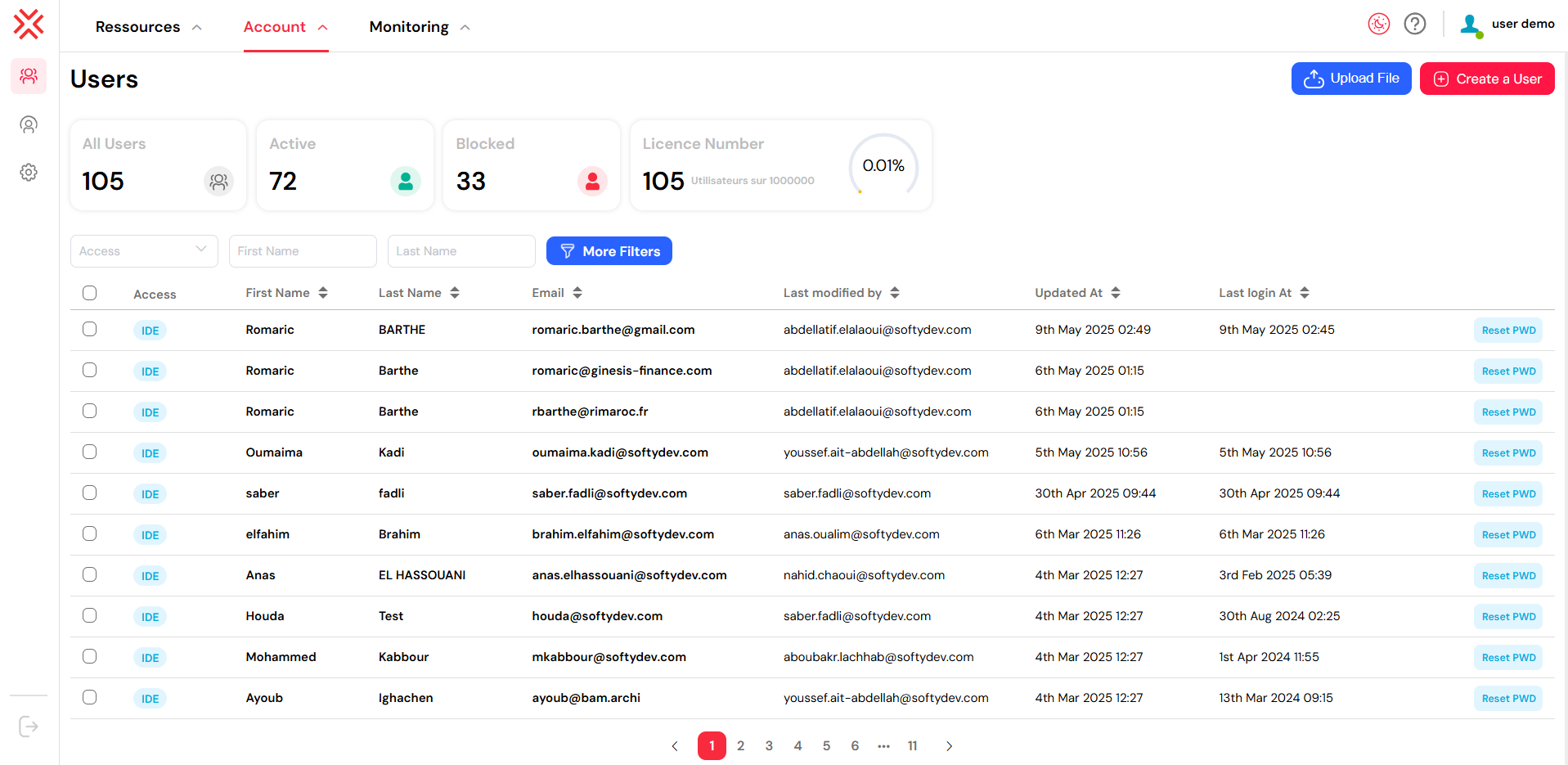
1. Available LicencesDirect link to 1. Available Licences
Softyflow operates on a user-based licensing model, where each active user account consumes one license from your available quota. This system ensures that you only pay for the number of users who are actively using the platform. The Licence Number indicator, prominently displayed at the top of the Users page (under Account → Users), provides a real-time overview of your license consumption, showing how many active user licenses are currently in use out of your total quota.
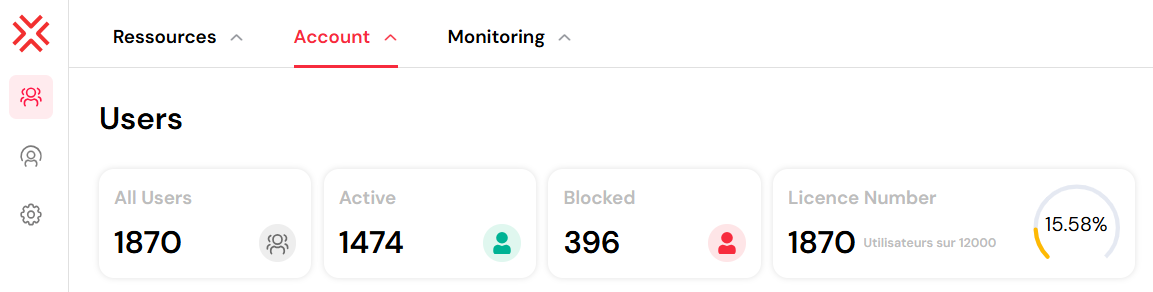
Example: If your organization has a license for 12,000 users and you currently have 1,870 active accounts, the usage indicator will show that you are using 15.58% of your total capacity. This allows you to plan for future growth and avoid service disruptions.
From the user management dashboard, you can:
- Monitor the precise number of active, blocked, and total users at a glance.
- Track your real-time license usage under the Licence Number section to stay informed about your consumption.
⚠️ License Optimization Tip: To make the most of your available licenses, we recommend regularly reviewing and deleting or deactivating unused accounts. Simply blocking a user may not release a license, as blocked users can still be counted against your total quota depending on your specific configuration.
2. Create a UserDirect link to 2. Create a User
Creating a new user in Softyflow is a straightforward process that allows you to quickly onboard new team members and grant them the appropriate level of access.
To create a new user, follow these steps:
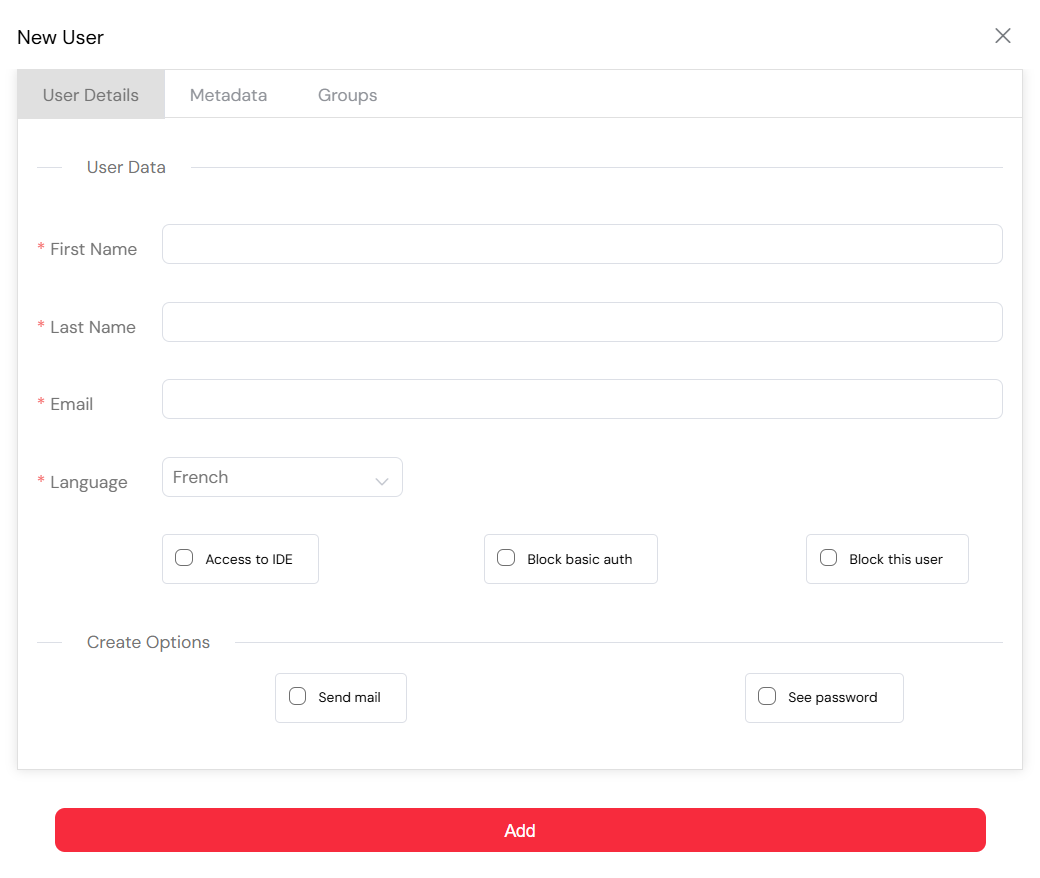
From the user management dashboard, click the Create a User button, located at the top right of the page. This will open a dedicated form where you can define all the user-specific settings.
In the User Details tab, you will need to fill in the following information:
- Email: The user's email address, which serves as their unique identifier for logging in.
- First Name / Last Name: The user's full name, which will be displayed throughout the platform.
- Default Language: The language in which the user will experience the Softyflow interface.
- Access to IDE: Grant access to the Integrated Development Environment (IDE), which is required for users who will be involved in project development.
- Block User: This option allows you to create a user account but keep it temporarily disabled.
- Send Welcome Email: If checked, Softyflow will automatically send a welcome email to the user with instructions on how to log in, using the configured mail providers.
- View Password: A temporary password can be generated and viewed here.
Next, you can use the additional tabs to further refine the user's profile:
- Metadata: Assign custom data fields that have been configured in the platform settings, such as the user's department, role, or geographical region.
- Groups: Add the user to one or more predefined user groups to grant them a set of permissions all at once.
Once you have filled in all the required information, click the Add button to finalize the user creation process. The new user will then appear in the global list of users and will be able to start accessing web interfaces and processes according to the roles and permissions they have been assigned.
3. View & Search for UsersDirect link to 3. View & Search for Users
The user management interface, available at /ide/users, provides a comprehensive dashboard where you can view, filter, and manage all registered user accounts within your Softyflow workspace.
This central list displays key attributes for each user, including their name, email address, IDE access rights, current status (active or blocked), and last login date. This at-a-glance information allows administrators to easily monitor user activity, quickly identify inactive accounts, and spot any potential configuration issues.
To find specific users, you can use the powerful search bar and column filters. You can locate users by their first name, last name, or email address, and the filtering system supports multi-criteria queries, which makes it easy to perform targeted audits or manage users in bulk.
When you click on any user row, a side panel will open, displaying the user's full profile. From there, you can update their information, assign them to different roles or groups, or configure delegations.
This dynamic and centralized view is designed to make it simple to track the status of all users, perform security audits, and efficiently onboard new team members. For a complete audit trail, all user activities are also tracked in the system logs.

4. Update a UserDirect link to 4. Update a User
Updating a user's profile in Softyflow is a simple and intuitive process, allowing administrators to modify various aspects of a user's account to reflect changes in their roles, responsibilities, or personal information.
To update a user, follow these steps:
- Navigate to the user management interface at
/ide/usersand locate the user you wish to update. You can use the search and filter functions to quickly find the right account. - Click on the user's row to open the side panel, which provides a comprehensive view of their information and settings.
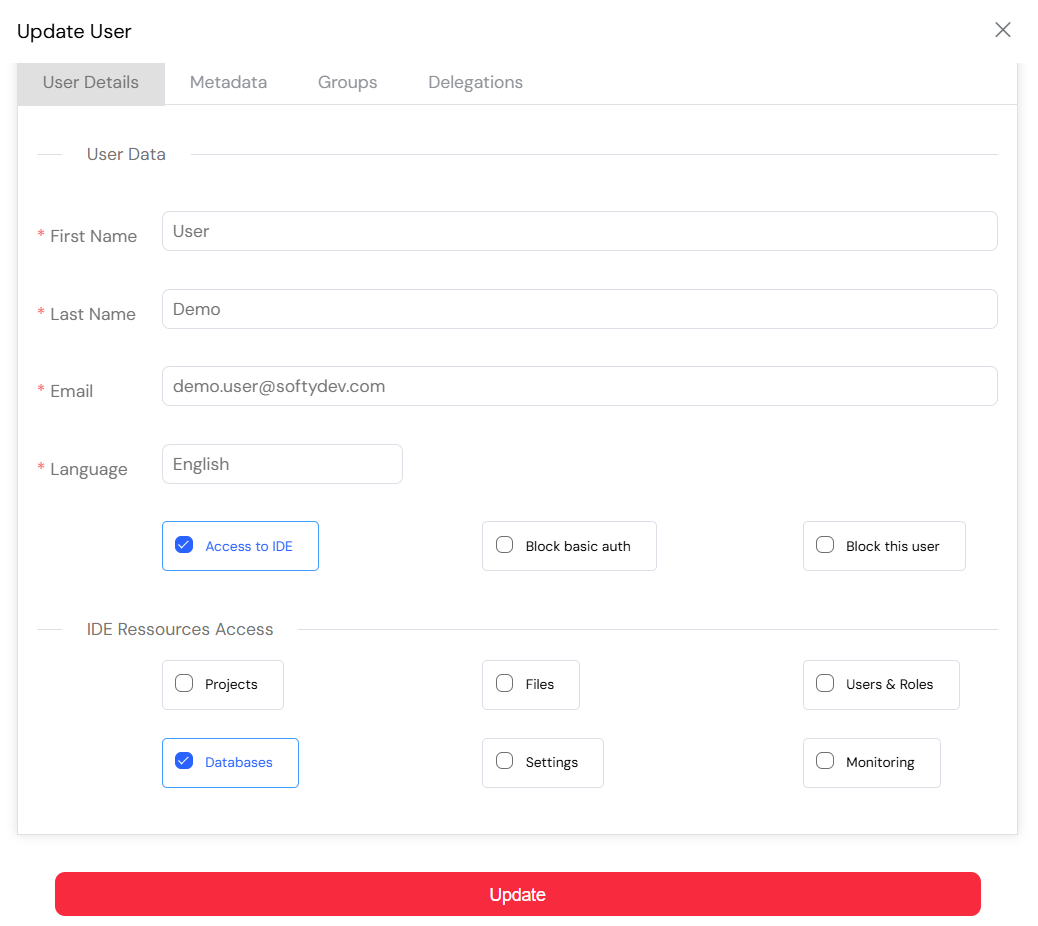
- Within this panel, you will find several tabs, each dedicated to a specific aspect of the user's profile:
4.1. General InformationDirect link to 4.1. General Information
In this section, you can edit the user's basic details, such as:
- Email address: This must be unique for each user and is used for authentication.
- First and Last Name: Used for display purposes across forms and processes.
- Default language: Sets the localization for the user's platform experience.
This section is crucial for ensuring that the user's profile remains consistent with your internal directory or HR information system.
4.2. MetadataDirect link to 4.2. Metadata
Here, you can add or update custom metadata attributes, such as:
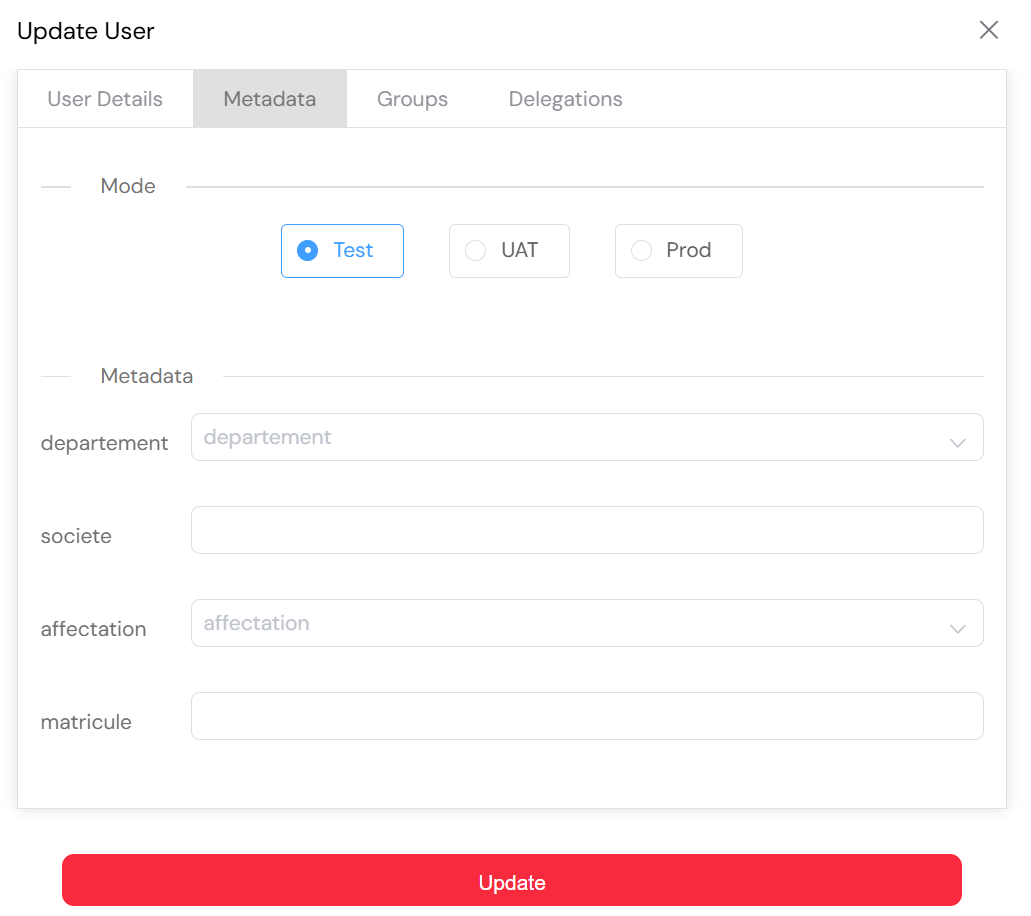
- Department, Company, Assignment, or Employee ID.
- These values can be used to filter data, restrict access to certain resources, or drive conditional logic in your web interfaces and process workflows.
- Metadata values are scoped by environment (e.g., TEST, UAT, PROD), which is essential for effective deployment management.
Administrators have the flexibility to define metadata types and their possible values in the Settings → Metadata section.
4.3. Roles or GroupsDirect link to 4.3. Roles or Groups
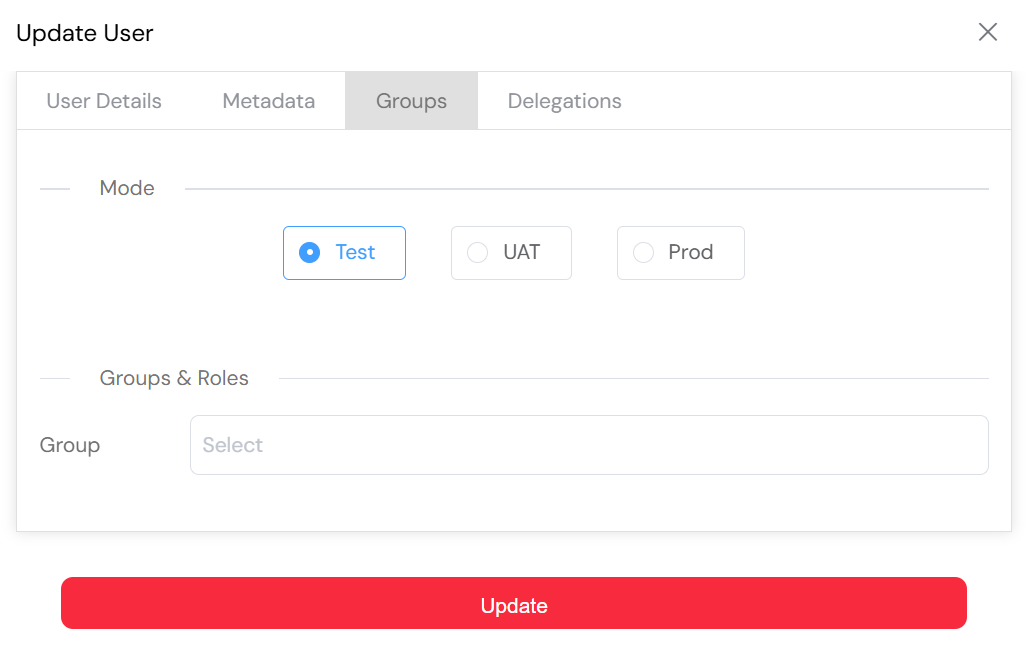
In this tab, you can assign the user to one or more roles or groups:
- Roles define what a user is allowed to do by granting them specific permissions and controlling their visibility over platform resources.
- Groups allow you to manage user access to applications at a broader level.
- Both roles and groups are environment-dependent, meaning a user can have different permissions in TEST, UAT, and PROD environments.
This granular control is key to tailoring the user experience and enforcing your organization's internal governance policies.
4.4. DelegationsDirect link to 4.4. Delegations
Delegation in Softyflow is a powerful feature that ensures process continuity when a user is unavailable, on leave, or needs to temporarily transfer their responsibilities. Instead of manually reassigning every task in the monitoring view, you can configure automated delegation rules to redirect a user's actions to a designated substitute.
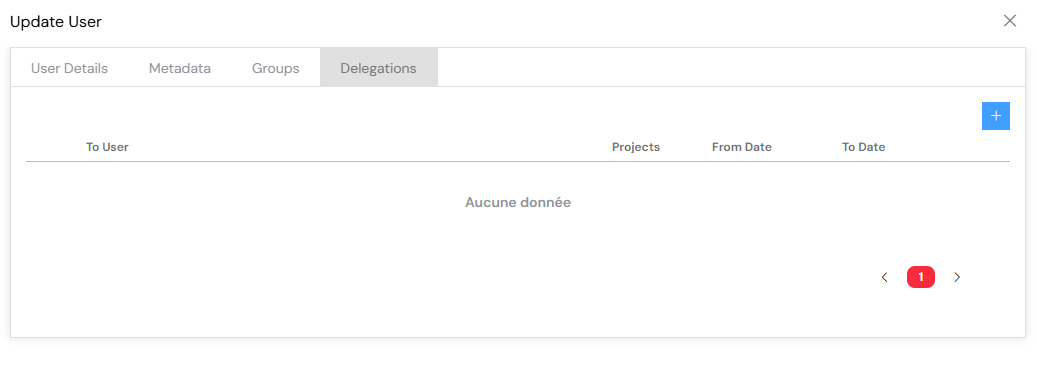
Delegation settings are configured on a per-user basis and can be customized with the following controls:
- Delegate to another user: Choose a substitute who will take over the user's assigned tasks for the duration of the delegation period.
- Effective dates: Define a start and end date to restrict the delegation to a specific time frame, which is particularly useful for planned absences like vacations.
- Delegated scope: You can choose whether the delegation should apply to all processes or be limited to only a selection of workflows.
Example: A team manager who is going on leave can delegate their approval rights to a deputy for the "Leave Request" process only, from August 10 to August 20.
Delegations can be created or updated from the Delegation tab in the user's profile. Once configured, they are automatically enforced by the Softyflow engine during process execution and are tracked in the monitoring logs for full transparency.
This mechanism significantly improves business resilience, ensures the timely handling of tasks, and prevents bottlenecks from forming in your critical workflows.
After making any updates to a user's delegation settings, remember to click Save to apply the changes and activate the new delegation rule.
5. Deleting a UserDirect link to 5. Deleting a User
When a user no longer requires access to Softyflow, you can remove their account by following a secure and structured process that is designed to prevent any disruption to your business operations.
⚠️ Critical: Before deleting a user, it is essential to configure a delegation to transfer any of their pending tasks, approvals, or other responsibilities to another user. This step is crucial to prevent process disruption and ensure business continuity.
To delete a user, follow these steps:
- Navigate to
/ide/usersand locate the account you wish to remove. - Click on the user's profile to open their side panel.
- First, block the user. This will immediately revoke their access and prevent them from logging in or making any changes while you manage the transition.
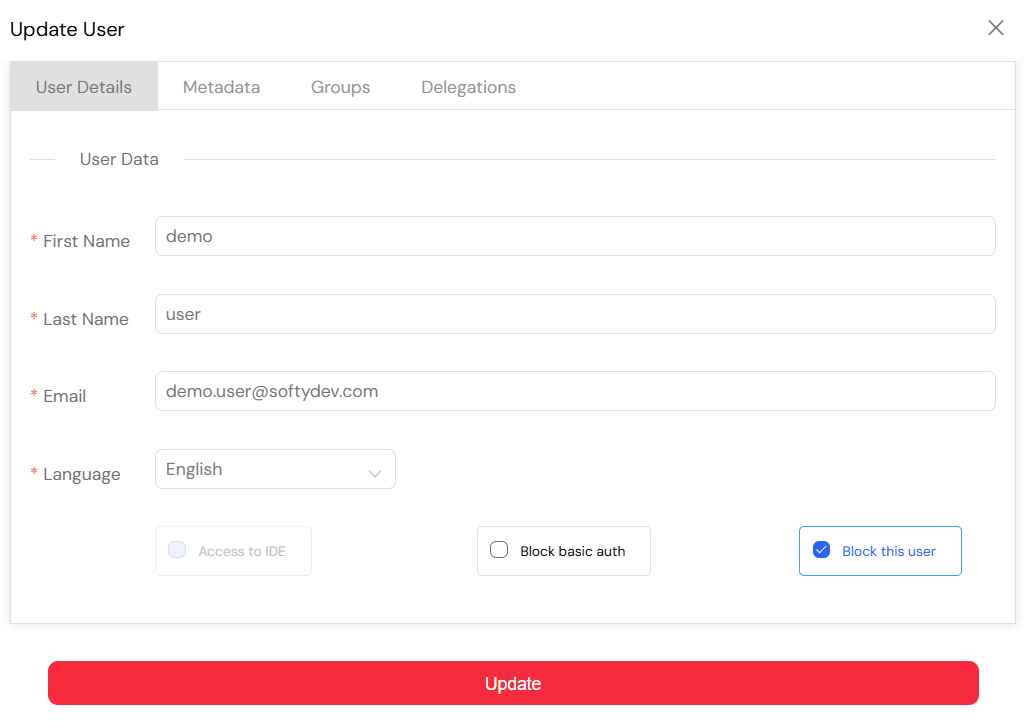
- Review and configure the user's delegation settings if you have not already done so. This is especially important if the user is the owner of any active process instances.
- Once you have verified that all responsibilities have been transferred, click the Delete User button to initiate the removal process.

- Confirm the action when prompted.
Upon confirmation, the user's account and all their associated access rights will be permanently deleted from the platform. This action is irreversible and will be recorded in the system logs for auditing purposes.
Deleting users should always be done with caution. The best practice is to first block the user, then transfer their responsibilities, and finally, ensure that all their pending tasks are either reassigned or completed before you proceed with the deletion.
This approach will keep your workflows secure and guarantee that all operational handovers are both smooth and traceable.
6. IDE RightsDirect link to 6. IDE Rights
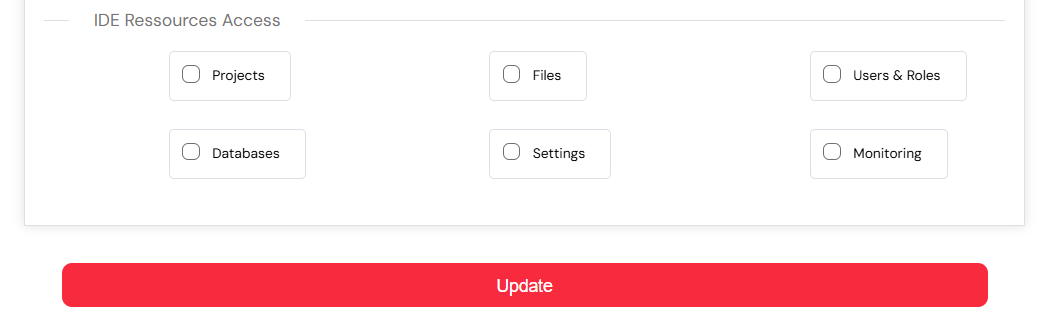
Softyflow employs a user-based licensing system, where each license is tied to a single user account. When you create a new user and grant them access to the IDE, you are allowing them to interact with the application builder. However, simply granting IDE access is not enough; you must also specify which parts of the IDE they are allowed to access, such as Projects, Files, Databases, Monitoring, and more.
This granular control is defined in the "IDE Resources Access" section, which you can access during user creation or while editing a user's profile by navigating to:
Users → Create a User → Access to IDE → IDE Resources Access
Next StepsDirect link to Next Steps
Now that you have a solid understanding of user management, you are ready to continue exploring the other administrative features of the Softyflow platform. Here are some recommended next steps:
- Role Management: Learn how to create and manage user roles and groups to define granular permissions.
- Authentication & SSO: Configure various login methods, including Single Sign-On (SSO), and set up your security policies.
- Settings: Dive into the platform settings to configure metadata, customize your branding, and more.
- Mail Management: Set up email providers and customize your email templates for notifications and other communications.
- System Logs: Discover how to monitor user activities and keep track of system events for auditing and troubleshooting.
- Home Redirection: Find out how to configure personalized home pages for your users to create a more tailored experience.
- Run & Instance Management: Learn how to monitor and manage your running process instances.
For those interested in development, it is also important to understand how user management integrates with the following areas:
- Web Interface Design: See how to create the user-facing interfaces that your users will interact with.
- Process Design: Learn how to design the workflows that your users will execute as part of their daily tasks.
- Test & Deploy: Understand how to deploy your applications for user testing and production.
- Monitor & Run: Get a deeper insight into monitoring user activities and process execution from a development perspective.