Mail Management
Email notifications are the backbone of modern workflow applications, facilitating everything from user approvals and task alerts to real-time system updates. Softyflow’s Mail Management hub centralizes the configuration of your email providers and templates, giving you a powerful and flexible system for automating communication.
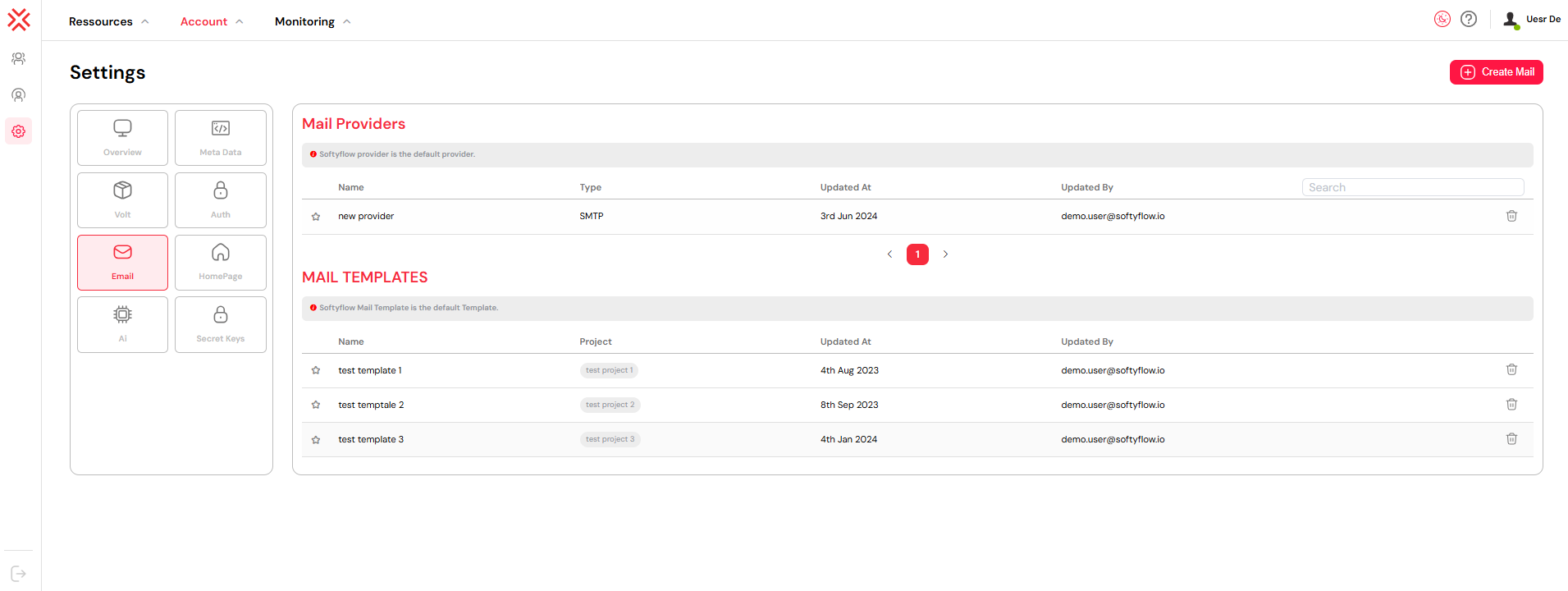
1. Configuring Mail ProvidersDirect link to 1. Configuring Mail Providers
Connecting an external SMTP provider gives you full control over how emails are sent from your Softyflow applications. This allows you to manage sender domains, track deliverability, and ensure compliance with your organization’s IT infrastructure.
To access the mail provider settings:
Navigate to Account → Settings → Email or go directly to /ide/mail-providers.
1.1. Creating a New Mail ProviderDirect link to 1.1. Creating a New Mail Provider
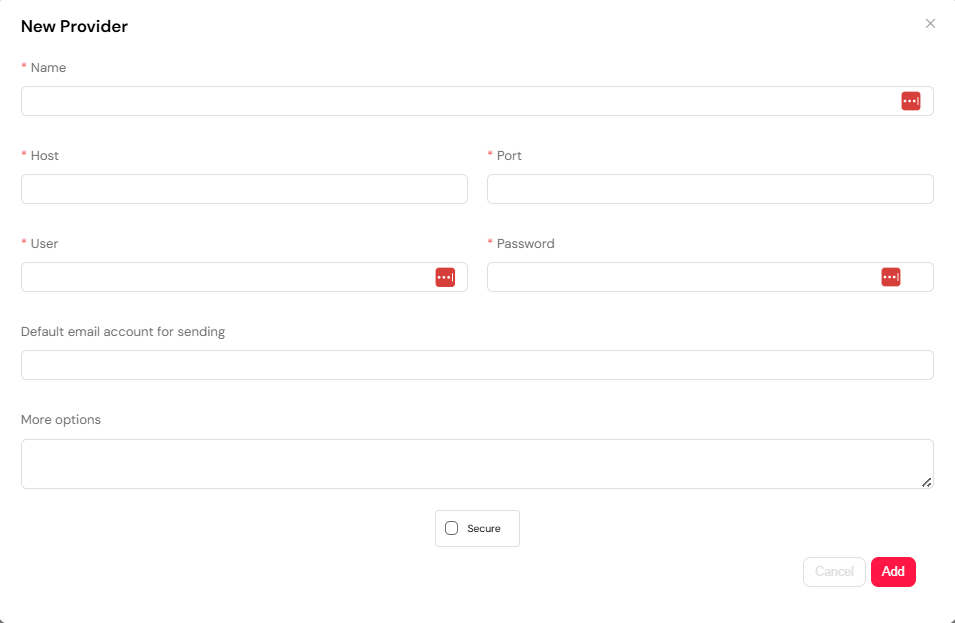
To add a new SMTP provider, click the Create Mail button and select Mail Provider. A dialog will appear where you can enter the connection details.
- Name: A unique internal name to identify this provider (e.g., "Transactional Mail" or "Marketing Mail").
- Host: The hostname or IP address of your SMTP server (e.g.,
smtp.example.com). - Port: The port used by the SMTP service. Common ports include
587(with TLS) or465(with SSL). - User: The username or email address for SMTP authentication.
- Password: The corresponding password. For enhanced security, it is highly recommended to store this credential in Softyflow Vault and reference it here.
- Secure: Enable this option if the connection requires TLS/SSL encryption (recommended for all production environments).
Once created, you can set a provider as the default for all outgoing mail by clicking the button next to its name in the list. If no default is set, Softyflow uses its built-in mail server as a fallback.
1.2. Common Use CasesDirect link to 1.2. Common Use Cases
A configured mail provider can be leveraged across the platform for various automated communications:
- Workflow Notifications: Send real-time email alerts when a task is assigned, escalated, or completed in a process workflow.
- Custom Email Alerts: Use the
sendEmailaction in process scripts or integration workflows to send dynamic messages, such as approval summaries or error reports. - Authentication Events: Automatically dispatch password reset links and account verification emails through your authentication system.
- Form Submission Confirmations: Acknowledge user interactions on web interfaces by sending immediate confirmation emails.
- System Monitoring: Configure email alerts for process errors or system-level issues using run monitoring.
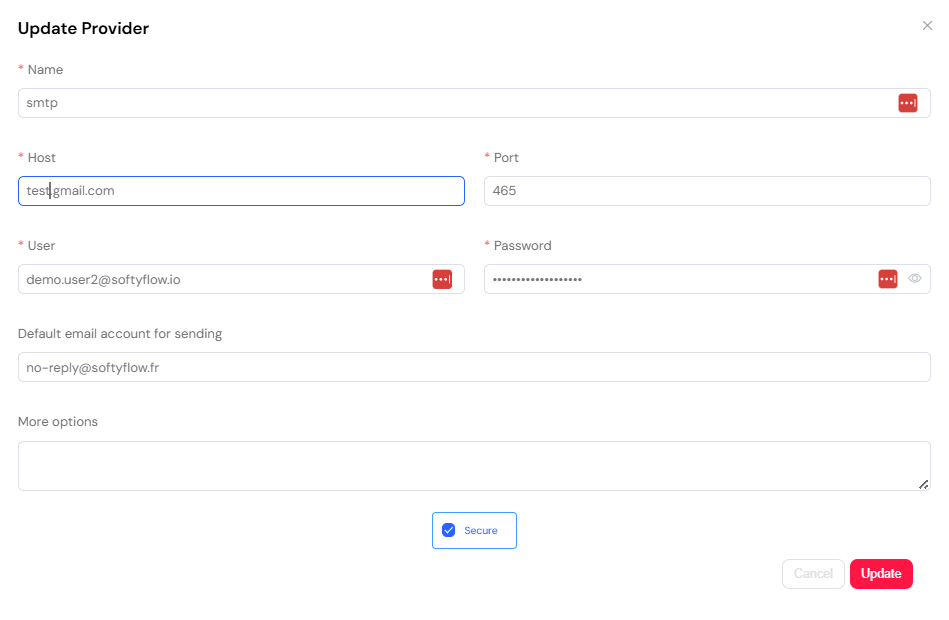
1.3. Updating a Mail ProviderDirect link to 1.3. Updating a Mail Provider
To modify an existing provider, simply click on it in the list to open its configuration. Make the desired changes and click Update to save.
1.4. Deleting a Mail ProviderDirect link to 1.4. Deleting a Mail Provider
To remove a mail provider:
- Navigate to Settings → Email.
- Click the trash icon next to the provider you wish to delete.
- Confirm the action when prompted.
You cannot delete a provider that is currently set as the default. You must first assign another provider as the default before deletion.
2. Creating Dynamic Mail TemplatesDirect link to 2. Creating Dynamic Mail Templates
Email templates are reusable layouts that standardize and accelerate your communication workflows. By combining static content with dynamic variables, you can create personalized and context-aware emails for any scenario.
2.1. Creating a New Mail TemplateDirect link to 2.1. Creating a New Mail Template
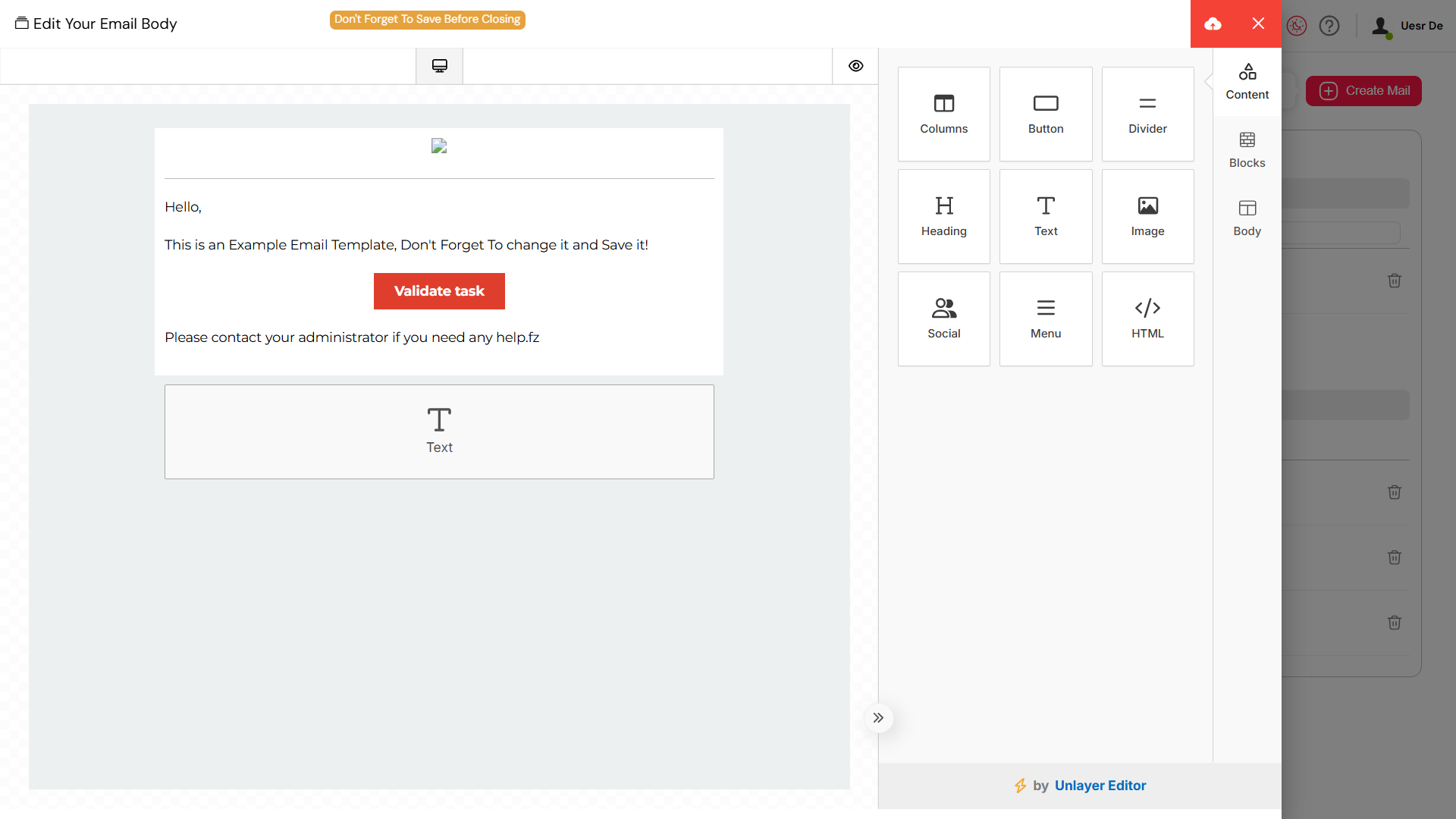
- Click the Create Mail button and select Mail Template.
- Define the template properties in the editor:
- Name: A unique internal name for easy identification (e.g., "WelcomeEmail" or "TaskAssignmentAlert").
- Subject: The email subject line. You can include dynamic variables here, such as
Hello, {{user.name}}!. - Body: The main content of the email, written in HTML. Use variables to inject dynamic data from your processes or user profiles.
- Variables: A list of placeholders available for use in the subject and body, which helps in designing and debugging the template.
2.2. Powerful Templating FeaturesDirect link to 2.2. Powerful Templating Features
Softyflow’s templating engine offers a range of features to create sophisticated and dynamic emails:
- Dynamic Variable Substitution: Use
{{variable_name}}syntax to insert data from various sources. For nested objects, use dot notation (e.g.,{{task.assignee.email}}). - Rich User Context: Automatically access data from the recipient's user profile, such as their name, email, or custom metadata.
- Process & Task Data: Inject contextual information from process workflows, including process variables, task details, and instance status.
- Role-Based Content: Although not a direct feature of the template itself, you can implement logic in your processes to send different templates based on user roles.
- Full HTML and CSS Support: Design visually rich emails that align with your brand identity. You can embed styles directly in the HTML for maximum compatibility with email clients.
2.3. Where to Use Mail TemplatesDirect link to 2.3. Where to Use Mail Templates
Templates are deeply integrated into the Softyflow platform and can be invoked from:
- Process Design: Assign templates to send automated notifications at different steps of a workflow.
- Web Interface Design: Trigger template-based emails upon form submissions or other UI events.
- User Management: Standardize welcome emails, account updates, and other user-related communications.
- Authentication: Customize password reset, email verification, and multi-factor authentication messages.
- Run Monitoring: Send formatted, easy-to-read error notifications to administrators.
By using templates, you ensure consistency, reduce development time, and maintain a professional look and feel across all automated email communications.
3. Advanced Topics and Best PracticesDirect link to 3. Advanced Topics and Best Practices
3.1. Monitoring and TroubleshootingDirect link to 3.1. Monitoring and Troubleshooting
Effective communication requires visibility into your email delivery. Softyflow provides tools to monitor and troubleshoot email operations:
- System Logs: The primary tool for tracking email activity. You can filter logs to see all outgoing email attempts, successful deliveries, and error messages from your SMTP provider. This is essential for diagnosing connection issues or authentication failures.
- Run & Instance Management: For emails triggered within processes, the run history provides context. You can configure alerts to send an email notification to an administrator if a process fails, ensuring that critical failures are addressed promptly.
- Provider Health: Regularly check the status and deliverability rates of your external SMTP provider through their own dashboards.
3.2. Security Best PracticesDirect link to 3.2. Security Best Practices
- Use Softyflow Vault: Never hardcode SMTP passwords directly in the provider settings. Store them as secrets in the Softyflow Vault and reference them in the configuration. This prevents exposing sensitive credentials in your application's metadata.
- Enable Secure Connection: Always enable the Secure option (TLS/SSL) when configuring an SMTP provider to encrypt email data in transit.
- Restrict Permissions: Use role-based permissions to control who can create and manage mail providers and templates.
By following these best practices, you can build a secure, reliable, and scalable email communication system within your Softyflow applications.