Home Page Redirection
Softyflow's home page redirection system is a powerful feature that transforms a generic landing page into a personalized dashboard tailored to each user's context. By automatically redirecting users to specific pages based on their roles, metadata, and custom-defined conditions, you can significantly enhance the user experience and streamline workflows.
OverviewDirect link to Overview
The system operates on a simple but effective principle: when a user accesses the default home page (/home), Softyflow evaluates a series of ordered rules. Each rule contains a JavaScript condition that is checked against the connected user's data. The first rule whose condition evaluates to true is executed, and the user is immediately redirected to the page specified in that rule. If no conditions are met, the user is sent to the default home page.
2. Comprehensive Configuration GuideDirect link to 2. Comprehensive Configuration Guide
Properly configuring redirection rules is key to creating a seamless user experience. Here’s how to do it.
2.1. Accessing the Redirection Settings PanelDirect link to 2.1. Accessing the Redirection Settings Panel
First, you need to navigate to the redirection management interface.
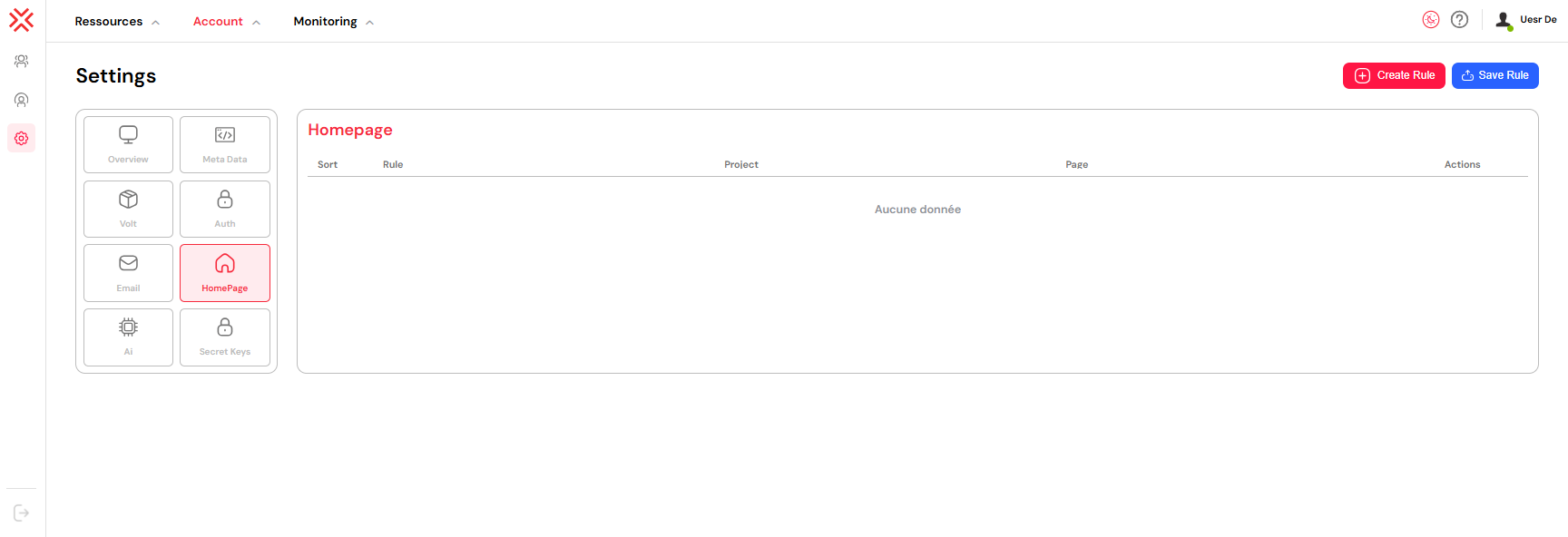
- Navigate to settings in the IDE
/ide/settings - Select Homepage from the settings panel
- View the Homepage section with redirection rules
2.2. Creating and Structuring Redirection RulesDirect link to 2.2. Creating and Structuring Redirection Rules
2.2.1. Initiate a New RuleDirect link to 2.2.1. Initiate a New Rule
To begin, add a new rule to the list.
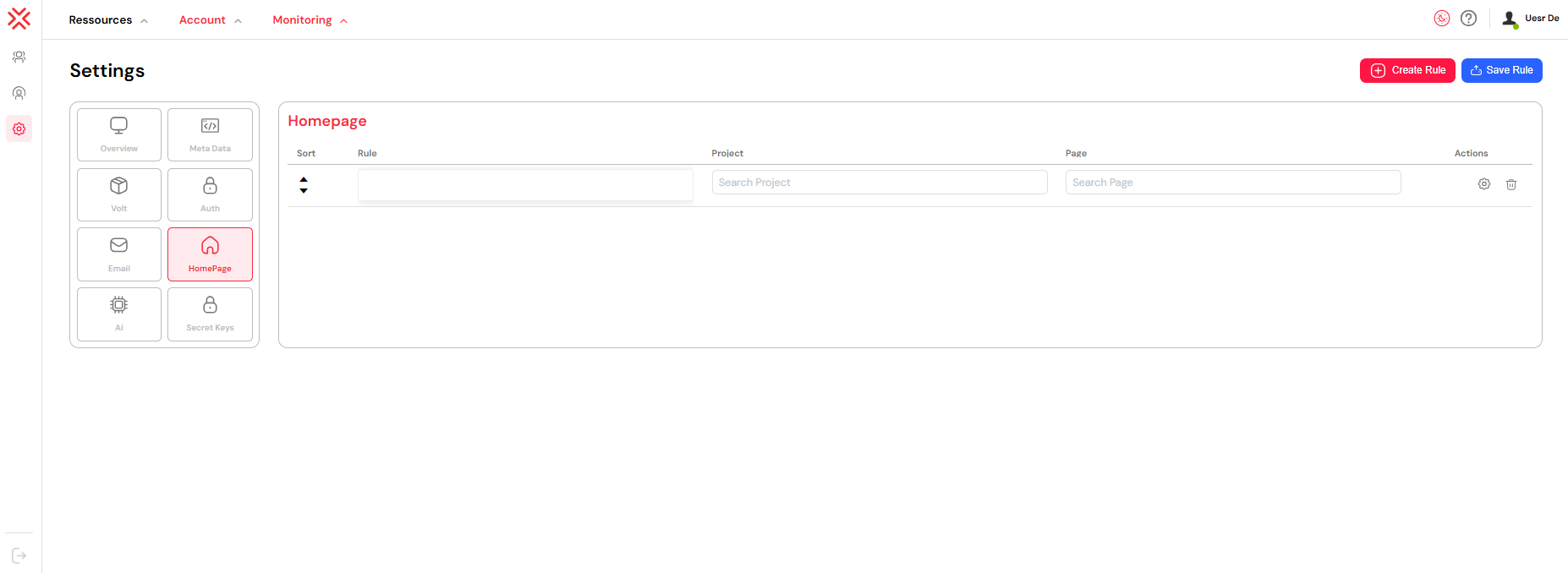
- Click the Create Rule button. A new, empty row will appear in the rules table.
- Click the Settings (gear) icon in the new row to open the configuration panel for that rule.
2.2.2. Define the Rule's ComponentsDirect link to 2.2.2. Define the Rule's Components
Each rule has three main parts that determine its behavior.
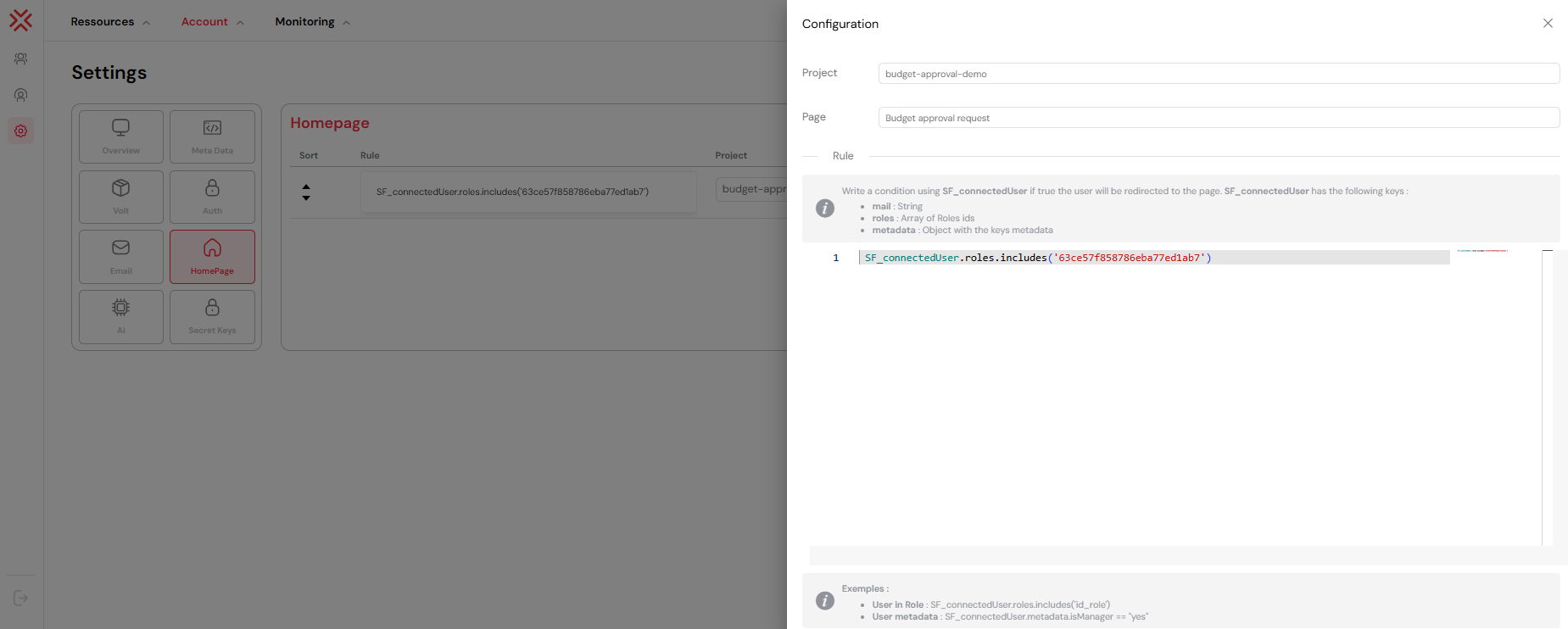
- Project Selection: First, choose the Project that contains your target page. This dropdown filters the available pages, making it easier to find the correct one.
- Page Selection: Next, select the target Page/Interface from the chosen project. This is the destination where the user will be sent if the rule's condition is met.
- Rule Condition: Finally, write a JavaScript expression that returns
trueorfalse. This expression has access to theSF_connectedUserobject, which contains all the information about the currently logged-in user, including their roles, metadata, email, and more.
2.2.3. Prioritize Your RulesDirect link to 2.2.3. Prioritize Your Rules
The order of rules is critical. Rules are evaluated sequentially from top to bottom. The first rule that matches the user's data will trigger the redirection, and all subsequent rules will be ignored.
- Use the up and down arrows in the Sort column to change a rule's priority.
- Place your most specific rules at the top of the list and more general, catch-all rules at the bottom.
3. Practical Rule ExamplesDirect link to 3. Practical Rule Examples
3.1. Basic Role-Based RedirectionDirect link to 3.1. Basic Role-Based Redirection
This is the most common use case: redirecting users based on their job function. Here, we redirect all users with the "Administrator" role to a dedicated admin dashboard.
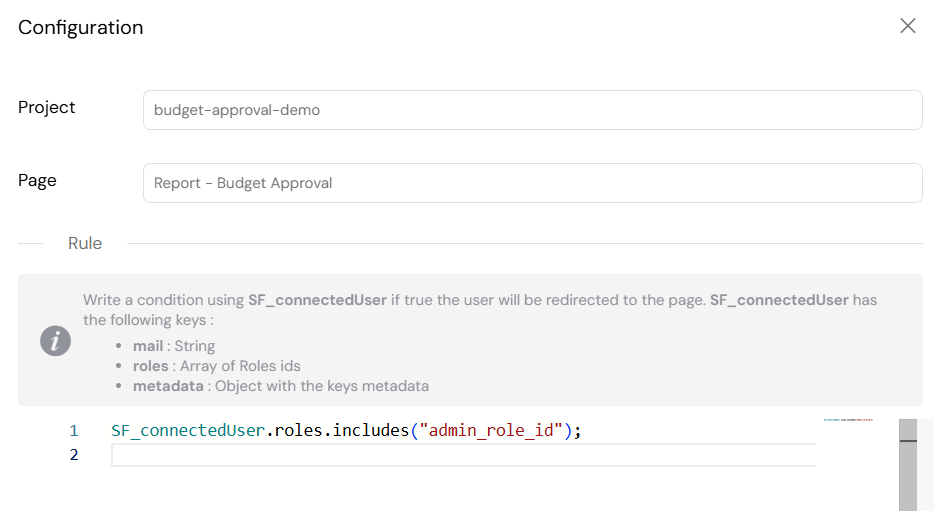
- Logic: The condition
SF_connectedUser.roles.includes('62d815e3e6056a53653496e1')checks if the user's array of roles contains the ID for the "Administrator" role. Always use Role IDs instead of names for stability.
3.2. Metadata-Based RedirectionDirect link to 3.2. Metadata-Based Redirection
You can create more granular logic by leveraging custom user metadata. For instance, you might want to redirect managers in the "Sales" department to a special sales analytics dashboard.
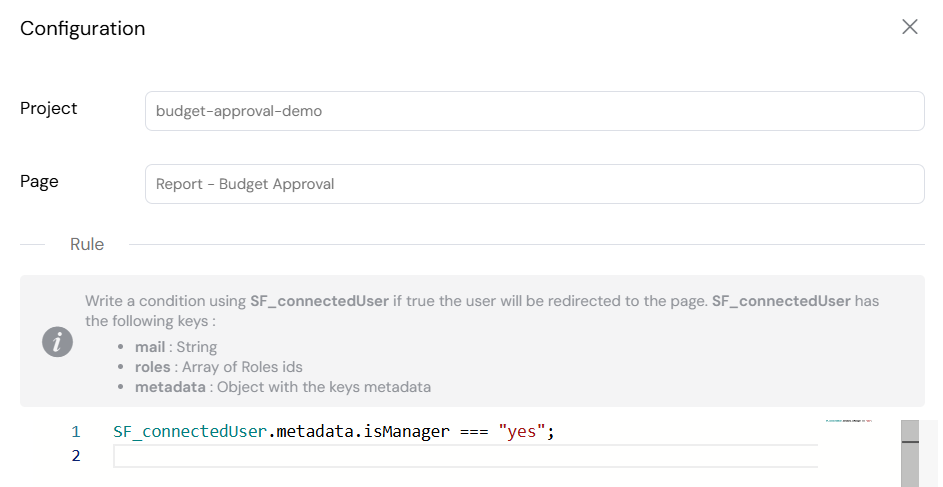
- Logic: The condition
SF_connectedUser.metadata.department === 'Sales' && SF_connectedUser.metadata.isManager === 'true'combines two metadata checks to target a very specific user group.
3.3. Email-Based Redirection for Specific UsersDirect link to 3.3. Email-Based Redirection for Specific Users
For exceptions or rules that apply to a single individual, you can use their email address.
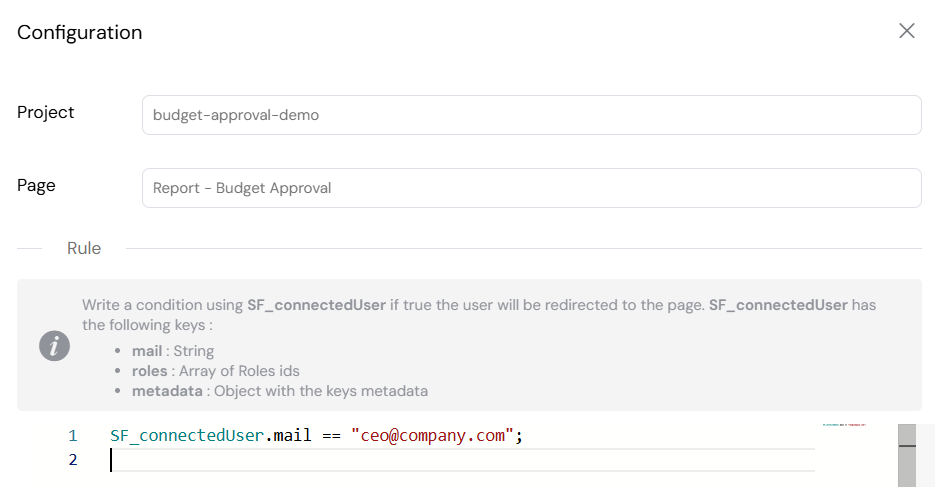
- Logic: The condition
SF_connectedUser.mail === 'specific.user@example.com'provides a direct way to handle one-off cases. This rule should be placed high in the priority list.
4. Best Practices for Rule ManagementDirect link to 4. Best Practices for Rule Management
4.1. Rule OrganizationDirect link to 4.1. Rule Organization
Order by Specificity: Always place more specific rules before general ones. A rule for a specific user's email should come before a rule for an entire department.
Use Descriptive Conditions: Write clear, readable conditions. This makes maintenance easier for you and your team.
// Good: Clear and self-documenting
SF_connectedUser.metadata.department === "Finance" &&
  SF_connectedUser.metadata.isManager === "yes";

// Bad: Cryptic and hard to maintain
SF_connectedUser.metadata.d === "F" && SF_connectedUser.metadata.m === "y";
Test Thoroughly: Use a test environment to verify that your rules work as expected for different user profiles before deploying to production.
4.2. Performance ConsiderationsDirect link to 4.2. Performance Considerations
- Minimize Rule Count: A few well-crafted, efficient rules are better than a long list of simple ones.
- Write Efficient Conditions: In complex
&&conditions, place the faster-evaluating or more restrictive checks first. This allows the expression to fail fast. - Avoid Heavy Operations: Conditions should be lightweight. Avoid making API calls, complex calculations, or heavy data processing within a rule.
4.3. Security GuidelinesDirect link to 4.3. Security Guidelines
Validate Data Existence: Never assume a metadata field exists. Always check for its presence before accessing its value to prevent errors.
// Safe: Checks for metadata and department
SF_connectedUser.metadata && SF_connectedUser.metadata.department === "IT";

// Risky: Will throw an error if metadata is undefined
SF_connectedUser.metadata.department === "IT";
Use IDs Over Names: Always reference roles by their unique ID, as names can change.
5. Troubleshooting Common IssuesDirect link to 5. Troubleshooting Common Issues
If a rule isn't working as expected, check the following:
- Rule Order: Is a more general rule placed before your specific rule, causing it to be ignored?
- Condition Syntax: Is your JavaScript syntax correct? Check the browser's developer console for errors during login or home page access.
- User Data: Does the user you are testing with actually have the roles and metadata required by the condition? Verify the user's profile in the user management section.
- Target Page: Does the page you are redirecting to still exist and is it accessible to the user?
By thoughtfully combining roles, metadata, and custom logic, you can transform Softyflow's home page into a dynamic and intelligent navigation hub that serves the unique needs of every user.