Authentication & SSO
Use Authentication & SSO to choose how users log in. Administrators can configure authentication methods, Single Sign-On (SSO) and password policies.
Authentication verifies a user's identity. Roles determine what that user can access in web interfaces and workflows. Review both settings when granting access.
Open Account > Settings > Auth. Before changing a sign-in method, check the required settings with your identity provider and test access with a designated account.
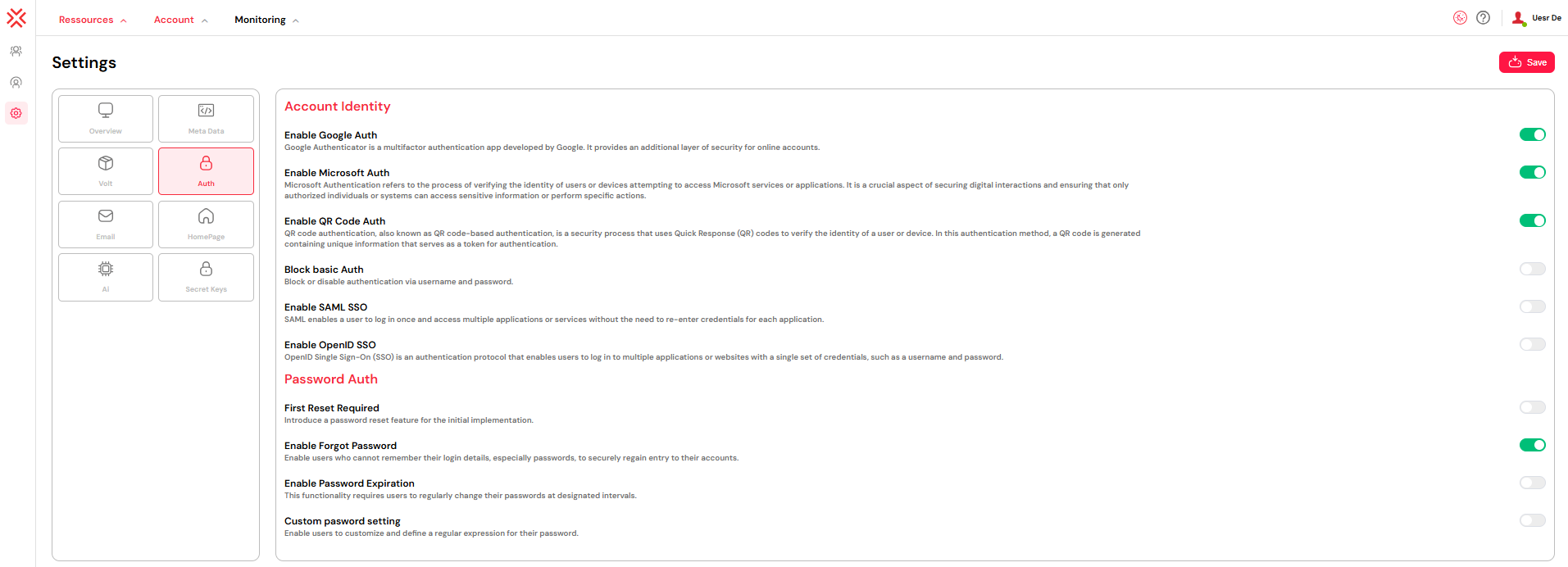
1. Exploring the Different Authentication MethodsDirect link to 1. Exploring the Different Authentication Methods
Choose the sign-in methods that fit your users and your organization’s access rules.
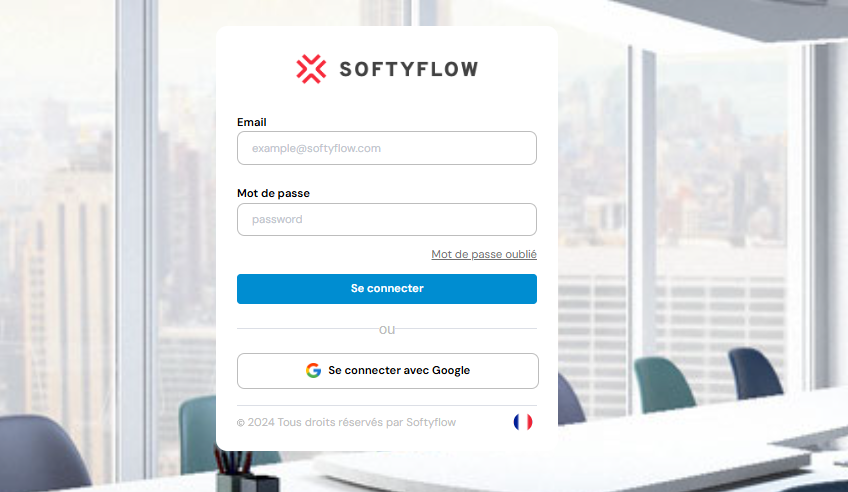
1.1. Google Authenticator (2FA)Direct link to 1.1. Google Authenticator (2FA)
Users enter their password, then a six-digit code from the Google Authenticator app. The code changes over time. This adds a second check if someone steals a password.
Enable this extra check for users with IDE access. They can change applications, data structures and processes.
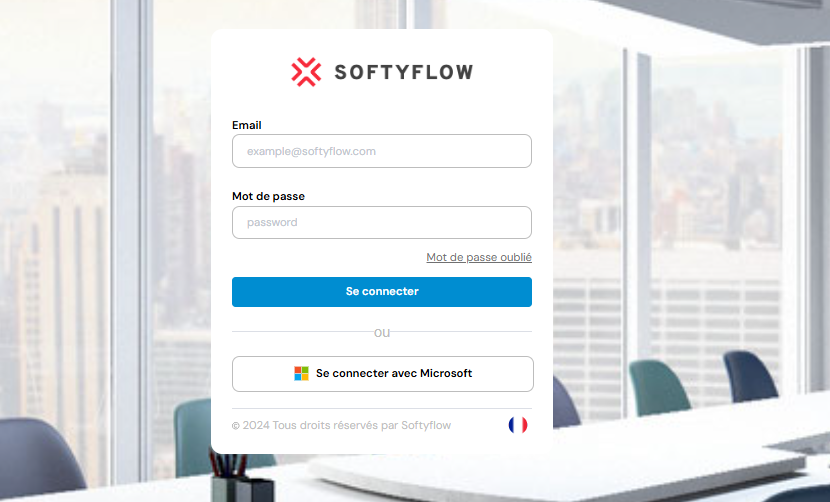
1.2. Microsoft Authenticator (2FA)Direct link to 1.2. Microsoft Authenticator (2FA)
Users enter a one-time code from the Microsoft Authenticator app after their password. Choose this option if your team already uses that app. As with other code-based methods, users must keep their codes private.
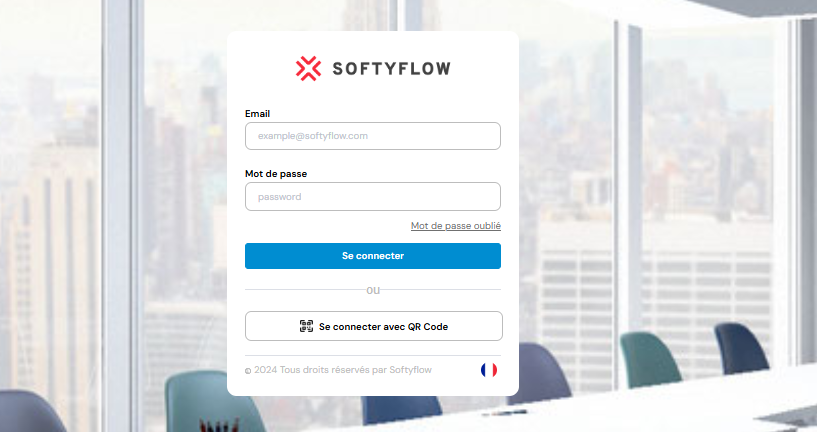
1.3. QR Code AuthenticationDirect link to 1.3. QR Code Authentication
Users scan a QR code with a supported app on their phone to sign in. This can help link a new device or open mobile applications. Check which app your sign-in setup requires.
1.4. SSO with SAML 2.0Direct link to 1.4. SSO with SAML 2.0
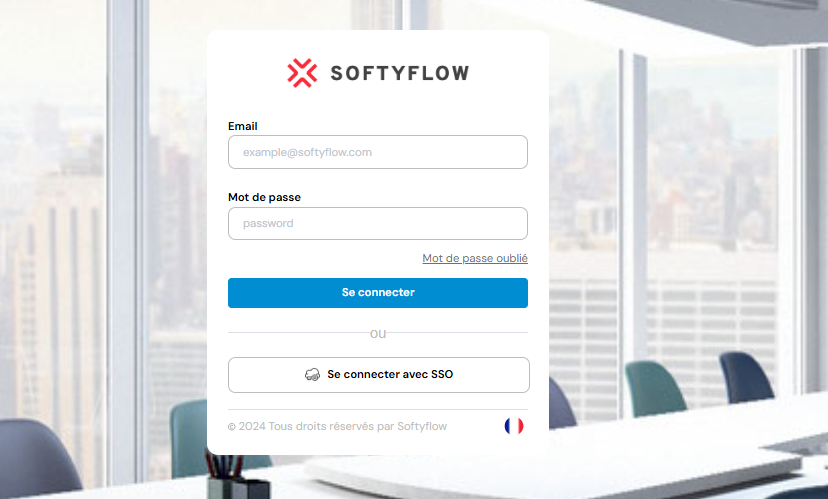
SAML 2.0 lets users sign in through your Identity Provider (IdP), such as Azure AD, Okta or ADFS. The IdP checks their identity. Softyflow then uses the returned attributes for user management and role assignments. Configure and test the attribute mapping before enabling access.
1.4.1. Key Benefits of SAML SSO IntegrationDirect link to 1.4.1. Key Benefits of SAML SSO Integration
- Centralized User Management: User authentication is handled by your central IdP, reducing administrative overhead.
- Enhanced Security: Leverages the security policies of your IdP, such as MFA, conditional access, and password policies.
- Improved User Experience: Users can log in to Softyflow with their existing corporate credentials without needing to remember another password.
- Automated Provisioning: New users can be automatically created in Softyflow upon their first SSO login, with roles assigned based on IdP group memberships.
1.4.2. Configuration Steps and ExampleDirect link to 1.4.2. Configuration Steps and Example
Set up trust in both systems: Softyflow is the Service Provider (SP), and your sign-in service is the Identity Provider (IdP).
Step 1: In Your Identity Provider (e.g., Azure AD, Okta)
- Create a new SAML application for Softyflow.
- You will need to provide your Softyflow instance's Assertion Consumer Service (ACS) URL. This URL is where the IdP will send the SAML assertion after a user authenticates. You can typically find this in your Softyflow SAML configuration page, and it usually looks like this:
https://<your-softyflow-domain>/api/v1/sso/saml/acs - You will also need the Entity ID for your Softyflow instance. This is a unique identifier. It often defaults to the same ACS URL or another unique URI like
https://<your-softyflow-domain>/api/v1/sso/saml/metadata - Configure the IdP to send the necessary user attributes in the SAML assertion, such as
email,firstName,lastName, andgroups. - Once saved, the IdP will provide you with the following critical information that you will need for the next step in Softyflow:
- Identity Provider Entry / Sign-On URL: The IdP's login endpoint.
- Issuer / Entity ID: The IdP's unique identifier.
- X.509 Certificate: The public certificate used to verify the signature of the SAML assertions.
Step 2: In Softyflow
Navigate to Account > Settings > Auth and enable the SSO toggle. Then, fill in the configuration form using the information you obtained from your IdP.
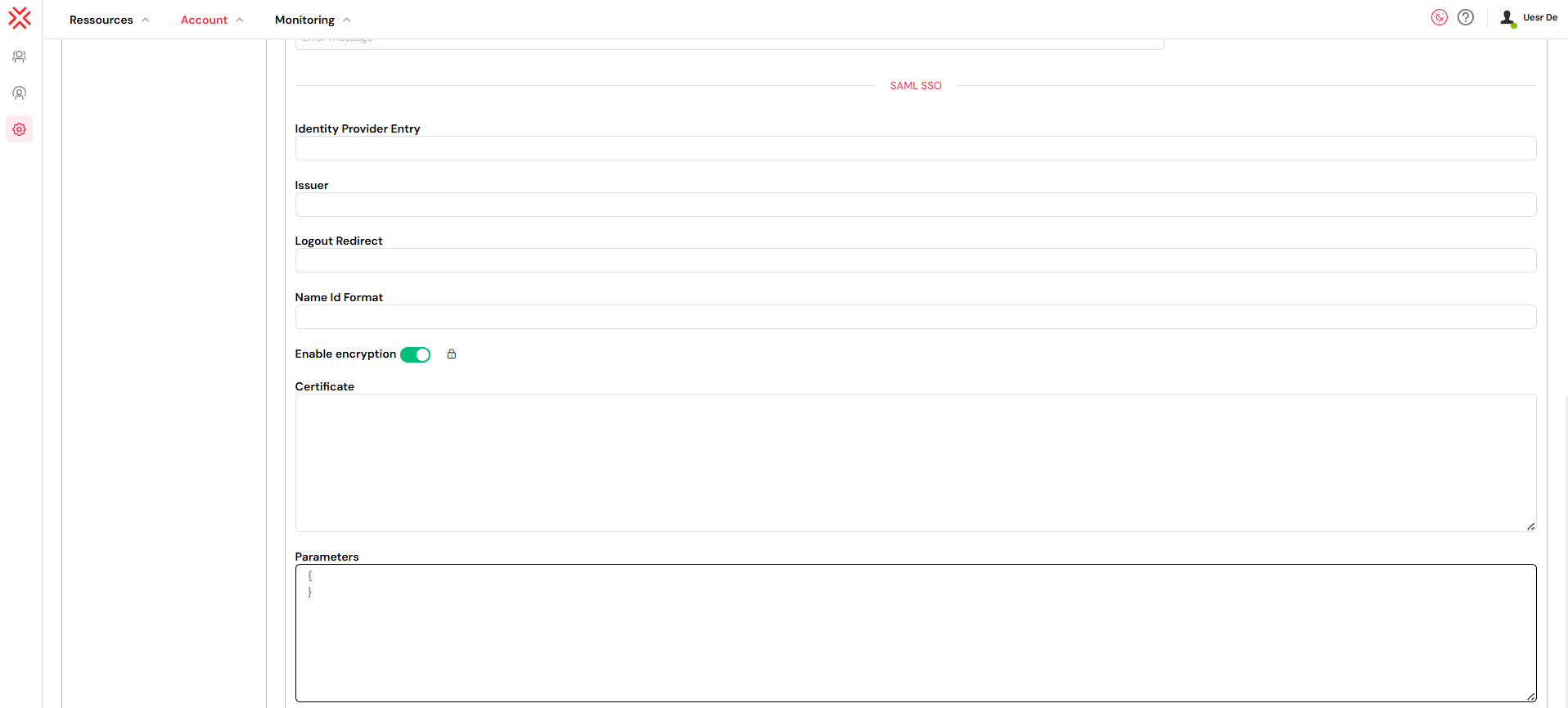
Here is an example of how to fill the fields:
- Identity Provider Entry: Paste the Sign-On URL from your IdP.
- Example:
https://your-idp.com/app/your-app-id/sso/saml
- Example:
- Issuer: Paste the Issuer/Entity ID from your IdP.
- Example:
http://www.your-idp.com/exk123abc456
- Example:
- Logout Redirect: The URL where users are sent after logging out. This is often the main login page of the IdP or your company portal.
- Example:
https://your-idp.com/logout
- Example:
- NameID Format: This specifies the format of the user identifier.
urn:oasis:names:tc:SAML:1.1:nameid-format:emailAddressis a common and recommended choice if you are using email as the primary user identifier. - Enable Encryption: Check this box if your IdP is configured to send encrypted assertions. You will need to provide your service provider (Softyflow) public certificate to the IdP for this to work.
- Certificate: Paste the full content of the X.509 Certificate provided by your IdP. It should start with
-----BEGIN CERTIFICATE-----and end with-----END CERTIFICATE-----. - Parameters: This section is for advanced configurations. For example, you can map SAML assertion attributes to Softyflow user properties. This is crucial for Just-In-Time (JIT) provisioning and role mapping.
RelayState: Often left empty unless your IdP requires a specific value.AuthnContext: Can be used to request a specific authentication strength from the IdP, e.g.,urn:oasis:names:tc:SAML:2.0:ac:classes:PasswordProtectedTransport.
After you save, users sign in on the IdP’s login page. A successful sign-in sends them back to Softyflow.
1.5. OpenID Connect (OIDC)Direct link to 1.5. OpenID Connect (OIDC)
OpenID Connect (OIDC) is another sign-in option. It builds on OAuth 2.0 and uses JSON Web Tokens (JWT) to pass identity data. Providers include Google, Azure AD, Okta and Auth0. See API integrations and process design when adding sign-in to an application flow.
2. Advanced Password Management PoliciesDirect link to 2. Advanced Password Management Policies
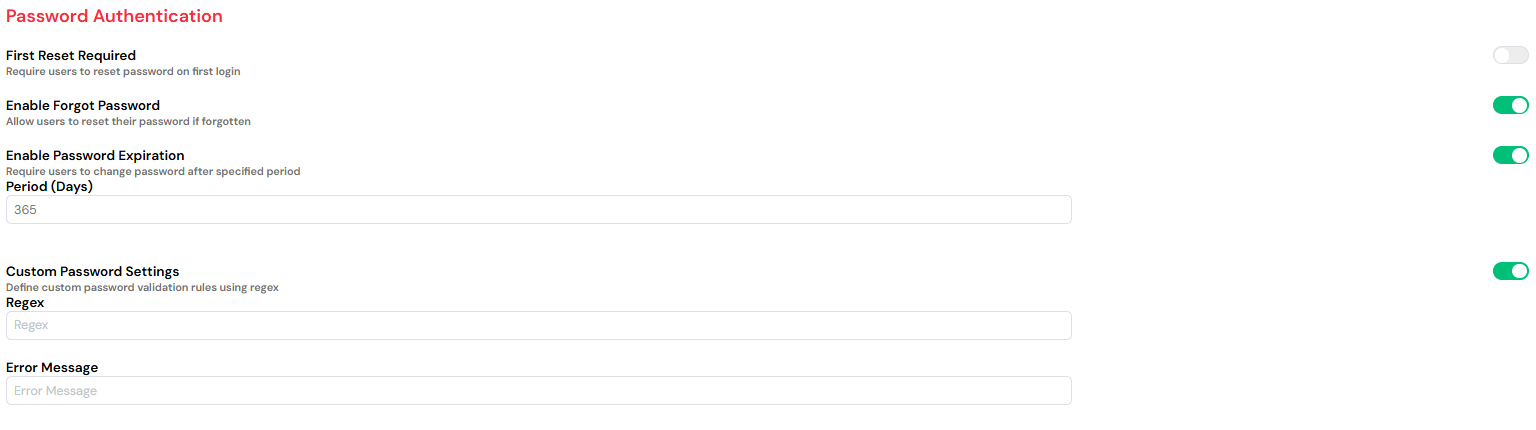
Set the password rules that apply to your users.
2.1. Force Reset on First LoginDirect link to 2.1. Force Reset on First Login
Use this setting to make users change their password on their first login. This is useful when an administrator creates an account with a temporary password.
2.2. Enable "Forgot Password" FeatureDirect link to 2.2. Enable "Forgot Password" Feature
Enable this option to let users reset a forgotten password. The login page sends a one-time link to their registered email address through your mail provider.
2.3. Enforce Password ExpirationDirect link to 2.3. Enforce Password Expiration
Set how many days a password can be used before a reset is required. Choose the period according to your organization’s access policy. Review the rules for accounts with IDE access.
2.4. Custom Password Complexity RulesDirect link to 2.4. Custom Password Complexity Rules
Use a regular expression (regex) to define rules such as length, uppercase letters or numbers. Add a message that tells users what the rule requires.
- Example Regex: `^(?=.[A-Z])(?=.\d)[A-Za-z\d]{8,}
- Accompanying Message: "Password must be at least 8 characters long and must include at least one uppercase letter and one number."
Review sign-in rules together with roles. Check access to web interfaces, process tasks and monitoring tools with a test account.
3. Integrating Authentication into Your Development WorkflowDirect link to 3. Integrating Authentication into Your Development Workflow
3.1. Key Development ConsiderationsDirect link to 3.1. Key Development Considerations
Check both identity and access rights while building an application:
- Web Interface Design: Design dynamic user interfaces that adapt based on the authenticated user's context, roles, and permissions.
- Process Design: Architect your business workflows to rigorously respect authentication and authorization boundaries, ensuring tasks can only be executed by the appropriate users.
- Database Integration: Implement granular data access controls that are directly tied to the authenticated user's identity and role.
- Integration: Securely use authentication tokens (like OAuth tokens or API keys) for making calls to external APIs and systems.
3.2. Monitoring and Auditing Authentication ActivitiesDirect link to 3.2. Monitoring and Auditing Authentication Activities
Review sign-in activity in these tools:
- System Logs: Actively monitor login attempts (both successful and failed), password reset events, and other security-related occurrences.
- User Management: Regularly review user login history and access patterns to identify anomalies or inactive accounts.
- Run & Instance Management: Track which authenticated users are initiating and executing critical business processes.
3.3. Essential Security Best PracticesDirect link to 3.3. Essential Security Best Practices
Use these checks when reviewing access:
- Enforce Multi-Factor Authentication (MFA): Mandate the use of 2FA for all users, especially those with administrative privileges or access to sensitive data.
- Leverage Role-Based Access Control (RBAC): Combine your robust authentication policies with granular role management to enforce the principle of least privilege.
- Conduct Regular Security Audits: Utilize the system logs to proactively monitor authentication patterns and investigate any suspicious activity.
- Maintain Environment Separation: Configure distinct and stricter authentication requirements for your production environment compared to your test and development environments.
Next StepsDirect link to Next Steps
Continue with the settings and guides below:
Next Steps in Security Administration:
- User Management: Proceed to create and manage user accounts that will be subject to your new authentication rules.
- Role Management: Define the precise access levels and permissions that will be granted to users after they successfully authenticate.
- Settings: Continue to explore other global platform settings and security policies.
- Mail Management: Ensure your email providers are correctly set up for handling password resets and security notifications.
- System Logs: Master the art of monitoring authentication events and other critical security logs.
- Home Redirection: Create personalized, role-based landing pages to greet your users after they log in.
Next Steps in Secure Development:
- Project Setup: Begin the process of building secure, enterprise-grade applications from the ground up.
- Web Interface Design: Learn to design sophisticated user interfaces that are fully aware of and responsive to the user's authentication context.
- Process Design: Create secure and resilient business workflows that incorporate proper authorization checks at every step.
- Integration: Implement secure API integrations and custom authentication flows to connect Softyflow with your wider IT ecosystem.