Database Management
Softyflow provides two main approaches for data management: SQL databases via External Data Sources (EDS) and MongoDB Collections. This guide covers both approaches with practical usage examples.
Before diving into database integration, ensure you've completed your project setup and understand how to use databases in your web interfaces and processes.
1. OverviewDirect link to 1. Overview
1.1. SQL via EDS (External Data Sources)Direct link to 1.1. SQL via EDS (External Data Sources)
Softyflow's External Data Sources (EDS) feature allows you to connect your applications to existing enterprise databases. It supports a wide range of SQL databases, including MySQL, PostgreSQL, Oracle, SQL Server, and Snowflake, as well as external APIs. This enables seamless integration with your company's existing data infrastructure, making it a powerful tool for enterprise-level applications. For a deeper dive, you can explore the EDS integration documentation.
The External Data Sources (EDS) page serves as your central hub for managing all external data connections. It offers a consolidated view of every configured data source, from traditional SQL databases to modern APIs, streamlining data management across your projects.
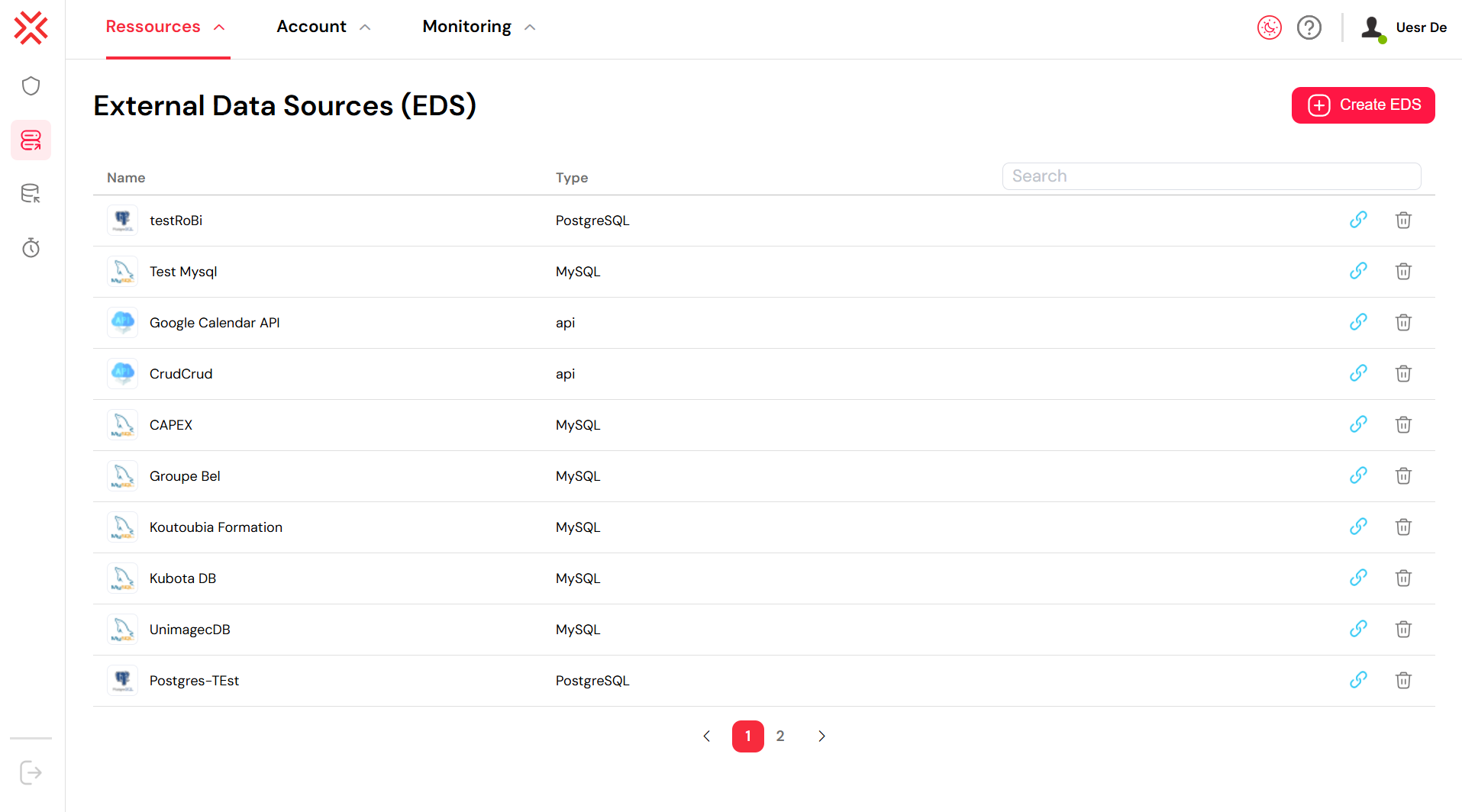
The EDS management page showing a list of configured databases and APIs.
From this interface, you can perform several key actions:
- View all Data Sources: The main list displays the Name and Type (e.g.,
PostgreSQL,MySQL,api) of each configured EDS, giving you a clear overview of your connections. - Create a New EDS: The "+ Create EDS" button opens a wizard to guide you through connecting to a new external data source.
- Manage Existing EDS: Each data source in the list comes with options to edit, test, or delete the connection.
The screenshot above illustrates a variety of configured data sources. For example, "Test Mysql" is an EDS for a MySQL database, while "Google Calendar API" is an integration with a web api. This highlights Softyflow's flexibility, allowing you to build applications that consolidate data from diverse systems, such as internal databases and third-party web services.
1.2. MongoDB CollectionsDirect link to 1.2. MongoDB Collections
For projects that require flexibility and speed, Softyflow includes a built-in MongoDB database. This NoSQL option is ideal for rapid prototyping, storing application-specific data, and managing data with evolving or semi-structured schemas. It allows you to get started quickly without the overhead of setting up an external database.
The Internal Databases (Collections) page is your command center for managing these MongoDB collections. It provides a user-friendly interface to oversee, create, and manage all your project's NoSQL data.
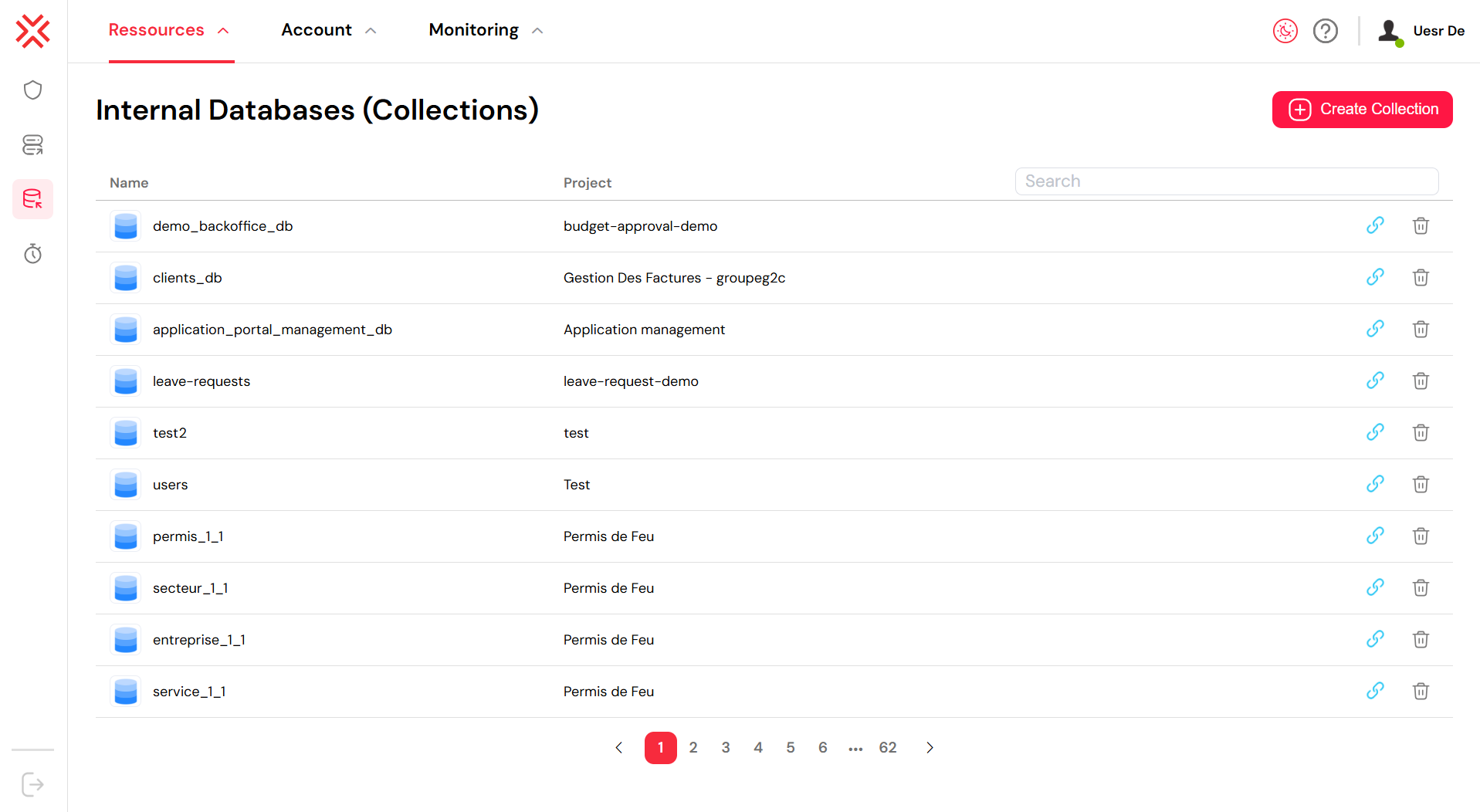
The Collections page showing a list of internal MongoDB databases.
From this centralized page, you can perform several essential actions:
- View Collections: The main list displays all available collections, showing their Name and the Project they belong to. In the example above, you can see a collection named
clients_dbassociated with the "Gestion Des Factures - groupeg2c" project. - Create a New Collection: The "+ Create Collection" button in the top-right corner allows you to instantly add a new collection for storing your application's data.
- Search and Filter: The Search bar provides a quick way to find a specific collection by its name, which is especially useful in projects with many collections.
- Navigate: If you have a large number of collections, the pagination controls at the bottom of the list make it easy to browse through them.
2. SQL via EDSDirect link to 2. SQL via EDS
2.1. Quick SetupDirect link to 2.1. Quick Setup
Connecting to an external SQL database is straightforward. The "Add External Data Sources (EDS)" page provides a comprehensive form to define all the necessary parameters for Softyflow to establish a connection. The example below shows the configuration for a MySQL database.
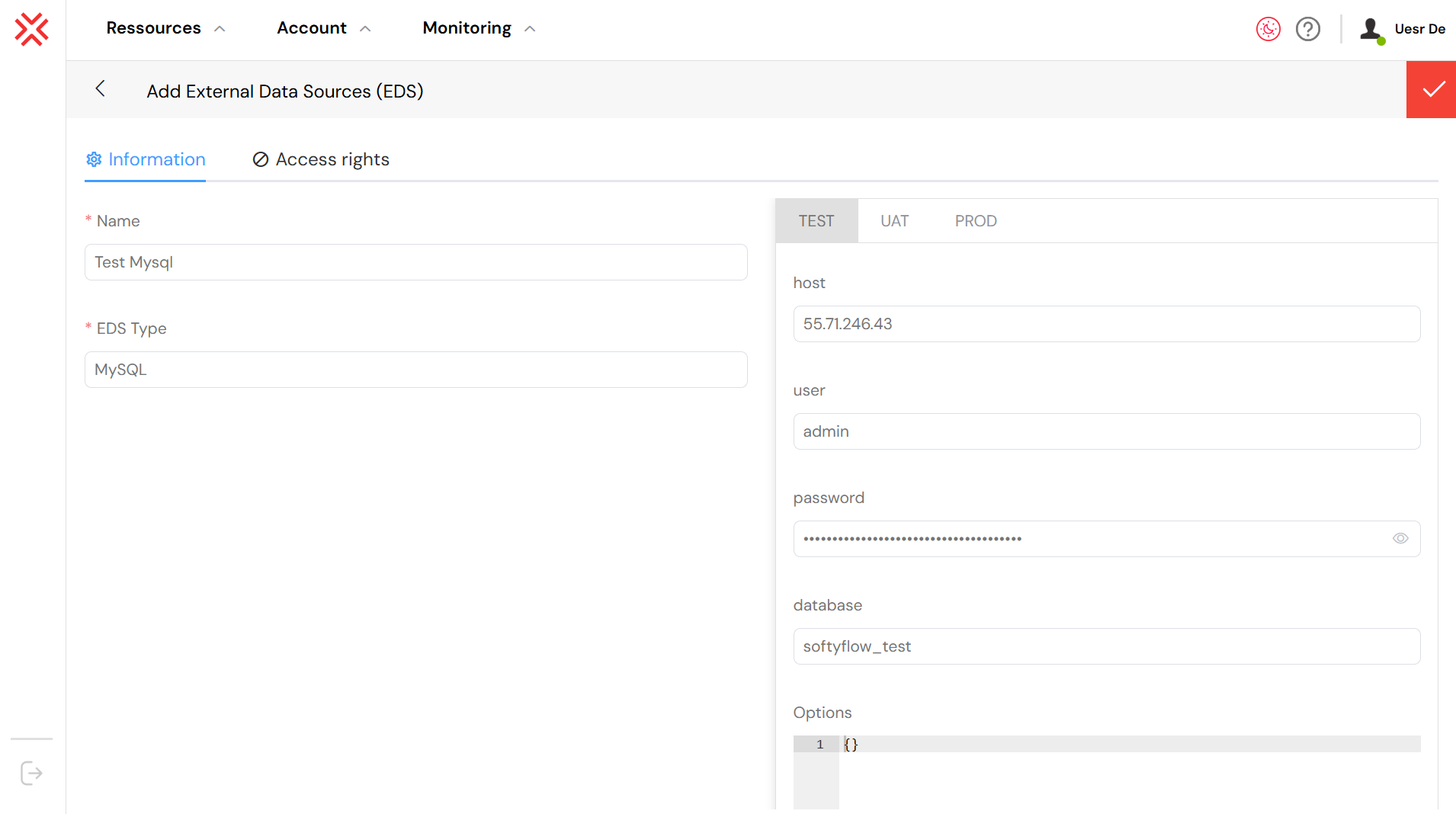
Configuring connection details for a new MySQL data source.
As illustrated in the image, a new data source named "Test Mysql" is being set up. A key feature of Softyflow is the ability to define distinct connection settings for different environments (TEST, UAT, PROD). Here, the details for the TEST environment, such as the host (55.71.246.43) and database (softyflow_test), are being entered. This practice is crucial for a safe development lifecycle, as it isolates development and testing activities from the live production data.
Key configuration fields include:
- Name and EDS Type: Assign a descriptive Name to your connection for easy identification. Select the appropriate EDS Type from the dropdown menu (e.g.,
MySQL,PostgreSQL,Oracle). - Environment Tabs (TEST, UAT, PROD): Softyflow's environment-specific configuration allows you to manage database connections for each stage of your application's lifecycle. This ensures that you are always connecting to the appropriate database—a test database during development, a staging database for user acceptance testing, and your production database for the live application.
- Connection Details: These are the standard parameters required to connect to a database, including the
host(server address),user,password, anddatabasename.
2.2. Common Use CasesDirect link to 2.2. Common Use Cases
SQL databases are the backbone of many enterprise systems, and using EDS to connect to them opens up a wide range of possibilities:
- Enterprise Integration: Seamlessly connect your Softyflow applications to existing enterprise systems like Customer Relationship Management (CRM), Enterprise Resource Planning (ERP), or other legacy platforms. This allows you to build modern interfaces and processes that leverage your existing data. For more, see our integration features.
- Data Warehousing and Analytics: Access and process large volumes of data from analytical platforms like Snowflake or Google BigQuery. This enables you to build sophisticated, data-driven reports and dashboards directly within Softyflow.
- Cross-System Data Synchronization: Create workflows that synchronize data between multiple business systems. For example, you can build a process that updates your CRM whenever a new entry is made in a separate billing system, ensuring data consistency across the enterprise.
3. MongoDB CollectionsDirect link to 3. MongoDB Collections
3.1. Quick SetupDirect link to 3.1. Quick Setup
Creating and managing a MongoDB collection in Softyflow is designed to be fast and intuitive. Collections can be created directly from the Softyflow IDE, and their schema-less nature provides the flexibility needed for modern application development.
Once a collection is created, its management page, as shown below for "demo_collection", becomes the central hub for controlling its data, environments, and security.
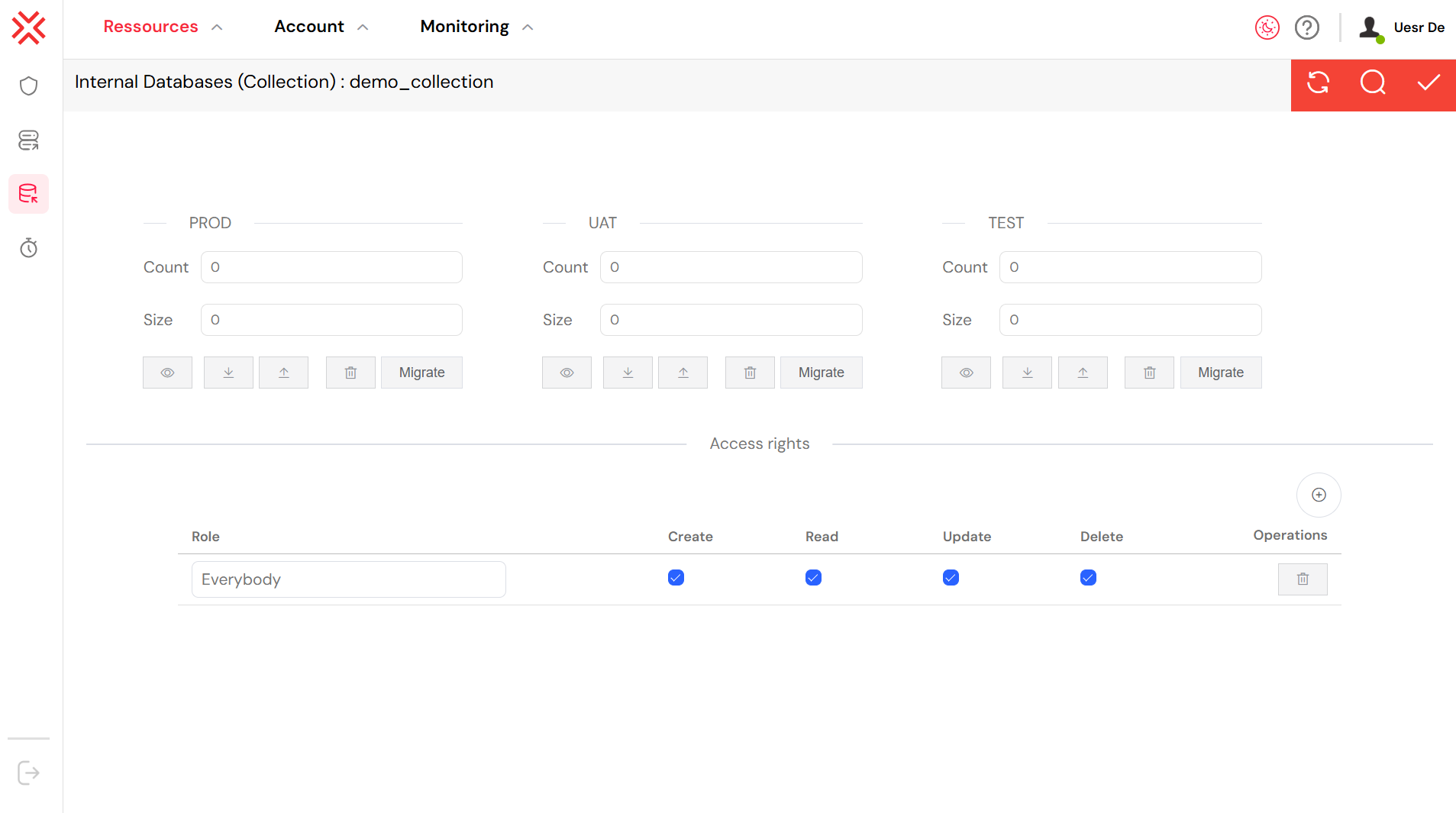
The management page for the "demo_collection" MongoDB collection.
This page offers a comprehensive set of tools:
- Environment Management: Softyflow organizes your data into PROD, UAT, and TEST environments. This allows you to manage the data for each stage of your development lifecycle separately. You can quickly see the document
Countand totalSizefor each environment. - Data Operations: A suite of buttons for each environment enables you to perform essential data operations, including viewing, downloading, uploading, and deleting data. The Migrate button is a powerful feature for promoting data from one environment to another (e.g., from TEST to UAT).
- Access Rights: Security is managed at the collection level. The lower section of the page is dedicated to defining role-based permissions. You can specify which Role has
Create,Read,Update, andDelete(CRUD) rights. The example shows the "Everybody" role with full CRUD permissions, which might be suitable for public data. However, for most applications, you will want to configure more granular and restrictive roles to ensure data security.
3.2. Common Use CasesDirect link to 3.2. Common Use Cases
The flexibility of MongoDB collections makes them suitable for a wide variety of applications:
- Rapid Prototyping and Development: When you need to get an application up and running quickly, collections offer a fast data storage solution without the need for a formal database setup or schema design.
- Application Settings and User Preferences: Collections are perfect for storing configuration data, user-specific settings, and personalization information, as the structure can easily adapt to new options.
- Temporary and Session Data: They are an excellent choice for storing transient data such as user session information, logs, or the results of temporary calculations.
- Flexible or Evolving Data Schemas: If your data structure is likely to change over time or if different documents need to have different fields, the schema-less nature of MongoDB is a significant advantage.
4. Usage in WidgetsDirect link to 4. Usage in Widgets
One of the most powerful features of Softyflow is the ability to integrate your databases directly with web interface widgets. This allows you to build dynamic, data-driven user interfaces with ease.
In the Softyflow UI Designer, you can connect widgets like dropdowns and tables to your data sources. The image below provides a general overview of a "Select" (dropdown) widget being configured to fetch its options from an external database.
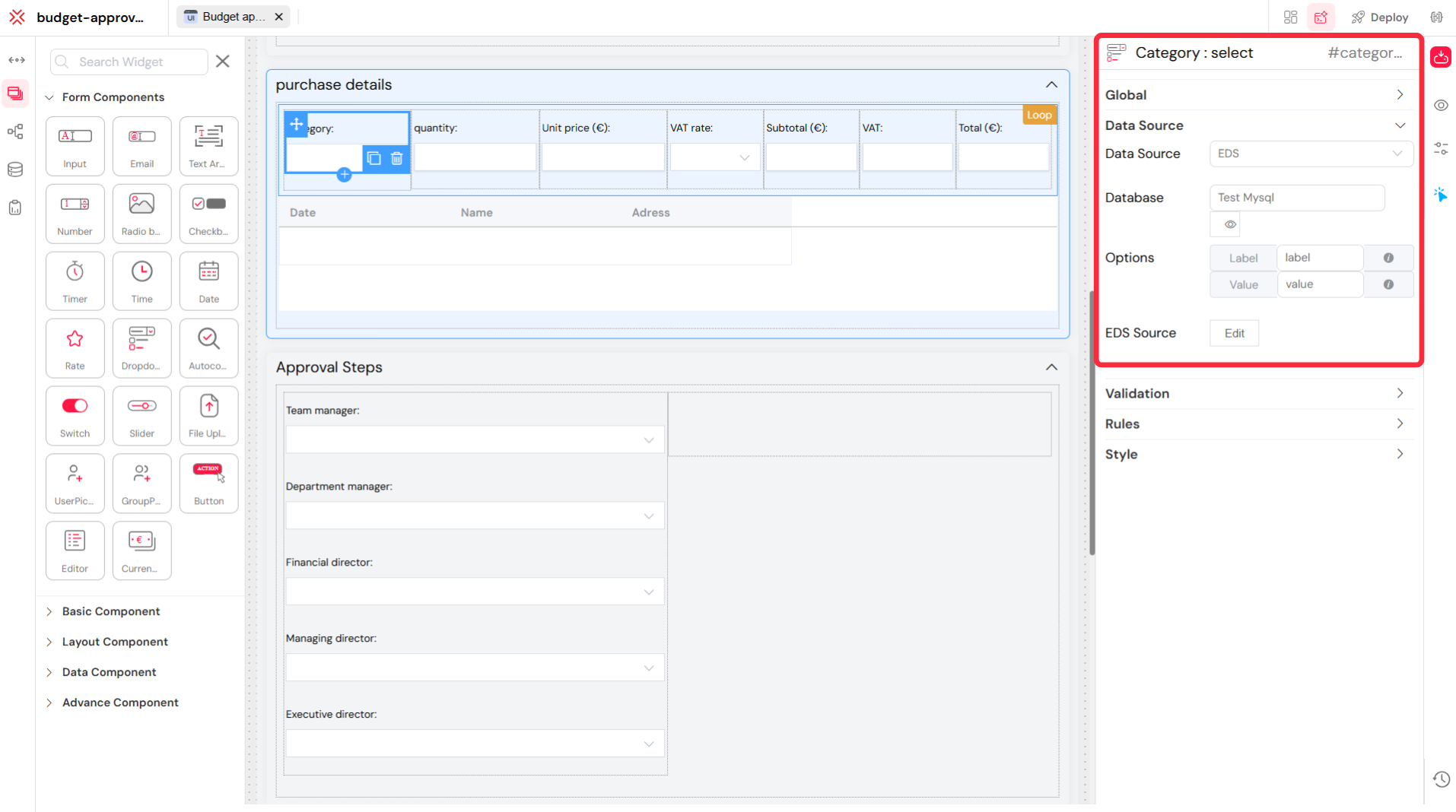
Configuring a "Category" dropdown to be populated from the "Test Mysql" EDS.
In this example, the configuration panel on the right shows that the widget's Data Source is set to "EDS", and the specific Database is "Test Mysql". This simple setup means that the options available in the dropdown will be dynamically populated from your MySQL database, creating an interactive and data-rich user experience.
4.1. Dropdown/Select WidgetsDirect link to 4.1. Dropdown/Select Widgets
Select widgets are commonly used to present users with a list of choices. Populating these choices from a database is a frequent requirement.
4.1.1. SQL via EDSDirect link to 4.1.1. SQL via EDS
When using an SQL database, you can configure the Select widget to fetch data using a query.
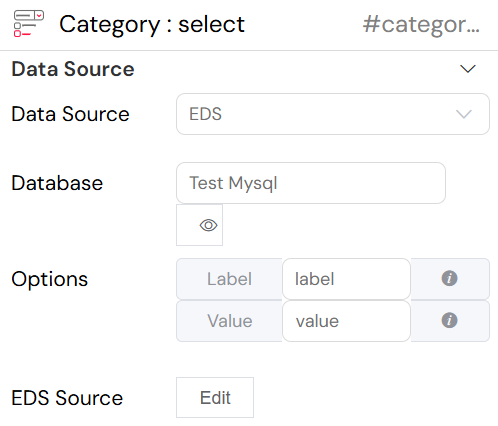
Detailed EDS configuration for a Select widget.
The configuration involves a few key steps:
- Data Source: Set this to
EDS. - Database: Choose the specific EDS connection, such as
Test Mysql. - Label and Value: Specify which columns from your database will serve as the display text (Label) and the underlying identifier (Value) for each option. For example, you might use a
product_namecolumn for the Label and aproduct_idcolumn for the Value. - EDS Source: Clicking the Edit button opens a query editor, where you can write the SQL query to fetch the data.
You can also write dynamic queries that change based on other data in your application.
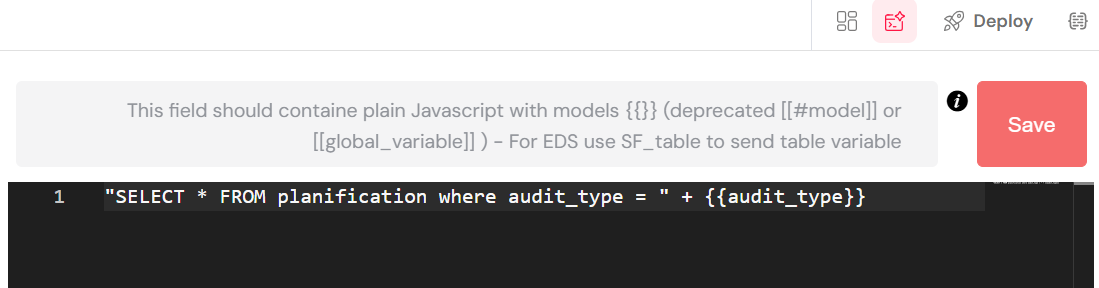
A dynamic SQL query using the `audit_type` variable.
The query shown above, "SELECT * FROM planification where audit_type = " + {{audit_type}}, is a powerful example of dynamic filtering. The {{audit_type}} syntax allows you to embed the value of a variable from your application's data model directly into the SQL query. If a user makes a selection in another part of the form that updates the audit_type variable, this dropdown will automatically refresh to show a filtered list of options. This is a key technique for building interactive and responsive forms.
4.1.2. MongoDB CollectionsDirect link to 4.1.2. MongoDB Collections
Connecting a Select widget to a MongoDB collection is just as easy.
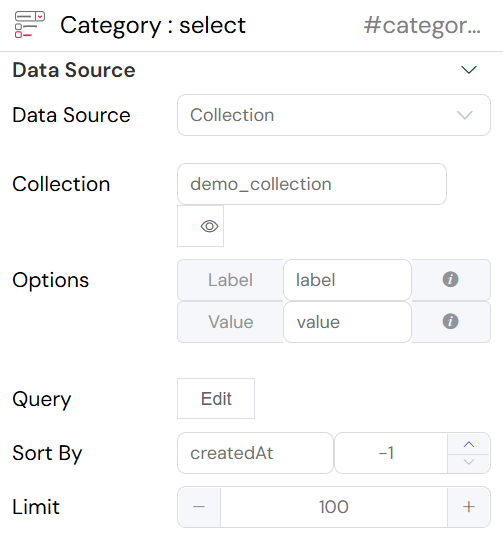
Populating a dropdown from the "demo_collection".
The configuration options are tailored for MongoDB:
- Data Source: Set to
Collection. - Collection: Select the desired MongoDB collection (e.g.,
demo_collection). - Label and Value: Map these to the fields in your MongoDB documents. For example,
Labelcould becategory_nameandValuecould be the document's_id. - Query, Sort By, and Limit: These fields give you fine-grained control. You can Sort the options (e.g., by
createdAtin descending order:-1), Limit the number of results, and open the Query editor to filter the documents.
For more complex scenarios, you can use a MongoDB aggregation pipeline to transform the data before it's displayed.
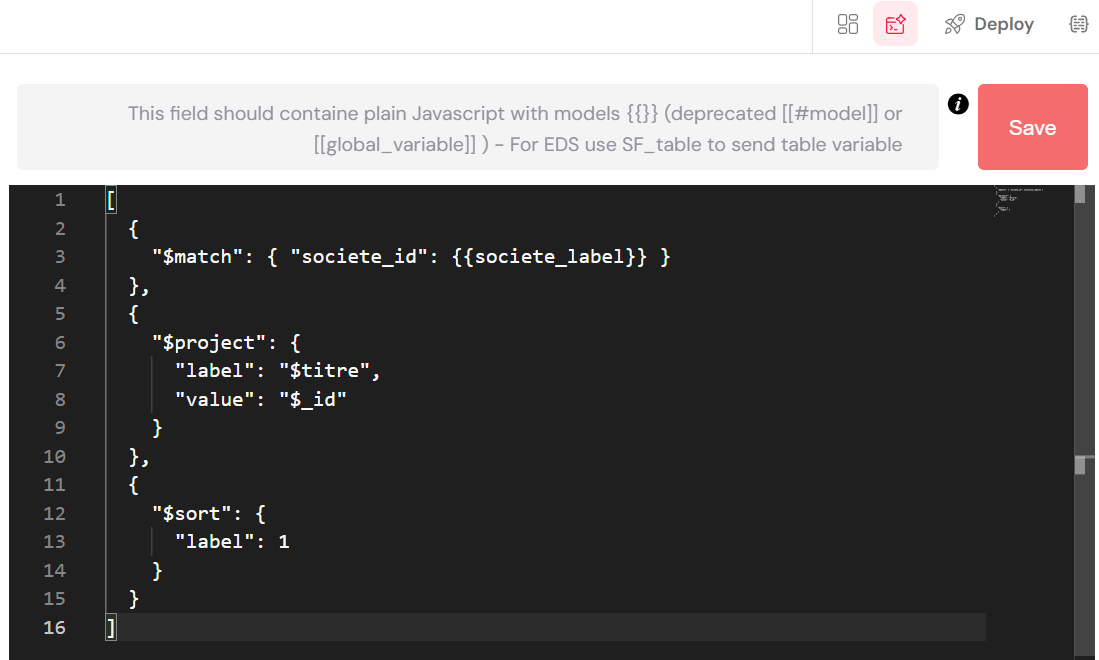
An aggregation pipeline to filter and reshape data for a dropdown.
The pipeline shown above performs three stages:
$match: Filters the documents, selecting only those where thesociete_idmatches the dynamic value of{{societe_label}}.$project: Reshapes the documents to create alabelandvaluefield, which are required by the Select widget. This is useful for adapting your existing data structure to the widget's needs.$sort: Orders the final results by thelabelfield.
4.2. Table WidgetsDirect link to 4.2. Table Widgets
Table widgets are ideal for displaying a large amount of data in a structured format.
4.2.1. SQL via EDSDirect link to 4.2.1. SQL via EDS
Connecting a Table widget to an SQL database is similar to connecting a Select widget. You define the data source, choose the database, and write a query to fetch the data. The configuration allows you to set sorting and limits as well.
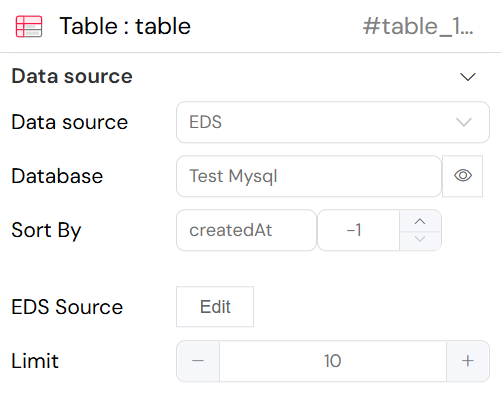
Configuring a Table widget to display data from the "Test Mysql" EDS.
4.2.2. MongoDB CollectionsDirect link to 4.2.2. MongoDB Collections
Similarly, you can populate a Table widget from a MongoDB collection. The UI provides options to select the collection, define sorting, and limit the number of records per page.
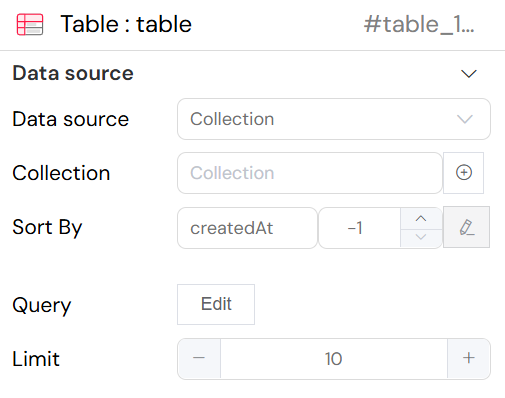
Configuring a Table widget with data from a MongoDB collection.
The key configuration fields for a collection-based table include:
- Data source: Select Collection to use a MongoDB collection.
- Collection: Specify the collection you want to display.
- Sort By: Define the sorting order. In the example,
createdAt: -1sorts the data to show the newest items first. - Query: The Edit button opens the query editor, allowing you to filter the data shown in the table (e.g., show only records with an 'active' status).
- Limit: This sets the number of records per page, enabling pagination.
4.3. Advanced FilteringDirect link to 4.3. Advanced Filtering
4.3.1. Dynamic Filters (SQL)Direct link to 4.3.1. Dynamic Filters (SQL)
For more advanced security and personalization, you can build SQL queries that dynamically change based on the user's role or other context.
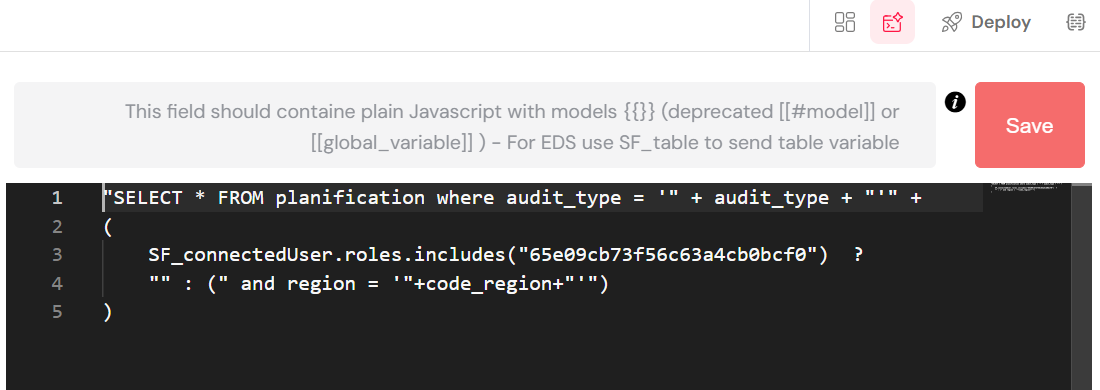
A dynamic SQL query using a ternary operator for role-based filtering.
The JavaScript code in the editor constructs a dynamic SQL query:
- It starts with a base
SELECTstatement. - It then uses a ternary operator (
? :) to check if the current user's roles (SF_connectedUser.roles) include a specific role ID. - If the user has the required role, an additional
WHEREclause (and region = '"+code_region+"') is appended to the query, restricting the data they can see. - If not, the query remains simpler.
This is a powerful technique for implementing data security and creating context-aware applications where users only see the data relevant to them.
4.3.2. MongoDB Query FiltersDirect link to 4.3.2. MongoDB Query Filters
The same dynamic filtering can be achieved with MongoDB queries. The query editor allows you to use {{variable}} syntax to build filters that respond to user input or application state.
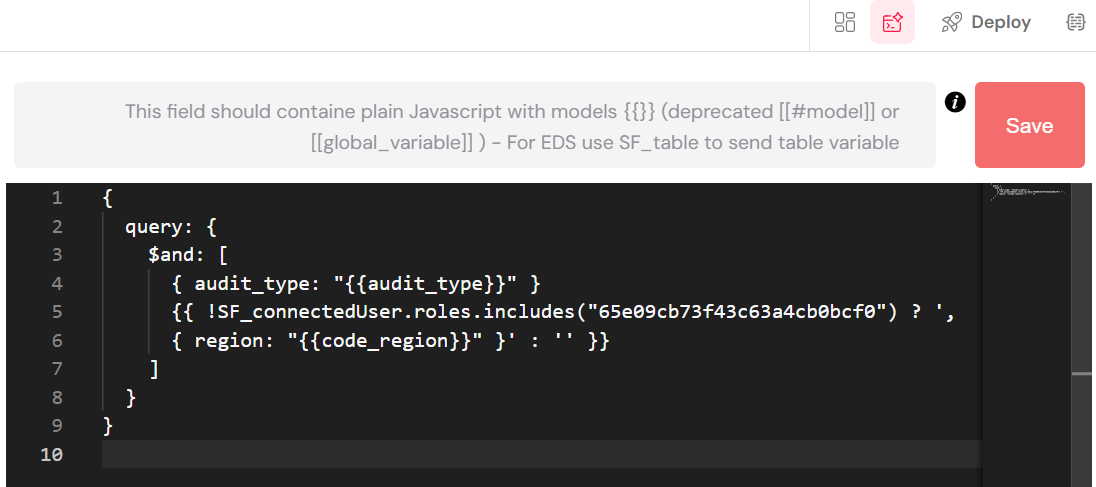
A dynamic MongoDB query using the variable.
5. Usage in ActionsDirect link to 5. Usage in Actions
Beyond populating widgets, databases are central to performing operations within your application. Softyflow's web interface actions and process designer allow you to create powerful, automated workflows for handling data.
5.1. Form SubmissionDirect link to 5.1. Form Submission
A primary use case for actions is handling form submissions, where user-entered data is saved to a database.
5.1.1. SQL via EDSDirect link to 5.1.1. SQL via EDS
The "Insert in EDS" action allows you to save form data to an SQL database.
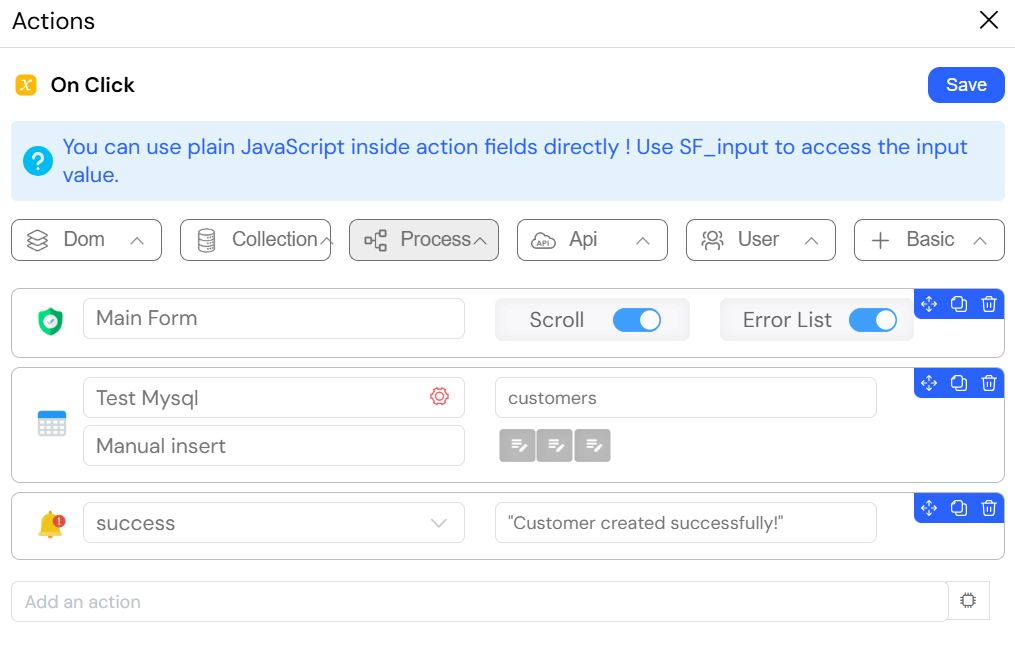
Using the "Insert in EDS" action to save form data to a MySQL table.
When a user submits a form, you can trigger a workflow that:
- Validates the data: Ensures all required fields are filled correctly.
- Executes the "Insert in EDS" action: This action maps variables from your form (e.g.,
{{variable1}},{{variable2}}) to the corresponding columns in your SQL table (e.g., in the "Test Mysql" database). - Provides Feedback: After the data is saved, you can display a confirmation message to the user or navigate them to another page.
5.1.2. MongoDB CollectionsDirect link to 5.1.2. MongoDB Collections
Similarly, the "Save in collection" action is used to save form data to a MongoDB collection.
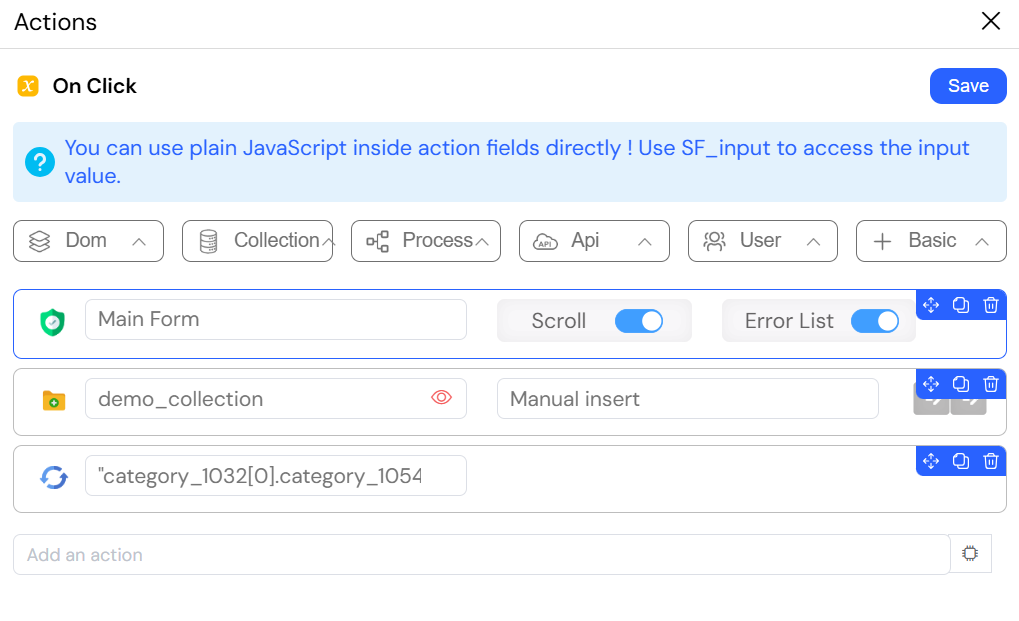
Using the "Save in collection" action to insert a document into "demo_collection".
The configuration for this action is straightforward:
- Select the Collection: Choose the target collection, such as
demo_collection. - Map the Data: The action automatically maps your form's data model to a new document in the collection.
- Define Subsequent Actions: After saving, you can add further actions, such as refreshing a table widget to show the newly added data, providing a seamless experience for the user.
5.2. Data Loading and ProcessingDirect link to 5.2. Data Loading and Processing
5.2.1. MongoDB AggregationDirect link to 5.2.1. MongoDB Aggregation
For more complex data retrieval needs, Softyflow provides the "Aggregate collection" action. This allows you to execute a full MongoDB aggregation pipeline.
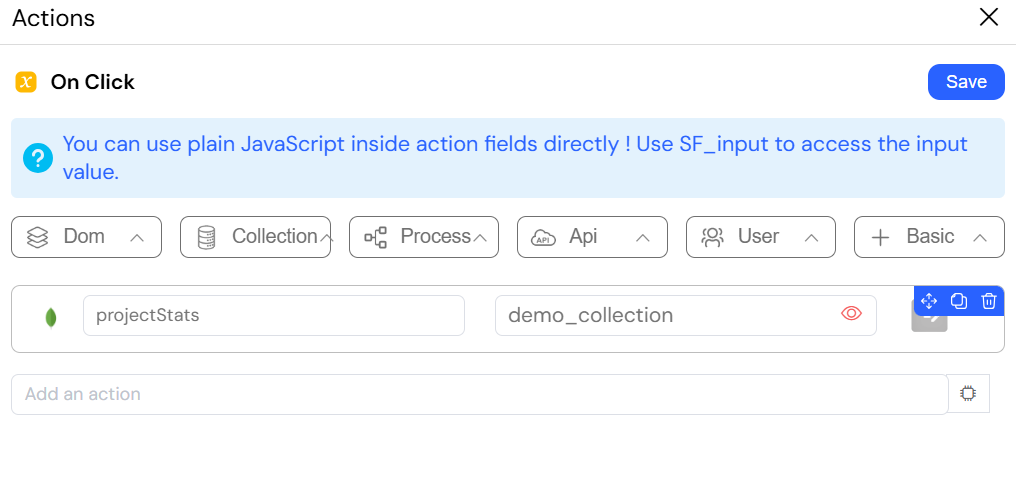
Configuring an "Aggregate collection" action.
This action is incredibly versatile and can be used for:
- Performing calculations across multiple documents.
- Grouping data to generate summaries or reports.
- Filtering and reshaping data before it is displayed in a widget or passed to another action.
The result of the aggregation can be stored in a variable for later use.
5.3. Update OperationsDirect link to 5.3. Update Operations
Updating existing data is another fundamental database operation handled through actions.
5.3.1. Update in SQLDirect link to 5.3.1. Update in SQL
The "Update in EDS" action is the equivalent of a SQL UPDATE statement. It's used to modify one or more existing records in your SQL database.
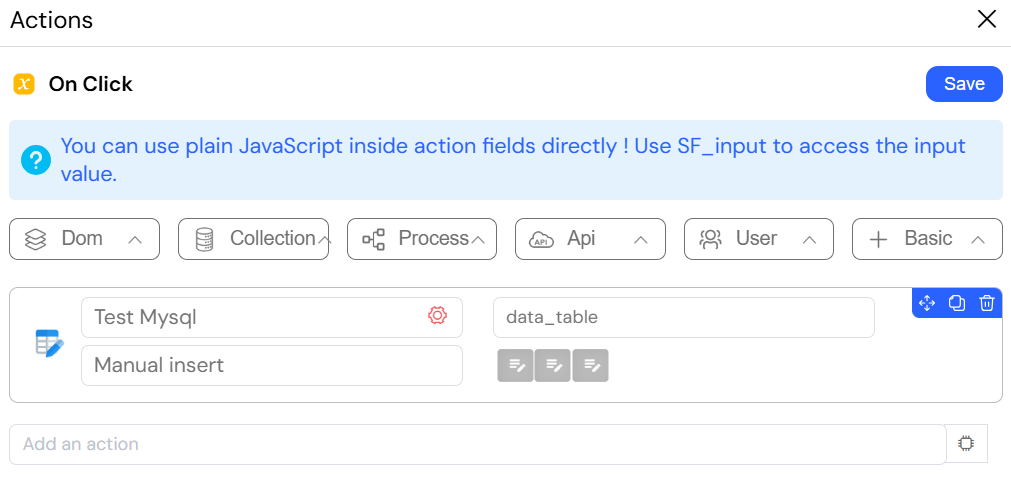
Configuring an "Update in EDS" action to modify records.
You typically use this action after a user edits a form. You specify the WHERE clause to identify the record(s) to update and map the new values from your form variables to the table columns.
5.3.2. MongoDB UpdateDirect link to 5.3.2. MongoDB Update
For MongoDB, the "Update in collection" action allows you to modify a single document.
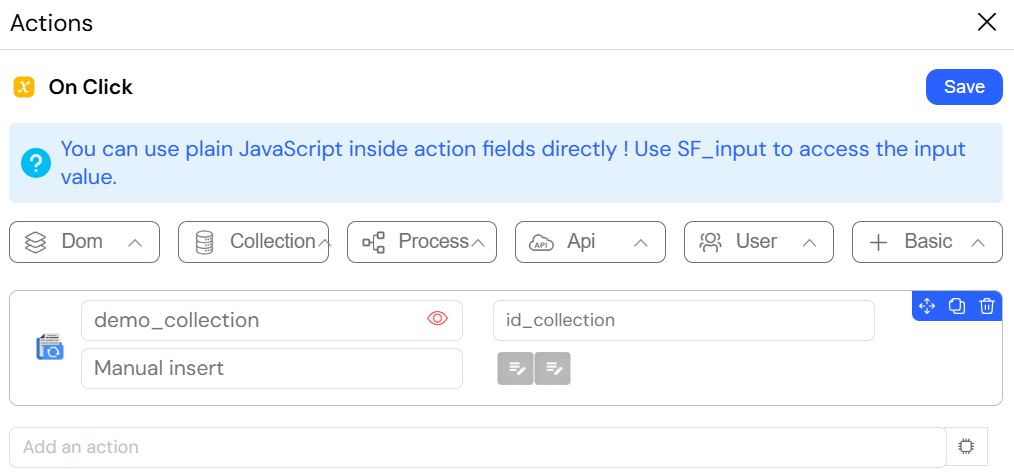
Configuring an "Update in collection" action.
To use this action, you provide the ID of the document you want to update and the new data you want to set. This is essential for saving changes to an existing record that a user has modified in an edit form.
6. Populating Forms with Database DataDirect link to 6. Populating Forms with Database Data
A common requirement for forms is to pre-fill them with existing data from a database, especially for editing records. Softyflow provides dedicated actions for this purpose.
6.1. Populating from SQL via EDSDirect link to 6.1. Populating from SQL via EDS
The "Find many in EDS" action is a versatile tool for retrieving multiple records from an SQL database based on specific criteria.
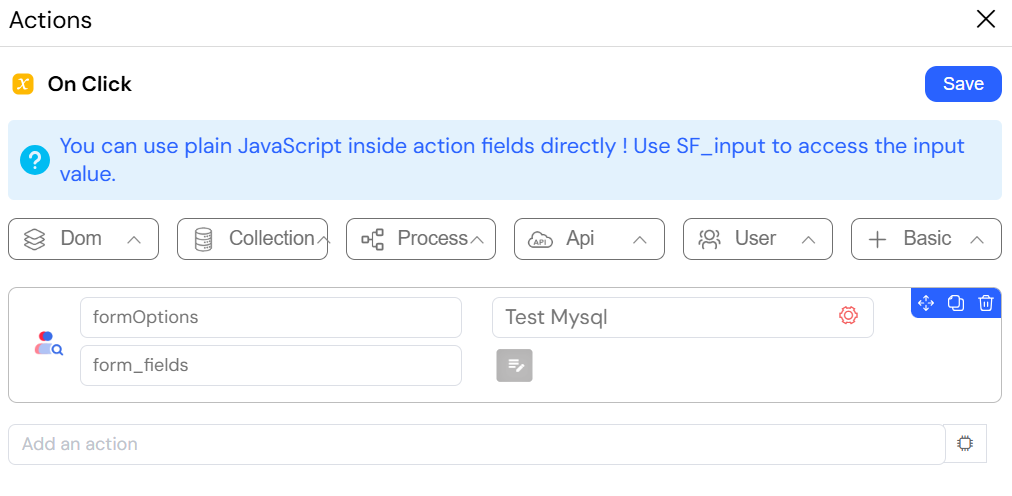
Using "Find many in EDS" to search for records.
While this action is perfect for populating tables, it can also be used to find a specific record (or set of records) to populate a form. For example, you could use it to find all contact persons associated with a particular client and display them in a list. The results of the action are stored in a variable, which you can then use to populate your form fields.
6.2. Populating from a MongoDB CollectionDirect link to 6.2. Populating from a MongoDB Collection
The "Get document" action is specifically designed to retrieve a single document from a MongoDB collection by its ID and populate a form with its data.
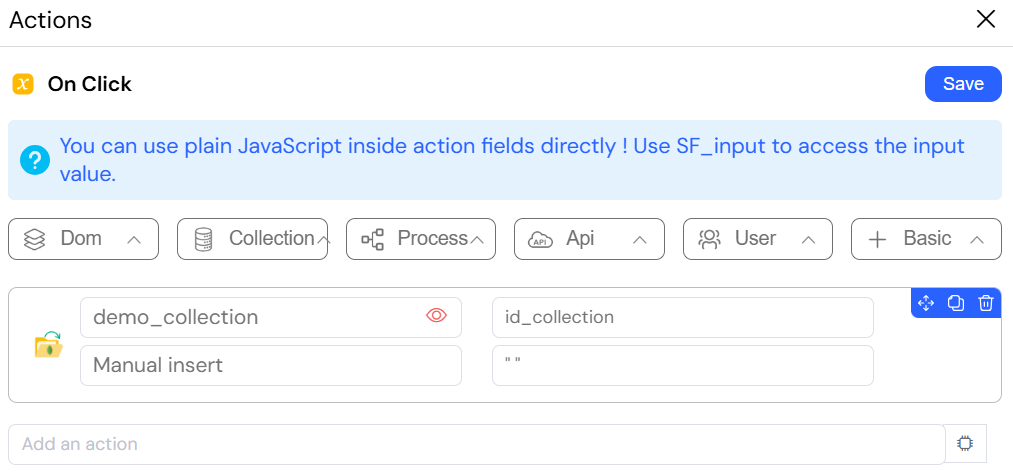
Using "Get document" to populate a form with data from a MongoDB document.
This action is fundamental for building "edit" forms. The typical workflow is:
- A user selects an item from a list or table.
- The ID of the selected item is passed to the "Get document" action.
- The action fetches the complete document from the MongoDB collection.
- The fields of the document are automatically mapped to the corresponding fields in your form's data model, pre-filling the form for the user to edit.
7. Best PracticesDirect link to 7. Best Practices
Choosing the right database technology is critical for the success of your project. Here are some guidelines to help you decide between SQL EDS and MongoDB Collections.
7.1. When to Use SQL via EDSDirect link to 7.1. When to Use SQL via EDS
SQL databases are the right choice when your project involves structured data and requires robust, enterprise-grade features.
✅ Use for:
- Existing Enterprise Systems: Integrating with established systems like ERPs, CRMs, or other legacy databases.
- Complex Reporting and Analytics: When you need to perform complex queries, joins, and aggregations for business intelligence.
- Large, Relational Datasets: For applications that manage large volumes of data with clear, predefined relationships.
- Data Consistency and Integrity: When strict data consistency and ACID compliance are non-negotiable.
- Regulatory Compliance: For projects that must adhere to strict data governance and regulatory standards.
7.2. When to Use MongoDB CollectionsDirect link to 7.2. When to Use MongoDB Collections
MongoDB collections offer speed and flexibility, making them ideal for modern, agile development.
✅ Use for:
- Rapid Application Development: Quickly build and iterate on prototypes and MVPs without being slowed down by schema migrations.
- Flexible, Evolving Data: For applications where the data model is expected to change or where documents have varying structures.
- Application-Specific Data: Storing configurations, user preferences, or other data that is closely tied to the application logic.
- Temporary or Cache Data: Managing session data, logs, or cached content that is transient by nature.
- Content Management: Handling unstructured or semi-structured content like articles, product catalogs, or user-generated content.
8. Security ConsiderationsDirect link to 8. Security Considerations
Database security is paramount. Here are key security practices for both SQL and MongoDB databases in Softyflow.
8.1. SQL SecurityDirect link to 8.1. SQL Security
- Prevent SQL Injection: Always use parameterized queries or prepared statements, especially when incorporating user input into your queries. Softyflow's dynamic query features (
{{variable}}) help mitigate this risk. - Enforce the Principle of Least Privilege: Use role-based access control (RBAC) in your database to ensure that application users can only access the data they are authorized to see.
- Encrypt Sensitive Data: Protect sensitive data both in transit (using SSL/TLS for the connection) and at rest (using database-level encryption).
- Conduct Regular Audits: Regularly review database logs and user permissions to detect and address potential security vulnerabilities.
8.2. MongoDB SecurityDirect link to 8.2. MongoDB Security
- Schema and Input Validation: Even though MongoDB is schema-less, your application should enforce a strict data validation layer to prevent malformed or malicious data from being saved.
- Use Field-Level Permissions: Configure roles that have permission to access only the specific fields they need, rather than the entire document.
- Implement Data Sanitization: Sanitize any user-provided input that is used in queries to prevent NoSQL injection attacks.
- Establish Backup and Recovery Plans: Regularly back up your collections and test your recovery procedures to prevent data loss in the event of an incident.
9. Migration Between SystemsDirect link to 9. Migration Between Systems
Softyflow's action-based workflows make it possible to automate data migration between different database systems.
9.1. From MongoDB to SQLDirect link to 9.1. From MongoDB to SQL
You can create a Softyflow process to read data from a MongoDB collection and write it to an SQL database. This is useful for moving data from a flexible prototyping environment to a structured production database.
The image below shows an action sequence that automates this migration:
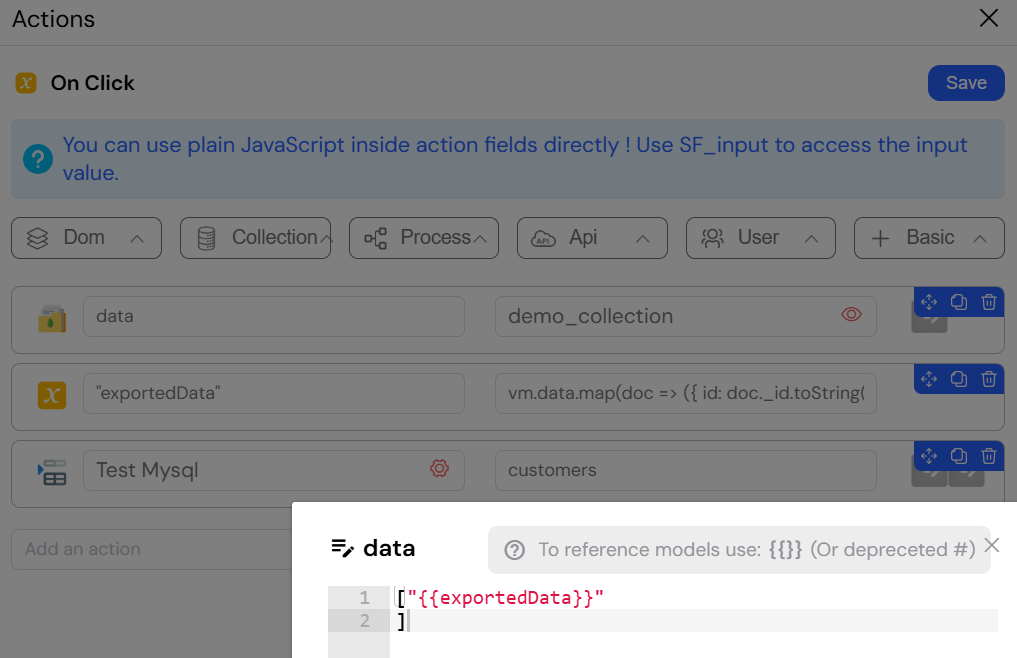
A Softyflow process for migrating data from MongoDB to an SQL database.
This process consists of three main steps:
- Get Collection: The
getCollectionaction retrieves all documents from thedemo_collectionin MongoDB. - Set Variable: The data is stored in a variable, such as
exportedData. In a real-world scenario, you might add a script here to transform the data to match the SQL schema. - Insert in EDS: The
insert in EDSaction iterates through theexportedDataand inserts each record into thecustomerstable in the "Test Mysql" database, mapping fields as required.
This type of automated workflow is a powerful example of how Softyflow can orchestrate complex data operations between disparate systems.
This documentation provides practical examples for both SQL and MongoDB usage in Softyflow applications. Choose the appropriate data storage method based on your specific requirements and existing infrastructure.
Next StepsDirect link to Next Steps
Now that you understand database integration, continue building your application:
- Web Interface Design - Create interfaces that display and interact with your data
- Process Design - Design processes that use your database data
- Integration - Connect with external data sources and APIs
- Reporting - Create reports from your database data
- Test & Deploy - Test your database integrations across environments
- Monitor & Run - Monitor your data-driven processes
For hands-on experience, try our step-by-step tutorials or watch our database video tutorials.
For advanced database features, explore our EDS documentation, MongoDB integration, and learn about using databases in Select widgets and Table widgets.