Select Widget
OverviewDirect link to Overview
The Select widget is a dropdown component that allows users to choose one or multiple options from a predefined list. It supports various data sources and provides extensive customization options for different use cases.
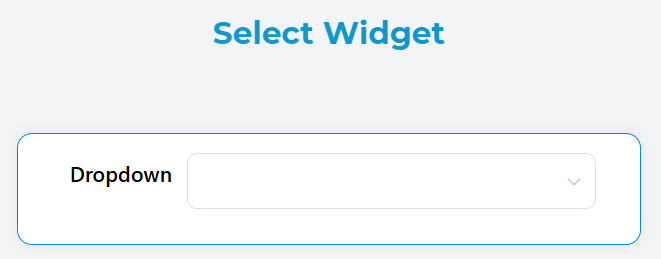
Basic ConfigurationDirect link to Basic Configuration
Global SettingsDirect link to Global Settings
NameDirect link to Name
- Field: Name
- Description: Display name for the widget
- Type: Text input
- Required: Yes
Variable/ModelDirect link to Variable/Model
- Field: Variable/Model
- Description: The variable name that will store the selected value(s)
- Type: Text input
- Required: Yes
- Note: This is the data binding variable for the widget
Default ValueDirect link to Default Value
- Field: Default Value
- Description: Pre-selected value when the widget loads
- Type: Text input
- Supports: Dynamic expressions using variables
Selection OptionsDirect link to Selection Options
Multiple SelectionDirect link to Multiple Selection
- Field: Multi
- Description: Enable selection of multiple options
- Type: Toggle switch
- Default: false
- Effect: When enabled, users can select multiple items and the result will be stored as an array
ClearableDirect link to Clearable
- Field: Clearable
- Description: Allow users to clear the selected value(s)
- Type: Toggle switch
- Default: false
- Effect: Adds a clear button to remove selections
FilterableDirect link to Filterable
- Field: Filterable
- Description: Enable search/filter functionality within the dropdown
- Type: Toggle switch
- Default: false
- Effect: Adds a search input to filter available options

Data Source ConfigurationDirect link to Data Source Configuration
The Select widget supports multiple data source types:
Static DataDirect link to Static Data
- Source Type: Static
- Configuration: Custom List
- Description: Use predefined static data from custom lists
- Setup:
- Select "Static" as remote option
- Choose or create a custom list
- Options will be loaded from the selected list

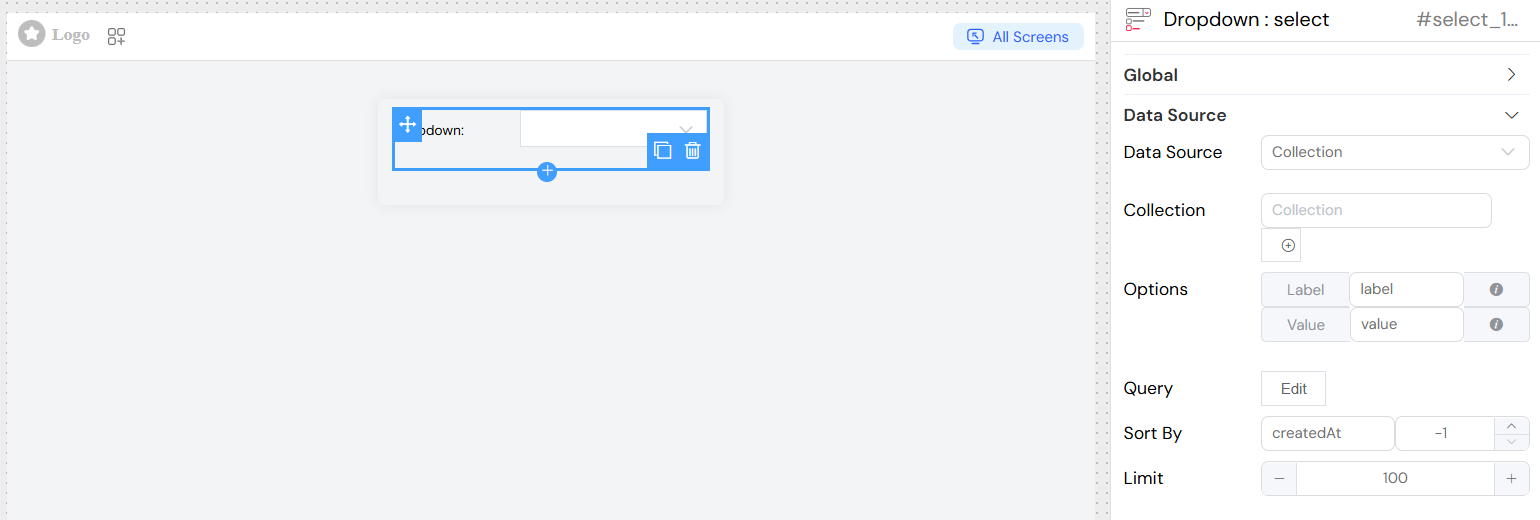
Collection DataDirect link to Collection Data
- Source Type: Collection
- Configuration: Database Collection
- Description: Load options from a database collection
- Setup:
- Select "Collection" as remote option
- Choose the target collection
- Configure label and value field mappings
- Set optional query filters, sorting, and limits
Report DataDirect link to Report Data
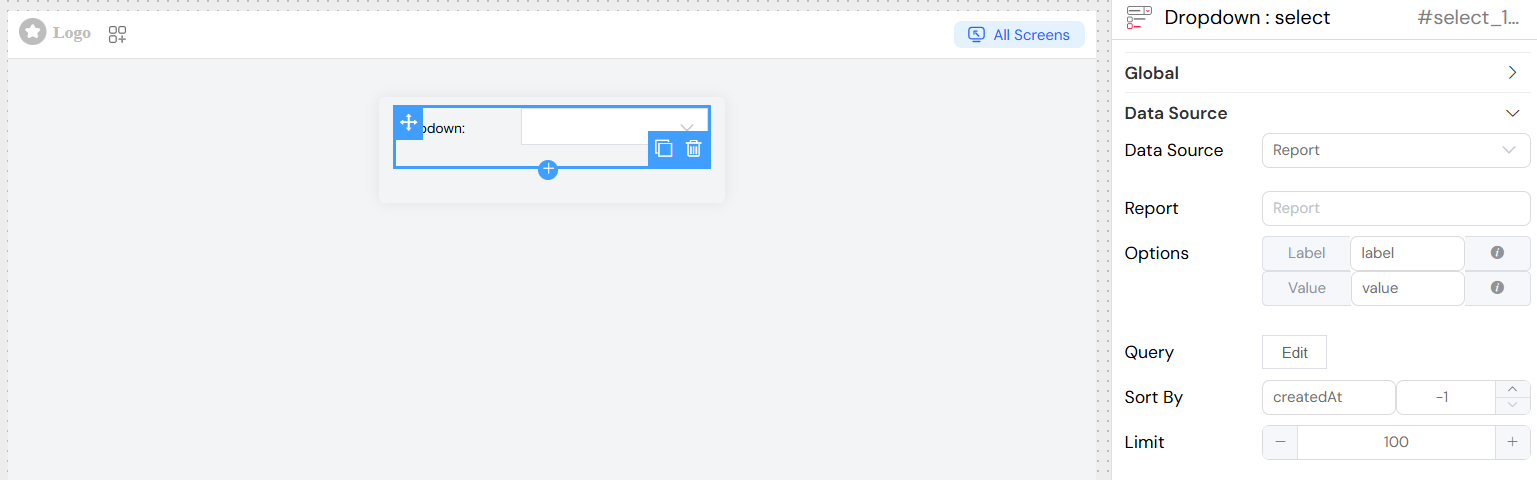
Source Type: Report
Configuration: Report Query
Description: Load options from report results
Setup:
- Select "Report" as remote option
- Choose the target report
- Configure label and value field mappings
- Set optional query filters, sorting, and limits
External Database (SQL)Direct link to External Database (SQL)
Source Type: SQL
Configuration: External Database Connection
Description: Load options from external database queries
Setup:
- Select "SQL" as remote option
- Choose the database connection
- Configure the SQL query
- Set label and value field mappings
](/img/04_ressources/project/web-interface/widgets/selectEDS.png)
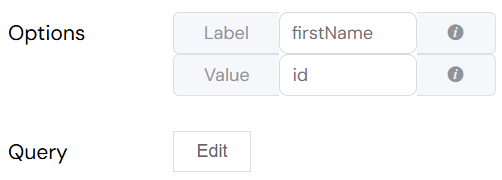
Field MappingDirect link to Field Mapping
For dynamic data sources (Collection, Report, SQL), configure field mappings:
Label FieldDirect link to Label Field
- Purpose: Defines what text is displayed to users
- Static Use:
firstName - Dynamic Use:
$.firstName + ' - ' + $.lastName - Support: Expressions using
$prefix for field references
Value FieldDirect link to Value Field
- Purpose: Defines what value is stored when an option is selected
- Static Use:
id - Dynamic Use:
$.id + '-' + $.type - Support: Expressions using
$prefix for field references
Query ConfigurationDirect link to Query Configuration
Basic QueryDirect link to Basic Query
- Purpose: Filter and customize data retrieval
- Language: JavaScript with variable support
- Variables: Use
{{variableName}}for interface variables - Example:
{status: "active", category: "{{selectedCategory}}"}
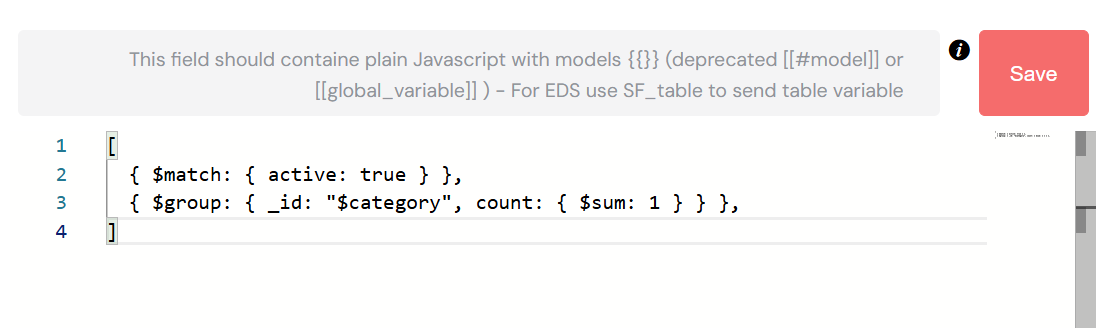
AggregationDirect link to Aggregation
- Purpose: Use aggregation pipelines for complex data processing
- Availability: Collection and Report sources
- Toggle: "Is Aggregation" switch
- Example:
SortingDirect link to Sorting
- Sort By: Field name to sort by
- Direction:
1for ascending-1for descending
- Object Sort: Advanced sorting using sort objects
LimitDirect link to Limit
- Purpose: Restrict number of options loaded
- Type: Number input
- Default: No limit
- Use Case: Performance optimization for large datasets
Validation RulesDirect link to Validation Rules
Required ValidationDirect link to Required Validation
- Configuration: Per screen basis
- Options:
- Boolean toggle for simple required/not required
- Advanced conditions using JavaScript expressions
- Message: Custom validation message
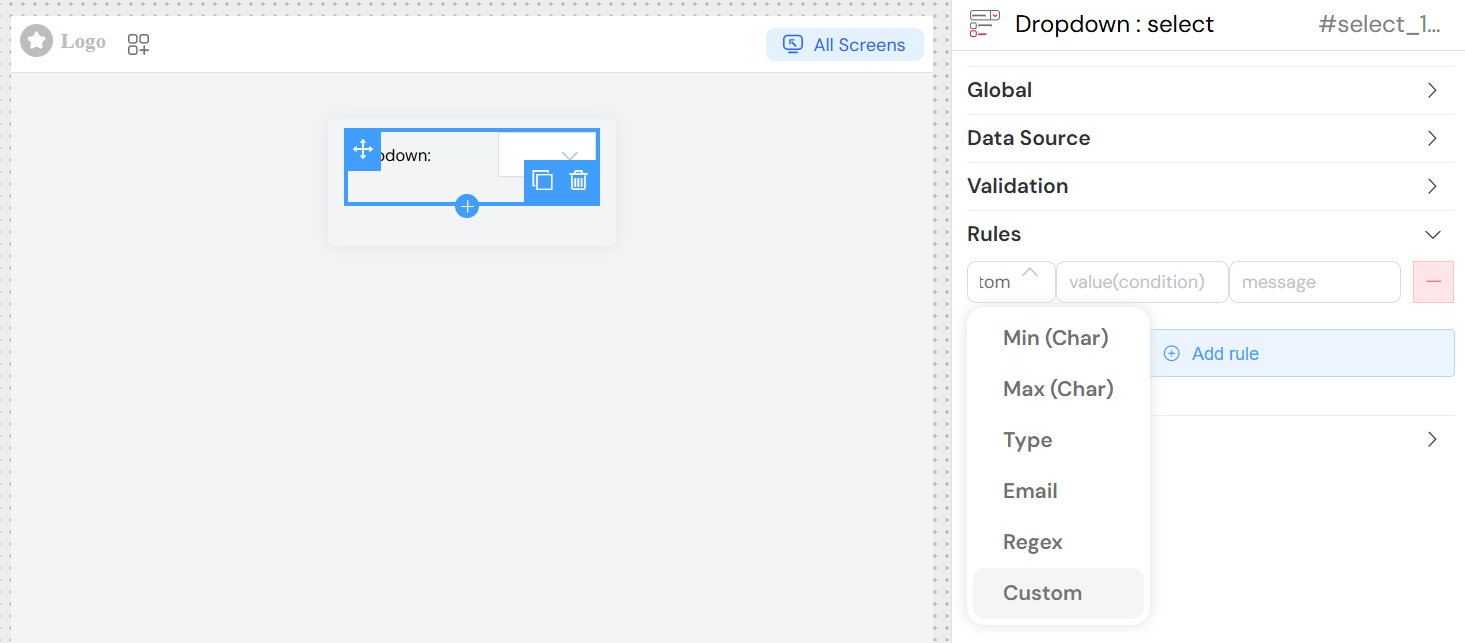
Custom RulesDirect link to Custom Rules
Add additional validation rules:
- Min Length: Minimum selection requirement
- Max Length: Maximum selection limit
- Pattern: Regular expression validation
- Custom: JavaScript validation functions
Screen-Based ConfigurationDirect link to Screen-Based Configuration
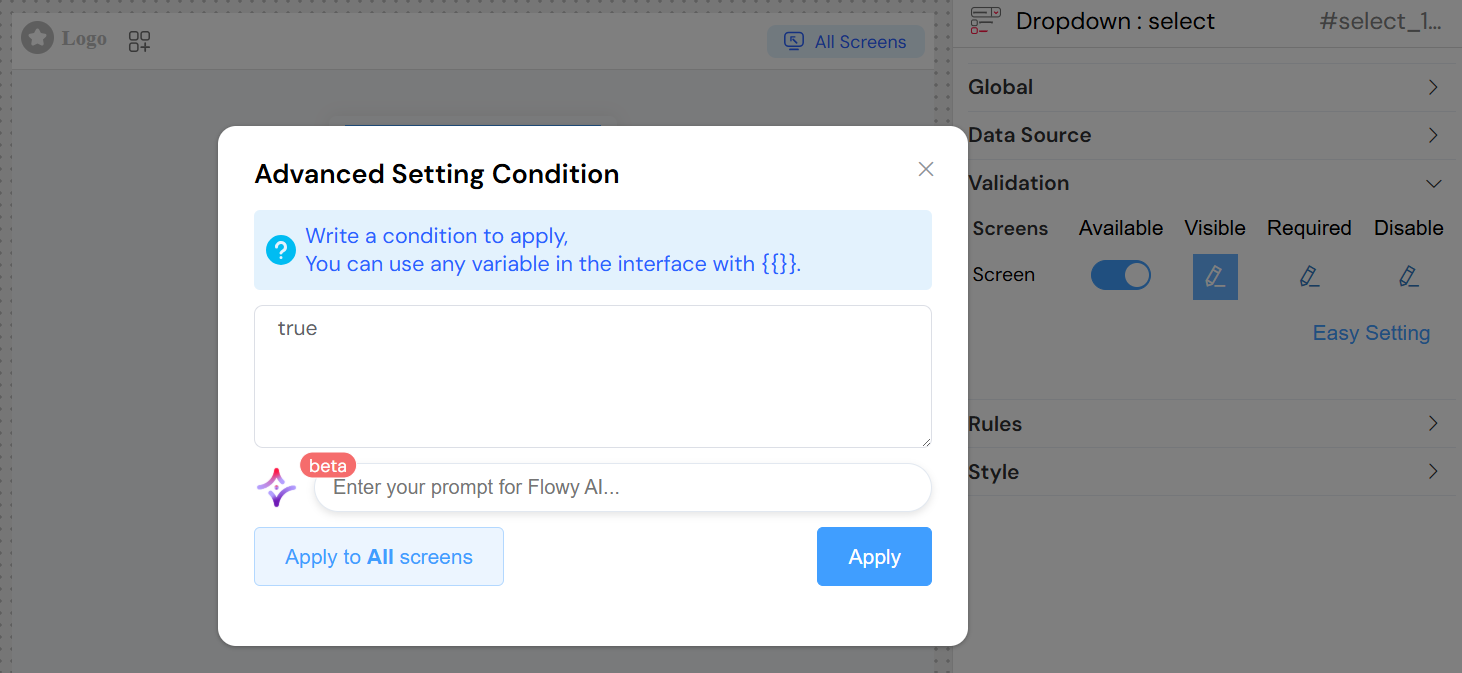
Configure widget behavior per screen:
AvailabilityDirect link to Availability
- Purpose: Control if widget exists on specific screens
- Options: Boolean or conditional expression
VisibilityDirect link to Visibility
- Purpose: Control if widget is visible on specific screens
- Options: Boolean or conditional expression
- Advanced: JavaScript conditions using
{{variables}}
Required StatusDirect link to Required Status
- Purpose: Control if widget is required on specific screens
- Options: Boolean or conditional expression
Disabled StateDirect link to Disabled State
- Purpose: Control if widget is disabled on specific screens
- Options: Boolean or conditional expression
Styling and LayoutDirect link to Styling and Layout
Placeholder TextDirect link to Placeholder Text
- Field: Placeholder
- Purpose: Help text displayed when no option is selected
- Example: "Please select an option"
WidthDirect link to Width
- Field: Width
- Purpose: Control widget width
- Format: CSS width values (px, %, em, etc.)
- Example: "300px", "100%"
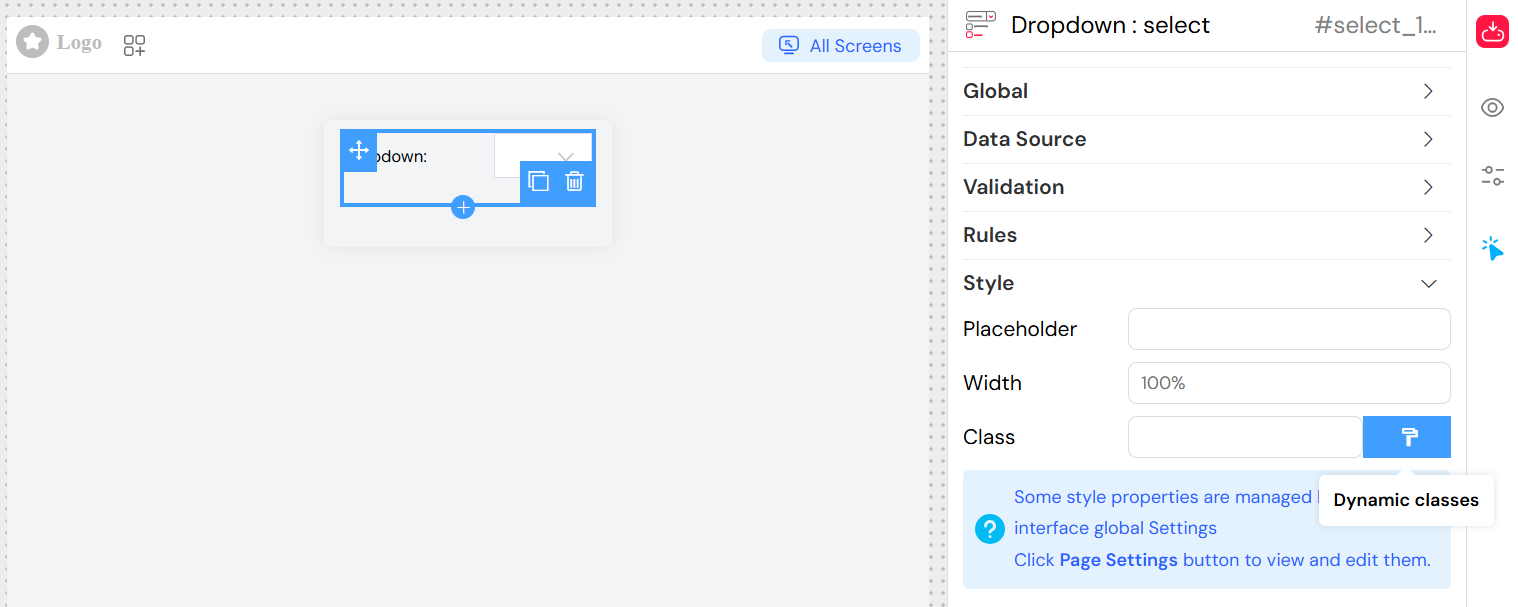
CSS ClassesDirect link to CSS Classes
- Field: Class
- Purpose: Add custom CSS styling
- Types:
- Static Classes: Space-separated class names
- Dynamic Classes: Conditional classes based on data state
Event HandlingDirect link to Event Handling
On Click EventDirect link to On Click Event
- Purpose: Execute custom actions when selection changes
- Language: JavaScript
- Available Variables:
SF_input.value: Selected valueSF_input.SF_data: Complete selected objectSF_input.SF_currentIndex: Loop index (if in a loop)
Action IntegrationDirect link to Action Integration
- V2 Interface: Use visual action builder
- Legacy: Direct JavaScript function calls
- Parameters: Access to selection data and context
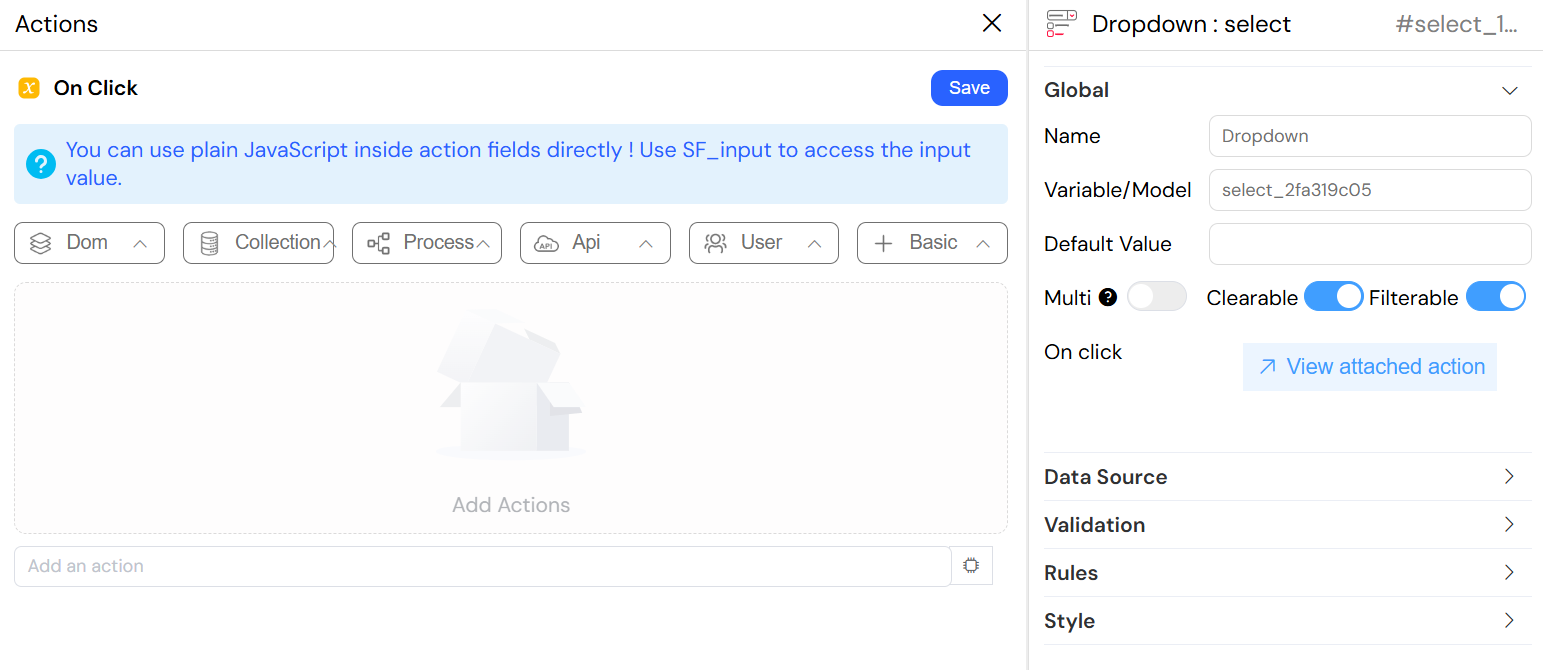
Working with Actions and SF_inputDirect link to Working with Actions and SF_input
Attaching Actions to onChange EventDirect link to Attaching Actions to onChange Event
The select widget's onChange (or onClick) event enables you to execute custom JavaScript whenever the user changes their selection. This is essential for:
- Auto-filling related form fields with data from the selected option
- Triggering cascading dropdowns or dependent field updates
- Fetching additional information from the backoffice based on selection
- Implementing dynamic form behavior and calculations
How to Attach an ActionDirect link to How to Attach an Action
- Navigate to the Global section in the select widget configuration
- Locate the On Click or On Change event field
- Write plain JavaScript code directly in the action field
- The code executes automatically when the user makes a selection
Accessing Values with SF_inputDirect link to Accessing Values with SF_input
The select widget provides comprehensive data access through the SF_input object. The key advantage is that you get both the selected value AND the complete data object from your data source.
SF_input Structure for Select WidgetDirect link to SF_input Structure for Select Widget
For single selection mode:
{
  value: /* The selected value based on your "Value Property" */,
  SF_data: /* Complete JSON object of the selected item */,
  SF_currentIndex: /* Loop index if widget is inside a loop */
}
For multiple selection mode (when "Multi" is enabled):
{
  value: [/* Array of selected values */],
  SF_data: [/* Array of complete selected objects */],
  SF_currentIndex: /* Loop index if widget is inside a loop */
}
Understanding SF_input PropertiesDirect link to Understanding SF_input Properties
| Property | Description | Single Select Example | Multi Select Example |
|---|---|---|---|
| value | Selected value(s) from your "Value Property" configuration | 'CUST001' | ['CUST001', 'CUST002'] |
| SF_data | Complete JSON object(s) for selected item(s) | {id: 'CUST001', name: 'John', ...} | [{id: 'CUST001', ...}, {...}] |
| SF_currentIndex | Current iteration index if widget is in a loop | 0, 1, 2, ... | 0, 1, 2, ... |
Practical ExamplesDirect link to Practical Examples
Example 1: Access Selected ValueDirect link to Example 1: Access Selected Value
// Get the selected value (single select)
console.log(SF_input.value);
// Output: 'CUST001'

// For multiple select
console.log(SF_input.value);
// Output: ['CUST001', 'CUST002', 'CUST003']

// Store the selected value in another field
model.selected_customer_id = SF_input.value;
Example 2: Access Complete JSON Object (SF_data)Direct link to Example 2: Access Complete JSON Object (SF_data)
This is the most powerful feature - accessing the full data object, not just the value:
// Access the complete data object for the selected item
console.log(SF_input.SF_data);
// Output: {
//   id: 'CUST001',
//   name: 'John Doe',
//   email: 'john@example.com',
//   phone: '+1234567890',
//   address: {
//     street: '123 Main St',
//     city: 'New York',
//     country: 'USA'
//   },
//   credit_limit: 5000,
//   status: 'active'
// }

// Access any property from the selected object
model.customer_email = SF_input.SF_data.email;
model.customer_phone = SF_input.SF_data.phone;
model.customer_status = SF_input.SF_data.status;

// Access nested properties
model.customer_city = SF_input.SF_data.address?.city;
model.customer_country = SF_input.SF_data.address?.country;
Best PracticesDirect link to Best Practices
Always Check SF_data Exists: Before accessing SF_data properties, verify it's not null
if (SF_input.SF_data) {
  // Your code here
}
Use Optional Chaining: For nested properties, use optional chaining to avoid errors
const city = SF_input.SF_data?.address?.city || 'Unknown';Handle Both Single and Multi Select: If your widget might switch between modes, handle both cases
const selectedData = Array.isArray(SF_input.SF_data) ? SF_input.SF_data : [SF_input.SF_data];Leverage SF_data for Rich Data: Always use SF_data when you need more than just the value - it contains the complete record
Clear Previous Data: When selection changes, clear dependent fields to avoid stale data
model.related_field_1 = null;
model.related_field_2 = null;
// Then populate with new data
Error Handling: Wrap data fetching in try-catch blocks
try { const data = await SF_executeAction('fetchData', { id: SF_input.value }); // Process data } catch (error) { console.error('Error fetching data:', error); model.error_message = 'Failed to load data'; }Performance: For expensive operations, consider debouncing or showing loading indicators
Best PracticesDirect link to Best Practices
- Performance: Use limits for large datasets
- User Experience: Enable filtering for lists with 10+ items
- Validation: Provide clear error messages
- Accessibility: Use descriptive labels and placeholders
- Data Integrity: Validate selected values against available options
- Responsive Design: Set appropriate widths for different screen sizes
TroubleshootingDirect link to Troubleshooting
Common IssuesDirect link to Common Issues
No Options Displayed
- Check data source configuration
- Verify query syntax and variables
- Ensure proper field mappings
Performance Issues
- Add appropriate limits
- Use filtering instead of loading all data
- Consider pagination for very large datasets
Validation Errors
- Check required field configuration
- Verify custom validation rules
- Ensure proper screen-based settings
Selection Not Saving
- Verify variable/model configuration
- Check data type compatibility
- Ensure proper form submission handling