Custom Lists: Create and Manage Reusable Data Sets
1. What is a Custom List?Direct link to 1. What is a Custom List?
A custom list is a powerful feature in Softyflow that allows you to create and manage personalized collections of items. These lists are designed to be reusable throughout your application, saving you time and effort. Think of them as centrally-managed dropdown lists or selectable options that you can define once and use in multiple forms, processes, or interfaces.
Each item in a custom list consists of a label and a value.
- Label: This is the human-readable text that users will see in the user interface (e.g., in a dropdown menu).
- Value: This is the underlying data associated with the label, which is often used for programmatic purposes, such as storing in a database or using in business logic.
For example, you could create a custom list for "Countries" where the label is "United States" and the value is "US".
2. Creating a Custom ListDirect link to 2. Creating a Custom List
Creating a custom list in Softyflow is a straightforward process.
- Navigate to the Custom List section, typically found in the main builder interface of your project.
- Click on the "Create" or "New" button to start defining your list.
- You will be prompted to provide a name for your custom list. This name should be descriptive and easy to identify.

2.1. Custom List IdentificationDirect link to 2.1. Custom List Identification
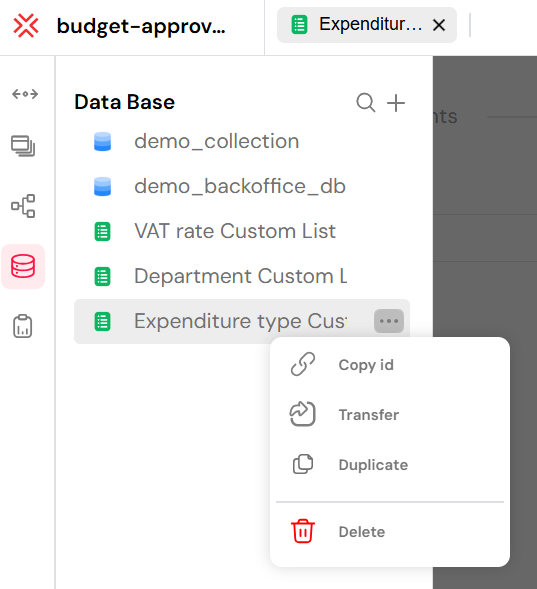
Once you create a new custom list, the system automatically assigns it a unique Custom List ID. This ID is an internal identifier that Softyflow uses to reference the list. To find the Custom List ID, click on the three-dots menu next to the list's name. This ID is particularly useful when you need to interact with the list programmatically via APIs or scripts.
2.2. Populating Your Custom ListDirect link to 2.2. Populating Your Custom List
You have two primary methods for adding data to your custom list:
Manual Entry: You can add items one by one by specifying the
labelandvaluefor each entry. This is suitable for smaller, static lists.CSV Import: For larger lists, you can import data from a CSV (Comma-Separated Values) file. The CSV file should have two columns, one for the label and one for the value.
Here is an example of a simple CSV file structure:
Label,Value
"High Priority","high"
"Medium Priority","medium"
"Low Priority","low"
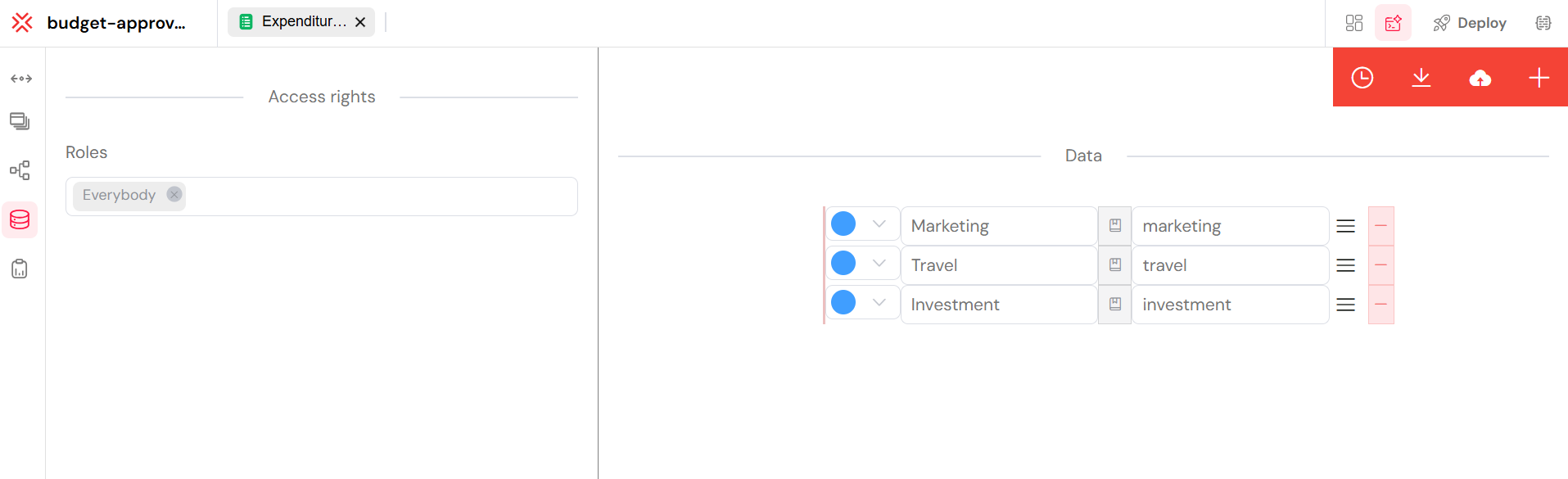
After adding or importing your data, remember to save your changes.
3. Updating a Custom ListDirect link to 3. Updating a Custom List
Modifying an existing custom list follows a similar procedure to creating one. You can edit the list's name, add new items, modify existing label-value pairs, or delete items. The process is designed to be intuitive and consistent with the creation experience.
4. Managing Access RightsDirect link to 4. Managing Access Rights
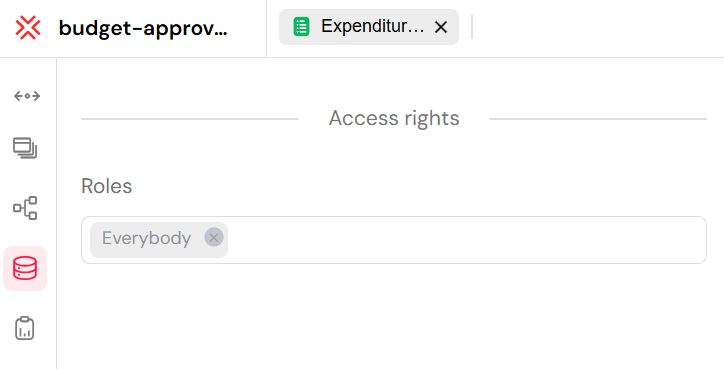
Security and access control are crucial. Softyflow allows you to define which users or groups can access and use a custom list. By default, a new custom list is accessible to everyone on the platform ("Everybody" group). However, you can restrict access to specific roles or teams, ensuring that only authorized users can view or interact with the list.
5. Deleting a Custom ListDirect link to 5. Deleting a Custom List
If a custom list is no longer needed, you can delete it. To do this, click on the three-dots menu next to the custom list's name and select the "Delete" option. Be cautious with this action, as deleting a custom list that is currently in use in your application might lead to unexpected behavior or errors in the forms or processes that reference it.