Multi-Language: Translate Web Interfaces for End Users
1. End-User Multi-LanguageDirect link to 1. End-User Multi-Language
Softyflow multi-language lets a single web interface be displayed in several languages to end users. It is configured per web interface, from Web Modeler → Script Editor → Multilingual panel.
The "Language" field in Page Settings is now disabled. Language configuration is done exclusively from the Script Editor.
Softyflow supports 15 languages:
| Code | Language | Code | Language |
|---|---|---|---|
en | English | nl | Dutch |
fr | French | svSE | Swedish |
de | German | nbNO | Norwegian |
it | Italian | hu | Hungarian |
es | Spanish | pl | Polish |
pt | Portuguese | ja | Japanese |
ar | Arabic | zhCN | Simplified Chinese |
zhTW | Traditional Chinese |
2. Configuring Interface LanguagesDirect link to 2. Configuring Interface Languages
Open your interface in the Web Modeler, then click Script Editor. In the Script Editor sidebar, click Multilingual (the "translate" icon).
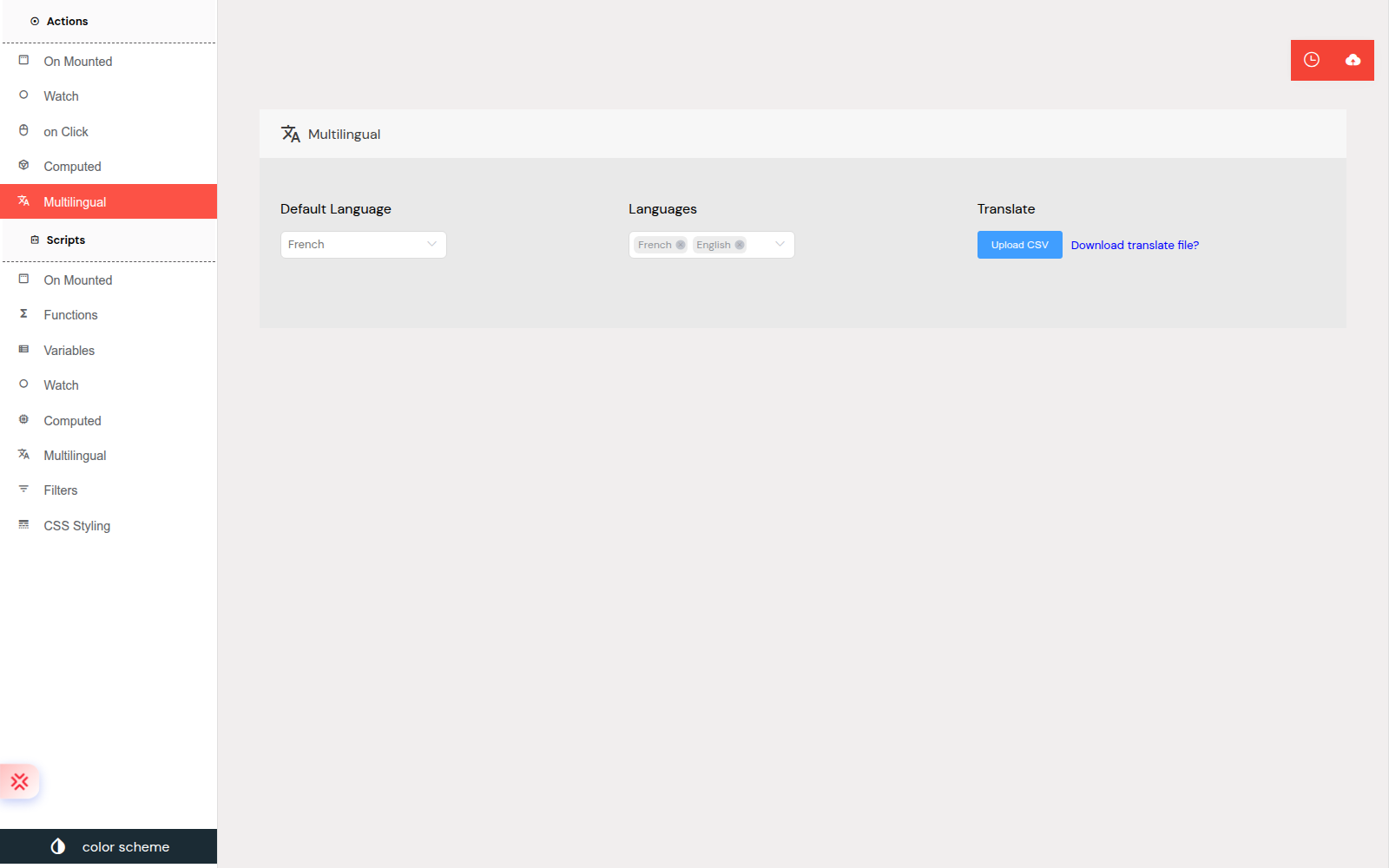
Three settings are available:
- Default Language — the fallback language of the interface (used when no other language applies). Stored as
config.language. - Languages — the list of languages enabled for this interface (
config.languageOptions). The default language is automatically added to this list on save. - Translate — CSV export / import of the translation table (see section 4).
The language switcher (flag) only appears in the runtime interface header when at least two languages are enabled in Languages. With a single language, no switcher is shown.
3. Translating the Interface (Translation Table)Direct link to 3. Translating the Interface (Translation Table)
The translation table is a JSON array editable in the Monaco editor of the Multilingual panel. Each row represents a text to translate and contains:
id_— a generated technical identifier (e.g.input1_name,input1_placeholder,btn_submit_buttonName).Default language (xx)— the value in the default language. This value is the dictionary key used for translation at runtime.- One column per enabled language (
fr,en,de…) containing the translation.
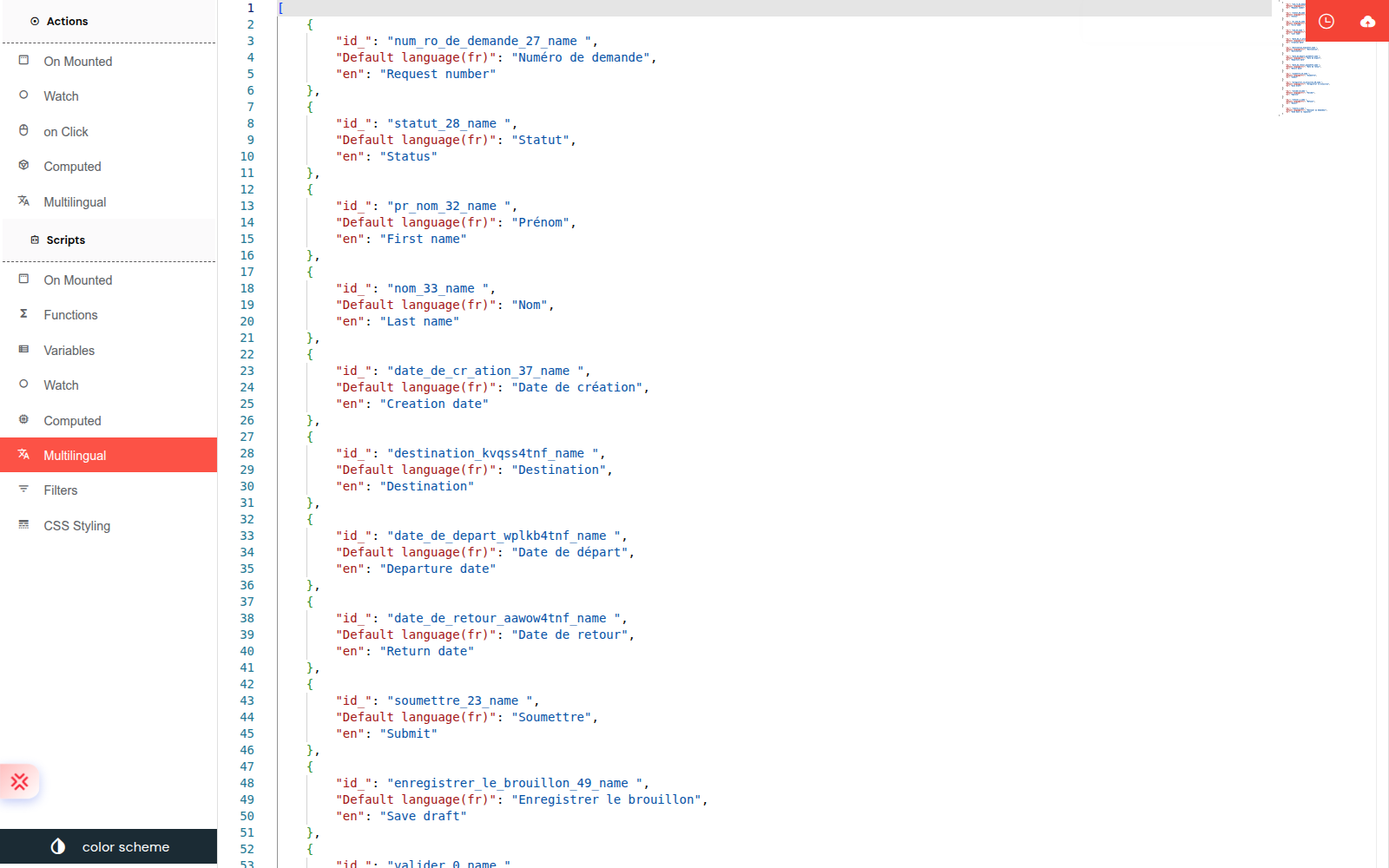
At runtime, each widget label is passed through the SF_translate Vue filter, which looks up the default value in the dictionary and replaces it with the translation for the active language. If no translation exists, the default value is shown as-is.
4. CSV (Excel) Export / ImportDirect link to 4. CSV (Excel) Export / Import
To translate offline (e.g. in Excel), use the CSV flow in the Multilingual panel.
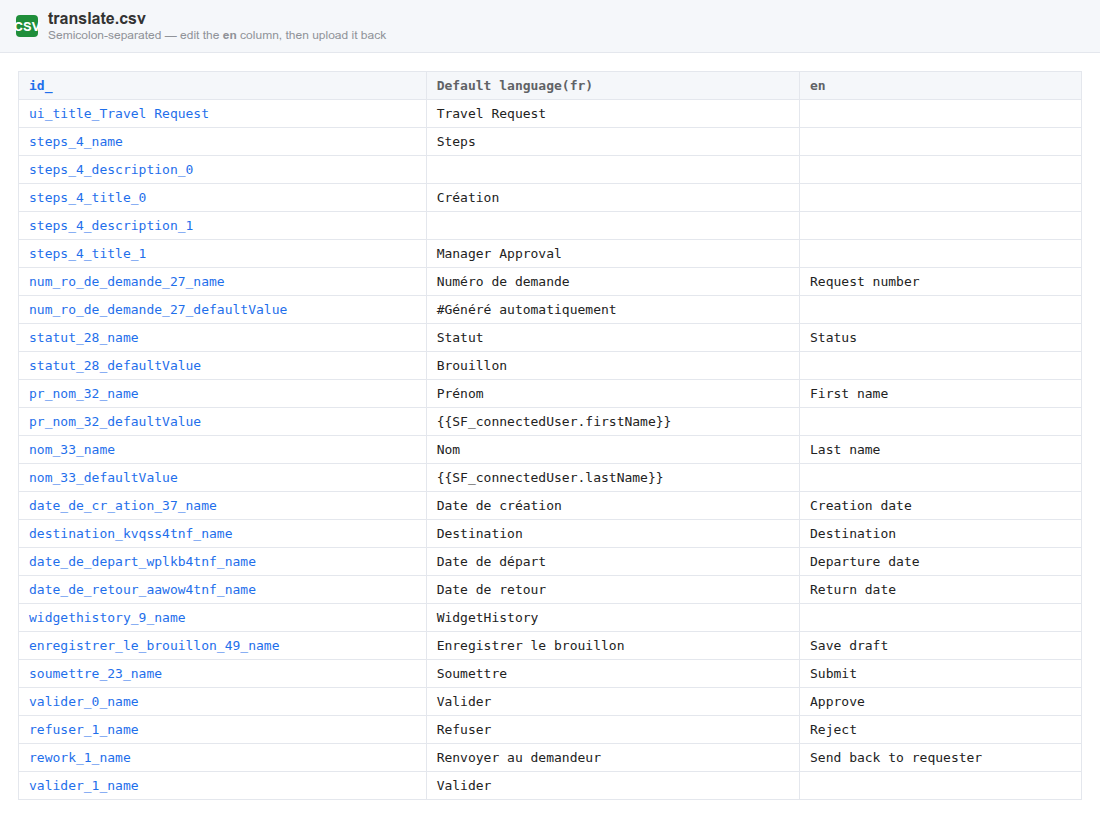
- Download translate file? — downloads a
translate.csvfile with one row per text to translate. - Upload CSV — re-imports the edited CSV back into the translation table.
The CSV is semicolon-separated, with the following header:
id_;Default language(fr);en;de;es;...
Example content:
id_;Default language(fr);en;de
input1_name;Nom;Name;Name
input1_placeholder;Entrez votre nom;Enter your name;Geben Sie Ihren Namen ein
btn_submit_buttonName;Soumettre;Submit;Absenden
The file is CSV format (openable in Excel), not a native .xlsx Excel file. Keep the semicolon separator and the header intact when editing.
5. Supported Translation ElementsDirect link to 5. Supported Translation Elements
On CSV export, Softyflow walks the widget tree and automatically collects the following texts. Each text becomes a row in the CSV with a determined identifier (id_).
Supported (auto-exported)Direct link to Supported (auto-exported)
| Element | Field | Id pattern |
|---|---|---|
| Section / list title | item.title | <title>_title_list |
| Any widget label | item.name | <id>_name |
| Placeholder | options.placeholder | <id>_placeholder |
| Default value | options.defaultValue | <id>_defaultValue |
| Text (Text / Title widget) | options.text | <id>_text |
| Content | options.content | <id>_content |
| Texts | options.texts | <id>_texts |
| Button name | options.buttonName | <id>_buttonName |
| Tooltip / tip | options.tip | <id>_tip |
| Title (Drawer / PopUp / Card…) | options.title | <id>_title |
| Description | options.description | <id>_description |
| Radio / Checkbox / Select / Steps option label | options.options[].title | <id>_title_<i> |
| Radio / Checkbox / Select / Steps option description | options.options[].description | <id>_description_<i> |
| Table column header (label) | options.columns[].label | <id>_label_columns_<i> |
| Chart dataset label | config.datasets[].label | <id>_label_chart_<i> |
SF_translate markers in the HTML widget | scanned in options.html | <text>_html_<id> |
Not supported (NOT auto-exported)Direct link to Not supported (NOT auto-exported)
- Custom list option labels — not in the interface CSV. They are translated separately, per option, via
label_xxfields (Multilingual popover or the custom-list CSV). At runtime:item['label_'+lang] || item.label. - Navigation menu titles — not in the interface CSV. They are translated per menu item via
menu[].languages(Menu builder "Title translation" dialog). At runtime:el.languages[lang] || el.title. - Action / script strings — toasts, confirmations, and error messages written in the Script Editor are not collected. Use the HTML widget
SF_translatepattern, or the built-in dictionary keys where applicable. - Plain HTML text without
SF_translate— text typed directly in an HTML widget is not exported; only strings wrapped with| SF_translateare. - Validation messages — only the built-in
requiredkey interpolatesdata.label; custom validation messages are not collected. - Image alt text, file names, URLs, favicon — not translatable.
6. Integrating Custom Translatable Strings (HTML Widget + SF_translate)Direct link to 6. Integrating Custom Translatable Strings (HTML Widget + SF_translate)
To make a custom text (beyond the auto-collected fields) detectable and exported in the CSV, use the Vue SF_translate filter inside an HTML widget. This is the only way to add custom translatable strings.
Two syntaxes are supported:
<!-- 1. Text content (Vue interpolation) -->
{{ 'My custom text' | SF_translate }}

<!-- 2. Attribute / prop binding -->
<el-input :placeholder="'My custom text' | SF_translate" />
On CSV export, Softyflow scans the HTML widget content, detects these SF_translate markers, and adds one row per string (id <text>_html_<widget id>).
- HTML text without
SF_translateis not exported. - Custom translation table values are static strings: there is no runtime variable interpolation. Only built-in system keys (like
required) interpolate a variable (data.label). "Integrating a variable" therefore means wrapping a custom string with| SF_translateso it is detected and exported; the translated value itself remains a fixed per-language string.
7. Translating Custom List LabelsDirect link to 7. Translating Custom List Labels
Custom list options are translated individually via label_xx fields (one column per language). Open the configuration of the widget bound to the custom list (or the list from the Custom Lists collection), then click the Multilingual icon on an option to open the translation popover.
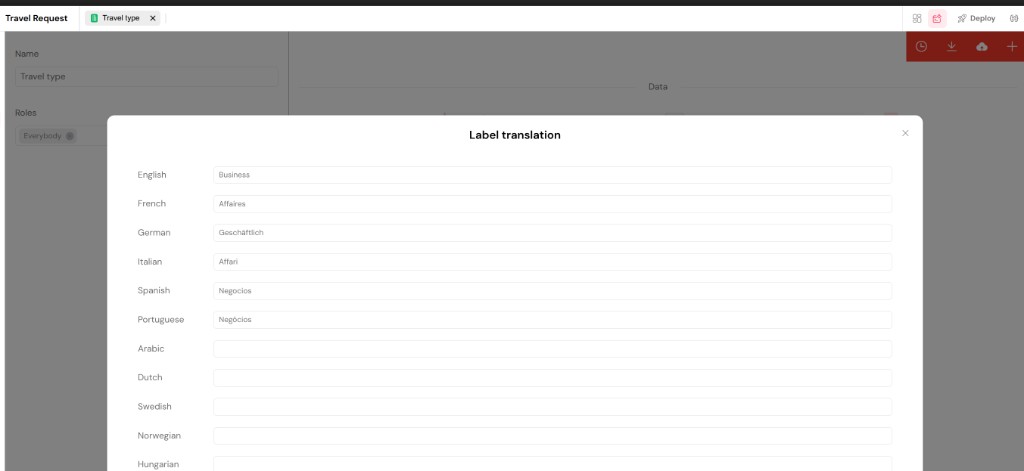
You can also import / export the options via a comma-separated CSV (PapaParse). The expected header is:
label,value,colorLight,colorDark,label_en,label_fr,label_de,label_it,label_es,label_pt,label_ar,label_nl,label_svSE,label_nbNO,label_hu,label_pl,label_ja,label_zhCN,label_zhTW
At runtime, the Select / Radio / Checkbox / Table widgets display item['label_'+lang] || item.label.
8. Translating Navigation Menu TitlesDirect link to 8. Translating Navigation Menu Titles
Navigation menu items are not part of the interface translation table — they are translated per menu item, from the Menu builder. Each menu entry has a languages map (one value per language code); at runtime the header renders el.languages[lang] || el.title.
To translate a menu title:
- Open the menu attached to the interface (or the standalone Menu resource) in the Menu builder.
- On the menu row, click the Title translation icon (the notebook/translate button in the Actions column).
- In the Title translation dialog, fill in one field per language, then save.
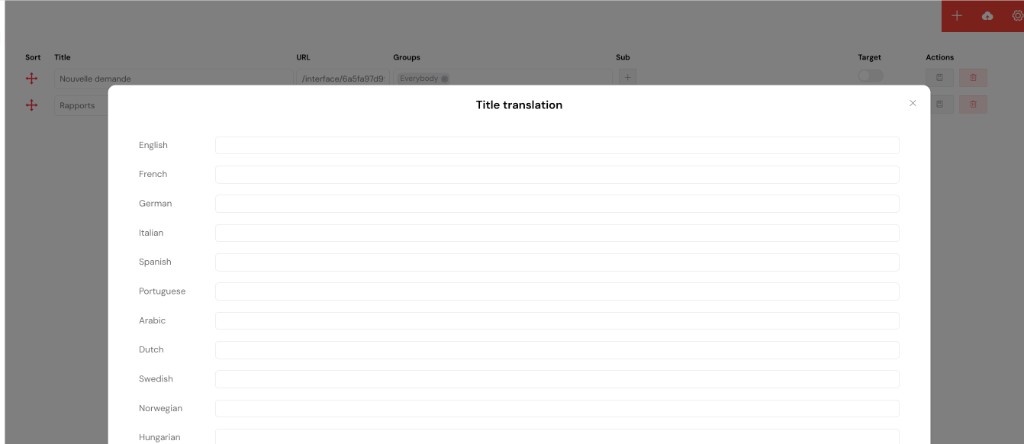
Only the menu title is translated here. The menu structure, icons, URLs, and target are not translatable.
9. Runtime BehaviorDirect link to 9. Runtime Behavior
Language resolution orderDirect link to Language resolution order
When an interface is opened, the active language is determined in this order:
- The URL parameter
?SF_lg=<code>if it is among the enabled languages (languageOptions). - Otherwise, the connected user's language (
user.lg) if it is among the enabled languages. - Otherwise, the interface default language (
config.language).
The language switcherDirect link to The language switcher
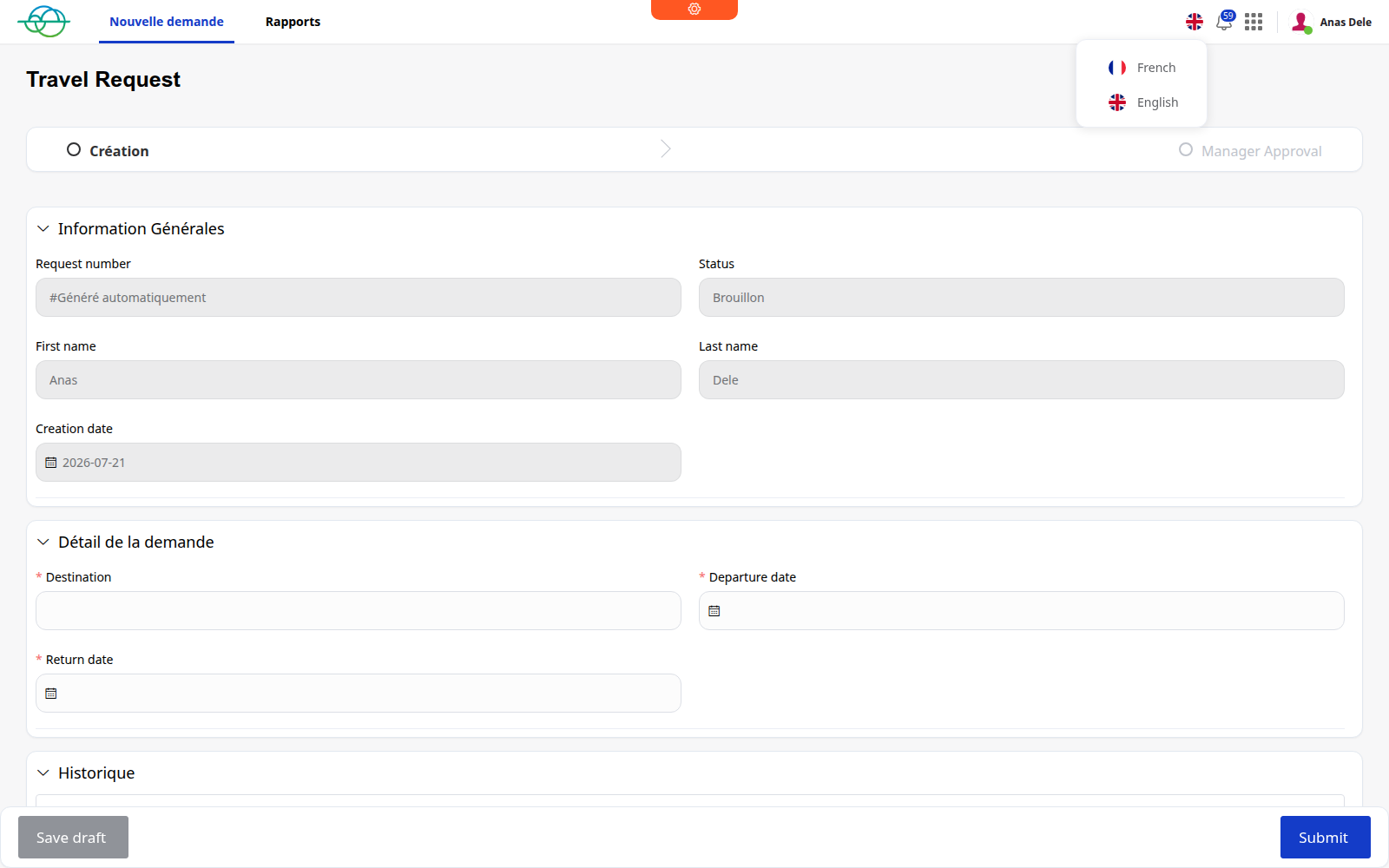
When the user switches language via the header flag:
- Logged-in user — the
lgpreference is saved viaPATCH /api/v1/profil, then the page reloads with?SF_lg=<code>. - Anonymous user — the page simply reloads with
?SF_lg=<code>.
Same interface in two languagesDirect link to Same interface in two languages
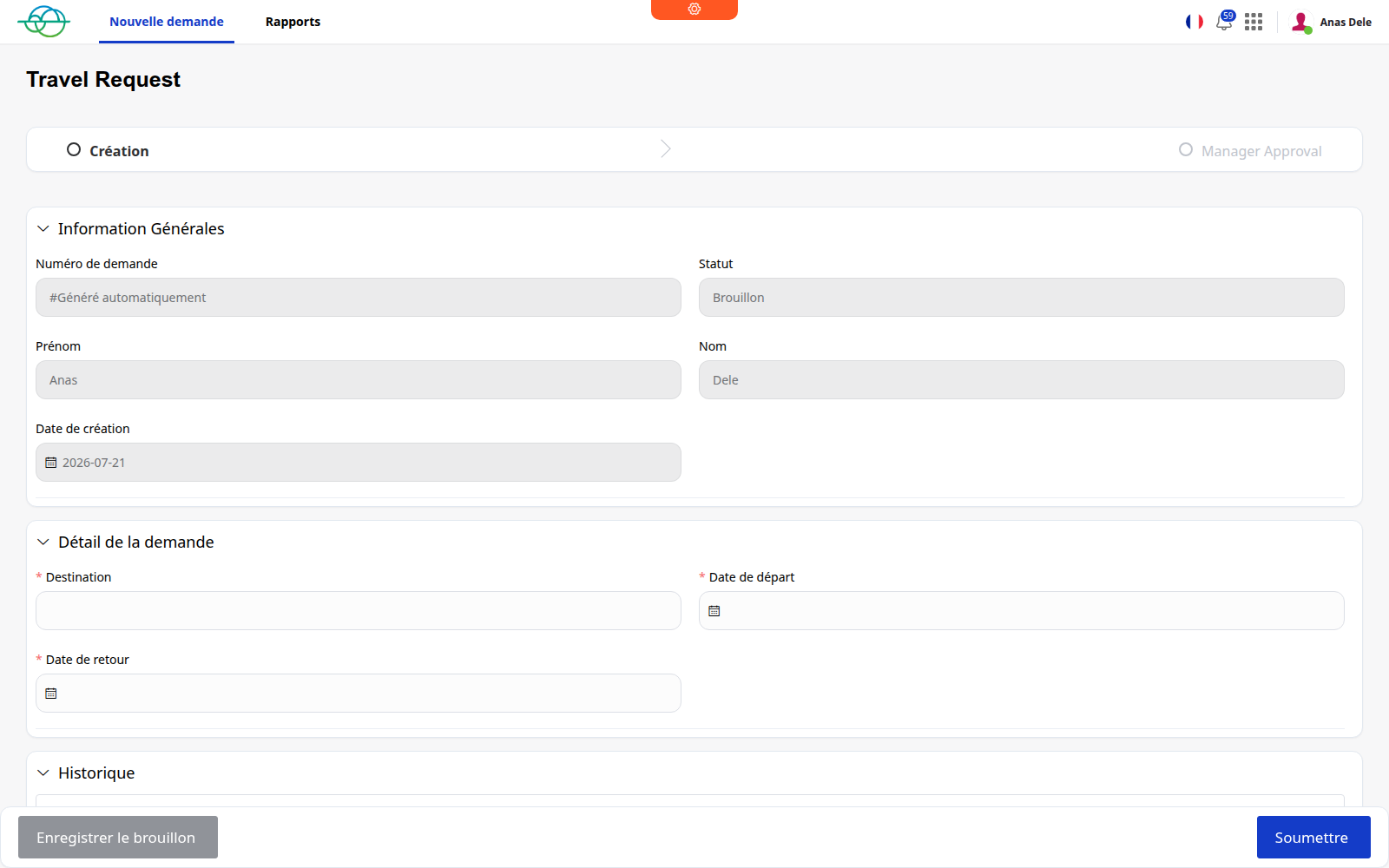
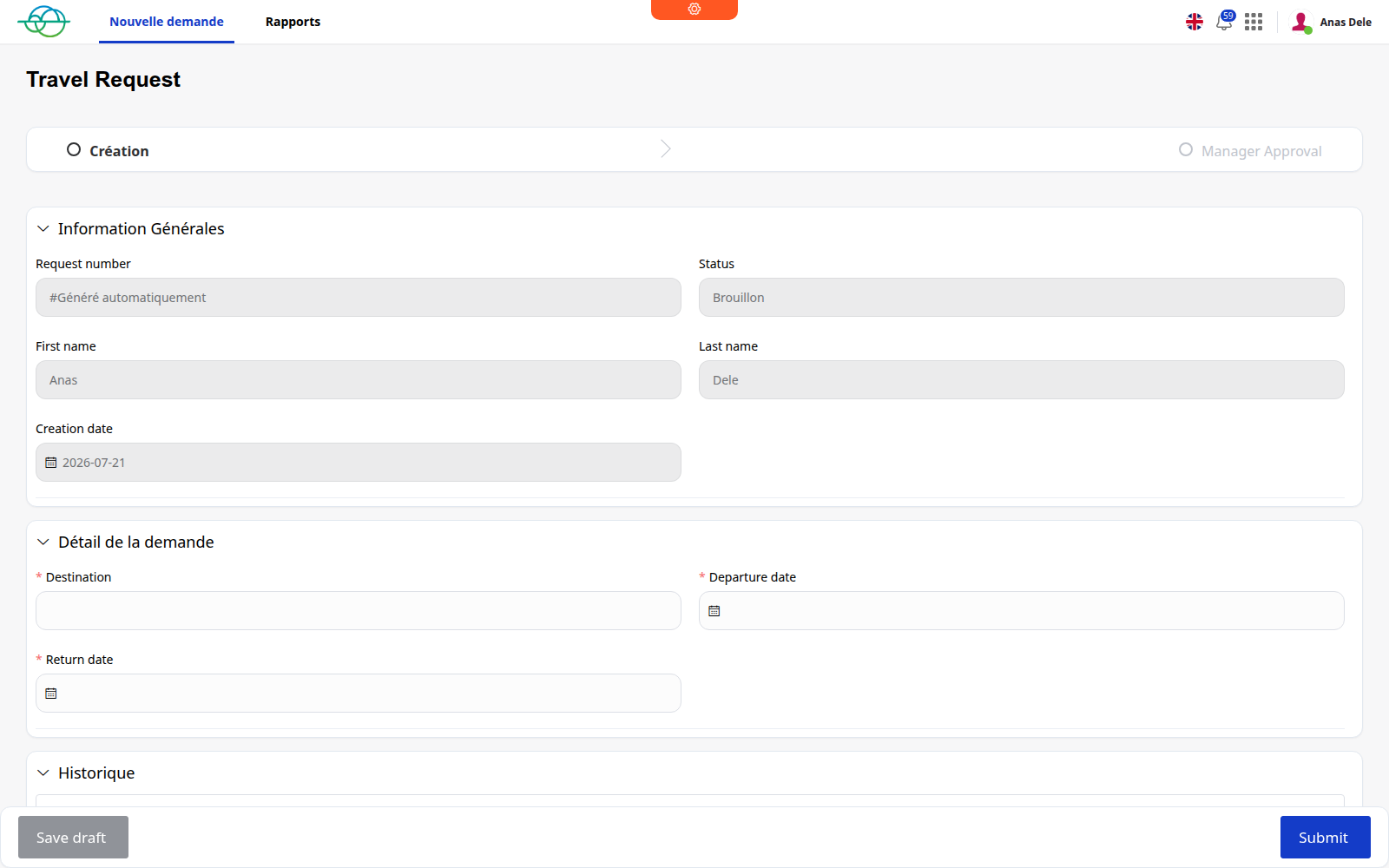
10. Reference & Supported LanguagesDirect link to 10. Reference & Supported Languages
| Setting | Where | Stored field |
|---|---|---|
| Interface default language | Script Editor → Multilingual | config.language |
| Enabled languages | Script Editor → Multilingual | config.languageOptions |
| Interface translation table | Script Editor → Multilingual (JSON editor / CSV) | config.translation |
| Custom list option labels | Widget config / Custom Lists | label_xx per option |
| Navigation menu titles | Menu builder → Title translation | menu[].languages |
| User runtime language | User profile | user.lg |
The 15 supported language codes: en, fr, de, it, es, pt, ar, nl, svSE, nbNO, hu, pl, ja, zhCN, zhTW.