Introduction to the Process Modeler
The Softyflow Process Modeler is a comprehensive and intuitive tool designed for creating, configuring, and testing business workflows. It adheres to the BPMN 2.0 standard, a widely recognized notation for business process modeling. This allows you to visually map out your processes and seamlessly connect them to your application's logic, transforming complex procedures into automated, efficient workflows.
1. Building Your First ProcessDirect link to 1. Building Your First Process
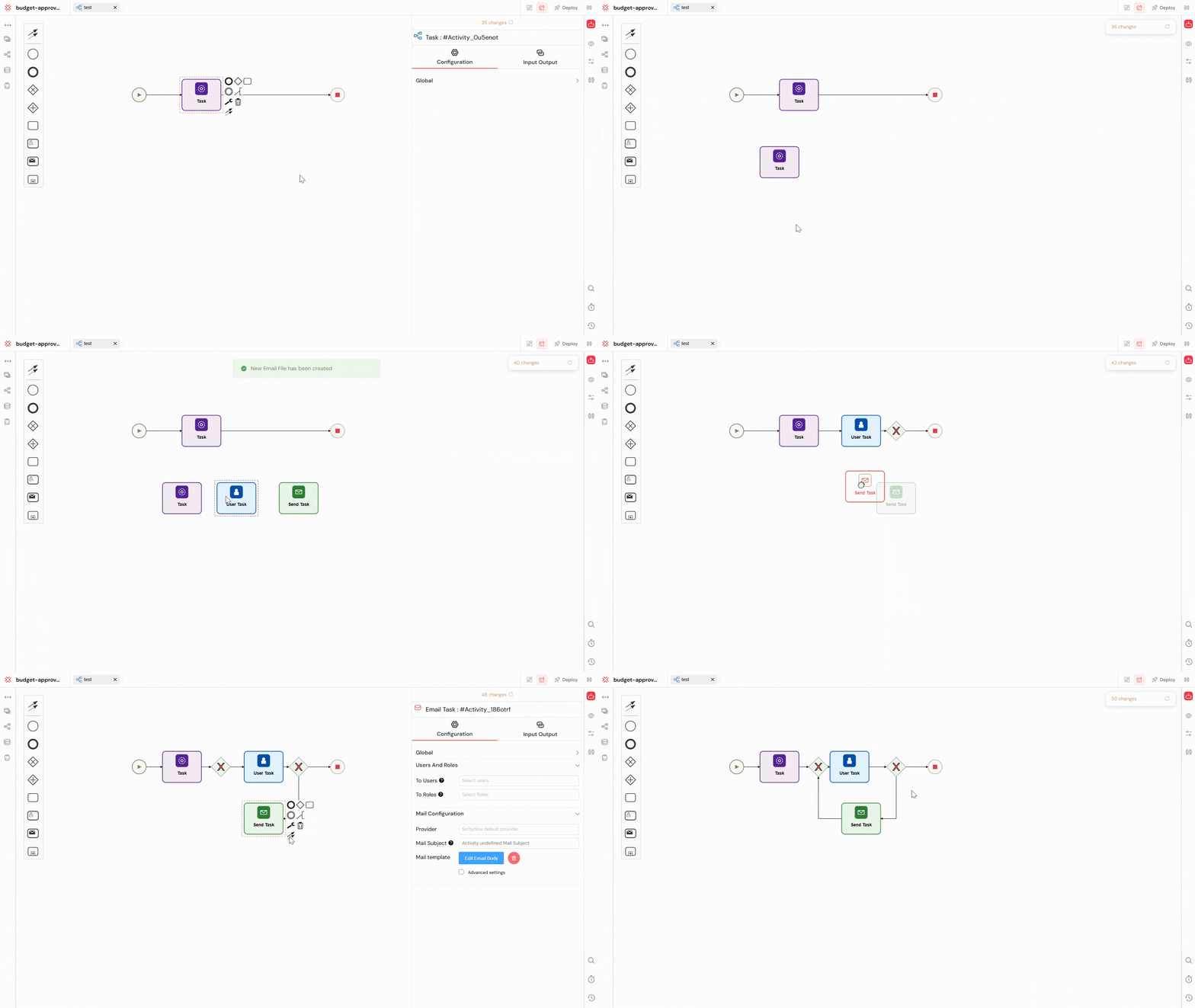
The Process Modeler is designed to be user-friendly, featuring a central canvas for workflow design and a palette of BPMN components on the left.
When you create a new process, Softyflow provides a basic template to get you started, which includes a Start Event, a Normal Task, and an End Event. This provides a foundational structure that you can build upon.
To construct your process, you can simply drag and drop components from the palette onto the canvas. From there, you can arrange them, define their specific properties in the right-hand panel, and connect them with sequence flows (arrows) to establish the workflow's path.
2. General Process ConfigurationDirect link to 2. General Process Configuration
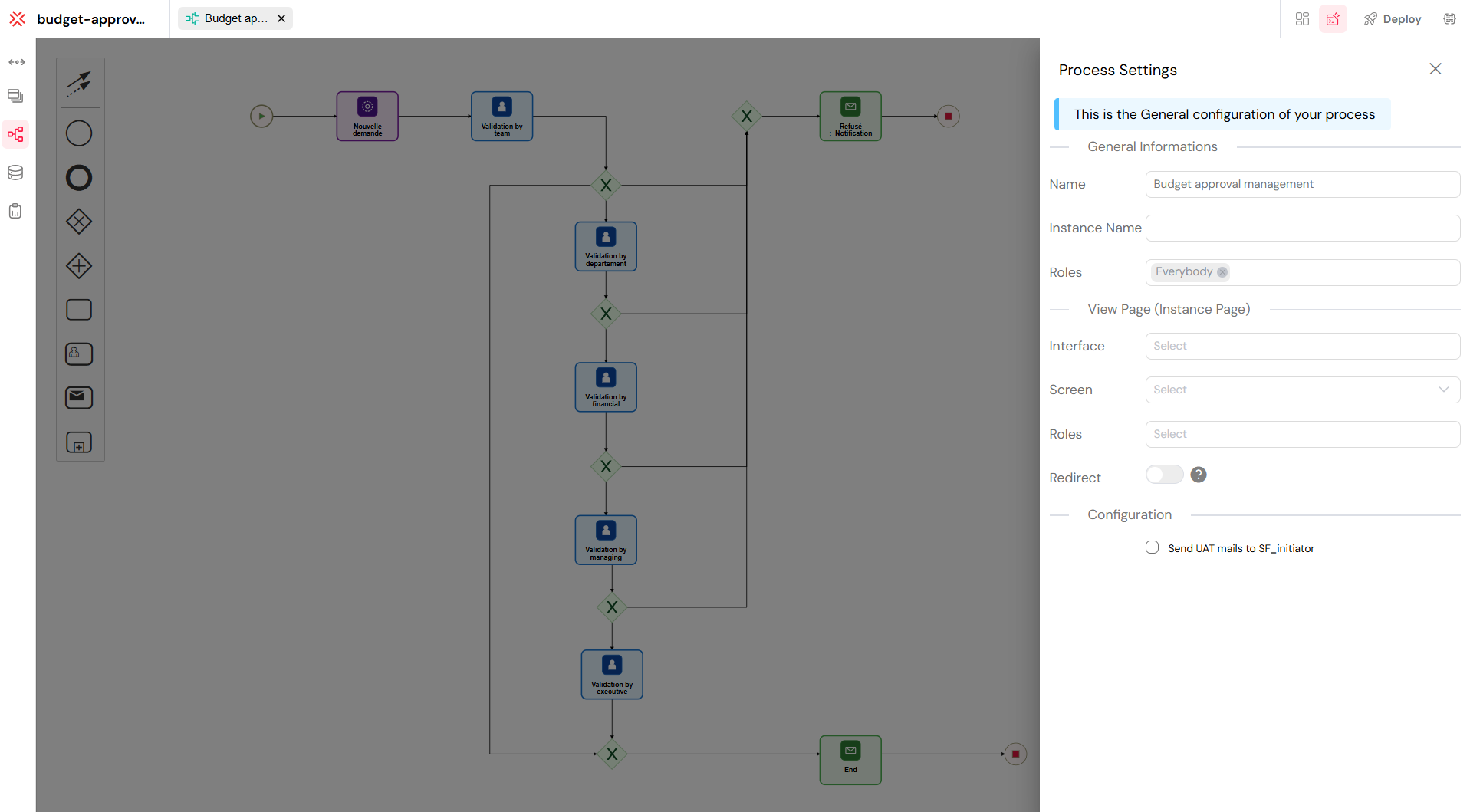
The General Configuration panel is where you define the core properties of your process. This includes setting up naming conventions, managing user access, and linking the process to a specific web interface for instance viewing.
2.1. How to Use General ConfigurationDirect link to 2.1. How to Use General Configuration
The General Configuration panel is the starting point for any new process. Here’s a detailed look at each field:
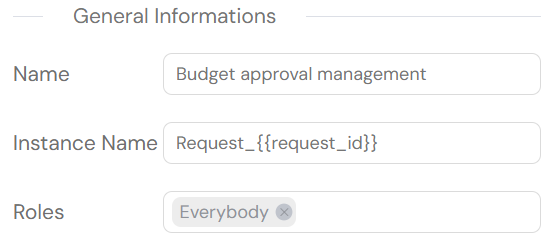
Name: This serves as the primary identifier for your process within the Softyflow environment. It's important to choose a name that is both clear and descriptive, as it will be displayed in process lists, reports, and other areas of the application.
Instance Name: This field allows for dynamic naming of each new process instance that is initiated. You can incorporate variables to generate unique and informative names, such as
Request_{{request_id}}, which would produce instance names like "Request_001," "Request_002," and so on. This greatly simplifies tracking and identifying individual instances.Roles (Process Access): This setting is used to control which users can initiate and interact with the process. You can select one or more user roles (e.g., "Admin," "Manager"). Only users who are members of the selected roles will have the ability to see and use this process.
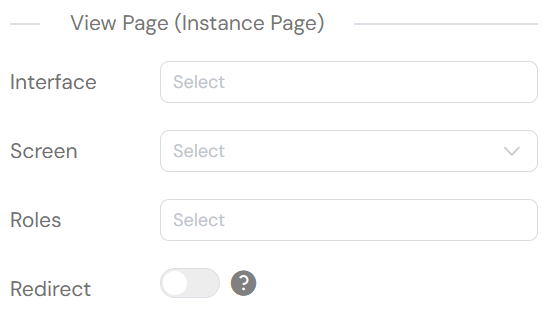
Interface (View Page): This links your process to a specific web interface. You should select the interface that houses the screen you intend to use for viewing process instances. This is often a dashboard or a detailed view page.
Screen (View Page): After you've selected an interface, this field allows you to choose the exact screen where users will be redirected to view the details of a process instance. This screen typically displays instance data, progress, and other relevant information.
Roles (View Page Access): This setting determines which user roles are permitted to access the view page. This provides an additional layer of security, enabling you to, for instance, grant "Managers" the ability to view the progress of a request, even if other roles are responsible for initiating it.
Redirect: When enabled, this option automatically redirects users to their active task page if they have the necessary permissions. This feature streamlines the user experience by eliminating unnecessary navigation steps. (Note: This option does not support delegation or subprocesses.)
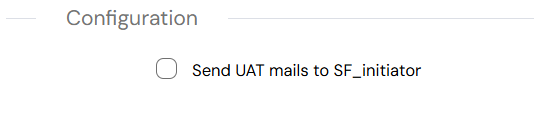
- Send UAT mails to SF_initiator: Enabling this option ensures that all User Acceptance Testing (UAT) related email notifications are sent directly to the process initiator (SF_initiator). This is particularly useful during testing and pre-production phases to confirm that the initiator receives all relevant UAT communications, such as approval requests and status updates.
3. Understanding BPMN ComponentsDirect link to 3. Understanding BPMN Components
A process is composed of a sequence of components connected by sequence flows (arrows) that dictate the workflow's path. Softyflow supports the three main categories of BPMN components: Events, Tasks, and Gateways.
3.1. EventsDirect link to 3.1. Events
Events represent something that happens during the course of a process. They can signify the start of a process, an occurrence during the process, or the end of a process.
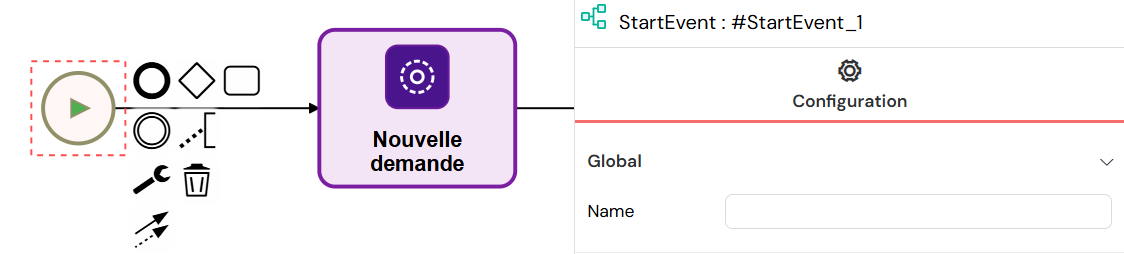
3.1.1. Start EventDirect link to 3.1.1. Start Event
Every process must have a Start Event. It is the official entry point for your workflow.
- How to use: Drag the circular Start Event icon from the component palette to begin your process diagram.
3.1.2. Intermediate EventsDirect link to 3.1.2. Intermediate Events
Intermediate Events occur during the execution of a process and are used to handle various conditions, throw signals, or redirect the workflow based on specific criteria.
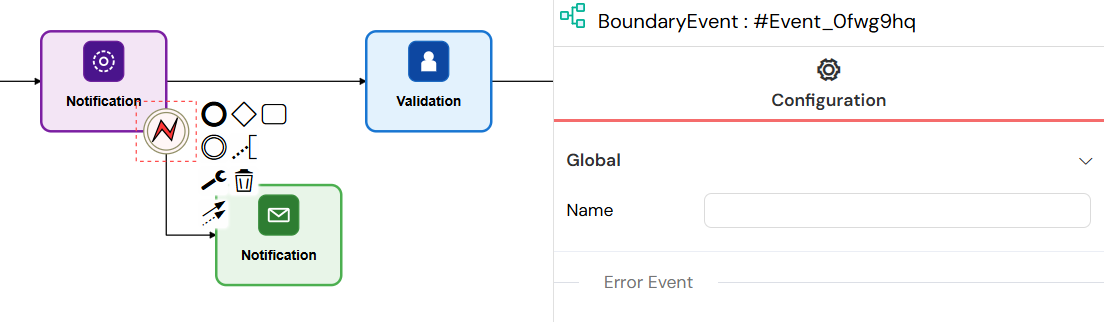
- They occur between other components in the process.
- They are useful for handling errors, managing exceptions, or redirecting the flow of the process.
3.1.3. Timer EventsDirect link to 3.1.3. Timer Events
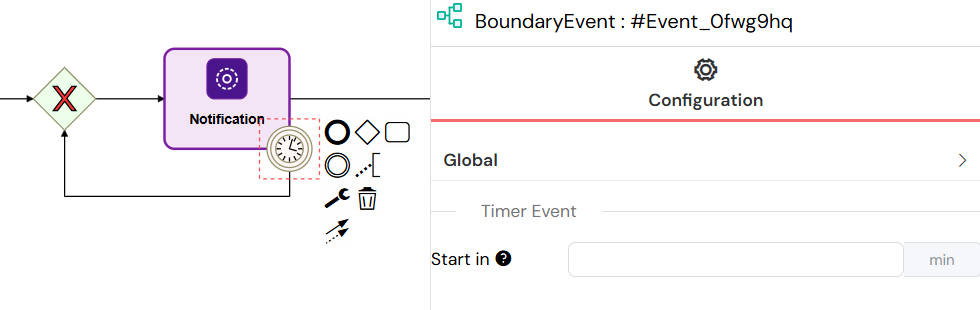
Timer Events are used to trigger actions after a specified delay. This allows you to schedule tasks or introduce time-based logic into your workflow. They support both interrupting (the current task is stopped) and non-interrupting (the current task continues) modes.
3.1.4. End EventDirect link to 3.1.4. End Event
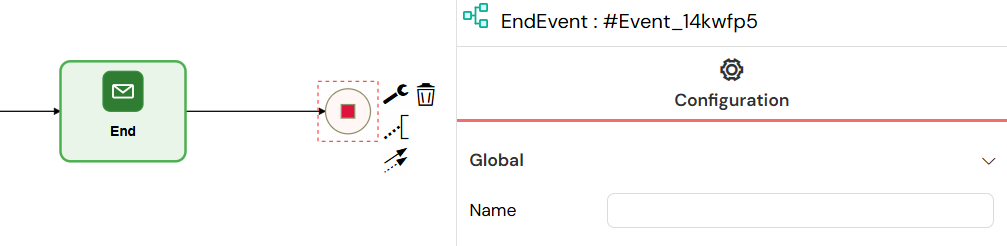
Every path within your process must ultimately lead to an End Event. This component signifies the completion of the workflow or a specific path within it.
- How to use: Drag the bold-lined circular End Event icon onto the canvas to mark the conclusion of a process path.
3.2. TasksDirect link to 3.2. Tasks
Tasks represent units of work that are performed during a process. These can be automated system actions or tasks that require human interaction.
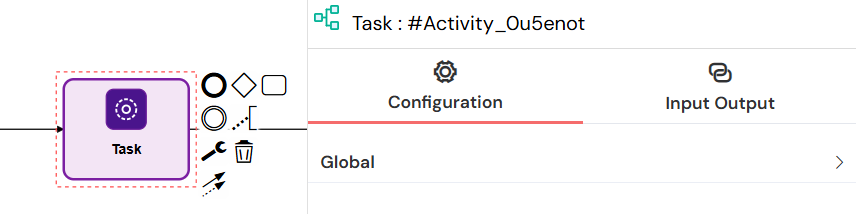
3.2.1. Empty Task (Normal Task)Direct link to 3.2.1. Empty Task (Normal Task)
Element Type: bpmn:Task
An Empty Task (also known as a Normal Task) is a versatile component used for automated steps that do not require human intervention. It is ideal for executing backend logic, such as running scripts, performing calculations, or integrating with external systems via APIs.
- How to use: Drag the Empty Task (a plain rectangle) onto the canvas. You can then use the Input/Output panel to configure the scripts or actions that will be executed automatically when the process reaches this step.
3.2.2. User TaskDirect link to 3.2.2. User Task
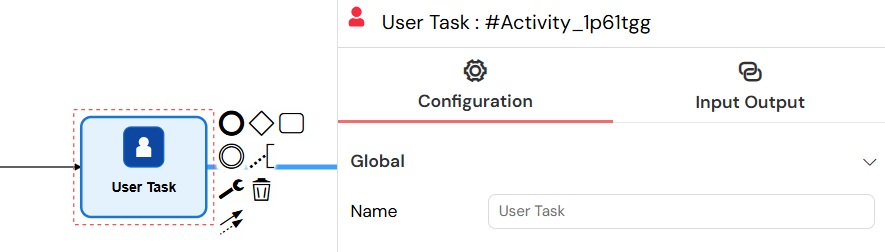
A User Task represents a step in the process that requires a person to perform an action. This could involve filling out a form, approving a request, or providing input.
- How to use: Drag the User Task (a rectangle with a person icon) onto the canvas. You can then link it to a specific web form and assign it to individual users or entire user roles.
3.2.3. Send TaskDirect link to 3.2.3. Send Task
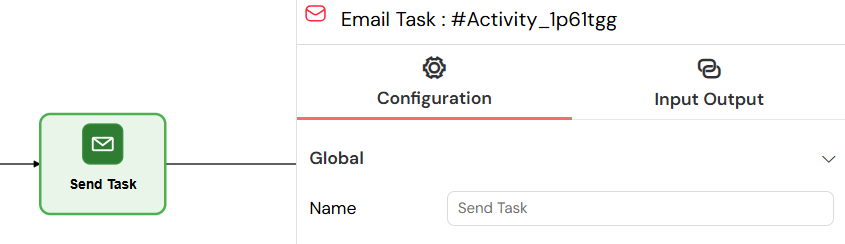
A Send Task is an automated task that sends an email. This is particularly useful for sending notifications, alerts, and other forms of automated communication to users or external systems.
- How to use: Drag the Send Task (a rectangle with an envelope icon) onto the canvas and configure the email recipients, subject, and body.
3.3. GatewaysDirect link to 3.3. Gateways
Gateways are used to control the flow of the process. They allow you to create branches, parallel paths, and decision points in your workflow.
3.3.1. Exclusive Gateway (XOR)Direct link to 3.3.1. Exclusive Gateway (XOR)
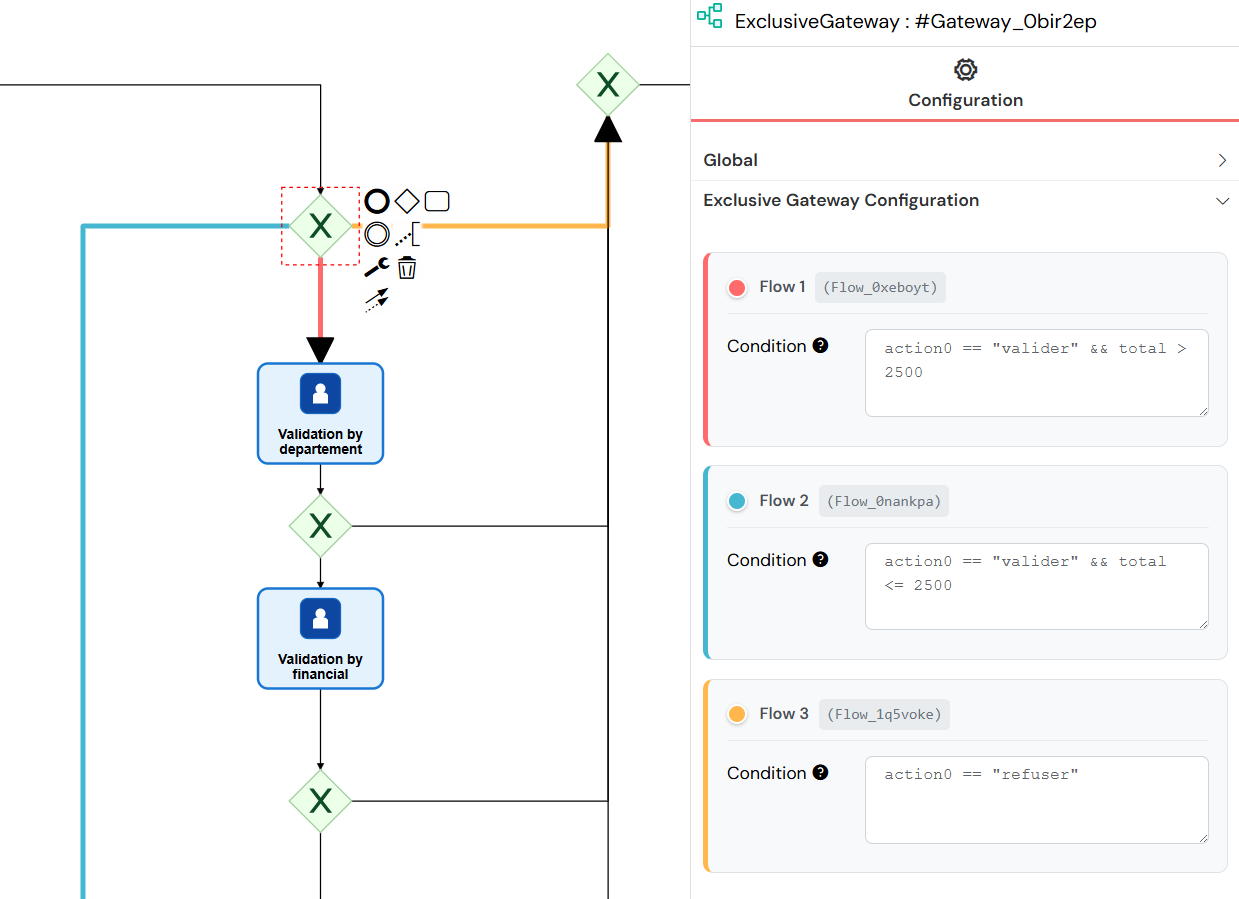
An Exclusive Gateway creates a decision point in your process where only one path can be taken. The choice of path is determined by evaluating conditions you define for each outgoing sequence flow.
- How to use: Drag the diamond-shaped Exclusive Gateway onto the canvas. Connect it to multiple outgoing paths and set a condition for each one. The process will only follow the first path whose condition evaluates to
true.
3.3.2. Parallel GatewayDirect link to 3.3.2. Parallel Gateway
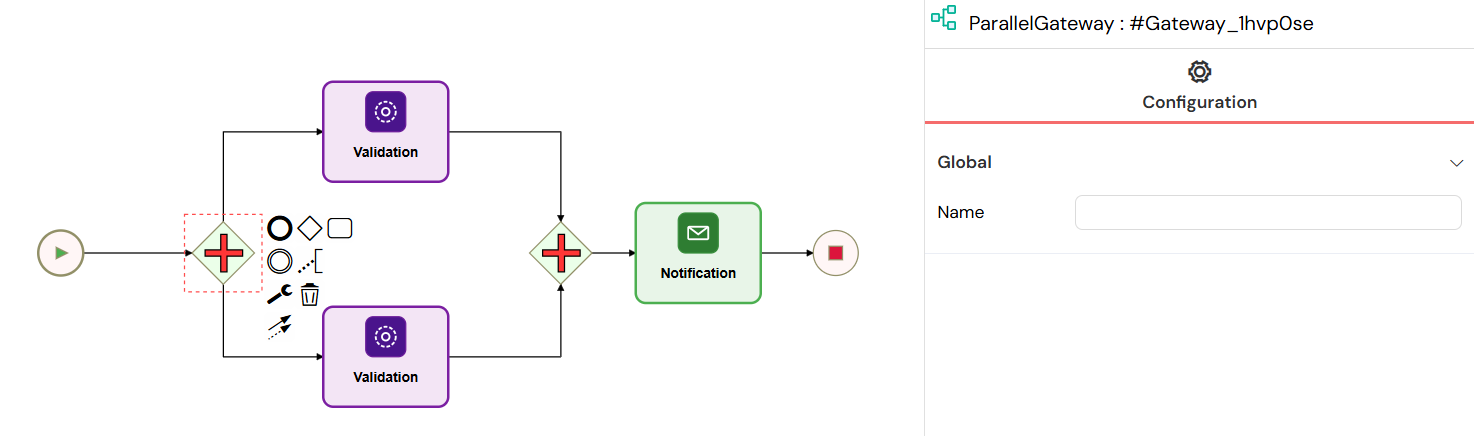
A Parallel Gateway is used to split the workflow into multiple paths that run concurrently. It can also be used to merge these parallel paths back together, ensuring that all parallel activities are complete before the process continues.
- How to use: Drag the diamond-shaped Parallel Gateway with a plus sign inside. All outgoing paths from this gateway will be activated simultaneously.
4. Input/Output VariablesDirect link to 4. Input/Output Variables
Tasks in your process can process and transform data before and after their execution using Input/Output variables. This feature supports several methods for data manipulation:
- Scripts: Write custom JavaScript code with full access to the Softyflow SDK.
- Expressions: Use simple expressions for direct value assignments.
- Actions: Utilize a visual workflow builder to define data transformations without writing code.
For more detailed documentation on data transformation and variable mapping, please refer to the Input/Output Parameters section.