Widget History
OverviewDirect link to Overview
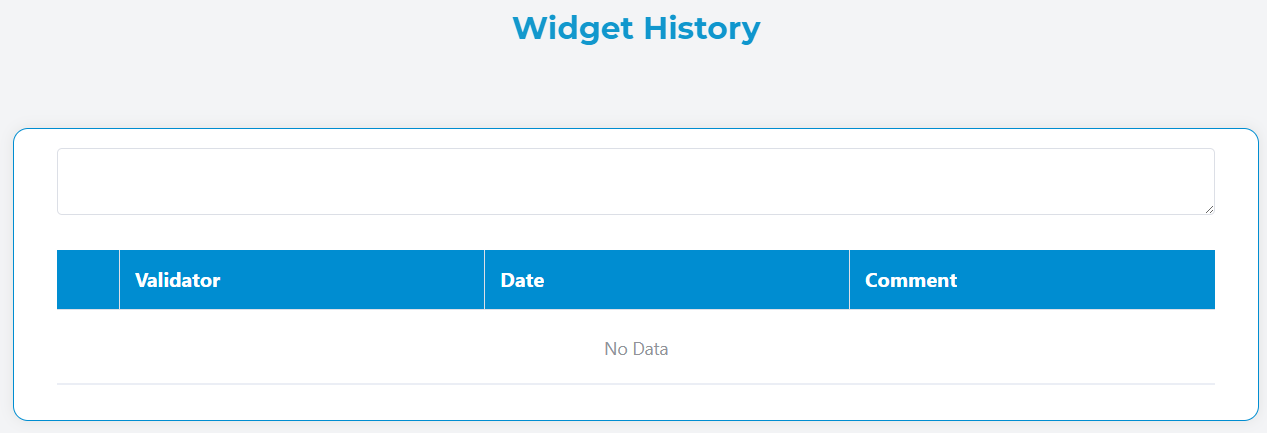
The Widget History component displays a chronological record of activities and changes for instances and tasks. This component automatically loads and presents historical data in a structured table format, providing users with a comprehensive view of all actions, validations, and modifications that have occurred.
Key FeaturesDirect link to Key Features
- Automatic History Loading: Automatically fetches history data when an instance ID or task ID is present
- Hierarchical History: Option to include parent and child instance histories
- Responsive Design: Optimized for both desktop and mobile viewing
- Customizable Measures: Add custom columns to display additional data fields
- Interactive Comments: Integrated comment area for adding new entries
- Mobile-Friendly: Collapsible rows on mobile devices for better user experience
Configuration OptionsDirect link to Configuration Options
Basic ConfigurationDirect link to Basic Configuration
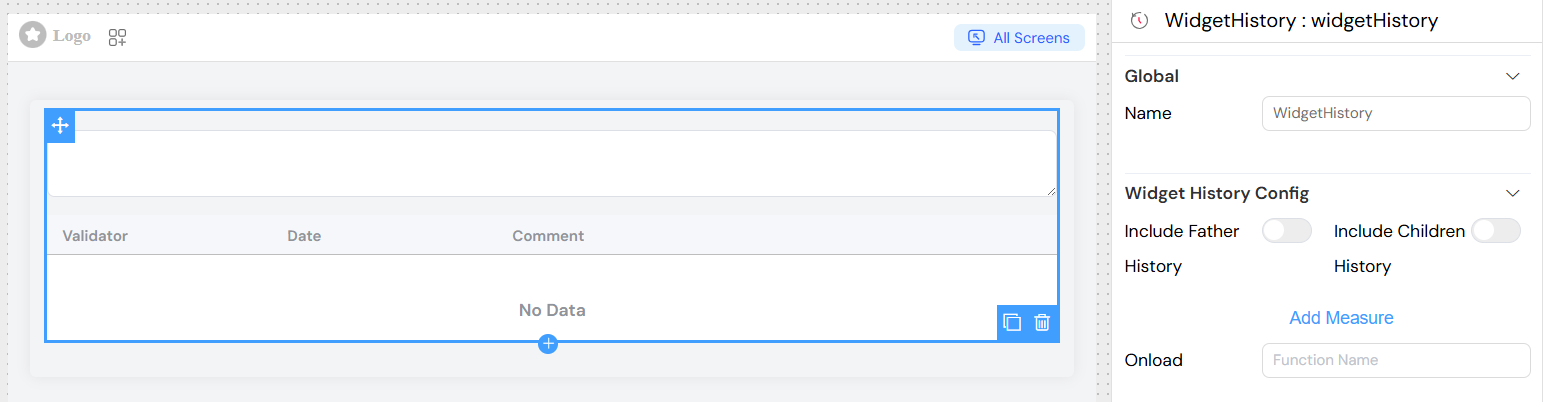
Include Father HistoryDirect link to Include Father History
- Description: When enabled, includes the history of the parent instance in addition to the current instance history
- Use Case: Useful for tracking the complete lineage of related processes
Include Children HistoryDirect link to Include Children History
- Description: When enabled, includes the history of all child instances related to the current instance
- Use Case: Provides a comprehensive view of all sub-processes and their activities
Measures ConfigurationDirect link to Measures Configuration
Measures allow you to add custom columns to display additional data from the history records.
Adding a New MeasureDirect link to Adding a New Measure
- Click "Add Measure" button
- Configure the following properties:
Field: The field name from the history data object
- Example:
status,priority,assignedUser
Label: The display label for the column header
- Example: "Status", "Priority Level", "Assigned To"
Width: Column width (optional)
- Format: CSS width values
- Examples:
120px,15%,auto
Visibility Rule: JavaScript condition to show/hide the column
- Context: Access to
modelsobject - Example:
models.userRole === 'admin'
HTML Template: Custom HTML template for rendering cell content
- Context: Access to
scope.rowfor current row data - Example:
<span class="status-badge" :class="scope.row.status">
  {{ scope.row.measures.status || 'N/A' }}
</span>
 Configuration](/img/04_ressources/project/web-interface/widgets/widgetHistoryMeasuresConfiguration.png)
Default ColumnsDirect link to Default Columns
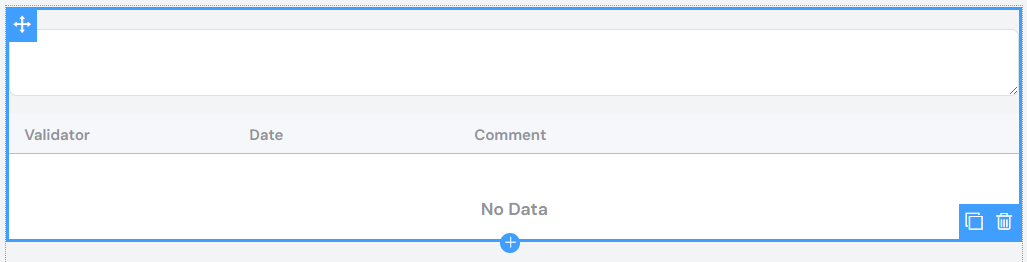
ValidatorDirect link to Validator
- Content: User avatar and email
- Mobile: Shows email with expand/collapse functionality
- Special: Displays "pour [representative]" if user is acting on behalf of someone else
DateDirect link to Date
- Format: "DD MMM YYYY h:mm a" (e.g., "15 Jan 2024 10:30 AM")
- Mobile: Hidden by default, shown when row is expanded
CommentaryDirect link to Commentary
- Content: Text description of the action or change
- Mobile: Hidden by default, shown when row is expanded
Validation and VisibilityDirect link to Validation and Visibility
Screen-Based ConfigurationDirect link to Screen-Based Configuration
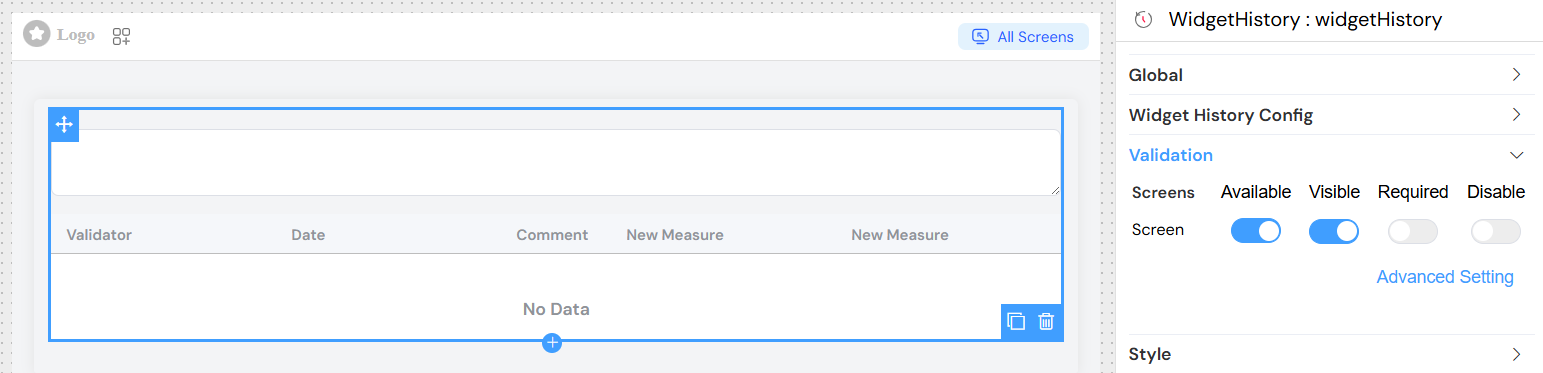
The widget History supports different configurations for different screens/contexts:
- Available: Controls whether the widget exists in the interface
- Visible: Controls whether the widget is visible to users
- Required: Not applicable for widgets History (display-only component)
- Disable: Not applicable for widgets History (non-interactive component)
Advanced Visibility ConditionsDirect link to Advanced Visibility Conditions
Use JavaScript expressions for complex visibility logic:
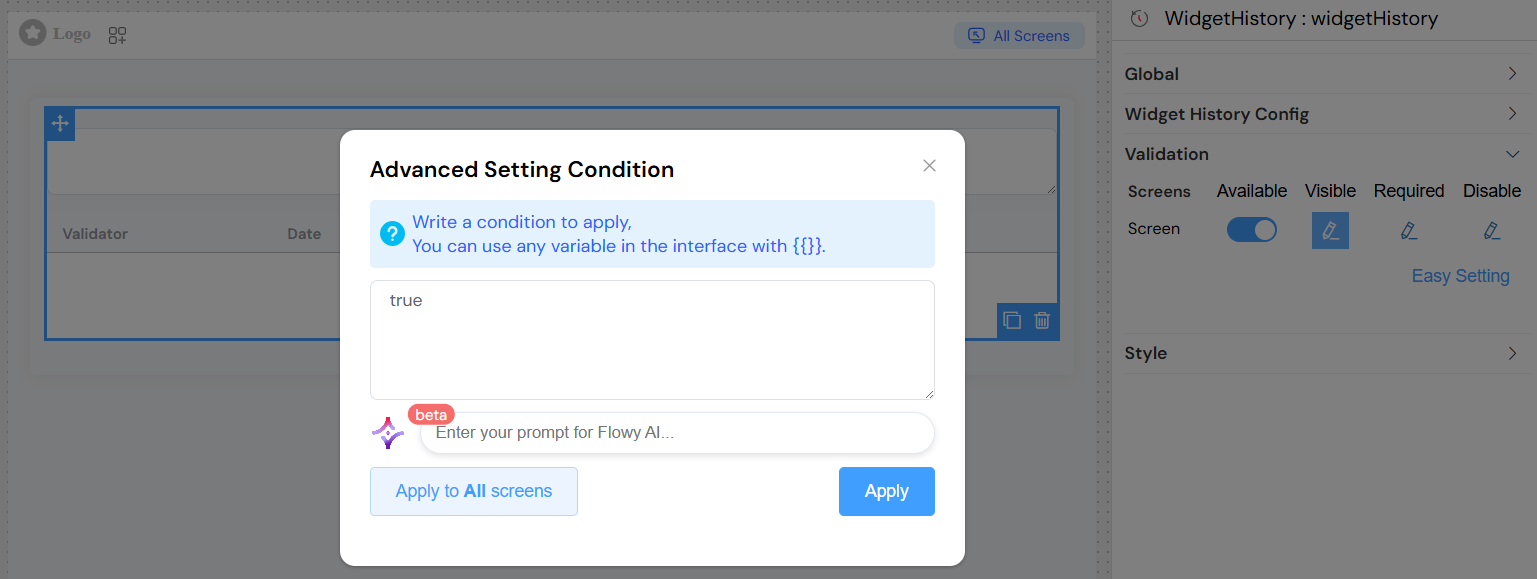
Styling and Responsive BehaviorDirect link to Styling and Responsive Behavior
Desktop ViewDirect link to Desktop View
- Full table layout with all columns visible
- Sortable columns (where applicable)
- Fixed table height with scrolling (max-height: 250px)
Mobile ViewDirect link to Mobile View
- Compact row display showing only avatar and email
- Expandable rows revealed by tapping the arrow icon
- All additional information appears when row is expanded
- Touch-friendly interface with larger touch targets
Comment IntegrationDirect link to Comment Integration
The widget includes an integrated comment textarea that allows users to add new comments to the history. This feature:
- Automatically binds to
SF_comment_widget_historymodel - Supports validation rules
- Can be hidden/shown based on visibility settings
- Integrates with the overall form validation system
Loading StatesDirect link to Loading States
The component provides visual feedback during data loading:
- Loading spinner overlay on the table
- Disabled state for comment input during loading
- Error handling with console logging
Browser CompatibilityDirect link to Browser Compatibility
- Modern browsers with ES6 support
- Vue.js 2.x compatible
- Element UI components
- Responsive CSS Grid and Flexbox support
TroubleshootingDirect link to Troubleshooting
Common IssuesDirect link to Common Issues
No data displayed
- Verify
uiQuery.SF_instanceIdoruiQuery.SF_taskIdis properly set - Check network connectivity and API endpoints
- Verify user permissions for accessing history data
Custom measures not showing
- Ensure field names match exactly with data structure
- Check visibility conditions syntax
- Verify HTML templates are valid
Mobile view not working
- Check viewport meta tag configuration
- Ensure CSS classes are properly loaded
- Verify touch event handlers are enabled
Performance ConsiderationsDirect link to Performance Considerations
- Large histories may impact loading times
- Consider pagination for instances with extensive history
- Custom HTML templates should be optimized for performance
- Limit the number of custom measures for optimal display
Security NotesDirect link to Security Notes
- History data access is controlled by backend permissions
- User representation is validated server-side
- Custom HTML templates are rendered client-side (sanitize input)
- Comment submission follows standard form validation rules