Rate Widget
The Rate widget allows users to provide a rating using stars or other symbols. It's perfect for collecting feedback, reviews, or any kind of scoring input from users.
OverviewDirect link to Overview
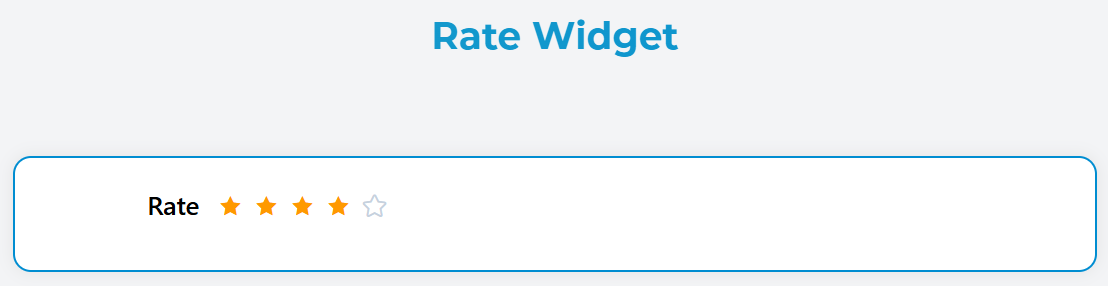
The Rate widget renders an interactive rating component where users can select a score by clicking on stars. It supports various customization options including color schemes, half-star selection, and score display.
ConfigurationDirect link to Configuration
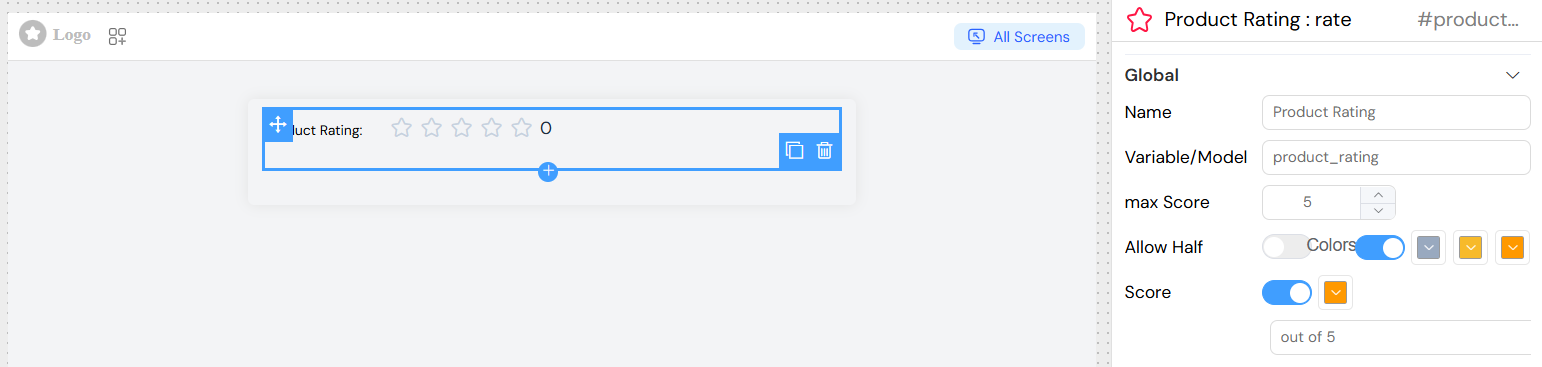
NameDirect link to Name
- Field: Name
- Description: Display label for the rating field
- Type: Text input
- Example: "Product Rating", "Service Quality"
Variable/ModelDirect link to Variable/Model
- Field: Variable/Model
- Description: The data model field that will store the rating value
- Type: Text input
- Example:
productRating,serviceScore
Maximum ScoreDirect link to Maximum Score
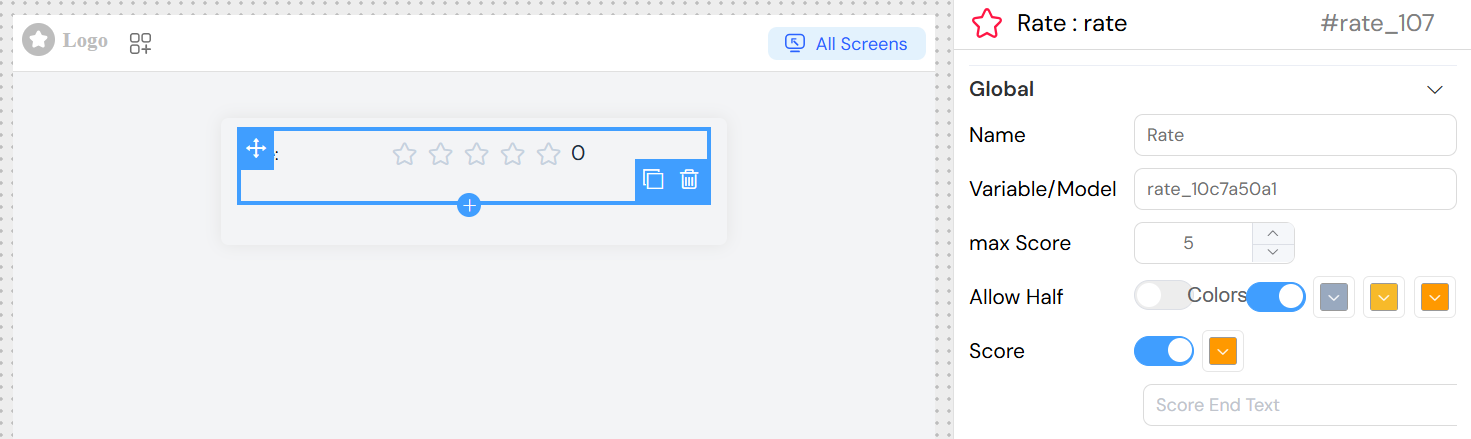
- Field: max Score
- Description: Sets the maximum number of stars/points available
- Type: Number input
- Range: 1 to 50
- Default: 5
- Example: 5 (for 5-star rating), 10 (for 10-point scale)
Allow Half StarsDirect link to Allow Half Stars
- Field: Allow Half
- Description: Enables selection of half-star increments (e.g., 3.5 stars)
- Type: Toggle switch
- Default: false
- Use Case: More precise rating when needed
Enable ColorsDirect link to Enable Colors
- Field: Colors toggle
- Description: Activate custom color scheme for different rating ranges
- Type: Toggle switch
When colors are enabled, you can configure three color zones:
- Low Range Color: Color for the first third of the rating scale
- Medium Range Color: Color for the middle third of the rating scale
- High Range Color: Color for the highest third of the rating scale
Each color can be selected using the color picker interface.
Show ScoreDirect link to Show Score
- Field: Score toggle
- Description: Display the numeric score next to the stars
- Type: Toggle switch
When score display is enabled:
Text ColorDirect link to Text Color
- Field: Text color picker
- Description: Color for the displayed score text
- Type: Color picker
Score TextDirect link to Score Text
- Field: Score End Text
- Description: Custom text to display alongside the score
- Type: Text input
- Example: "points", "stars", "out of 5"
Interaction ConfigurationDirect link to Interaction Configuration
On Click ActionDirect link to On Click Action
- Field: On Click
- Description: Define actions to execute when rating changes
- Type: JavaScript code or action builder
- Access Variables:
SF_input.value: The selected rating valueSF_input.SF_currentIndex: Current loop index (if in loop)
Example Actions:Direct link to Example Actions:
](/img/04_ressources/project/web-interface/widgets/rateActions.png)
Validation and RulesDirect link to Validation and Rules
Screen-Based ValidationDirect link to Screen-Based Validation
Configure different behaviors across multiple screens:
AvailableDirect link to Available
- Control if the widget appears on specific screens
- Type: Toggle per screen
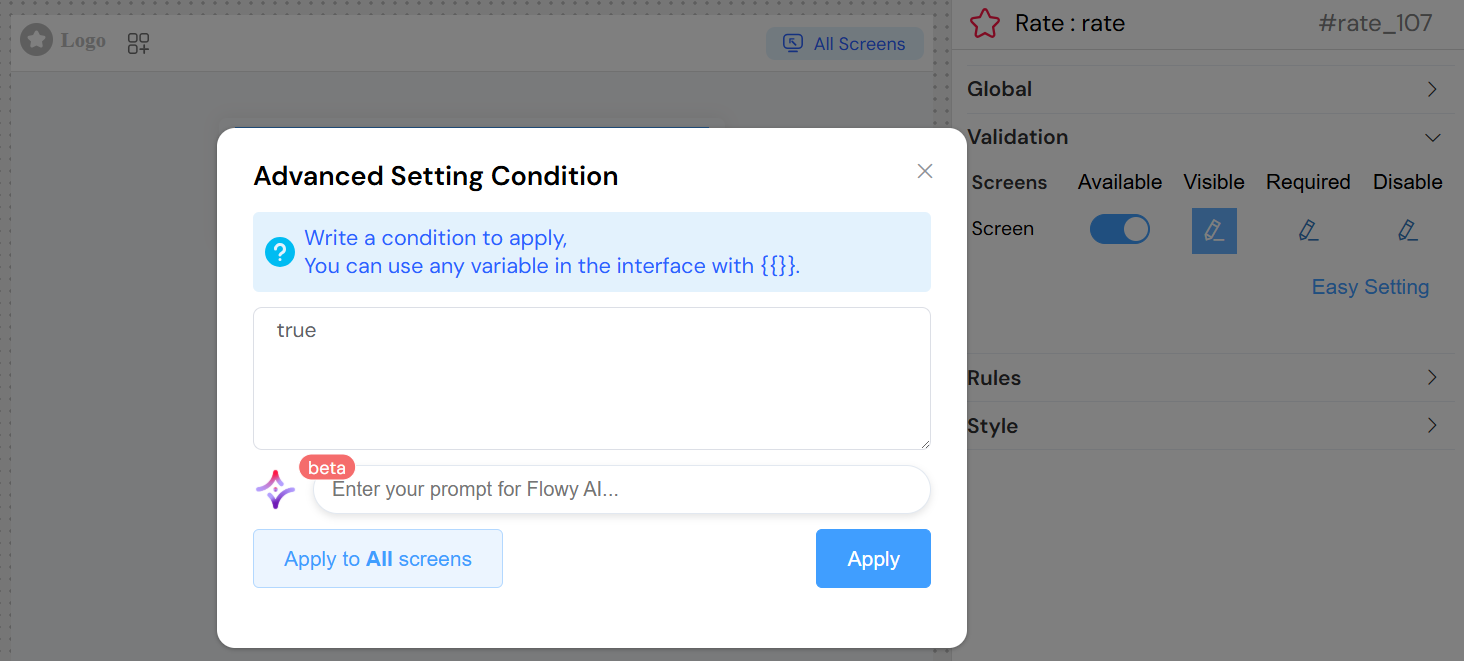
VisibleDirect link to Visible
- Control widget visibility with conditions
- Type: Toggle or JavaScript condition
- Example:
{{userType}} === 'customer'
RequiredDirect link to Required
- Make rating mandatory on specific screens
- Type: Toggle or JavaScript condition
DisabledDirect link to Disabled
- Disable interaction on specific screens
- Type: Toggle or JavaScript condition
Validation RulesDirect link to Validation Rules
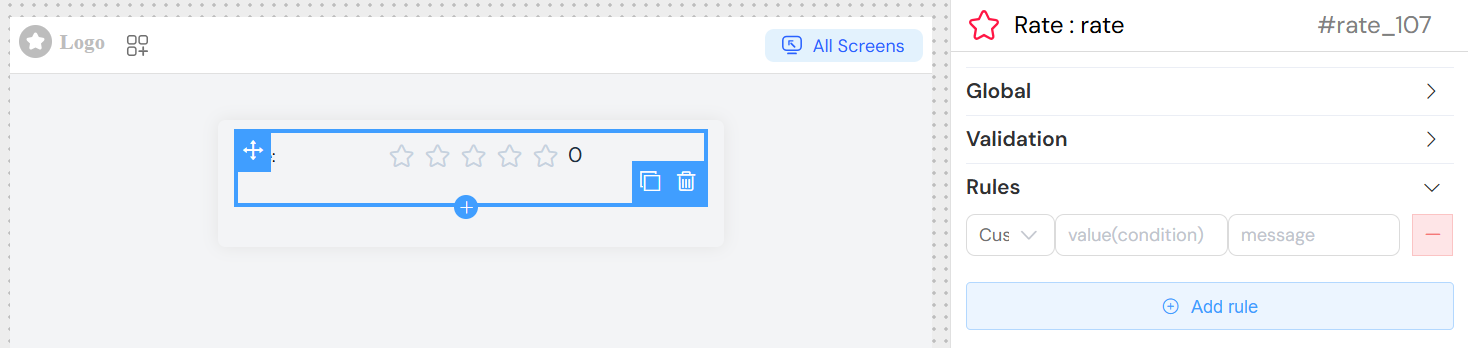
Add custom validation rules:
Rule Types Available:Direct link to Rule Types Available:
- Required: Make rating mandatory
- Min Value: Minimum acceptable rating
- Max Value: Maximum acceptable rating
- Custom: JavaScript-based validation
Example Rules:Direct link to Example Rules:
Styling OptionsDirect link to Styling Options
CSS ClassesDirect link to CSS Classes
- Field: Class
- Description: Apply custom CSS classes
- Type: Text input
- Examples:
custom-rating,highlight-rating
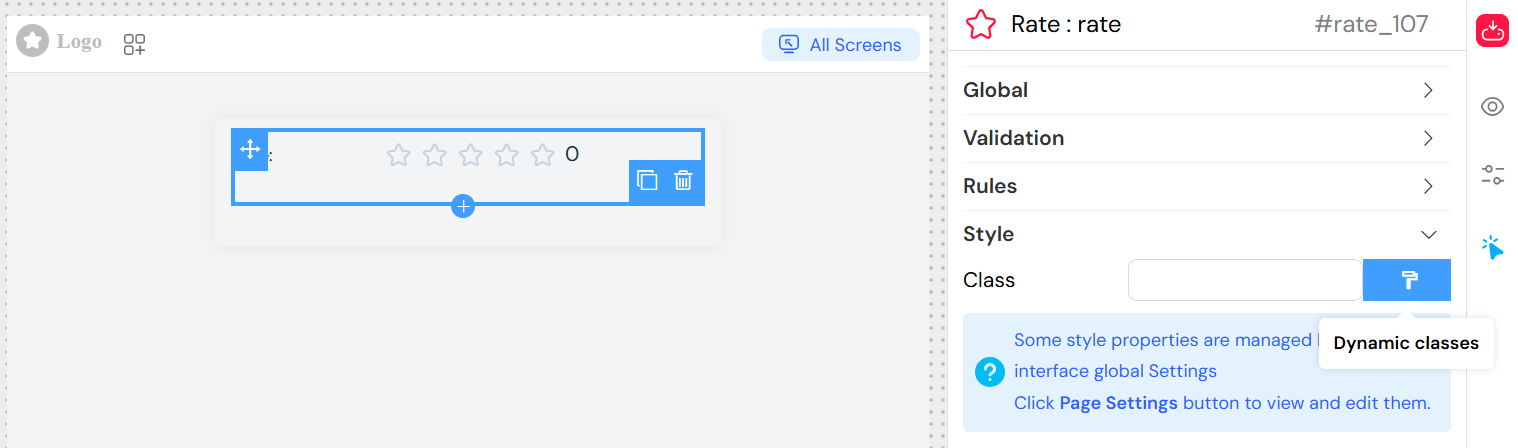
Dynamic ClassesDirect link to Dynamic Classes
- Use the format painter button to set conditional CSS classes
- Example: Apply different classes based on rating value
Advanced FeaturesDirect link to Advanced Features
Loop IntegrationDirect link to Loop Integration
When used within a loop (grid with loop enabled):
- Access loop index via
SF_input.SF_currentIndex - Each iteration maintains independent rating state
- Useful for rating multiple items in a list
Form IntegrationDirect link to Form Integration
When used within a form:
- Rating value automatically included in form submission
- Validation rules applied during form validation
- Required settings enforced on form submit
Implementation ExamplesDirect link to Implementation Examples
Basic RatingDirect link to Basic Rating
Events and Data HandlingDirect link to Events and Data Handling
EventDirect link to Event
Triggered whenever the rating value changes:
- Event Data: New rating value
- Use Case: Real-time updates, conditional logic
- Access: Via onClick action configuration
Data StorageDirect link to Data Storage
- Rating values are stored as numbers (integers or decimals if half-stars enabled)
- Automatically bound to the specified model/variable
- Integrated with form data collection
Best PracticesDirect link to Best Practices
- Choose Appropriate Scale: Use 5 stars for general ratings, 10 points for detailed feedback
- Enable Half-Stars: For more precise feedback collection
- Use Colors Wisely: Help users understand rating significance
- Provide Context: Use clear labels and helper text
- Set Sensible Defaults: Consider if a default rating is appropriate
- Validation: Make ratings required for critical feedback
- Responsive Design: Ensure ratings work well on mobile devices
TroubleshootingDirect link to Troubleshooting
Common Issues:Direct link to Common Issues:
- Rating not saving: Check model/variable name configuration
- Colors not showing: Ensure "Colors" toggle is enabled
- Half-stars not working: Verify "Allow Half" is enabled
- Validation not working: Check validation rules and required settings
- On click action not firing: Verify JavaScript syntax in onClick field
Debug Tips:Direct link to Debug Tips:
- Use browser console to check rating values
- Verify model binding with form data
- Test validation rules with different input values
- Check CSS classes for styling issues