Radio Widget Documentation
OverviewDirect link to Overview
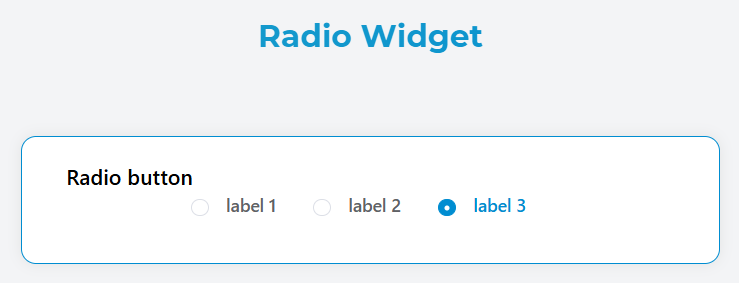
The Radio widget allows users to select a single option from a predefined list of choices. It renders as a group of radio buttons where only one option can be selected at a time.
Basic ConfigurationDirect link to Basic Configuration
Global SettingsDirect link to Global Settings
NameDirect link to Name
- Field: Name
- Description: The display label for the radio group
- Required: Yes
- Example: "Select Priority Level"
Variable/ModelDirect link to Variable/Model
- Field: Variable/Model
- Description: The data model property that stores the selected value
- Required: Yes
- Format: Must be a valid variable name
- Example:
priority_level
Default ValueDirect link to Default Value
- Field: Default Value
- Description: The initial selected value when the form loads
- Required: No
- Type: String
- Example: "medium"

Data Source ConfigurationDirect link to Data Source Configuration
The radio widget supports multiple data sources for populating the available options:
Static DataDirect link to Static Data
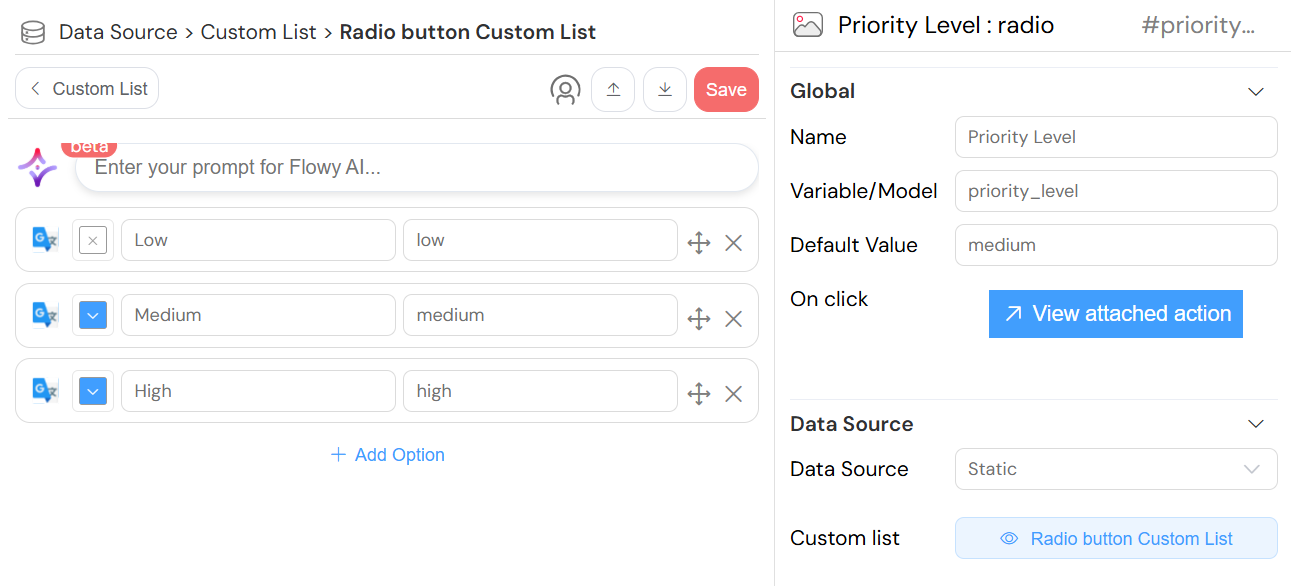
- Source: Custom Lists
- Description: Use predefined static lists
- Configuration:
- Select an existing custom list
- Create a new custom list if none exists
- Data Format: Each item requires
labelandvalueproperties

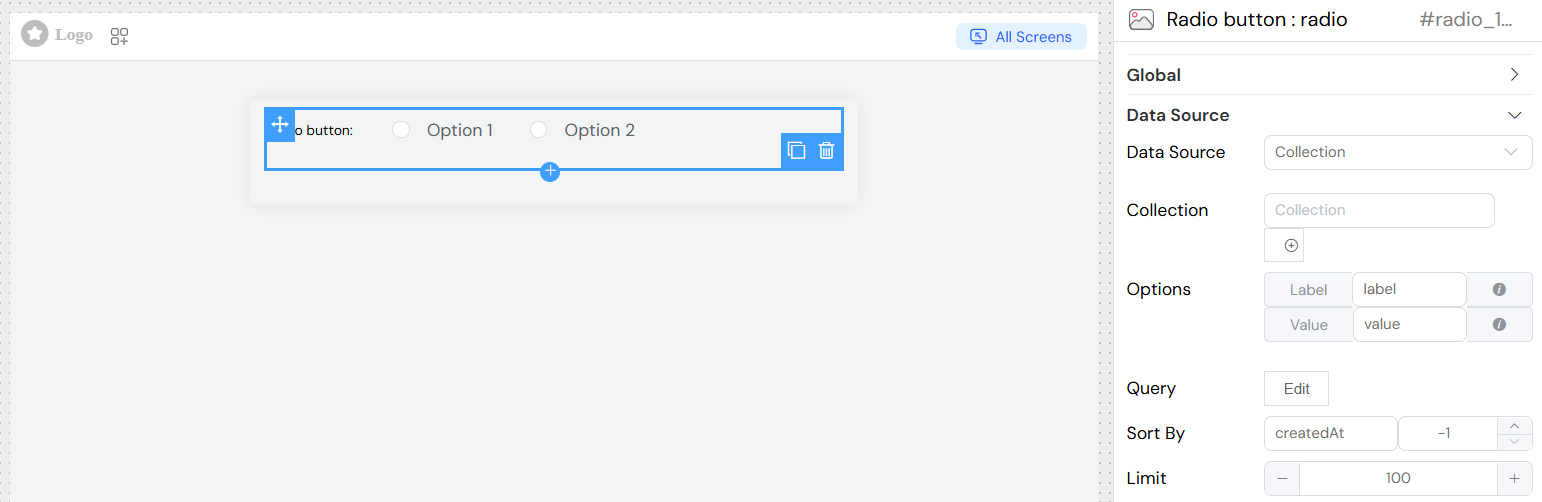
Collection DataDirect link to Collection Data
- Source: Database Collections
- Description: Dynamically load options from a collection
- Configuration:
- Select target collection
- Configure label and value mappings
- Set up optional query filters
- Define sort order and limits
Report DataDirect link to Report Data
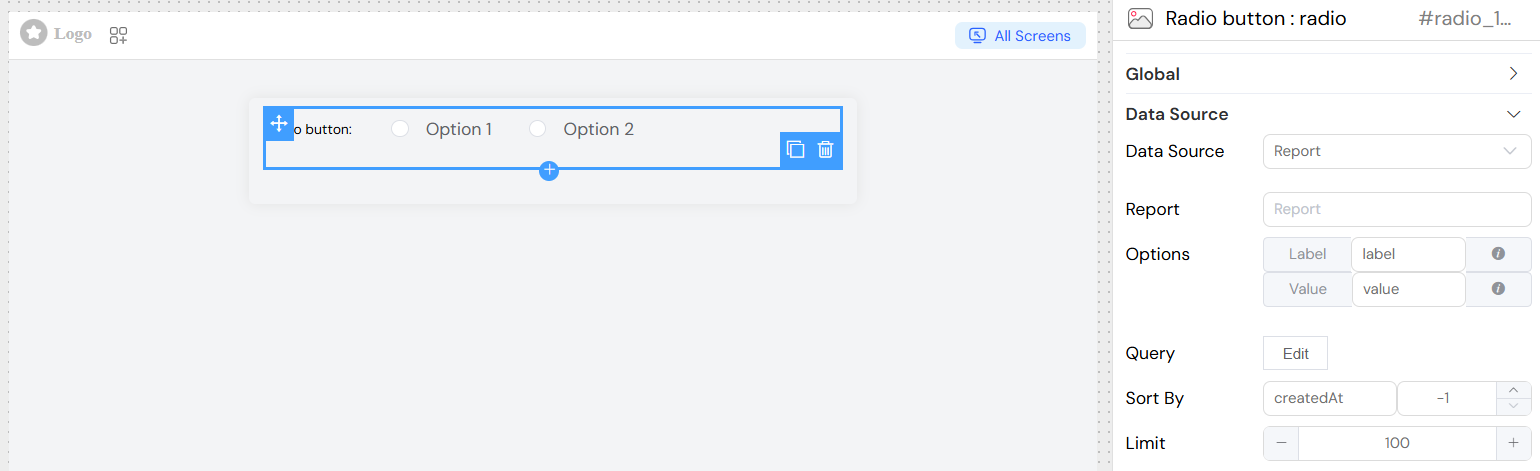
- Source: Reports
- Description: Use report results as data source
- Configuration:
- Select target report
- Map result columns to label/value
- Configure aggregation if needed
SQL/External DatabaseDirect link to SQL/External Database
- Source: External Database Connection
- Description: Query external databases for options
- Configuration:
- Select database connection
- Write SQL query
- Map result columns
](/img/04_ressources/project/web-interface/widgets/radioDataSourceEDS.png)
Props ConfigurationDirect link to Props Configuration
For dynamic data sources (Collection, Report, SQL):
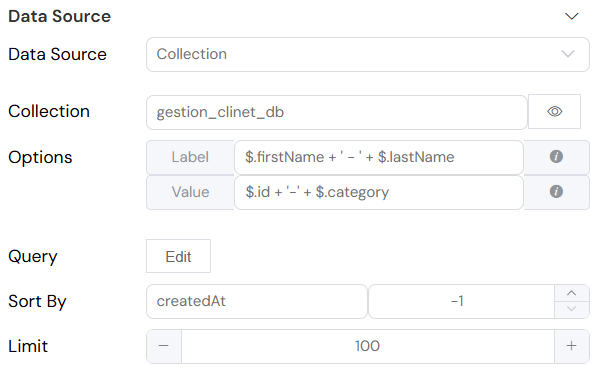
Label PropertyDirect link to Label Property
- Field: Label
- Description: Field name or expression for display text
- Static Usage:
firstName - Dynamic Usage:
$.firstName + ' - ' + $.lastName
Value PropertyDirect link to Value Property
- Field: Value
- Description: Field name or expression for stored value
- Static Usage:
id - Dynamic Usage:
$.id + '-' + $.category
Query ConfigurationDirect link to Query Configuration
For collection and report data sources:
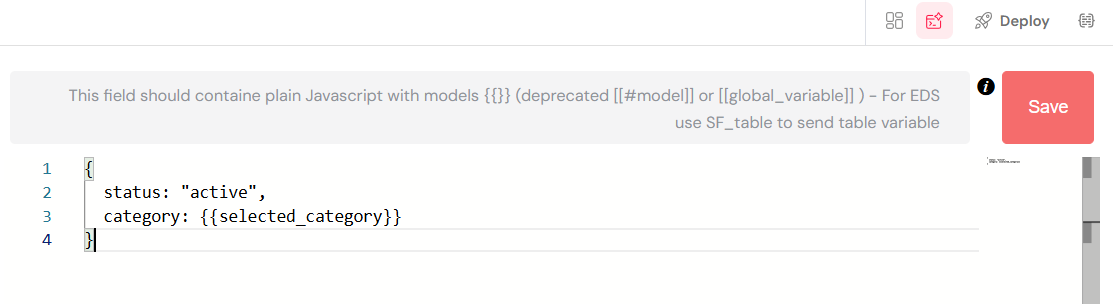
Basic QueryDirect link to Basic Query
- Purpose: Filter and customize data retrieval
- Language: JavaScript with model references
- Variables: Use
{{variable_name}}for dynamic values - Example:
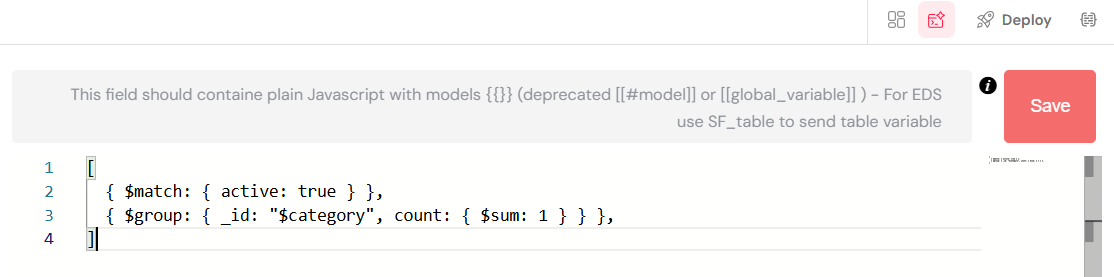
AggregationDirect link to Aggregation
- Purpose: Perform complex data aggregation
- Toggle: Enable "Is Aggregation" switch
- Example:
Sort ConfigurationDirect link to Sort Configuration
- Sort By: Field name for sorting
- Direction:
1for ascending-1for descending
LimitDirect link to Limit
- Purpose: Restrict number of options
- Type: Number
- Default: No limit
ValidationDirect link to Validation
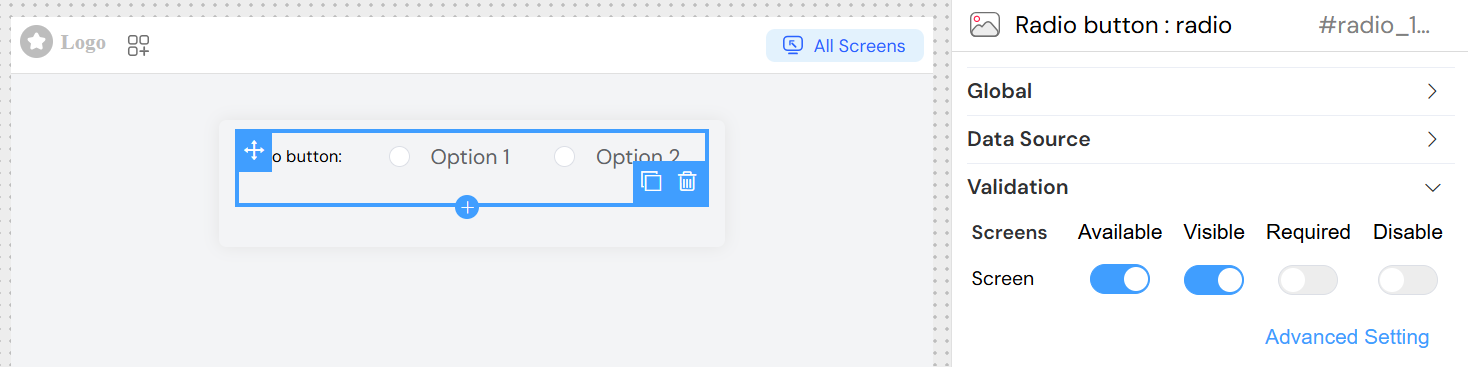
Screen-based ValidationDirect link to Screen-based Validation
Configure different behaviors across multiple screens:
AvailableDirect link to Available
- Purpose: Control if widget appears on specific screens
- Type: Boolean per screen
- Default: true
VisibleDirect link to Visible
- Purpose: Control widget visibility
- Options:
- Simple: Boolean toggle
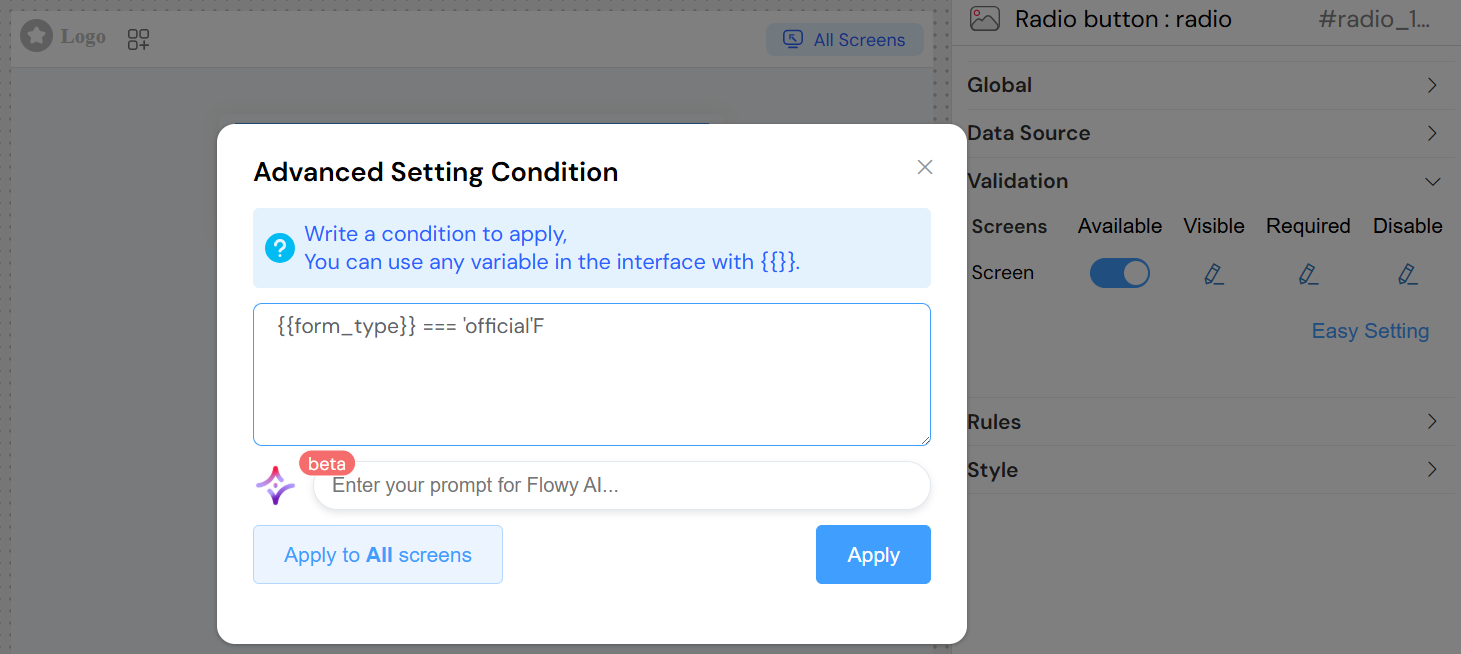
- Advanced: JavaScript condition
RequiredDirect link to Required
- Purpose: Make selection mandatory
- Options:
- Simple: Boolean toggle
- Advanced: JavaScript condition
DisabledDirect link to Disabled
- Purpose: Prevent user interaction
- Options:
- Simple: Boolean toggle
- Advanced: JavaScript condition
Simple ExampleDirect link to Simple Example
Advanced ExampleDirect link to Advanced Example
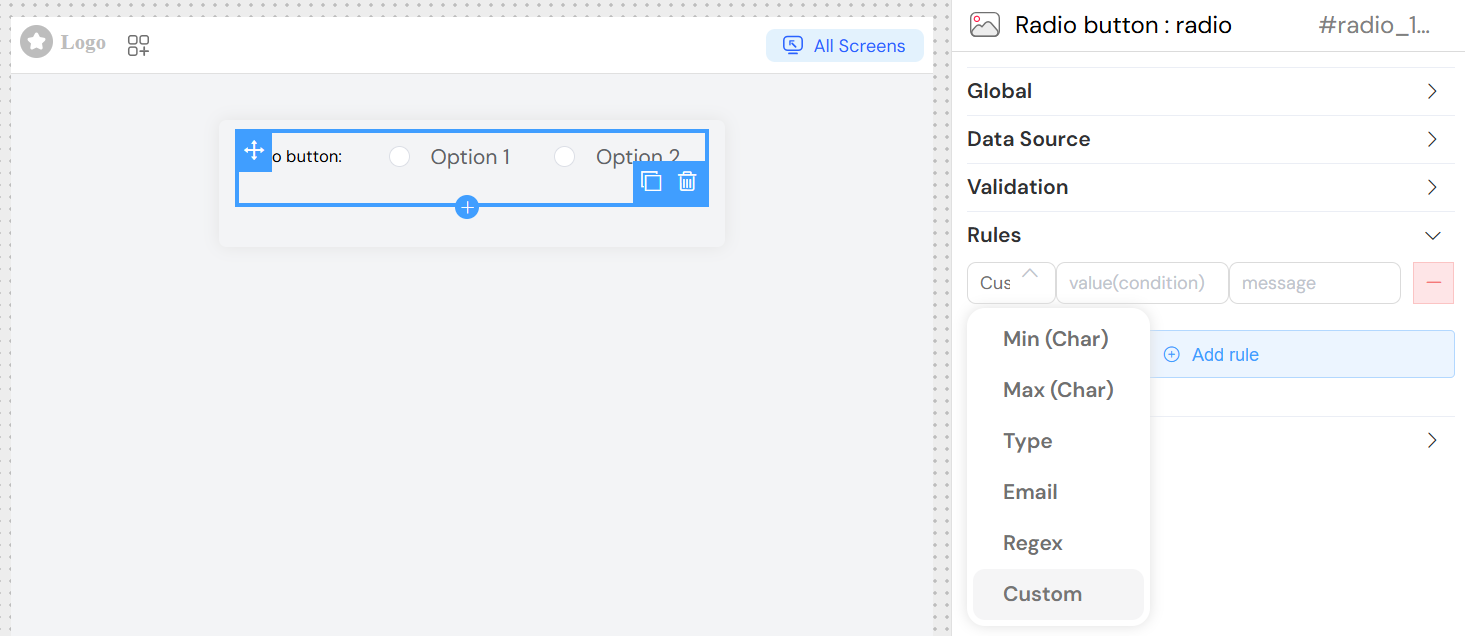
Validation RulesDirect link to Validation Rules
Add custom validation rules:
Rule TypesDirect link to Rule Types
- Pattern: Regular expression validation
- Custom: JavaScript validation function
- Range: Value range validation
- Required: Built-in required validation
Rule ConfigurationDirect link to Rule Configuration
- Rule: Select validation type
- Value: Rule parameter or pattern
- Message: Error message to display
Styling and LayoutDirect link to Styling and Layout
Layout OptionsDirect link to Layout Options
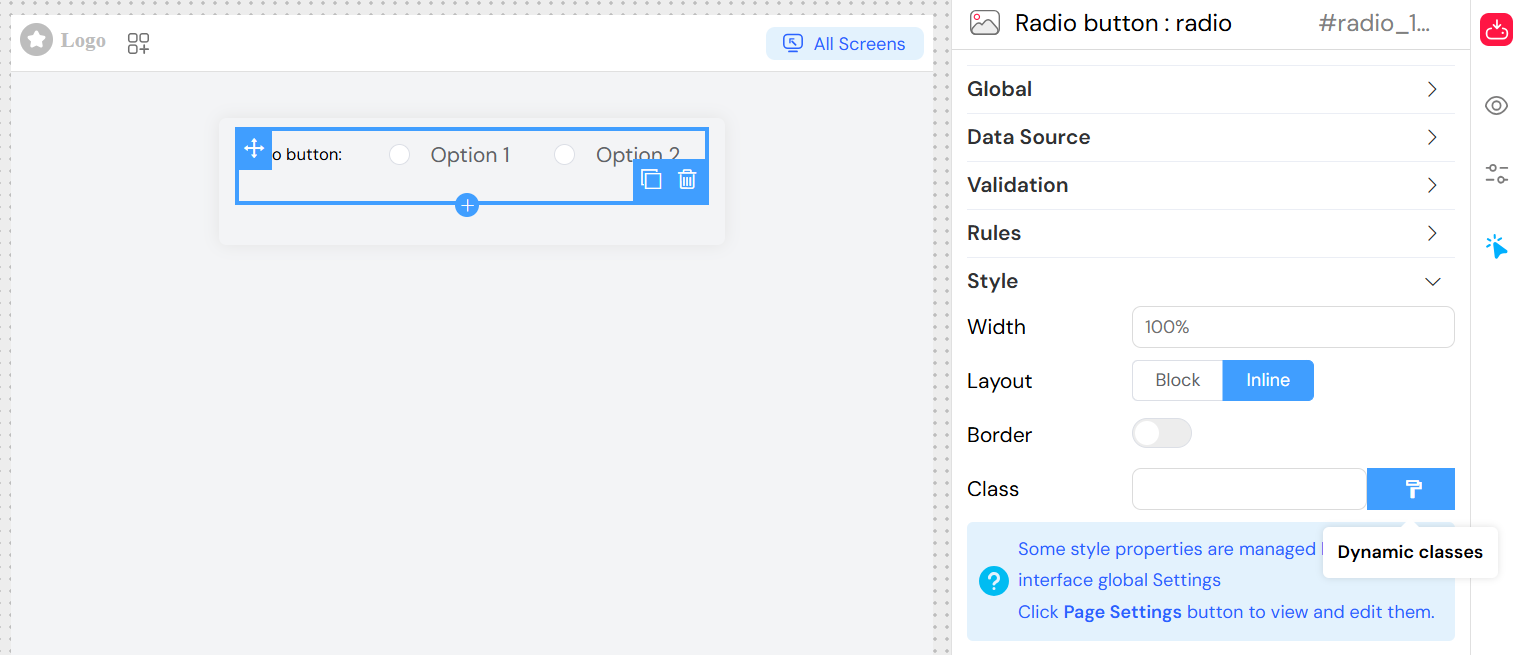
Display ModeDirect link to Display Mode
- Block: Vertical stack (default)
- Inline: Horizontal arrangement
BorderDirect link to Border
- Purpose: Add borders around radio buttons
- Type: Boolean
- Default: false
Width ConfigurationDirect link to Width Configuration
- Field: Width
- Description: CSS width value
- Examples:
100%(full width)300px(fixed width)50vw(viewport-based)
CSS ClassesDirect link to CSS Classes
Static ClassesDirect link to Static Classes
- Field: Class
- Description: Space-separated CSS class names
- Example: "custom-radio highlight-group"
Dynamic ClassesDirect link to Dynamic Classes
- Purpose: Conditional styling based on data
- Language: JavaScript expressions
- Access: Click "Dynamic classes" button
- Example:
{
  'error-state': {{has_errors}},
  'required-field': {{is_required}}
}
Events and InteractionsDirect link to Events and Interactions
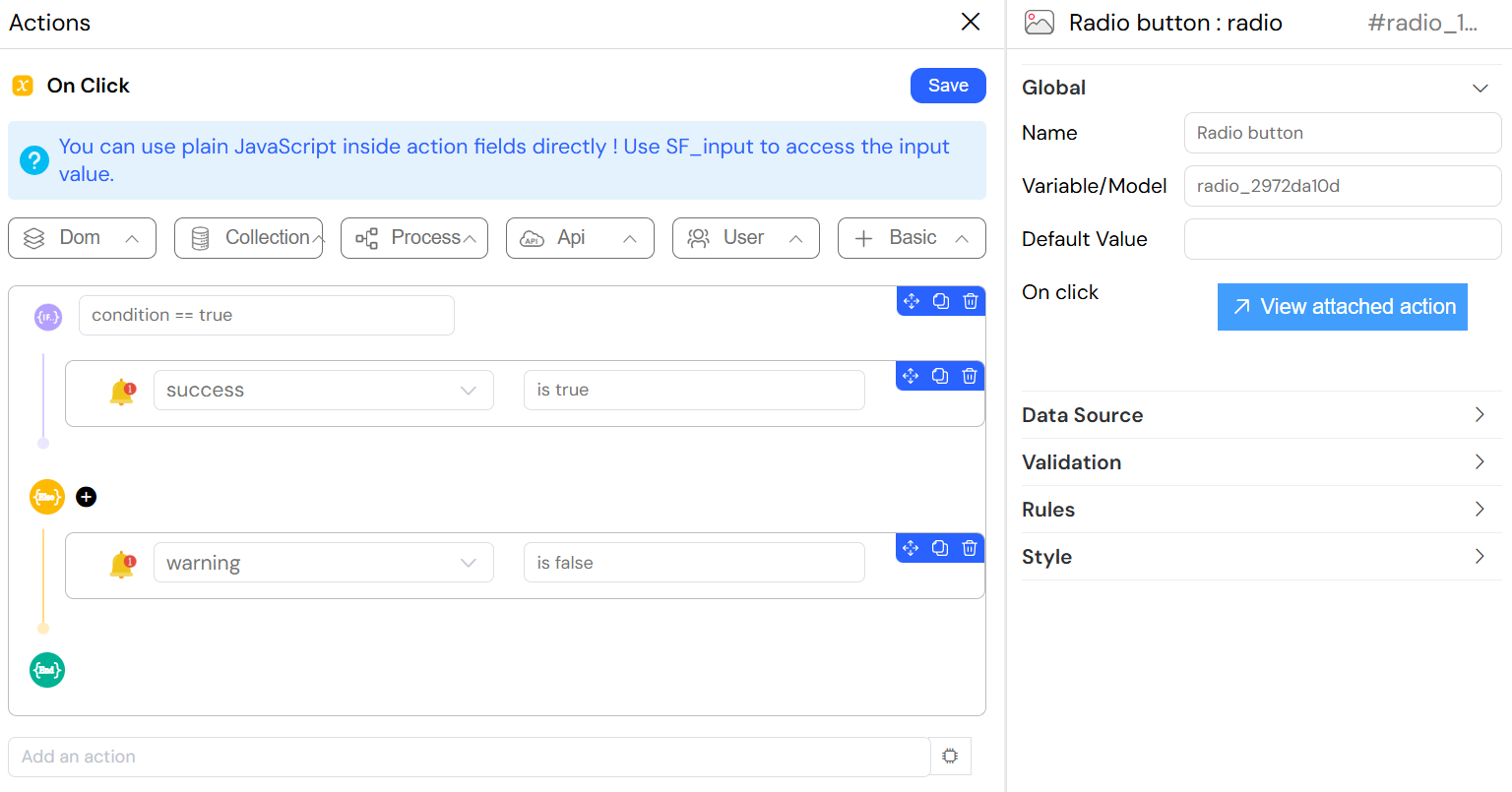
On Click EventDirect link to On Click Event
- Trigger: When radio option is selected
- Access Variables:
SF_input.value: Selected valueSF_input.SF_data: Full selected objectSF_input.SF_currentIndex: Loop index (if in repeating context)
Simple EventDirect link to Simple Event
- Field: On click
- Type: Function name
- Example:
Working with Actions and SF_inputDirect link to Working with Actions and SF_input
Attaching Actions to onChange EventDirect link to Attaching Actions to onChange Event
The radio widget's onChange (or onClick) event allows you to execute custom Actions when the user selects an option. This functionality is powerful for:
- Auto-populating form fields with data from the selected option
- Creating dependent field relationships and cascading updates
- Fetching related information from the backoffice database
- Implementing conditional logic based on the selection
How to Attach an ActionDirect link to How to Attach an Action
- Navigate to the Global section in the radio widget configuration
- Find the On Click or On Change event field
- Write plain JavaScript code directly in the action field
- The code executes automatically whenever the user selects a radio option
Accessing Values with SF_inputDirect link to Accessing Values with SF_input
The radio widget provides rich data access through the SF_input object. Unlike simple value storage, you get access to both the selected value AND the complete data object from your data source.
SF_input Structure for Radio WidgetDirect link to SF_input Structure for Radio Widget
{
  value: /* The selected value based on your "Value Property" configuration */,
  SF_data: /* Complete JSON object of the selected item */,
  SF_currentIndex: /* Loop index if widget is inside a loop */
}
Understanding SF_input PropertiesDirect link to Understanding SF_input Properties
| Property | Description | Example |
|---|---|---|
| value | The selected value from your "Value Property" configuration | 'option1', 'high_priority', 'DEPT001' |
| SF_data | Complete JSON object of the selected radio option | {id: 'opt1', name: 'Option 1', details: {...}} |
| SF_currentIndex | Current iteration index if the widget is in a loop | 0, 1, 2, ... |
Practical ExamplesDirect link to Practical Examples
Example 1: Access Selected ValueDirect link to Example 1: Access Selected Value
// Get the selected value
console.log(SF_input.value);
// Output: 'high'

// Store the selected value
model.selected_priority = SF_input.value;

// Use value in conditional logic
if (SF_input.value === 'urgent') {
  model.requires_immediate_action = true;
}
Example 2: Access Complete JSON Object (SF_data)Direct link to Example 2: Access Complete JSON Object (SF_data)
The most powerful feature - accessing the full data object with all its properties:
// Access the complete data object
console.log(SF_input.SF_data);
// Output: {
//   id: 'PRIORITY_HIGH',
//   value: 'high',
//   label: 'High Priority',
//   sla_hours: 4,
//   escalation_level: 2,
//   notification_required: true,
//   color_code: '#FF5733',
//   description: 'Requires immediate attention'
// }

// Access any property from the selected option
model.sla_hours = SF_input.SF_data.sla_hours;
model.escalation_level = SF_input.SF_data.escalation_level;
model.priority_color = SF_input.SF_data.color_code;
model.priority_description = SF_input.SF_data.description;

// Use boolean flags from the data
if (SF_input.SF_data.notification_required) {
  model.send_notification = true;
  model.notification_type = 'urgent';
}
Example 3: Fill Multiple Fields from Backoffice DataDirect link to Example 3: Fill Multiple Fields from Backoffice Data
When you connect a radio widget to a Collection, Report, or SQL data source, each option contains a complete record. Use SF_data to populate related fields:
// When user selects a department from radio options connected to Departments collection
if (SF_input.SF_data) {
  const department = SF_input.SF_data;

  // Auto-fill department information
  model.department_id = department.id;
  model.department_name = department.name;
  model.department_code = department.code;
  model.department_location = department.location;

  // Fill management information
  model.department_head = department.manager_name;
  model.department_head_email = department.manager_email;
  model.department_head_phone = department.manager_phone;

  // Fill budget information
  model.department_budget = department.annual_budget;
  model.budget_spent = department.budget_utilized;
  model.budget_remaining = department.annual_budget - department.budget_utilized;

  // Fill operational details
  model.employee_count = department.total_employees;
  model.office_location = department.office?.building + ', Floor ' + department.office?.floor;
  model.cost_center = department.cost_center_code;

  // Set conditional fields
  if (department.requires_approval) {
    model.approval_required = true;
    model.approver_id = department.approval_authority;
  }
}
Best PracticesDirect link to Best Practices
Always Validate SF_data: Check if SF_data exists before accessing its properties
if (SF_input.SF_data) {
  // Your code here
}
Use Optional Chaining: For nested properties, use optional chaining to prevent errors
const managerEmail = SF_input.SF_data?.manager?.email || 'Not available';Leverage SF_data for Rich Information: Always use SF_data when you need more than just the value - it gives you access to the complete record from your data source
Clear Dependent Fields: When selection changes, clear fields that depend on the previous selection
// Clear previous data
model.related_field_1 = null;
model.related_field_2 = null;
// Then populate with new data from SF_input.SF_data
Handle Edge Cases: Check for null/undefined values and provide defaults
model.field = SF_input.SF_data?.property || 'default value';Use Descriptive Variable Names: Make your code readable and maintainable
const selectedDepartment = SF_input.SF_data;
const departmentBudget = selectedDepartment.budget;
Document Complex Logic: Add comments to explain business rules
// Apply VIP discount if customer lifetime value exceeds threshold
if (SF_input.SF_data.lifetime_value > 10000) {
  model.vip_discount = 20;
}
Error Handling: Wrap asynchronous operations in try-catch
try {
  const data = await SF_executeAction('fetchData', { id: SF_input.value });
  // Process data
} catch (error) {
  console.error('Error:', error);
  model.error_message = 'Failed to fetch data';
}
Best PracticesDirect link to Best Practices
Data Source SelectionDirect link to Data Source Selection
- Static Lists: For fixed, rarely changing options
- Collections: For user-managed data
- Reports: For computed/aggregated options
- SQL: For complex external data
Performance OptimizationDirect link to Performance Optimization
- Use limits for large datasets
- Implement proper indexing for sort fields
- Cache static data when possible
- Use aggregation for summary options
User ExperienceDirect link to User Experience
- Provide clear, descriptive labels
- Use logical ordering (alphabetical, priority-based)
- Set appropriate default values
- Include validation with helpful error messages
Validation StrategyDirect link to Validation Strategy
- Use required validation for critical fields
- Implement conditional validation when needed
- Provide immediate feedback on selection
- Consider cross-field validation rules
ExamplesDirect link to Examples
Basic Static Radio GroupDirect link to Basic Static Radio Group
TroubleshootingDirect link to Troubleshooting
Common IssuesDirect link to Common Issues
Options Not LoadingDirect link to Options Not Loading
- Check data source configuration
- Verify query syntax
- Ensure proper field mappings
- Check network connectivity for external sources
Selection Not SavingDirect link to Selection Not Saving
- Verify model variable name
- Check validation rules
- Ensure proper form submission
- Validate data types
Styling IssuesDirect link to Styling Issues
- Check CSS class names
- Verify width/height values
- Review responsive design settings
- Test dynamic class conditions
Event Not TriggeringDirect link to Event Not Triggering
- Verify function names
- Check JavaScript syntax
- Ensure proper variable access
- Review browser console for errors