Steps Widget
OverviewDirect link to Overview
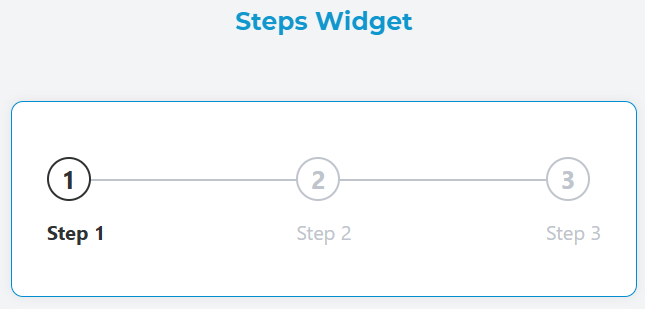
The Steps widget is a visual progress indicator that displays a sequence of steps in a process. It shows the current progress and allows users to understand where they are in a multi-step workflow. The widget is fully responsive and adapts to different screen sizes.
ConfigurationDirect link to Configuration
Widget PropertiesDirect link to Widget Properties
NameDirect link to Name
- Field: Name
- Description: A unique identifier for the widget instance
- Type: Text input
- Required: Yes
Variable/ModelDirect link to Variable/Model
- Field: Variable/Model
- Description: The data model that stores the current step index
- Type: Text input
- Required: Yes
- Default: Automatically generated based on widget name
DirectionDirect link to Direction
- Field: Direction
- Description: Controls the orientation of the steps display
- Type: Dropdown
- Options:
horizontal: Steps are displayed horizontally (default)vertical: Steps are displayed vertically
- Usage: Choose based on available space and design requirements

Data Source ConfigurationDirect link to Data Source Configuration
Static Data SourceDirect link to Static Data Source
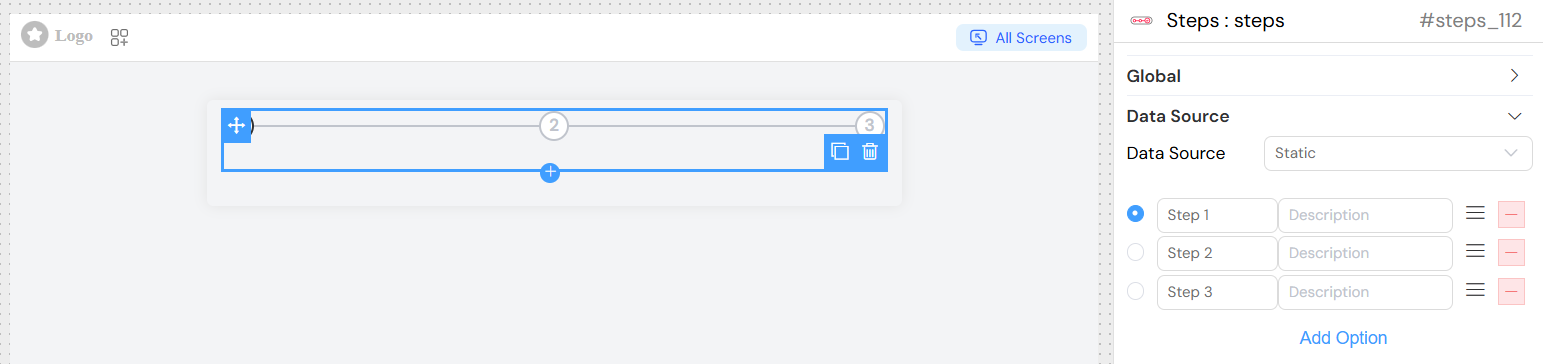
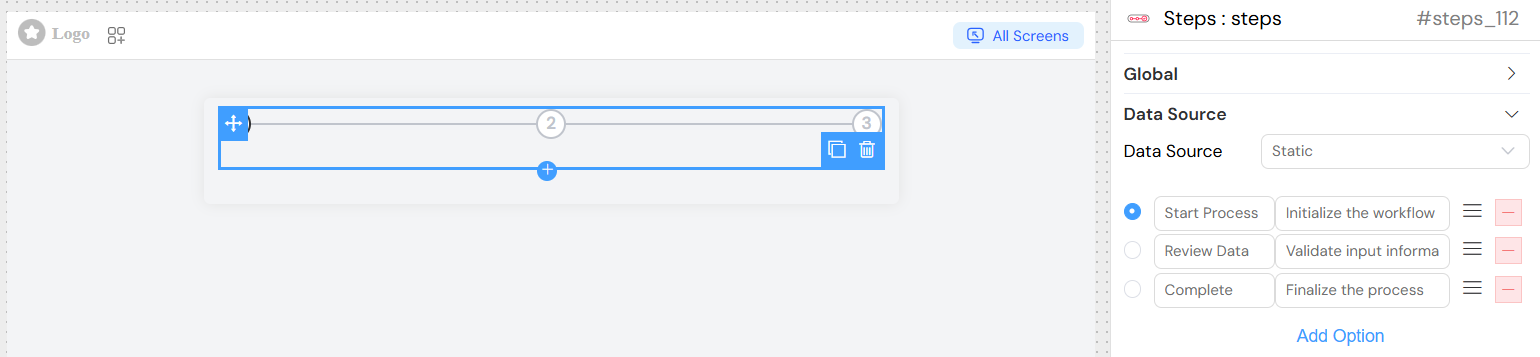
When using static data, configure individual steps directly in the widget settings:
Step ConfigurationDirect link to Step Configuration
Each step requires:
- Title: Display name for the step
- Description: Additional information about the step
Adding StepsDirect link to Adding Steps
- Select "Static" as the data source
- Configure each step with title and description
- Steps are automatically numbered starting from 0
Variable Data SourceDirect link to Variable Data Source
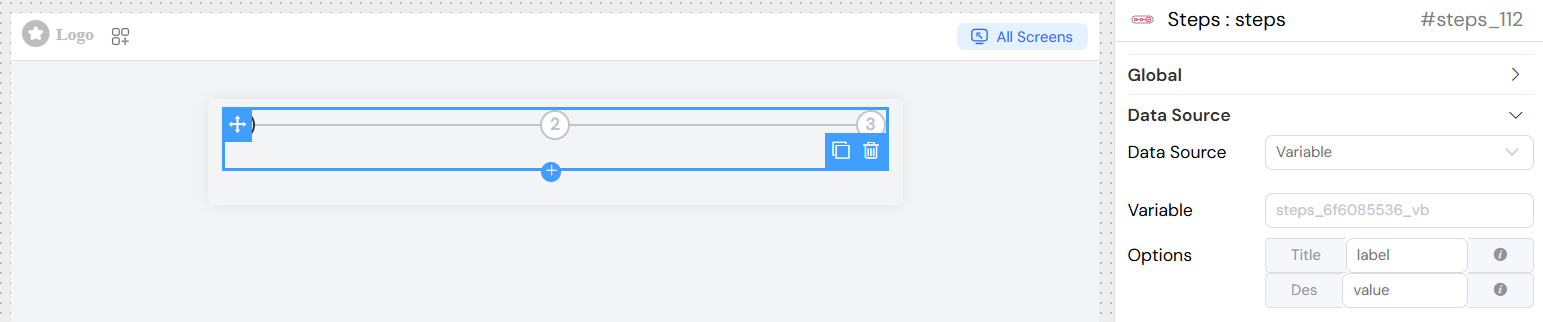
For dynamic content, use variable data source:
Variable BindingDirect link to Variable Binding
- Model Variable:
{model_name}_vb - Label Property: Configure which field contains the step title
- Value Property: Configure which field contains the step description
Label ConfigurationDirect link to Label Configuration
- Field: Label
- Description: Specifies the property name for step titles
- Syntax Options:
- Simple property:
title - Dynamic expression:
$.title + ' - ' + $.subtitle
- Simple property:
Value ConfigurationDirect link to Value Configuration
- Field: Value/Description
- Description: Specifies the property name for step descriptions
- Syntax Options:
- Simple property:
description - Dynamic expression:
$.description + ' (' + $.status + ')'
- Simple property:
Validation and VisibilityDirect link to Validation and Visibility
Screen-based ValidationDirect link to Screen-based Validation
Configure different behaviors for each screen:
AvailableDirect link to Available
- Type: Boolean
- Description: Controls if the widget is available on the screen
- Default: True
VisibleDirect link to Visible
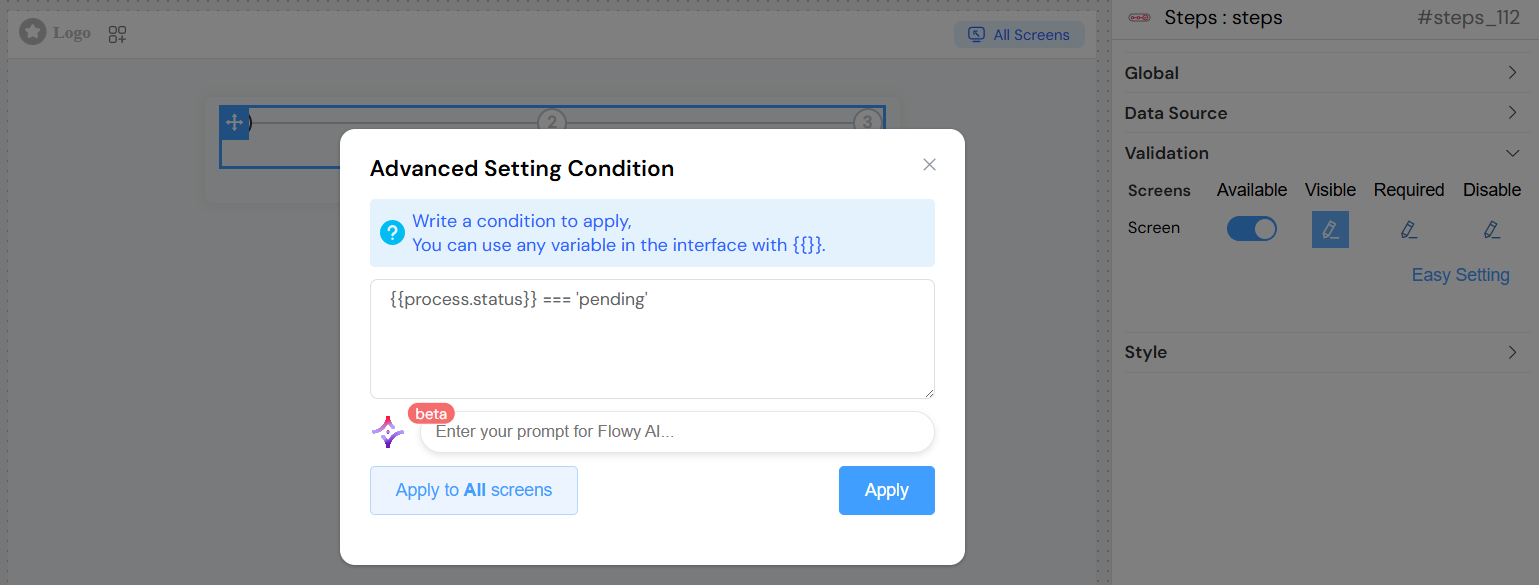
- Type: Boolean or Expression
- Description: Controls widget visibility
- Options:
- Simple boolean toggle
- Advanced expression using variables
RequiredDirect link to Required
- Type: Boolean or Expression
- Description: Makes the widget required for form submission
- Default: False
DisableDirect link to Disable
- Type: Boolean or Expression
- Description: Disables widget interaction
- Default: False

Advanced ConditionsDirect link to Advanced Conditions
Use JavaScript expressions with model variables:
Styling and AppearanceDirect link to Styling and Appearance
CSS ClassesDirect link to CSS Classes
- Field: Class
- Description: Add custom CSS classes for styling
- Type: Text input
- Usage: Space-separated class names
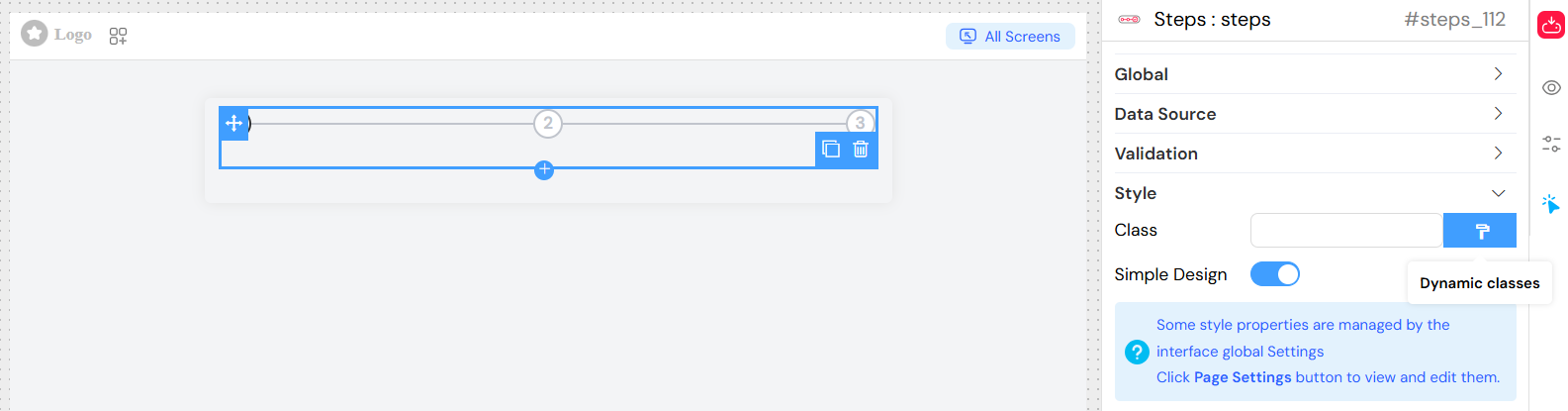
Simple DesignDirect link to Simple Design
- Field: Simple Design
- Description: Enables a simplified visual appearance
- Type: Toggle switch
- Default: False
- Effect: When enabled, reduces visual complexity for cleaner presentation
Static Configuration ExamplesDirect link to Static Configuration Examples
Best PracticesDirect link to Best Practices
Design GuidelinesDirect link to Design Guidelines
- Keep titles concise: Use short, descriptive titles
- Provide helpful descriptions: Add context without overwhelming
- Choose appropriate direction: Horizontal for wide layouts, vertical for narrow
- Consider mobile experience: Test accordion behavior on small screens
PerformanceDirect link to Performance
- Limit step count: Avoid too many steps (recommended max: 7-10)
- Optimize dynamic data: Use efficient data structures for variable sources
- Cache static data: Pre-configure static steps when possible
AccessibilityDirect link to Accessibility
- Use semantic titles: Ensure screen readers can interpret steps
- Provide clear descriptions: Help users understand each step's purpose
- Test keyboard navigation: Ensure accessibility compliance
TroubleshootingDirect link to Troubleshooting
Common IssuesDirect link to Common Issues
Steps not displayingDirect link to Steps not displaying
- Check data source configuration
- Verify model variable binding
- Ensure data structure matches expected format
Responsive layout problemsDirect link to Responsive layout problems
- Test on different screen sizes
- Verify CSS classes don't conflict
- Check container width constraints
Data not updatingDirect link to Data not updating
- Verify model binding syntax
- Check for JavaScript errors in expressions
- Ensure data source is properly connected
Debug TipsDirect link to Debug Tips
- Use browser developer tools to inspect widget state
- Check console for JavaScript errors
- Verify data structure in network tab
- Test with simplified configuration first
API ReferenceDirect link to API Reference
Component PropertiesDirect link to Component Properties
prop: Widget propertiescomp_model: Data modelcomp_management: Management statemodels: Available modelsmanagement: Management configurationvisible: Visibility staterequired: Required statedisable: Disabled stateclass_config: CSS class configuration
Widget OptionsDirect link to Widget Options
direction: Layout directionclassNames: CSS classesdefaultValue: Initial stepremote: Data source typeoptions: Static step dataprops.label: Label property pathprops.value: Value property pathisSimple: Simple design mode