Timer Widget
OverviewDirect link to Overview
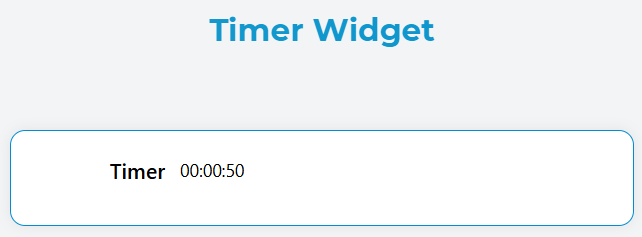
The Timer widget provides a comprehensive time tracking solution that can count up or count down from a specified duration. It displays time in HH:MM:SS format and includes functionality for starting, stopping, and tracking both active running time and break time periods.
Configuration OptionsDirect link to Configuration Options
Basic ConfigurationDirect link to Basic Configuration
Widget IdentityDirect link to Widget Identity
- Name: Display name for the widget
- Variable/Model: The data model name that stores the timer values
Timer SettingsDirect link to Timer Settings
Count TypeDirect link to Count Type
Choose how the timer should behave:
Up: Timer counts upward from 00:00:00
- Displays
(+)prefix when exceeding the set duration - Useful for tracking elapsed time with optional time limits
- Displays
Down: Timer counts downward from the set duration
- Displays
(-)prefix when going below zero - Useful for countdown timers and deadline tracking
- Displays
DurationDirect link to Duration
- Input: Number of seconds for the timer duration
- Purpose:
- For count-up mode: Sets the target/limit time
- For count-down mode: Sets the starting countdown value
- Format: Enter value in seconds (e.g., 3600 for 1 hour)

Validation SettingsDirect link to Validation Settings
The timer widget supports comprehensive validation rules across different screens:
Screen-based ValidationDirect link to Screen-based Validation
Configure different behaviors for each screen in your application:
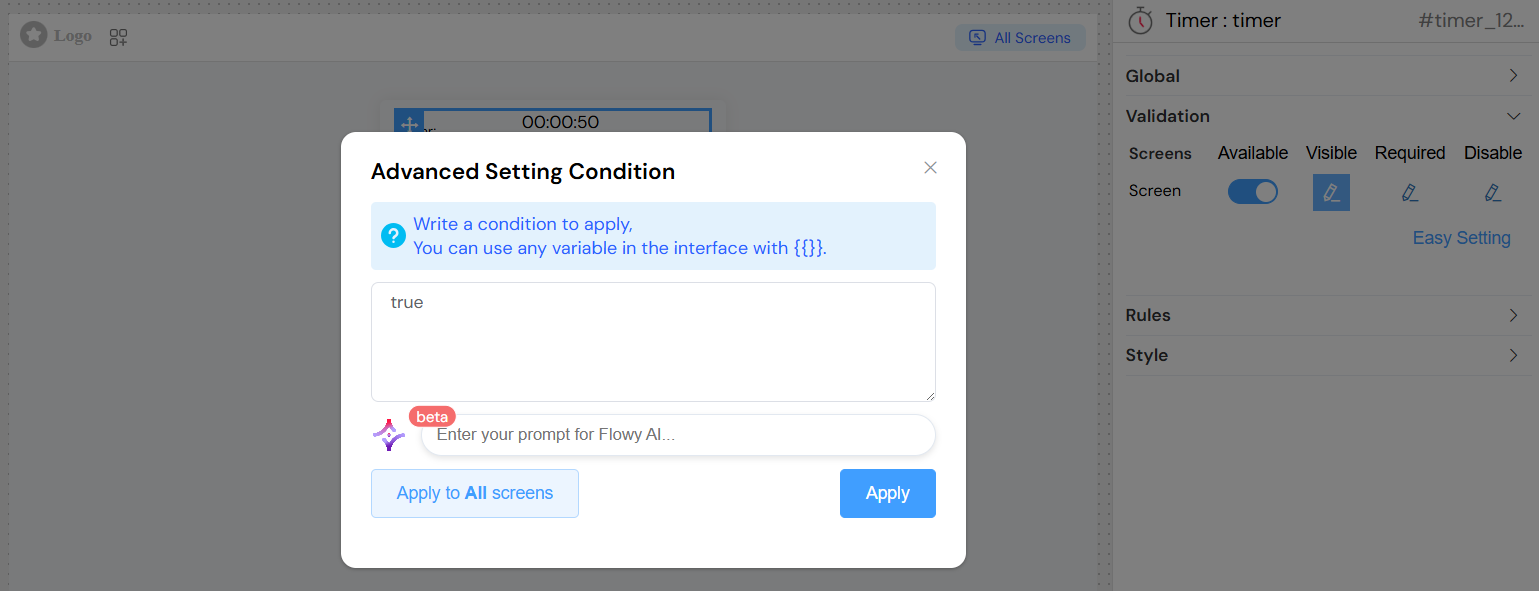
- Available: Whether the widget appears on the screen
- Visible: Whether the widget is visible (supports dynamic conditions)
- Required: Whether interaction with the timer is mandatory
- Disable: Whether the timer controls are disabled

Advanced ValidationDirect link to Advanced Validation
- Dynamic Conditions: Use JavaScript expressions with model variables
- Example:
{{userRole}} === 'admin'to show timer only for admin users
Styling OptionsDirect link to Styling Options
LayoutDirect link to Layout
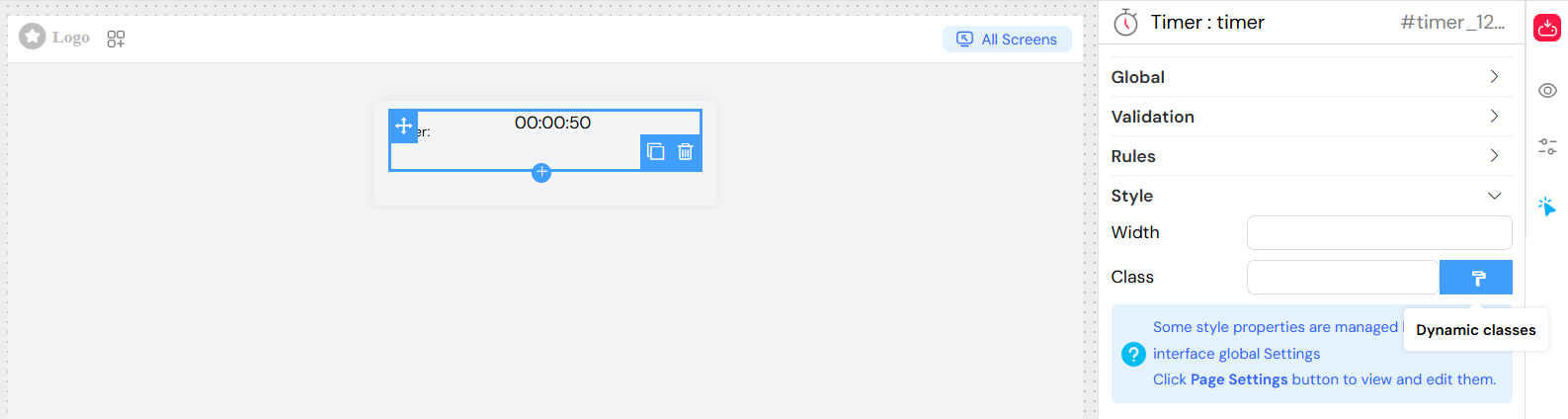
- Width: Set custom width for the timer display
- Class Names: Add custom CSS classes for styling
- Dynamic Classes: JavaScript expressions for conditional styling
AppearanceDirect link to Appearance
- Placeholder: Not applicable for timer widget
- Border: Enable/disable border around the timer
- Inline Layout: Display timer inline with other elements
Rules and ValidationDirect link to Rules and Validation
Custom Validation RulesDirect link to Custom Validation Rules
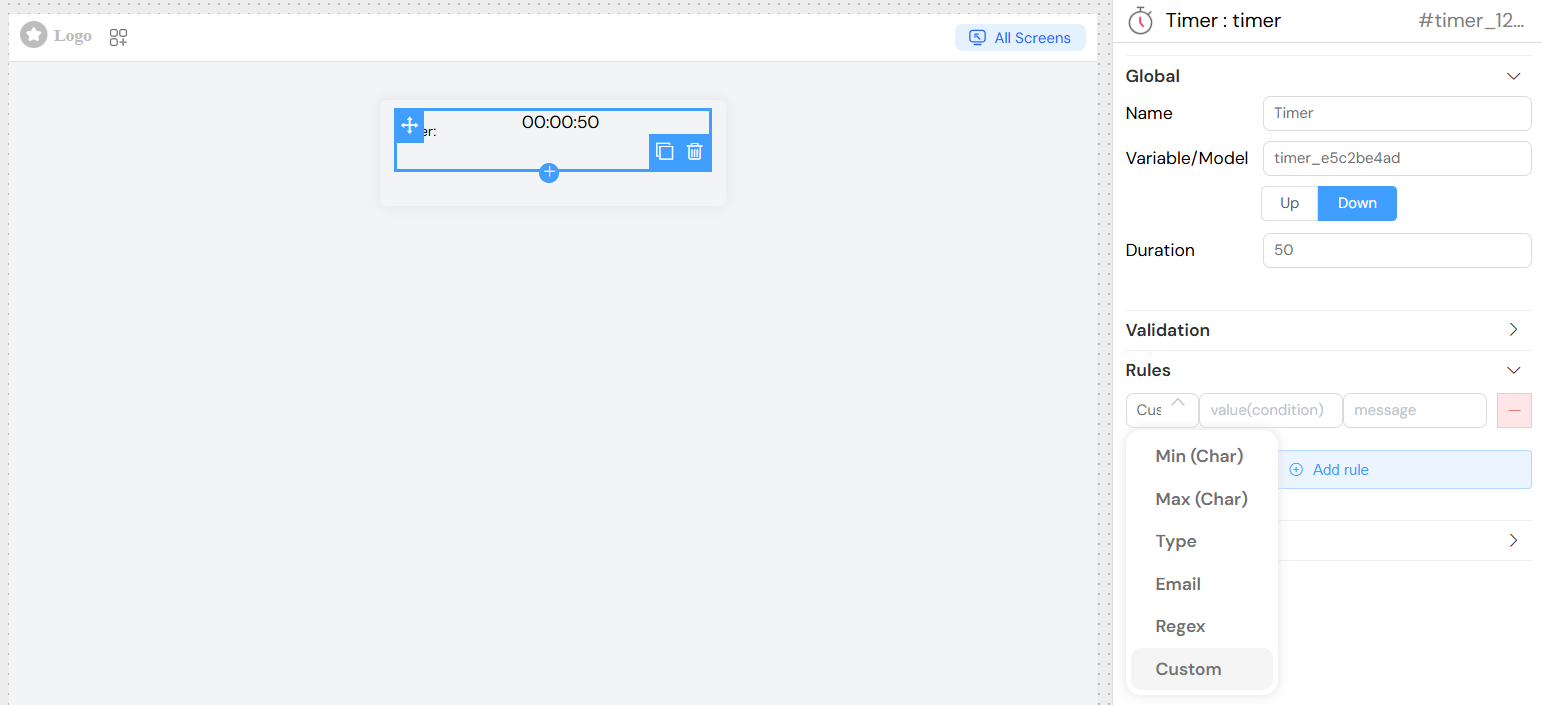
Add validation rules to ensure proper timer usage:
- Required: Make timer interaction mandatory
- Custom Rules: JavaScript-based validation functions
- Error Messages: Custom error messages for validation failures
Usage InstructionsDirect link to Usage Instructions
Basic SetupDirect link to Basic Setup
- Add Timer Widget: Drag the Timer widget to your interface
- Set Model Name: Choose a unique variable name (e.g.,
workTimer) - Configure Count Type: Select "Up" or "Down" based on your needs
- Set Duration: Enter the duration in seconds
Count-Up Timer ExampleDirect link to Count-Up Timer Example
Configuration:
- Count Type: Up
- Duration: 3600 (1 hour)
- Model:
workSession
Behavior:
- Starts at 00:00:00
- Counts upward: 00:00:01, 00:00:02, etc.
- Shows "(+) 01:00:01" when exceeding 1 hour
Count-Down Timer ExampleDirect link to Count-Down Timer Example
Configuration:
- Count Type: Down
- Duration: 1800 (30 minutes)
- Model:
breakTimer
Behavior:
- Starts at 00:30:00
- Counts downward: 00:29:59, 00:29:58, etc.
- Shows "(-) 00:00:01" when going below zero
Timer ControlsDirect link to Timer Controls
The timer widget provides the following methods that can be called programmatically:
- startTimer(): Begins or resumes the timer
- stopTimer(): Pauses the timer and begins break time tracking
Data ModelDirect link to Data Model
Generated VariablesDirect link to Generated Variables
When you create a timer with model name timerName, the system automatically creates:
Primary VariablesDirect link to Primary Variables
timerName: Formatted time string (HH:MM:SS format)timerName_runTime: Total running time in secondstimerName_breakTime: Total break time in seconds
Usage in Other ComponentsDirect link to Usage in Other Components
Access timer data in other widgets or actions:
// Get formatted time
let currentTime = {{timerName}};

// Get raw running time in seconds
let runSeconds = {{timerName_runTime}};

// Calculate net working time (run time minus breaks)
let netTime = {{timerName_runTime}} - {{timerName_breakTime}};
Advanced FeaturesDirect link to Advanced Features
Break Time ManagementDirect link to Break Time Management
The timer automatically tracks break periods:
- When
stopTimer()is called, break time tracking begins - Break time continues until
startTimer()is called again - Both run time and break time increment during break periods
Time Calculation LogicDirect link to Time Calculation Logic
Count-Up ModeDirect link to Count-Up Mode
time = runTime - breakTime;
if (duration && time > duration) {
  prefix = "(+) ";
}
Count-Down ModeDirect link to Count-Down Mode
time = duration - (runTime - breakTime);
if (time < 0) {
  time = Math.abs(time);
  prefix = "(-) ";
}
Integration with FormsDirect link to Integration with Forms
The timer integrates seamlessly with form validation:
- Can be marked as required field
- Supports form submission with timer data
- Validates timer state before form processing
Event HandlingDirect link to Event Handling
onClick EventsDirect link to onClick Events
Configure actions to trigger when the timer display is clicked:
- Navigate to detailed time tracking page
- Show timer statistics
- Export time data
Form IntegrationDirect link to Form Integration
The timer automatically updates form data when:
- Timer starts or stops
- Time values change
- Form is submitted
Best PracticesDirect link to Best Practices
Performance OptimizationDirect link to Performance Optimization
- Use appropriate duration values (avoid extremely large numbers)
- Consider impact of multiple timers on page performance
- Implement proper cleanup when timers are not needed
User ExperienceDirect link to User Experience
- Provide clear visual indicators for timer state
- Use appropriate count type for the use case
- Include instructions for users on how to operate the timer
Data ManagementDirect link to Data Management
- Regularly save timer data to prevent loss
- Consider server-side synchronization for important timing data
- Implement backup mechanisms for critical time tracking
TroubleshootingDirect link to Troubleshooting
Common IssuesDirect link to Common Issues
Timer Not StartingDirect link to Timer Not Starting
- Check if widget is enabled and visible
- Verify JavaScript console for errors
- Ensure proper model name configuration
Incorrect Time DisplayDirect link to Incorrect Time Display
- Verify duration is set in seconds
- Check count type matches intended behavior
- Validate time calculation logic
Performance IssuesDirect link to Performance Issues
- Limit number of active timers per page
- Check for memory leaks in interval management
- Monitor browser performance with developer tools
Browser CompatibilityDirect link to Browser Compatibility
- Supports all modern browsers
- Uses standard JavaScript timing functions
- Responsive design works on mobile devices
Technical ImplementationDirect link to Technical Implementation
DependenciesDirect link to Dependencies
- Vue.js framework
- Element UI components
- Standard JavaScript timing functions
Browser RequirementsDirect link to Browser Requirements
- Modern browser with JavaScript enabled
- Support for setInterval/clearInterval functions
- CSS3 support for styling
Security ConsiderationsDirect link to Security Considerations
- Timer data should be validated on server side
- Consider rate limiting for timer operations
- Implement proper session management for persistent timers