Title Widget
OverviewDirect link to Overview
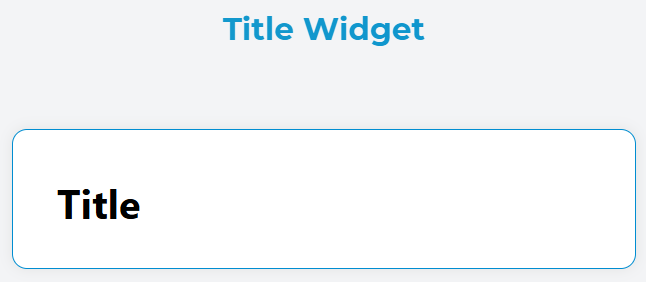
The Title widget is a versatile text heading component that allows you to create structured headings (H1-H6) within your interface. It provides flexible configuration options for styling, alignment, and dynamic content rendering.
ConfigurationDirect link to Configuration
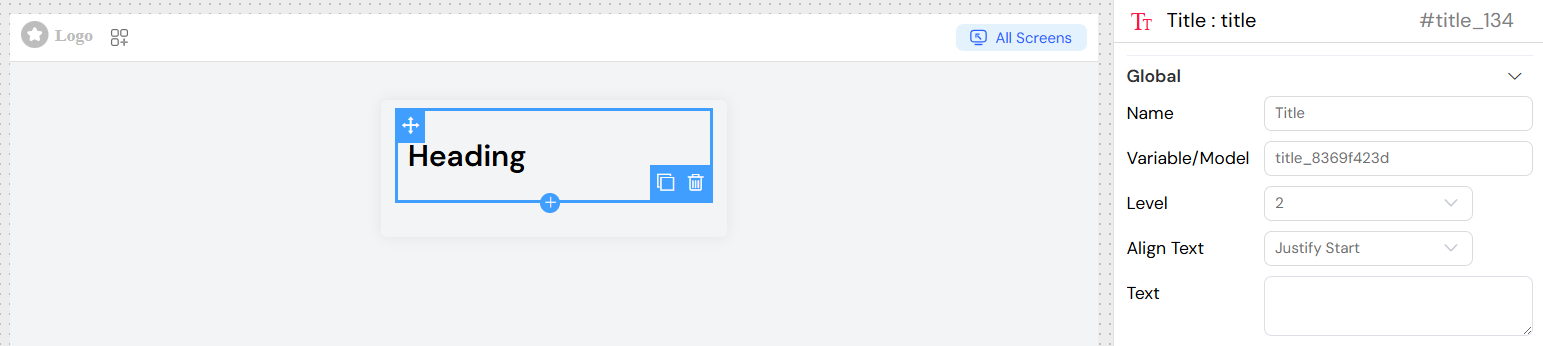
Global SettingsDirect link to Global Settings
NameDirect link to Name
- Field: Name input
- Description: Sets the internal name/identifier for the widget
- Usage: Used for referencing the widget in scripts and actions
Variable/ModelDirect link to Variable/Model
- Field: Variable/Model input
- Description: Links the widget to a data model or variable
- Usage: Enables dynamic content binding and data synchronization
- Format: Use dot notation for nested properties (e.g.,
user.name)
Title-Specific ConfigurationDirect link to Title-Specific Configuration
LevelDirect link to Level
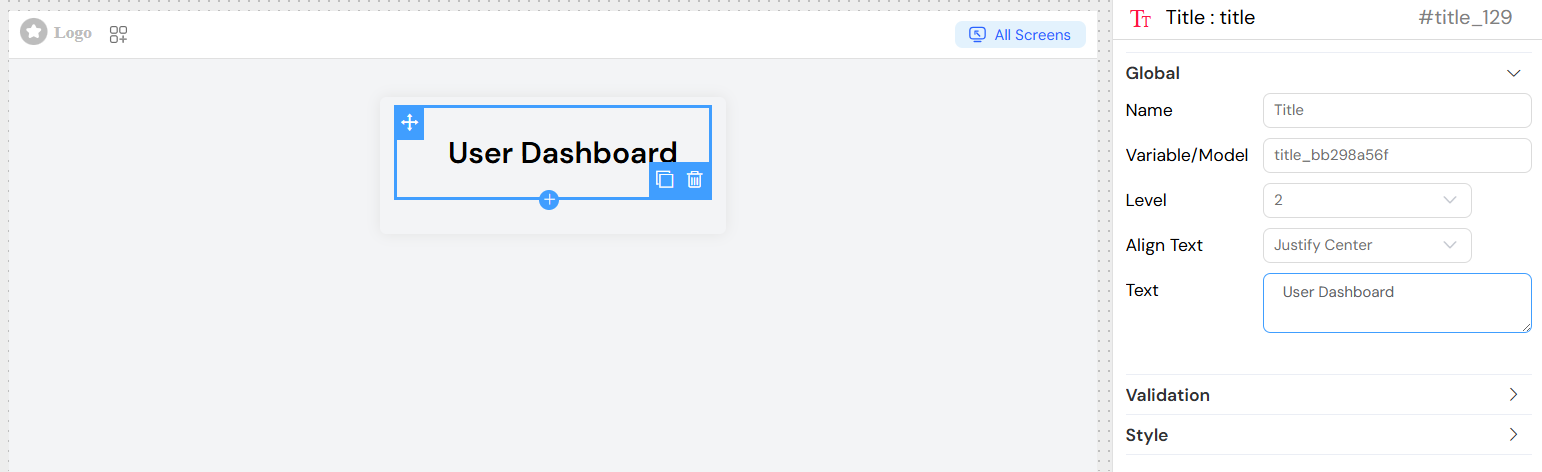
- Field: Level dropdown
- Options: 1, 2, 3, 4, 5, 6
- Description: Determines the HTML heading level (H1, H2, H3, H4, H5, H6)
- Default: H1
- Usage:
- H1: Main page titles
- H2: Section headers
- H3-H6: Subsection headers
Text AlignmentDirect link to Text Alignment
- Field: Align Text dropdown
- Options:
- Center: Centers the text horizontally
- End: Aligns text to the end (right in LTR languages)
- Justify: Justifies text with even spacing
- Left: Aligns text to the left
- Right: Aligns text to the right
- Start: Aligns text to the start (left in LTR languages)
- Default: Left
Text ContentDirect link to Text Content
- Field: Text textarea
- Description: The actual content that will be displayed
- Features:
- Supports plain text
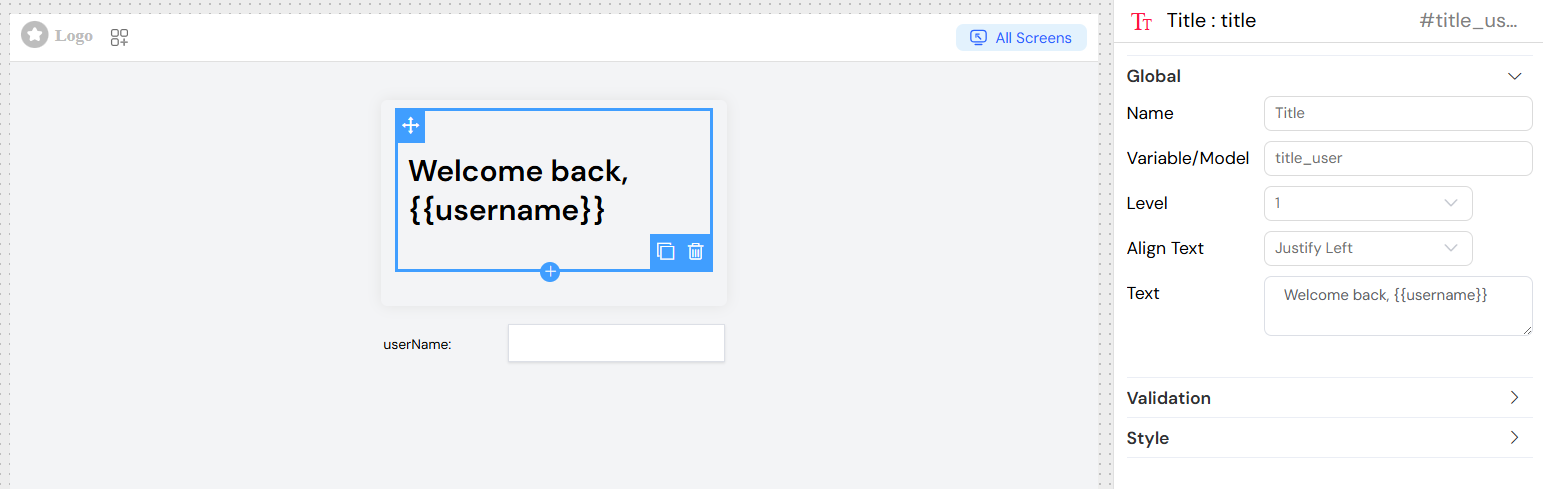
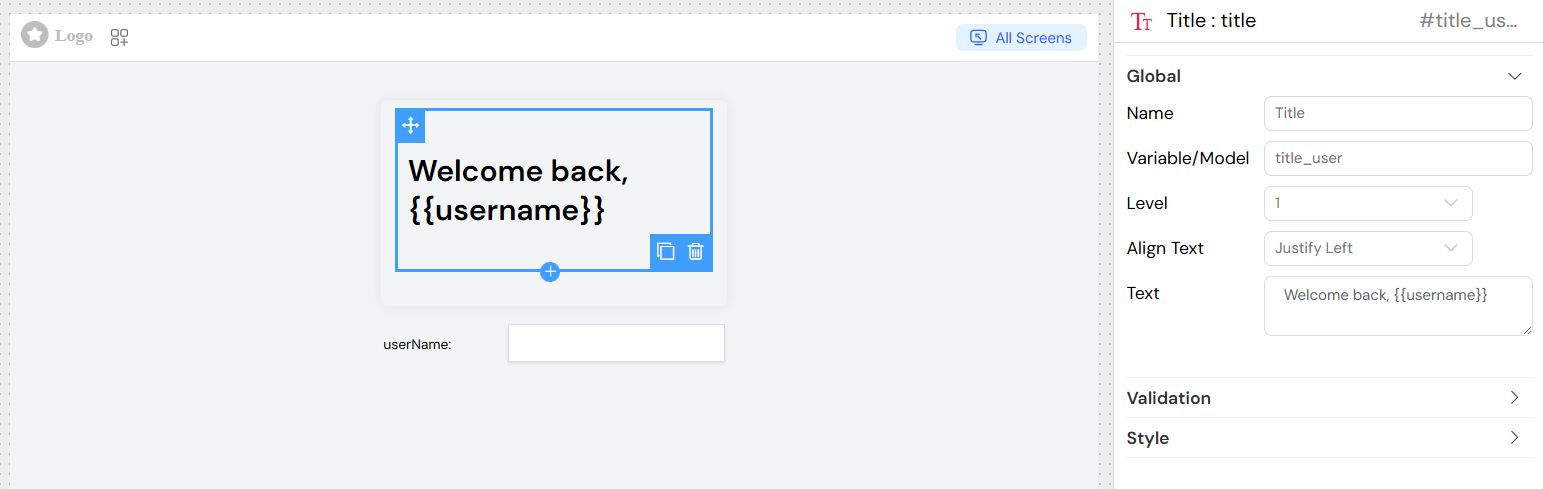
- Supports dynamic variables using
{{variable_name}}syntax - Multi-line text support
- HTML entities are automatically escaped
Dynamic ContentDirect link to Dynamic Content
Models BindingDirect link to Models Binding
The title widget supports dynamic content through models interpolation:
Style ConfigurationDirect link to Style Configuration
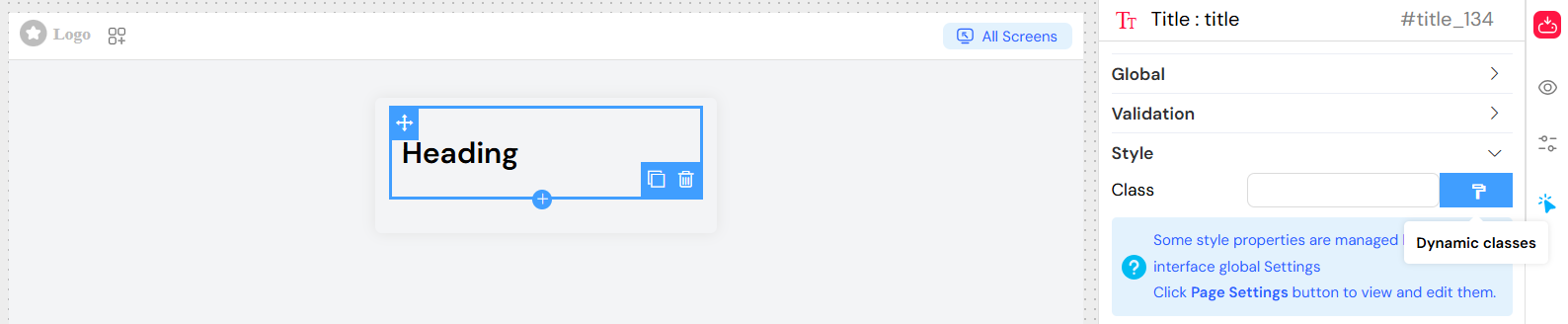
Class NamesDirect link to Class Names
- Field: Class input
- Description: Adds custom CSS classes to the title element
- Usage: Apply custom styling or framework classes
- Example:
custom-title primary-color
Dynamic ClassesDirect link to Dynamic Classes
- Field: Dynamic classes button
- Description: Configure conditional CSS classes based on data or conditions
- Usage: Classes that change based on application state
Validation and VisibilityDirect link to Validation and Visibility
Screen-Based ConfigurationDirect link to Screen-Based Configuration
The title widget supports different configurations for different screens/contexts:
- Available: Controls whether the widget exists in the interface
- Visible: Controls whether the widget is visible to users
- Required: Not applicable for title widgets (display-only component)
- Disable: Not applicable for title widgets (non-interactive component)

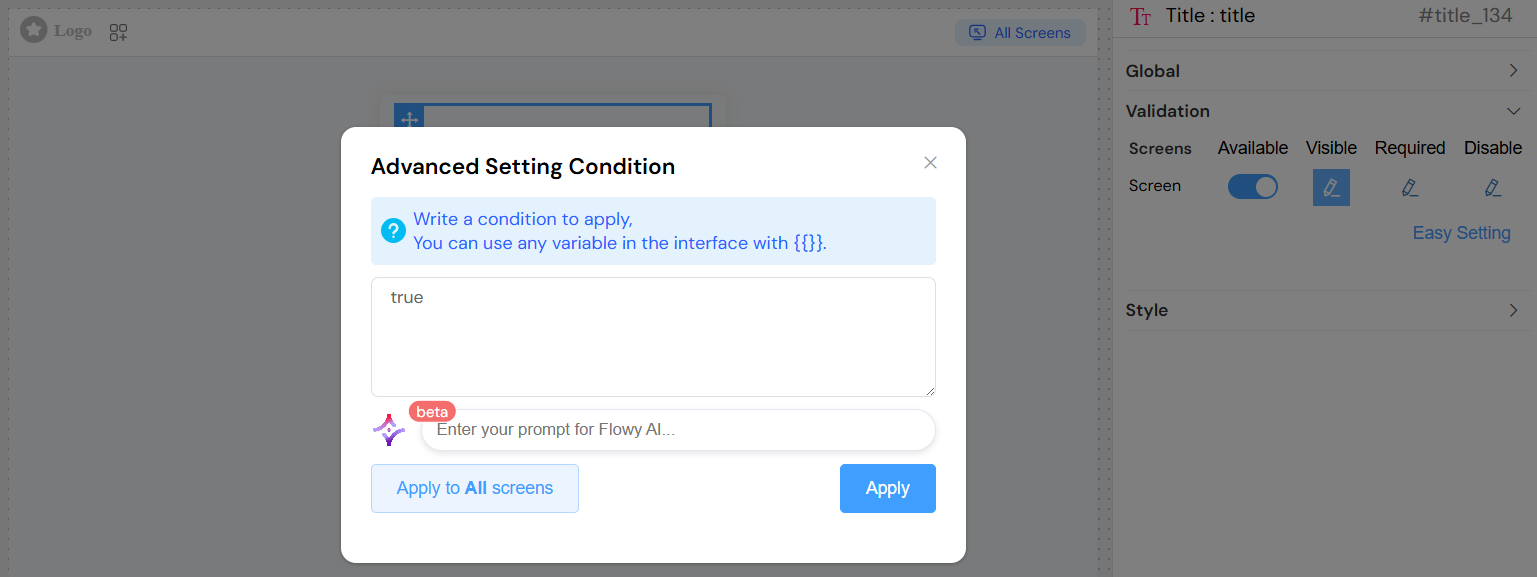
Advanced Visibility ConditionsDirect link to Advanced Visibility Conditions
Use JavaScript expressions for complex visibility logic:
Best PracticesDirect link to Best Practices
Semantic Heading StructureDirect link to Semantic Heading Structure
- Use H1 for main page titles (only one per page)
- Use H2-H6 for hierarchical content structure
- Maintain logical heading order (don't skip levels)
Content GuidelinesDirect link to Content Guidelines
- Keep titles concise and descriptive
- Use sentence case rather than ALL CAPS
- Ensure titles are meaningful and accessible
Responsive DesignDirect link to Responsive Design
- Test title appearance across different screen sizes
- Consider text length for mobile displays
- Use appropriate heading levels for content hierarchy
ExamplesDirect link to Examples
Static TitleDirect link to Static Title
Dynamic TitleDirect link to Dynamic Title
TroubleshootingDirect link to Troubleshooting
Common IssuesDirect link to Common Issues
Title not displaying
- Check visibility conditions
- Verify variable bindings are correct
- Ensure the widget is marked as "Available"
Dynamic content not updating
- Verify variable names match exactly
- Check data model connectivity
- Ensure proper variable syntax
{{variableName}}
Styling issues
- Verify CSS class names are correct
- Check for conflicting styles
- Test on different screen sizes
Debug TipsDirect link to Debug Tips
- Use browser developer tools to inspect generated HTML
- Check console for JavaScript errors
- Verify data binding in Vue DevTools