Group Picker Widget
OverviewDirect link to Overview
The Group Picker widget is a searchable dropdown component that allows users to select one or multiple groups from your system. It provides real-time search functionality with remote data loading and supports various configuration options for validation, styling, and user interaction.

Basic ConfigurationDirect link to Basic Configuration
Global SettingsDirect link to Global Settings
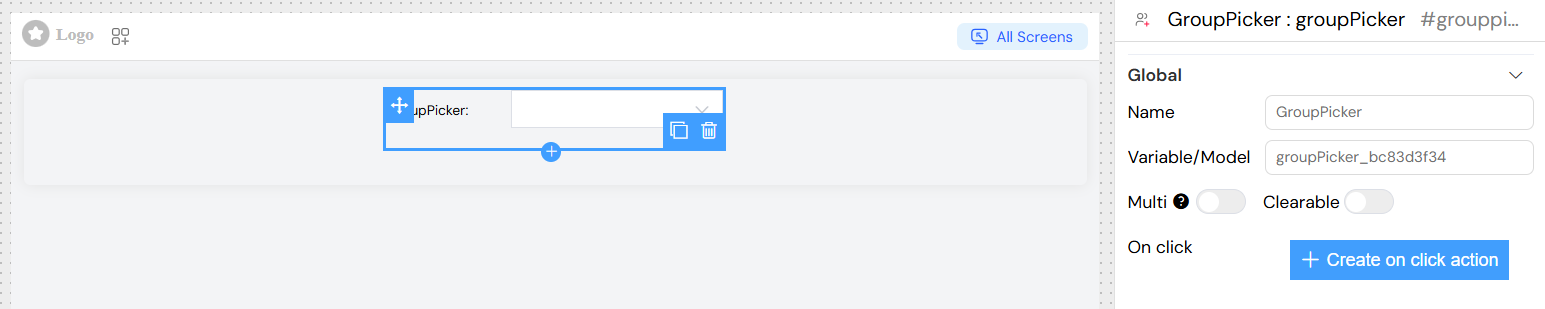
NameDirect link to Name
- Label: Name
- Description: The display label for the group picker field
- Type: Text input
- Usage: This text appears as the field label in forms
Variable/ModelDirect link to Variable/Model
- Label: Variable/Model
- Description: The data model property name where selected values will be stored
- Type: Text input
- Required: Yes
- Usage: Defines the variable name for accessing selected group data
- Example:
selectedGroups,userGroups
Selection OptionsDirect link to Selection Options
Multiple SelectionDirect link to Multiple Selection
- Label: Multi
- Description: Enable selection of multiple groups
- Type: Toggle switch
- Default: false
- Usage: When enabled, users can select multiple groups from the dropdown
ClearableDirect link to Clearable
- Label: Clearable
- Description: Allow users to clear their selection
- Type: Toggle switch
- Default: false
- Usage: Adds a clear button to remove all selected values
FilterableDirect link to Filterable
- Label: Filterable
- Description: Enable search/filter functionality
- Type: Toggle switch
- Default: true (always enabled for Group Picker)
- Usage: Allows users to type and search for groups by name
Default ValueDirect link to Default Value
- Label: Default Value
- Description: Set a default selected group or groups
- Type: Text input
- Usage: Specify default group name(s). For multiple selection, separate with commas
Data Source ConfigurationDirect link to Data Source Configuration
The Group Picker automatically connects to your system's group API endpoint (/api/v1/group) and provides:
- Real-time search: Groups are loaded dynamically as users type
- Pagination support: Loads 10 groups per request for optimal performance
- Automatic label mapping: Uses group
nameproperty for display - Value mapping: Uses group
nameproperty as the stored value
Value StorageDirect link to Value Storage
The Group Picker stores data in multiple formats for flexibility:
- Primary Value (
model): Group name(s) as string or array - Display Label (
model_label): Human-readable group name(s) - Full Object (
model_vb): Complete group object(s) with all properties
Events and ActionsDirect link to Events and Actions
On Click ActionDirect link to On Click Action
- Label: On click
- Description: Define custom JavaScript code to execute when a group is selected
- Type: Code input or Action builder
- Available Variables:
SF_input.value: Selected group name(s)SF_input.SF_data: Complete group object(s)SF_input.SF_currentIndex: Current loop index (if within a loop)
Example ActionsDirect link to Example Actions
](/img/04_ressources/project/web-interface/widgets/groupPickerExampleActions.png)
Validation ConfigurationDirect link to Validation Configuration
Screen-based ValidationDirect link to Screen-based Validation
Configure validation rules for different screens (Create, Edit, View, etc.):
AvailableDirect link to Available
- Description: Control whether the widget appears on specific screens
- Type: Toggle switch per screen
VisibleDirect link to Visible
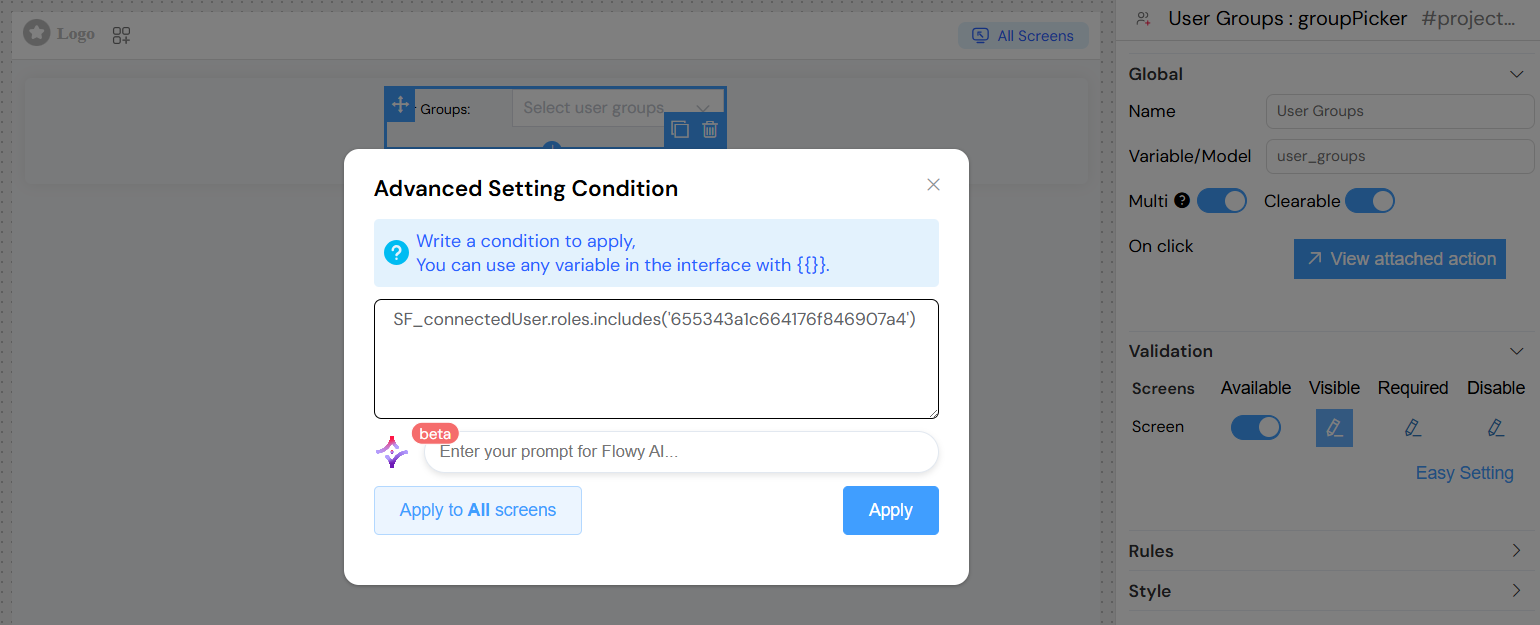
- Description: Control widget visibility with dynamic conditions
- Type: Toggle switch or JavaScript expression
- Advanced: Use JavaScript expressions for dynamic visibility
- Example:
{{user.role === 'admin'}}
RequiredDirect link to Required
- Description: Make group selection mandatory
- Type: Toggle switch or JavaScript expression
- Validation: Displays error message if no group is selected
DisabledDirect link to Disabled
- Description: Disable the widget to prevent user interaction
- Type: Toggle switch or JavaScript expression

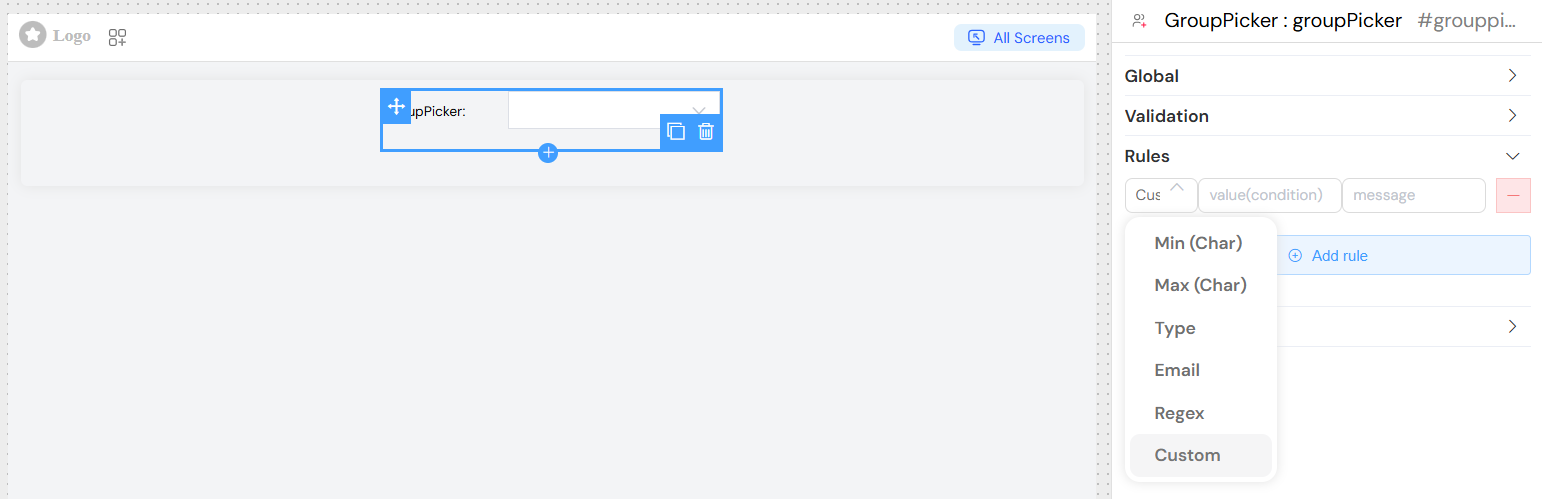
Custom Validation RulesDirect link to Custom Validation Rules
Add custom validation rules beyond basic required validation:
Rule Types AvailableDirect link to Rule Types Available
- Minimum selection: Require minimum number of groups (for multiple selection)
- Maximum selection: Limit maximum number of groups
- Pattern matching: Validate group names against specific patterns
- Custom validation: Write custom JavaScript validation logic
Adding RulesDirect link to Adding Rules
- Navigate to the "Rules" section
- Click "Add rule"
- Select rule type from dropdown
- Enter validation value
- Provide custom error message
Styling and LayoutDirect link to Styling and Layout
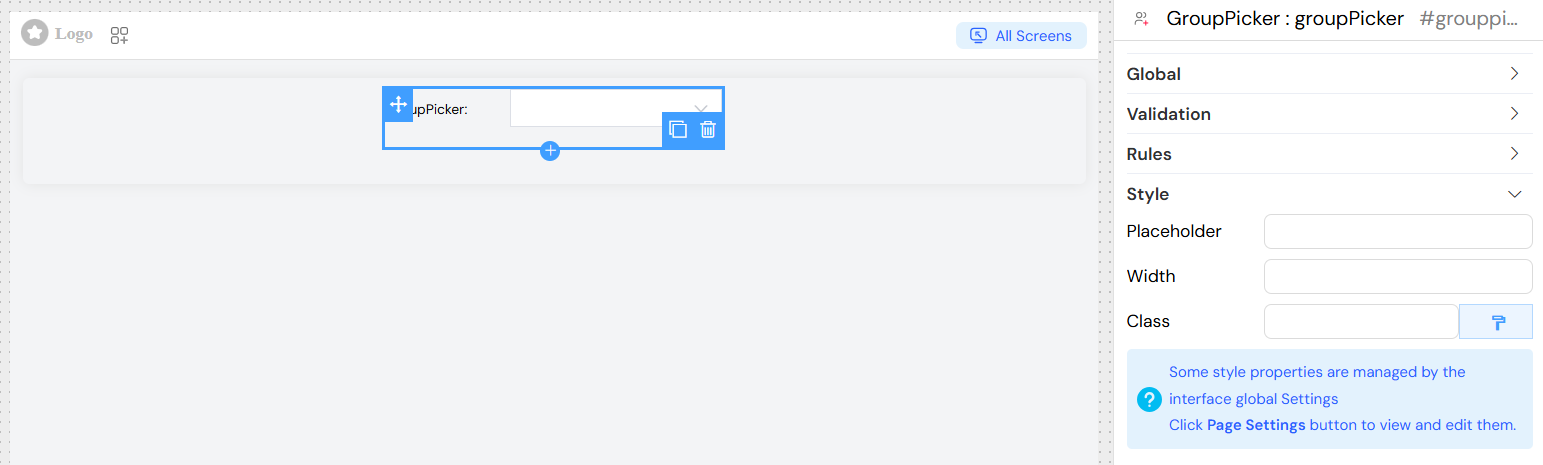
Appearance OptionsDirect link to Appearance Options
PlaceholderDirect link to Placeholder
- Label: Placeholder
- Description: Hint text displayed when no group is selected
- Type: Text input
- Example: "Select a group...", "Choose groups..."
WidthDirect link to Width
- Label: Width
- Description: Control the width of the dropdown
- Type: Text input
- Values: CSS width values
- Examples:
100%,300px,50rem
CSS ClassesDirect link to CSS Classes
- Label: Class
- Description: Add custom CSS classes for styling
- Type: Text input
- Usage: Space-separated class names
- Dynamic Classes: Use the dynamic classes button for conditional styling
Usage ExamplesDirect link to Usage Examples
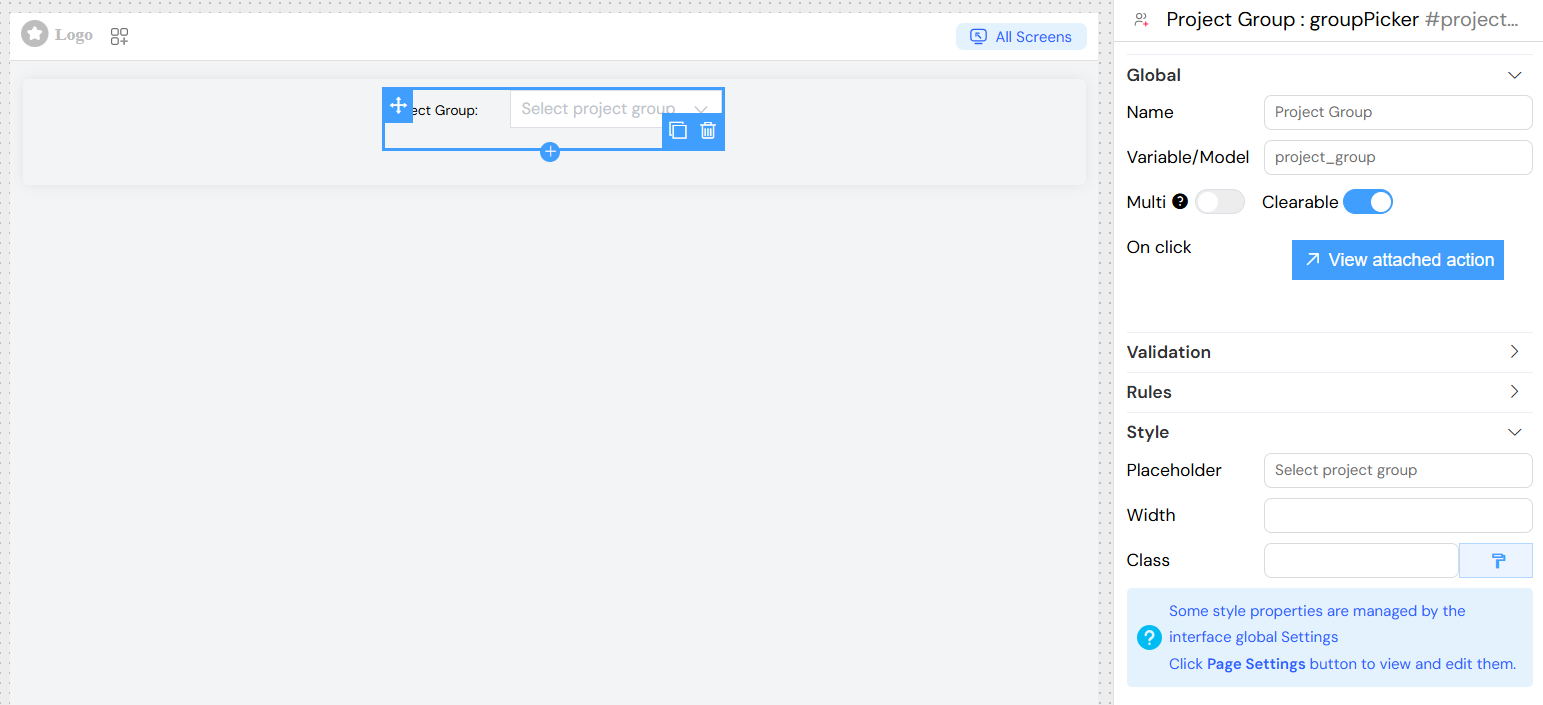
Basic Single Group SelectionDirect link to Basic Single Group Selection
Dynamic Visibility Based on User RoleDirect link to Dynamic Visibility Based on User Role
Best PracticesDirect link to Best Practices
- Performance: Use appropriate limits for large group lists
- User Experience: Provide clear placeholder text and labels
- Validation: Implement proper validation for required fields
- Accessibility: Ensure proper labeling for screen readers
- Error Handling: Provide meaningful error messages for validation failures
TroubleshootingDirect link to Troubleshooting
Common IssuesDirect link to Common Issues
- Groups not loading: Check API endpoint accessibility and authentication
- Search not working: Verify network connectivity and API response format
- Selection not saving: Ensure proper model binding and form configuration
- Validation errors: Check required field settings and custom validation rules
DebuggingDirect link to Debugging
Access the browser's developer console to:
- Monitor API calls to
/api/v1/group - Check stored values in
comp_model - Verify event triggers and validation states