Divider Widget
OverviewDirect link to Overview
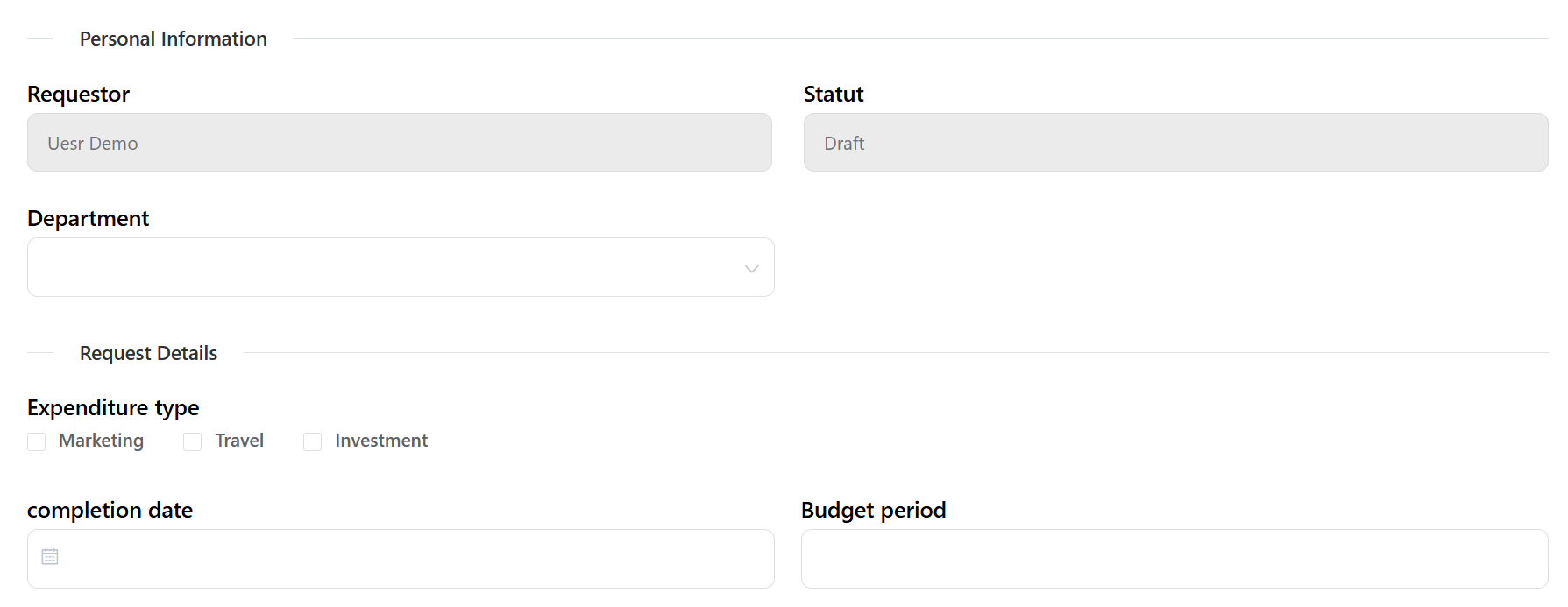
The divider widget is a visual separator component that helps organize and structure your interface by creating clear divisions between different sections of content. It renders as a horizontal line with optional text label that can be positioned and styled according to your needs.

Global SettingsDirect link to Global Settings
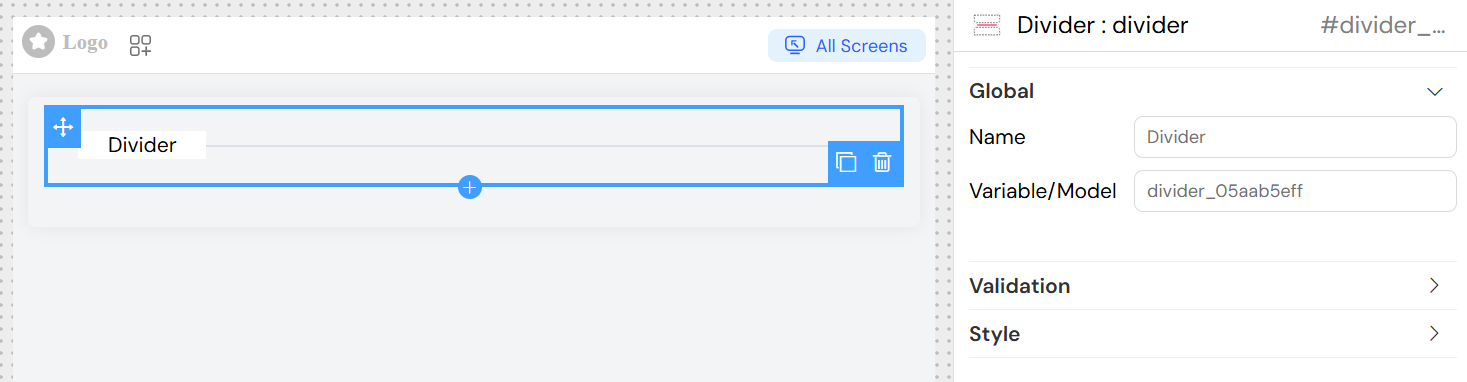
Widget NameDirect link to Widget Name
- Field: Name
- Description: The display text that will appear on the divider
- Usage: Enter the text you want to display on the divider line
- Example: "Personal Information", "Contact Details", "Settings"
Variable/ModelDirect link to Variable/Model
- Field: Variable/Model
- Description: Optional variable name for programmatic access to the widget
- Usage: Define a unique identifier if you need to reference this divider in scripts or validation rules
- Example:
section_divider,contact_separator
Validation and VisibilityDirect link to Validation and Visibility
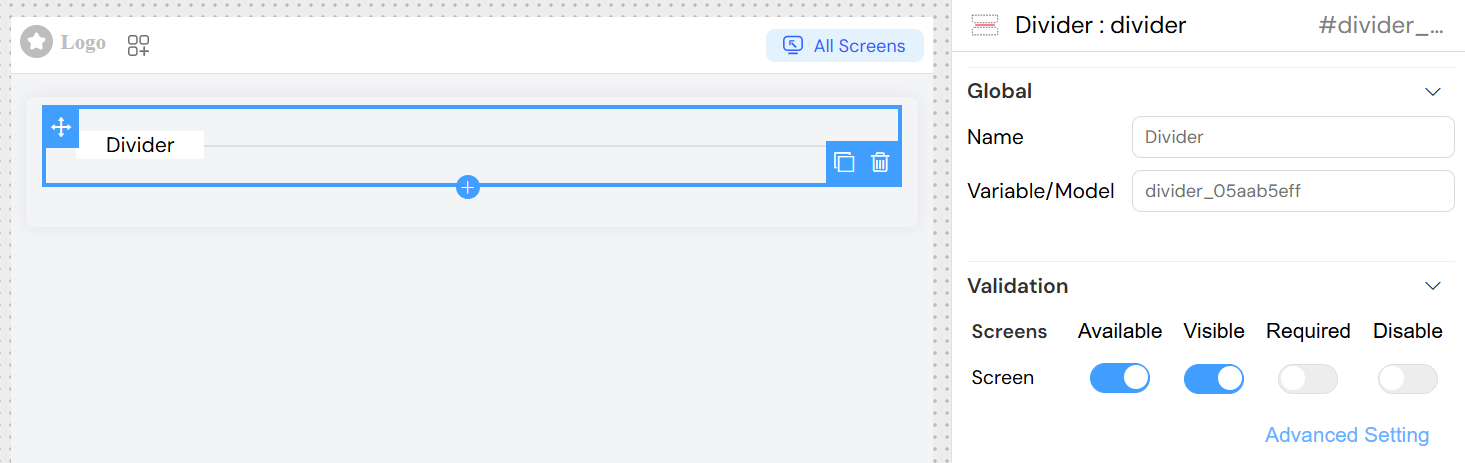
The divider widget supports screen-based validation rules that control when and how the widget appears across different interface screens.
Screen ConfigurationDirect link to Screen Configuration
AvailableDirect link to Available
- Description: Controls whether the widget exists on specific screens
- Options: Toggle on/off for each screen
- Use Case: Show dividers only on certain forms or views
VisibleDirect link to Visible
- Description: Controls the visibility of the widget
- Options:
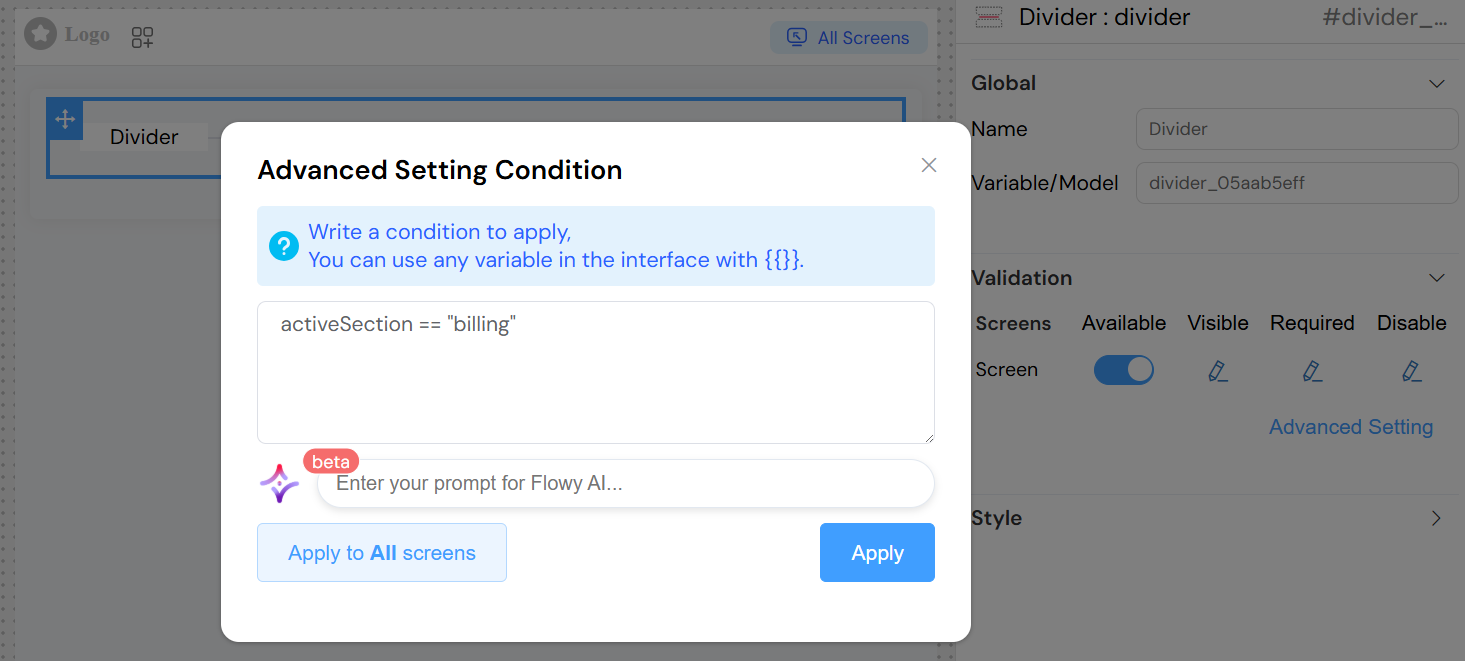
- Simple Mode: Toggle on/off
- Advanced Mode: JavaScript condition
- Advanced Examples:
{{user.hasPermission('view_advanced')}}- Show only for users with specific permissions{{formData.section === 'extended'}}- Show based on form state{{models.showDetails}}- Show based on variable value
RequiredDirect link to Required
- Description: Not typically applicable to dividers (visual elements)
- Usage: Generally left disabled for divider widgets
DisableDirect link to Disable
- Description: Controls whether the divider appears disabled/grayed out
- Usage: Rarely used for dividers but available for special styling needs
Advanced Visibility ConditionsDirect link to Advanced Visibility Conditions
When using advanced settings, you can write JavaScript expressions using:
- Variables: Access any interface variable using
{{variableName}} - Form Data: Reference form fields and their values
- User Context: Access user information and permissions
- Global State: Reference application-wide variables
Example Conditions:
Styling and AppearanceDirect link to Styling and Appearance
Content PositionDirect link to Content Position
- Default: Left-aligned
- Description: The divider text is positioned to the left of the line by default
- Customization: Can be modified through CSS classes
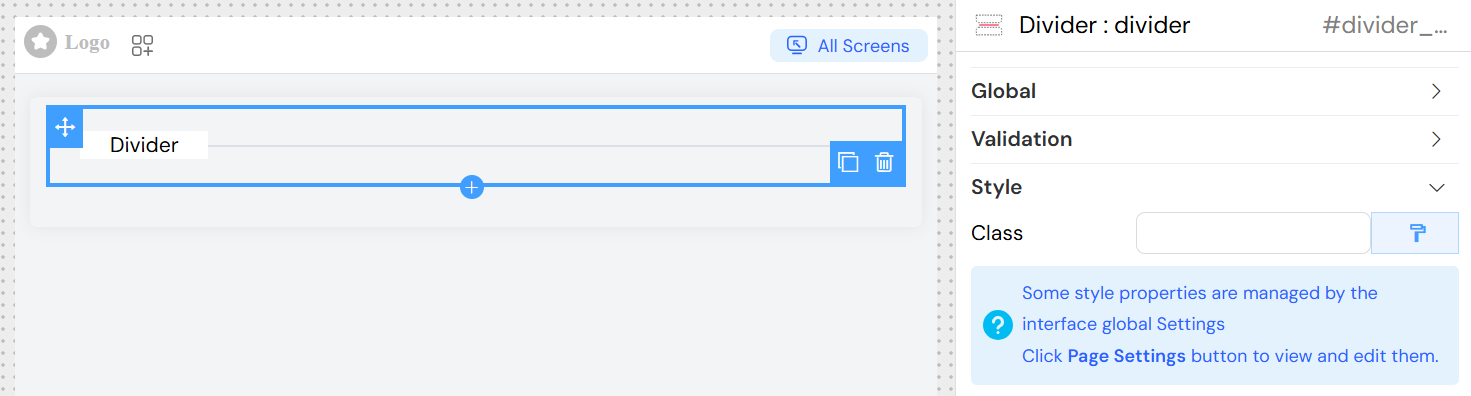
CSS ClassesDirect link to CSS Classes
- Field: Class
- Description: Add custom CSS classes to style the divider appearance
- Usage:
- Enter class names separated by spaces
- Use existing theme classes or custom CSS
- Examples:
primary-divider- Apply primary theme stylingbold-text large-spacing- Multiple classes for bold text and extra spacingcenter-divider- Custom class to center the text
Dynamic ClassesDirect link to Dynamic Classes
- Feature: Dynamic class assignment based on conditions
- Access: Click the paint brush icon next to the Class field
- Usage: Write JavaScript expressions that return class names based on data or state
- Example:
{{user.role === 'admin' ? 'admin-divider' : 'user-divider'}}
Implementation DetailsDirect link to Implementation Details
Widget StructureDirect link to Widget Structure
The divider widget generates an Element UI divider component with the following characteristics:
- Element Type:
el-divider - Content Position: Left-aligned by default
- Text Content: Automatically translated using the interface translation system
- Conditional Rendering: Respects visibility settings
- CSS Integration: Supports both static and dynamic class assignment
Translation SupportDirect link to Translation Support
- The divider text is automatically processed through the translation system
- Use translation keys in the widget name for multi-language support
- The system will automatically translate the text based on the current language setting
Responsive BehaviorDirect link to Responsive Behavior
- The divider adapts to container width automatically
- Text positioning and styling respond to CSS breakpoints
- Mobile-friendly by default with proper Element UI responsive design
Best PracticesDirect link to Best Practices
Naming ConventionDirect link to Naming Convention
- Use descriptive names that clearly indicate the section being divided
- Consider using translation keys for multi-language interfaces
- Keep names concise but meaningful
Visual HierarchyDirect link to Visual Hierarchy
- Use dividers sparingly to maintain clean design
- Consider using different styling for different levels of separation
- Ensure sufficient spacing around dividers for visual clarity
AccessibilityDirect link to Accessibility
- Divider text provides semantic meaning for screen readers
- Use meaningful section names to improve navigation for assistive technologies
- Ensure color contrast meets accessibility standards when applying custom styles
Performance ConsiderationsDirect link to Performance Considerations
- Dividers have minimal performance impact
- Complex visibility conditions should be optimized for performance
- Avoid deeply nested condition expressions when possible
Common Use CasesDirect link to Common Use Cases
Form Section SeparationDirect link to Form Section Separation
TroubleshootingDirect link to Troubleshooting
Divider Not AppearingDirect link to Divider Not Appearing
- Check visibility conditions in validation settings
- Verify the widget is marked as "Available" for the current screen
- Ensure container has sufficient width to display the divider
Text Not DisplayingDirect link to Text Not Displaying
- Verify the widget name is properly set
- Check for translation issues if using translation keys
- Ensure CSS classes aren't hiding the text content
Styling IssuesDirect link to Styling Issues
- Verify CSS class names are correct and available
- Check for CSS conflicts with other styles
- Ensure dynamic class expressions return valid class names
Visibility Conditions Not WorkingDirect link to Visibility Conditions Not Working
- Validate JavaScript syntax in advanced visibility conditions
- Ensure referenced variables exist and are accessible
- Test conditions in browser console for debugging