Icon Widget
OverviewDirect link to Overview
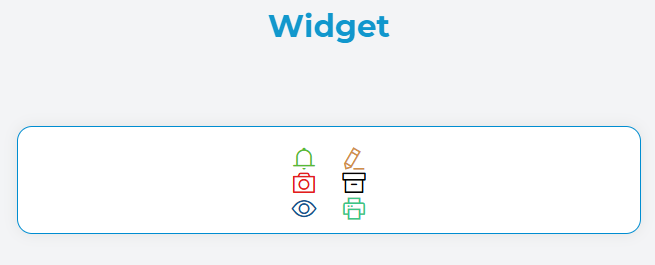
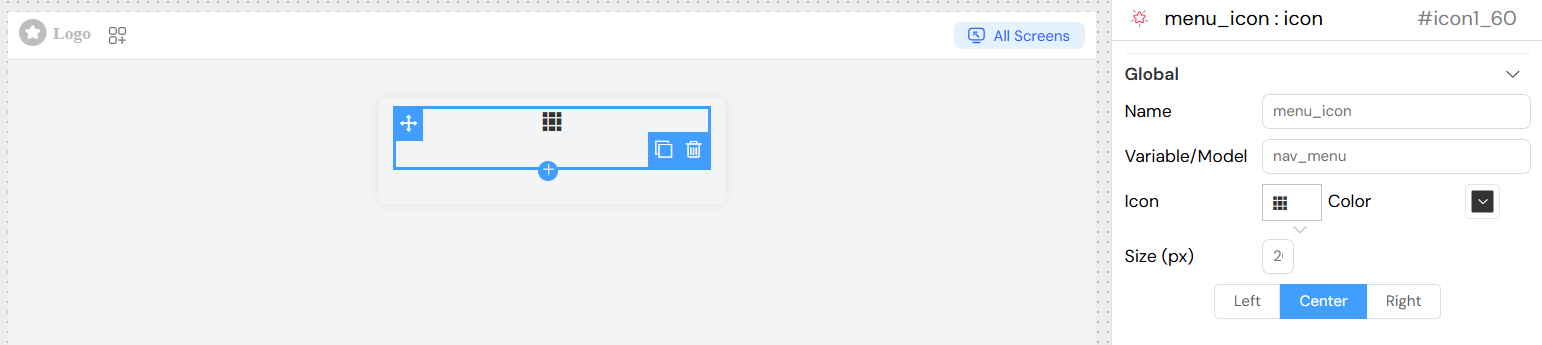
The Icon widget is a visual component that displays scalable vector icons on your interface. It supports a wide variety of icon libraries and provides flexible styling options including color customization, size adjustment, and alignment controls.
Widget PropertiesDirect link to Widget Properties
Basic ConfigurationDirect link to Basic Configuration
| Property | Type | Description | Default |
|---|---|---|---|
| Name | String | Display name for the widget | - |
| Variable/Model | String | Variable name to bind the widget to your data model | - |
Icon ConfigurationDirect link to Icon Configuration
| Property | Type | Description | Options |
|---|---|---|---|
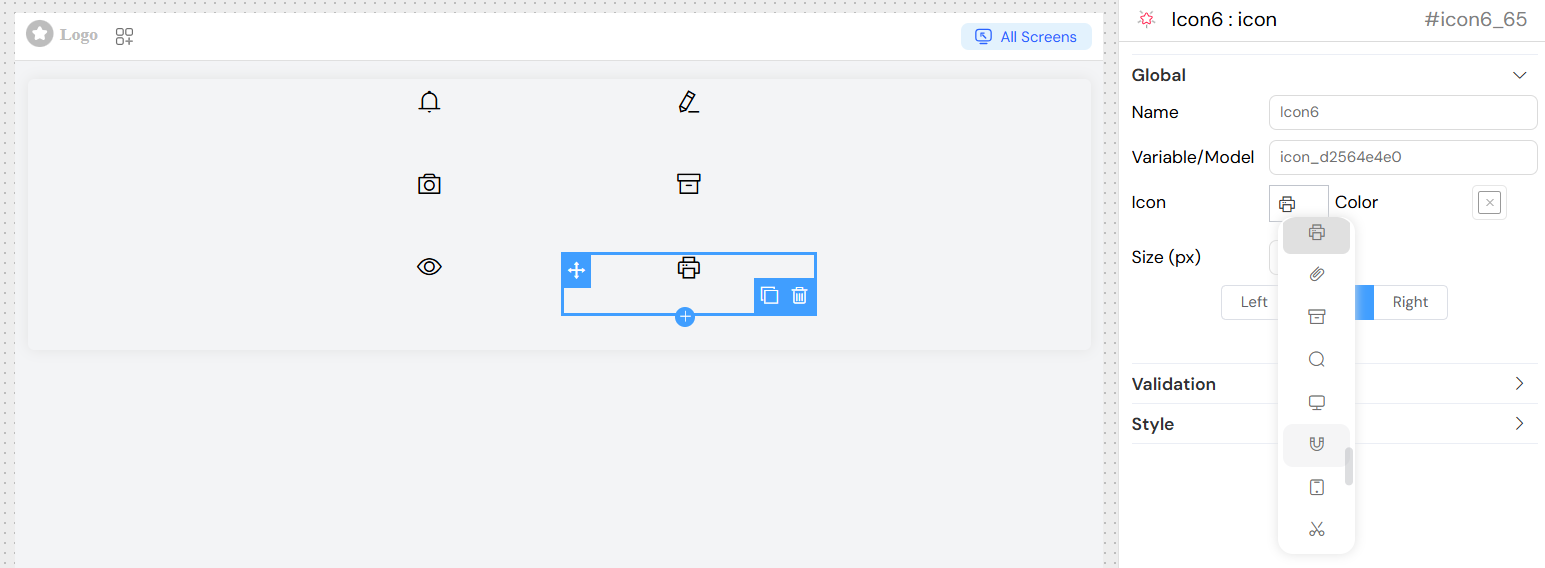
| Icon | String | Icon class name from supported icon libraries | Font Awesome, Material Icons, etc. |
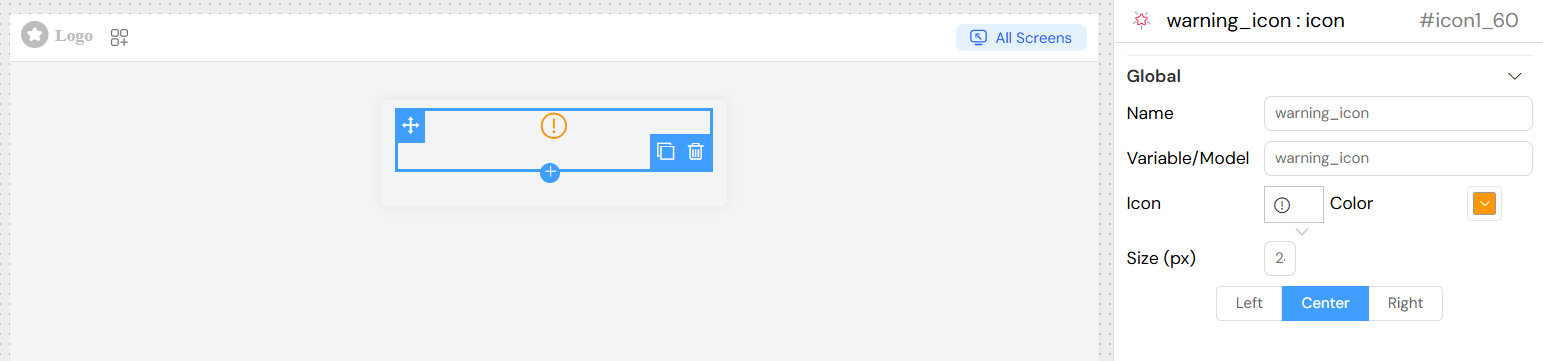
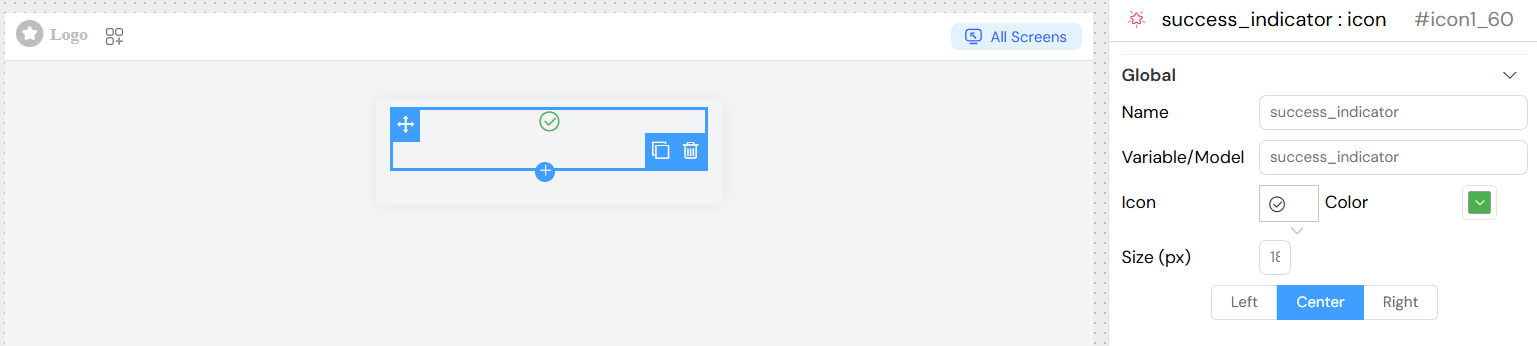
| Color | Color | Icon color using color picker | Any valid CSS color |
| Size (px) | Number | Icon size in pixels | Any positive number |
| Alignment | String | Horizontal alignment of the icon | left, center, right |
Usage ExamplesDirect link to Usage Examples
Basic Icon DisplayDirect link to Basic Icon Display
Status IndicatorDirect link to Status Indicator
Navigation IconDirect link to Navigation Icon
Validation and VisibilityDirect link to Validation and Visibility
Screen-Based ValidationDirect link to Screen-Based Validation
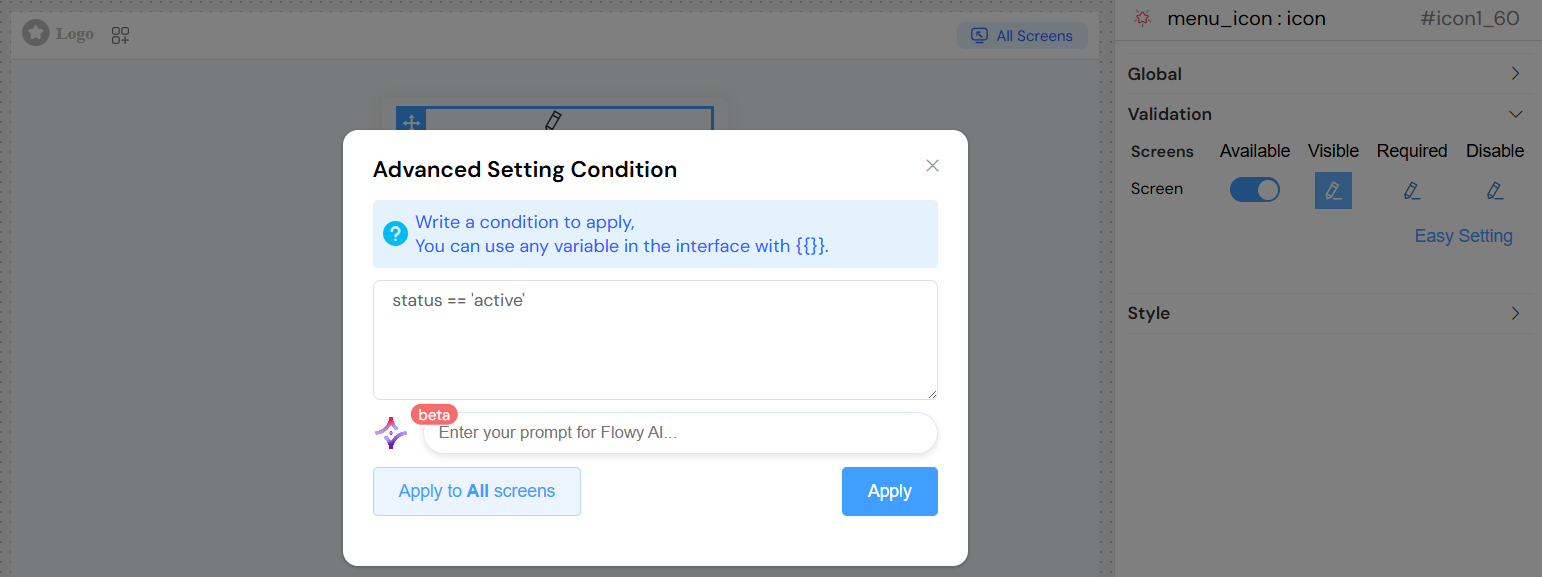
Configure visibility and availability across different screens:
| Validation Rule | Description |
|---|---|
| Available | Whether the widget is available on the screen |
| Visible | Controls widget visibility (can use conditions) |
| Required | Not applicable for icon widgets |
| Disable | Not applicable for icon widgets |

Advanced ConditionsDirect link to Advanced Conditions
Use JavaScript expressions for dynamic visibility:
Styling OptionsDirect link to Styling Options
Custom ClassesDirect link to Custom Classes
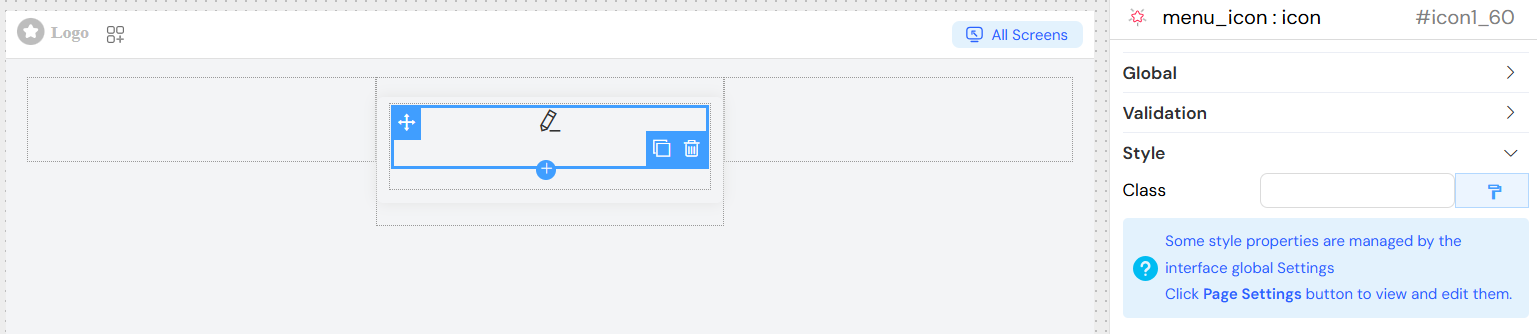
- Add custom CSS classes through the Class field
- Use dynamic classes for conditional styling based on data
Responsive DesignDirect link to Responsive Design
- Icons scale appropriately across different screen sizes
- Use relative units in custom CSS for better responsiveness
Color SchemesDirect link to Color Schemes
- Support for theme-based color schemes
- Can be integrated with global color variables
Best PracticesDirect link to Best Practices
PerformanceDirect link to Performance
- Icon Selection: Choose appropriate icon sizes to maintain performance
- Color Usage: Use CSS variables for consistent theming
- Caching: Icon fonts are cached by browsers for better performance
AccessibilityDirect link to Accessibility
- Alt Text: While icons don't have alt text, ensure surrounding context is clear
- Color Contrast: Maintain sufficient contrast ratios for visibility
- Size Guidelines: Use minimum 16px for important interactive icons
Design ConsistencyDirect link to Design Consistency
- Icon Family: Use icons from the same library for consistency
- Size Standards: Establish size guidelines (e.g., 16px, 20px, 24px)
- Color Palette: Limit color variations to maintain visual hierarchy
Responsive ConsiderationsDirect link to Responsive Considerations
- Scalability: Test icons at different sizes and resolutions
- Touch Targets: Ensure adequate spacing for mobile interfaces
- Loading States: Consider placeholder or loading states for dynamic icons
TroubleshootingDirect link to Troubleshooting
Common IssuesDirect link to Common Issues
Icon Not Displaying:
- Verify icon class name is correct
- Check if icon library is loaded
- Ensure icon font files are accessible
Size Not Applying:
- Check for CSS conflicts
- Verify font-size property inheritance
- Use browser developer tools to inspect styles
Color Not Changing:
- Ensure color property is properly formatted
- Check for CSS specificity issues
- Verify color value is valid
Alignment Issues:
- Review container styles
- Check for conflicting CSS rules
- Ensure proper text-align inheritance
Debug TipsDirect link to Debug Tips
- Use browser developer tools to inspect icon elements
- Verify CSS class application
- Check console for any font loading errors
- Test with simple, known-working icon classes first