BasicChart Widget
OverviewDirect link to Overview
The BasicChart widget enables creating and displaying interactive charts based on the Chart.js library. It offers great flexibility in configuring data, styles, and chart types to visualize your data clearly and attractively.
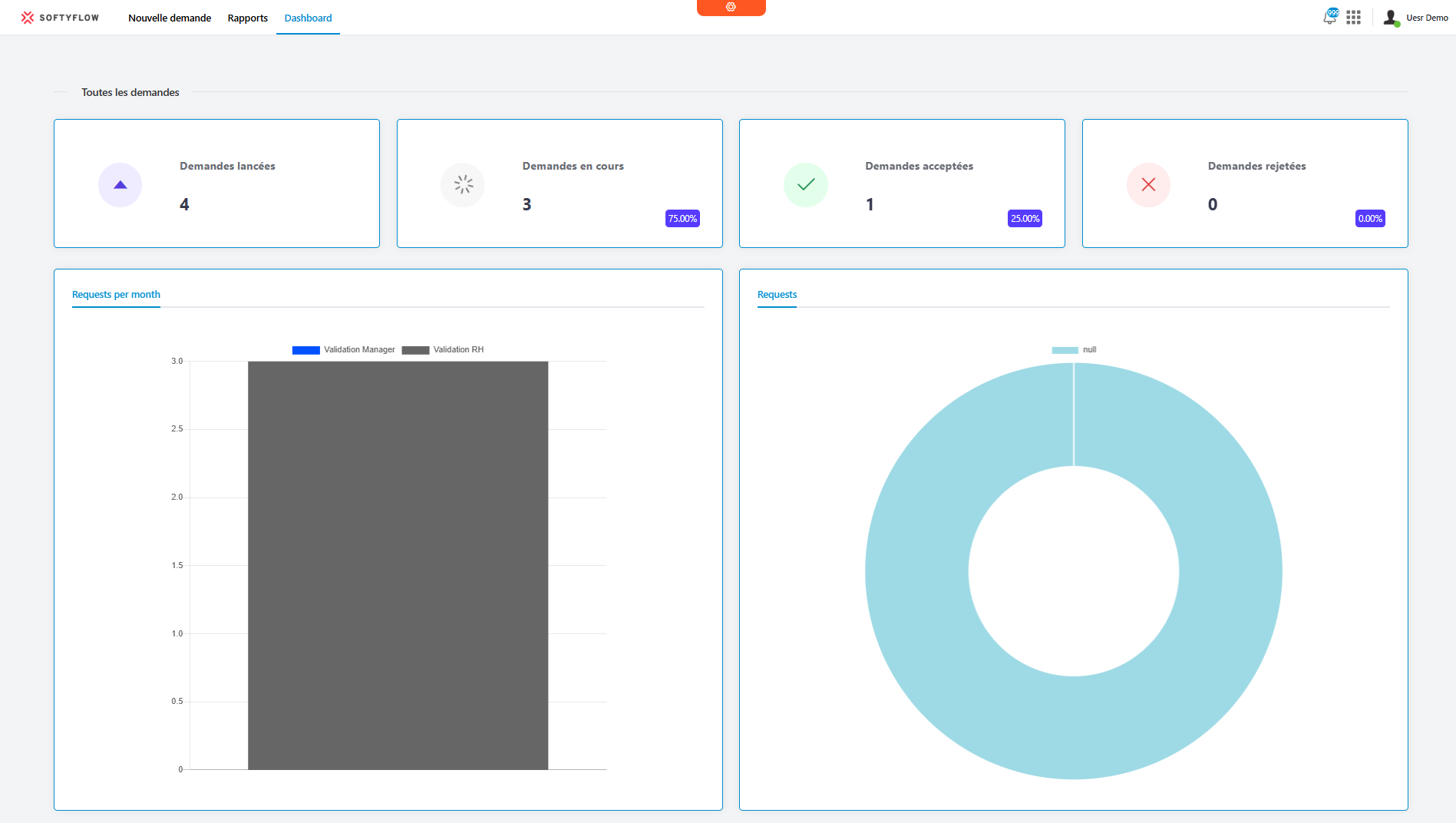
Supported Chart TypesDirect link to Supported Chart Types
The widget supports several chart types:
- Line: Line chart
- Bar: Bar chart
- Doughnut: Doughnut chart
- Pie: Pie chart
- PolarArea: Polar area chart
- Radar: Radar chart
Basic ConfigurationDirect link to Basic Configuration
Global SettingsDirect link to Global Settings
Widget NameDirect link to Widget Name
- Field: Name
- Description: Display name of the widget
- Type: Text
Variable/ModelDirect link to Variable/Model
- Field: Variable/Model
- Description: Name of the variable that will store the chart data
- Type: Text
- Required: Yes
Chart ConfigurationDirect link to Chart Configuration
Chart TypeDirect link to Chart Type
- Field: Chart Type
- Description: Selects the type of chart to display
- Options: Line, Bar, Doughnut, Pie, PolarArea, Radar
- Default: Line
Data TypeDirect link to Data Type
- Field: Data type
- Description: Source of data for the chart
- Options:
- Collection: Data from a database collection
- Report: Data from a generated report
- External databases: Data from an external database
Data SourceDirect link to Data Source
- Field: Data
- Description: Selection of the specific source based on the chosen type
- Depends on: Data type
- Configuration:
- If "Collection": List of available collections
- If "Report": List of available reports
- If "External databases": List of database connections
Y-Axis AnnotationDirect link to Y-Axis Annotation
- Field: Y-Axis annotation (@ prefix)
- Description: Text to display next to Y-axis values (e.g., €, $, %)
- Type: Optional text
- Example: "@€" will display "€100" instead of "100"
Dataset ConfigurationDirect link to Dataset Configuration
Each chart can contain multiple datasets to compare different data series.
Adding a DatasetDirect link to Adding a Dataset
- Click the "+ Dataset" button
- Configure each dataset individually
Dataset ConfigurationDirect link to Dataset Configuration
Dataset LabelDirect link to Dataset Label
- Field: Label
- Description: Name displayed in the legend for this dataset
- Type: Text
Fill ColorDirect link to Fill Color
- Field: Color (color picker)
- Description: Color used to represent this dataset
- Type: Color with alpha transparency support
Data QueryDirect link to Data Query
- Field: Query (Edit button)
- Description: Query to retrieve data from the source
- Format: JSON
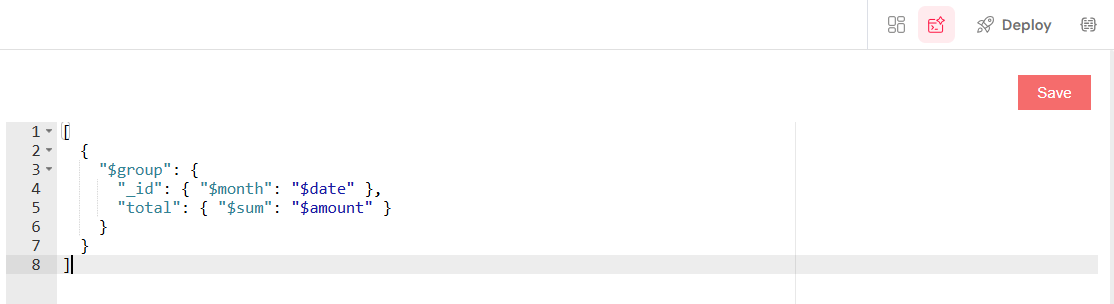
- Example for Collection:
[
  {
    "$match": {
      "status": "active"
    }
  },
  {
    "$group": {
      "_id": "$category",
      "total": { "$sum": "$amount" }
    }
  }
]
Data ColumnDirect link to Data Column
- Field: Data column
- Description: Name of the field containing numeric values to display
- Type: Text
- Example: "total", "count", "value"
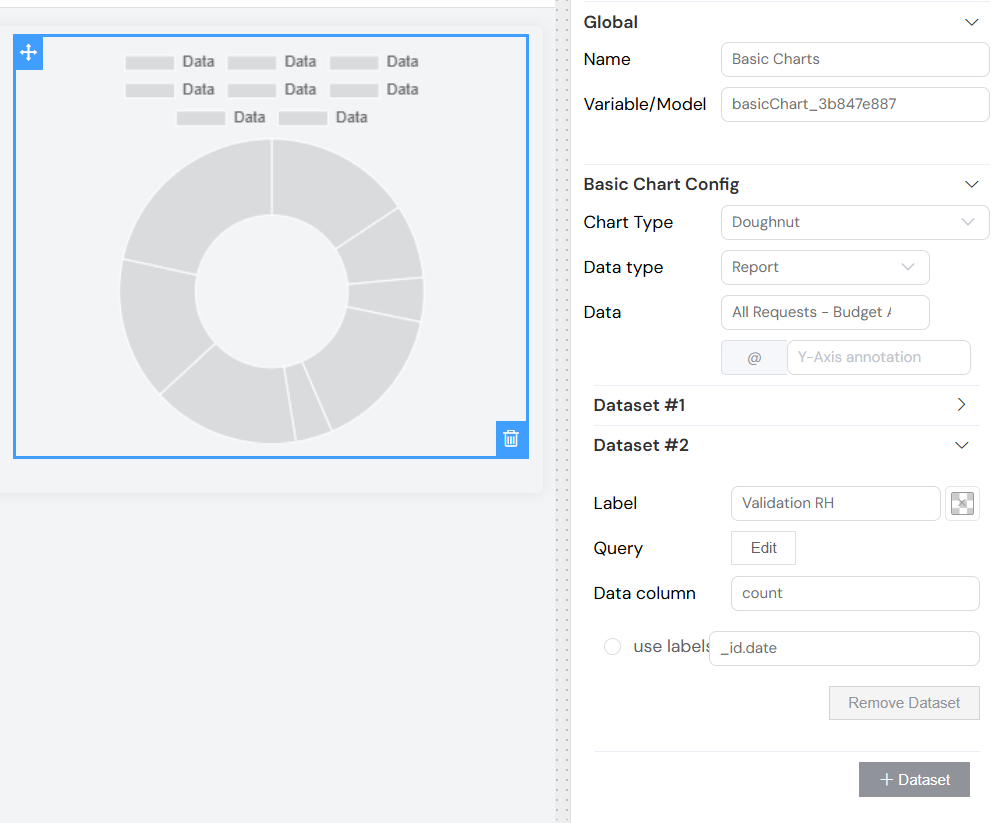
Labels ConfigurationDirect link to Labels Configuration
- Option: Use labels (radio button per dataset)
- Description: Designates which dataset will provide labels for the X-axis
- Associated Field: Labels column name
- Example: "category", "date", "name"
Advanced ConfigurationDirect link to Advanced Configuration
ValidationDirect link to Validation
The widget inherits standard validation options:
- Available: Controls if the widget is available according to the screen
- Visible: Controls visibility based on conditions
- Required: Not applicable for this widget type
- Disable: Controls the disabled state of the widget
StyleDirect link to Style
CSS ClassesDirect link to CSS Classes
- Field: Class
- Description: Custom CSS classes to apply to the widget
- Type: Text (class names separated by spaces)
Dynamic ClassesDirect link to Dynamic Classes
- Button: Brush icon
- Description: Allows defining conditional CSS classes
- Format: JSON object with conditions
Usage ExamplesDirect link to Usage Examples
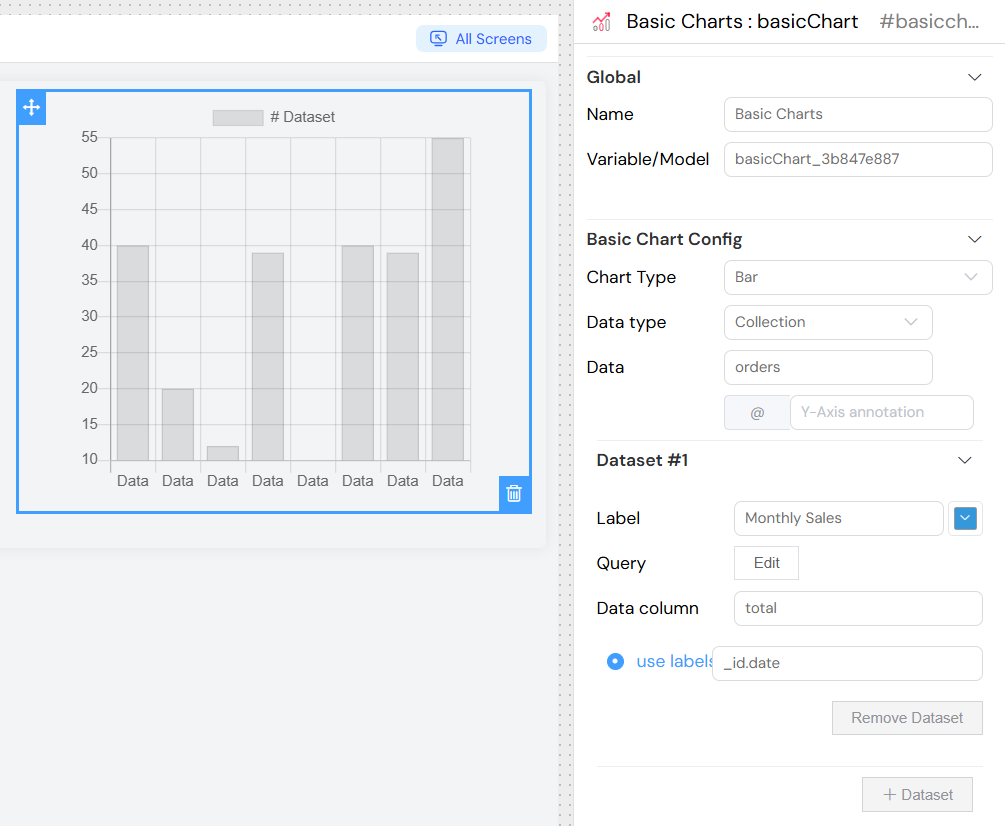
Simple Bar ChartDirect link to Simple Bar Chart
- Chart Type: Bar
- Data Type: Collection
- Source: Select an orders collection
- Dataset 1:
- Label: "Monthly Sales"
- Color: Blue (#3498db)
- Query:
- Data column: "total"
- Use labels: Checked
- Labels column: "_id"
Pie Chart with Multiple SourcesDirect link to Pie Chart with Multiple Sources
- Chart Type: Pie
- Data Type: Collection
- Dataset 1:
- Label: "Distribution by Category"
- Query to group by category
- Data column: "count"
Temporal Line ChartDirect link to Temporal Line Chart
- Chart Type: Line
- Y-Axis Annotation: "@€"
- Multiple Datasets to compare different periods or metrics
Technical PropertiesDirect link to Technical Properties
Generated VariablesDirect link to Generated Variables
The widget automatically generates the following variables:
{model}: Contains chart data{model}_chart: Chart.js instance for advanced manipulations
Available MethodsDirect link to Available Methods
renderChart()Direct link to renderChart()
Rebuilds the chart with new data
getChart()Direct link to getChart()
Returns the current Chart.js instance
setChart(chart)Direct link to setChart(chart)
Sets a new Chart.js instance
EventsDirect link to Events
Query UpdatesDirect link to Query Updates
The chart automatically updates when query variables change.
Best PracticesDirect link to Best Practices
PerformanceDirect link to Performance
- Limit the number of data points for optimal performance
- Use optimized queries with database-side aggregations
- Avoid recreating the chart too frequently
DesignDirect link to Design
- Choose contrasting colors for readability
- Use explicit labels for datasets
- Add unit annotations when necessary
DataDirect link to Data
- Ensure data columns contain numeric values
- Handle missing data cases in your queries
- Use appropriate groupings to avoid information overload
TroubleshootingDirect link to Troubleshooting
Common IssuesDirect link to Common Issues
Chart doesn't displayDirect link to Chart doesn't display
- Check that the data source is correctly configured
- Ensure the query returns data
- Verify data and label column names
Incorrect dataDirect link to Incorrect data
- Validate JSON query syntax
- Check data source access permissions
- Test the query independently of the widget
Style issuesDirect link to Style issues
- Check custom CSS classes
- Ensure colors are in valid hexadecimal format
- Control parent container dimensions
Error MessagesDirect link to Error Messages
Configuration errors are displayed directly in the interface with resolution hints.
Advanced FeaturesDirect link to Advanced Features
Multiple DatasetsDirect link to Multiple Datasets
You can add multiple datasets to compare different data series on the same chart. Each dataset can have:
- Different queries
- Different colors
- Different data sources
- Shared or individual labels
Chart ResponsivenessDirect link to Chart Responsiveness
The chart automatically adapts to its container size and provides responsive behavior across different screen sizes.
Interactive FeaturesDirect link to Interactive Features
Charts include built-in interactivity such as:
- Hover tooltips showing exact values
- Legend clicking to show/hide datasets
- Animation effects on data updates
Custom StylingDirect link to Custom Styling
Beyond basic configuration, you can:
- Apply custom CSS classes for advanced styling
- Use dynamic classes based on data conditions
- Control chart dimensions and layout
Integration with Other ComponentsDirect link to Integration with Other Components
The BasicChart widget can be integrated with other form components to create dynamic dashboards where:
- Filter components update chart queries
- Data selection affects chart display
- Chart interactions trigger other component updates