Editor Widget
OverviewDirect link to Overview
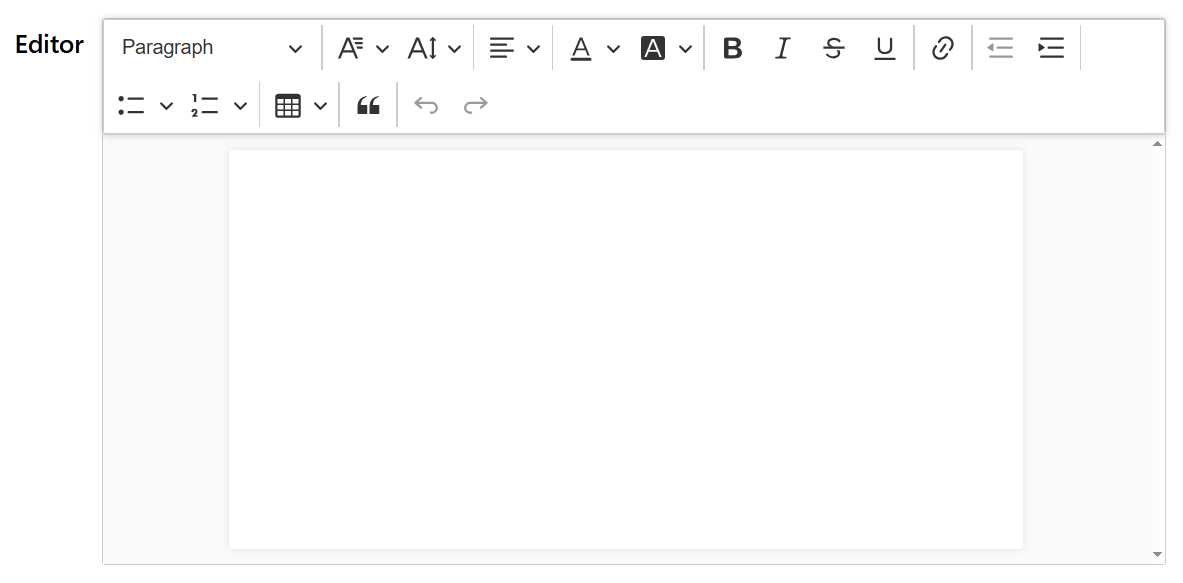
The Editor widget provides a powerful rich text editing interface for creating and editing formatted content. It's built on CKEditor's DecoupledEditor and offers a comprehensive set of formatting tools and customization options.
Basic ConfigurationDirect link to Basic Configuration
Widget PropertiesDirect link to Widget Properties
NameDirect link to Name
- Field: Name
- Description: Display name for the widget
- Type: Text input
- Usage: Used for identification and can be referenced in validation messages
Variable/ModelDirect link to Variable/Model
- Field: Variable/Model
- Description: The data model property that will store the editor content
- Type: Text input
- Required: Yes
- Usage: Defines the variable name used to store and retrieve the editor's HTML content
Default ContentDirect link to Default Content
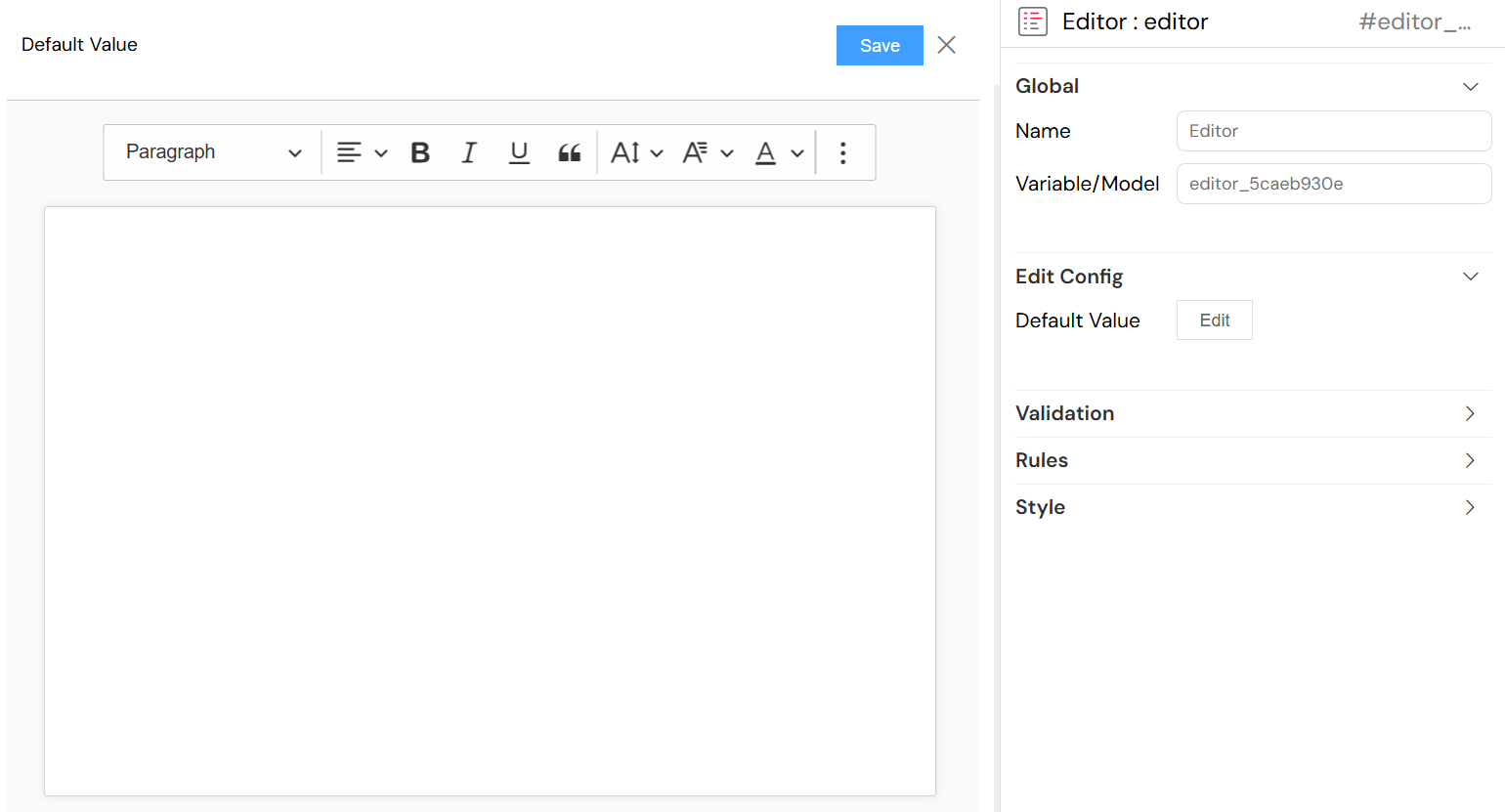
Default ValueDirect link to Default Value
- Field: Default Value
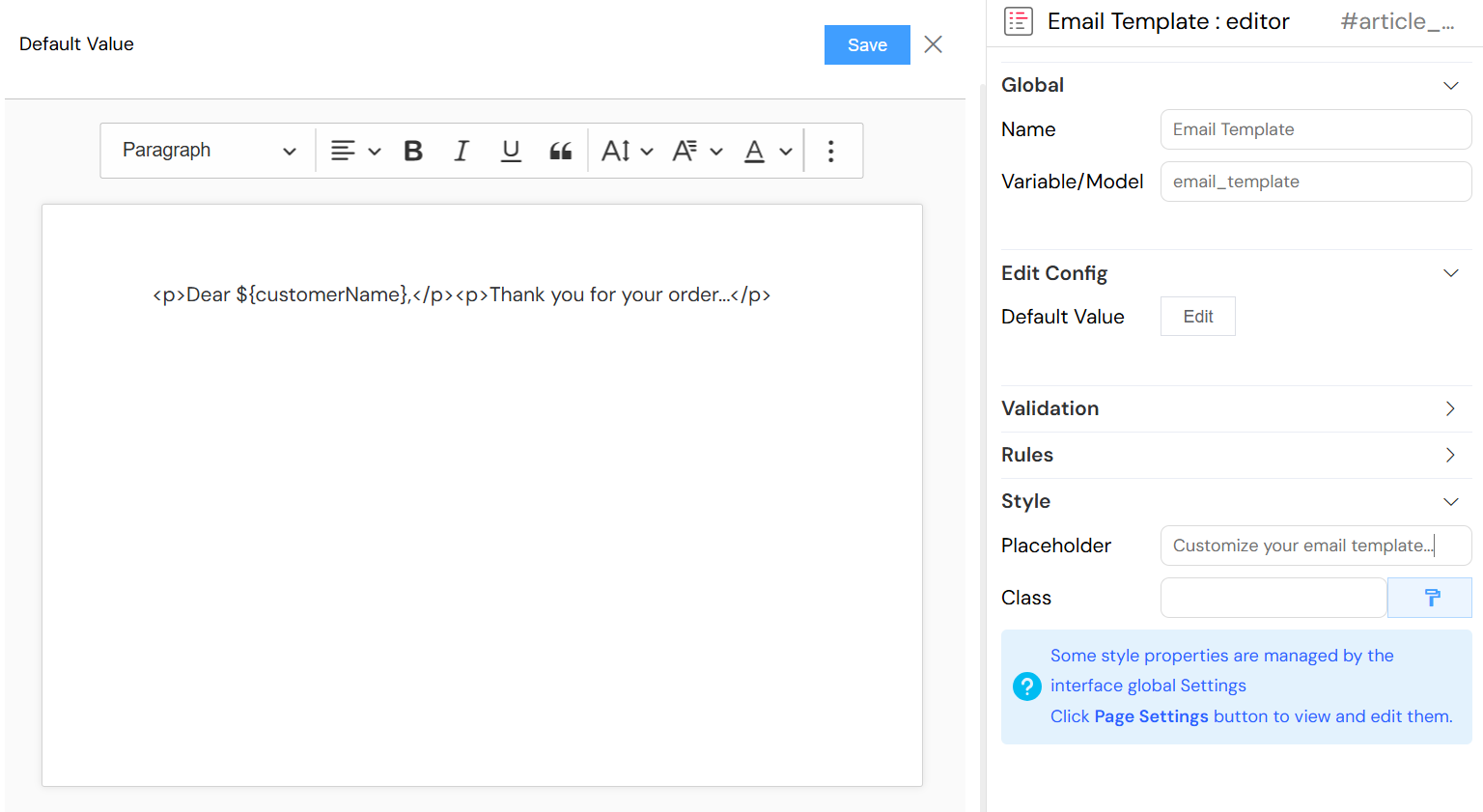
- Description: Initial HTML content displayed in the editor
- Configuration: Click "Edit" button to open the HTML editor
- Features:
- Rich text formatting
- HTML source editing
- Live preview
- Supports dynamic content with template variables
Editor FeaturesDirect link to Editor Features
Toolbar ConfigurationDirect link to Toolbar Configuration
The editor includes a comprehensive toolbar with the following tools:
Text FormattingDirect link to Text Formatting
- Headings: H1 through H6 heading styles
- Font Family: Change font typeface
- Font Size: Adjust text size
- Text Alignment: Left, center, right, justify
- Font Color: Change text color
- Background Color: Highlight text with background colors
Text StylingDirect link to Text Styling
- Bold: Make text bold
- Italic: Italicize text
- Strikethrough: Strike through text
- Underline: Underline text
Lists and StructureDirect link to Lists and Structure
- Bulleted Lists: Create unordered lists
- Numbered Lists: Create ordered lists
- Outdent/Indent: Adjust list and paragraph indentation
- Block Quotes: Format text as quotations
Advanced FeaturesDirect link to Advanced Features
- Links: Insert and edit hyperlinks
- Tables: Insert and format tables
- Undo/Redo: Navigate edit history
Content ManagementDirect link to Content Management
HTML Content AccessDirect link to HTML Content Access
- Data Binding: Content is automatically saved to the specified model variable
- Format: Stored as HTML markup
- Real-time Updates: Content updates trigger change events

Validation and RulesDirect link to Validation and Rules
Field ValidationDirect link to Field Validation
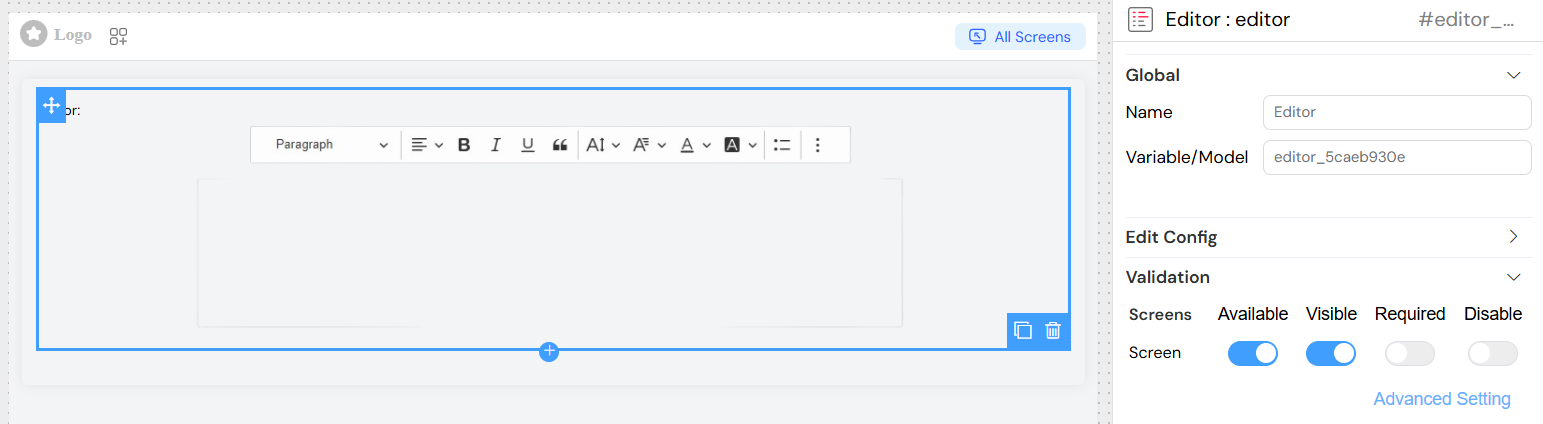
Required FieldDirect link to Required Field
- Configuration: Set in Validation section
- Per Screen: Can be configured differently for each screen/device type
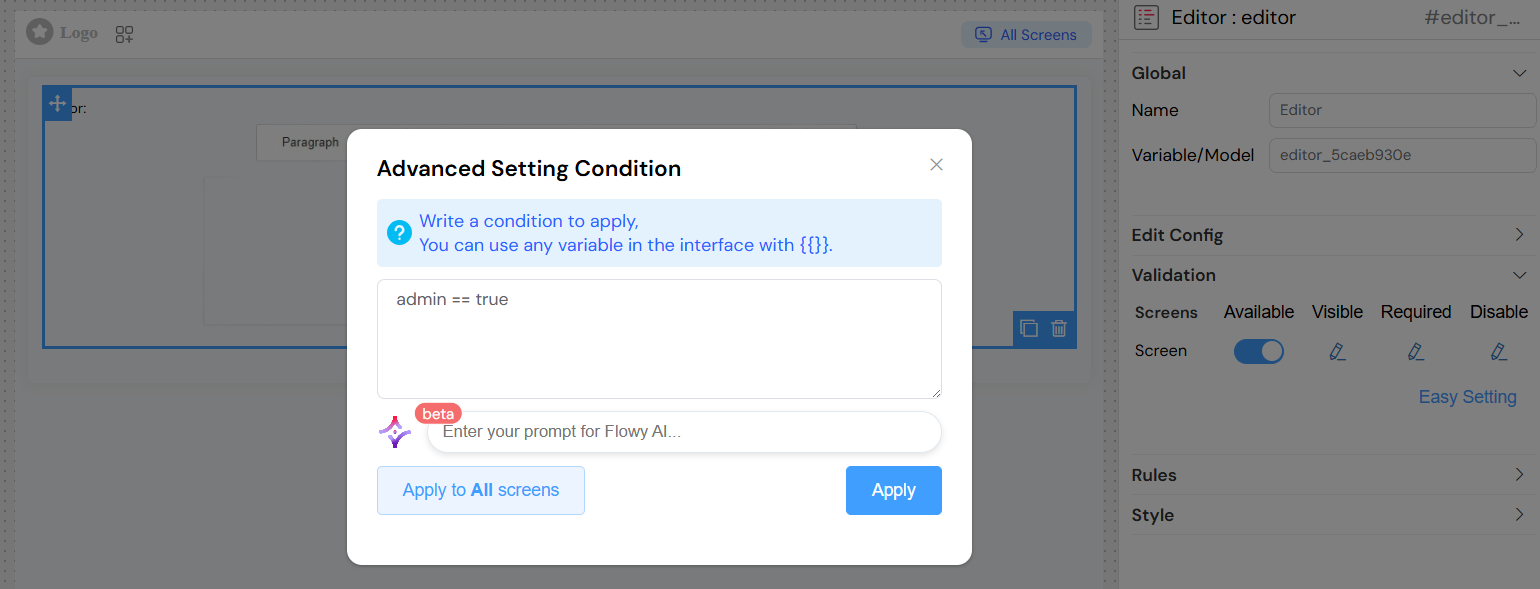
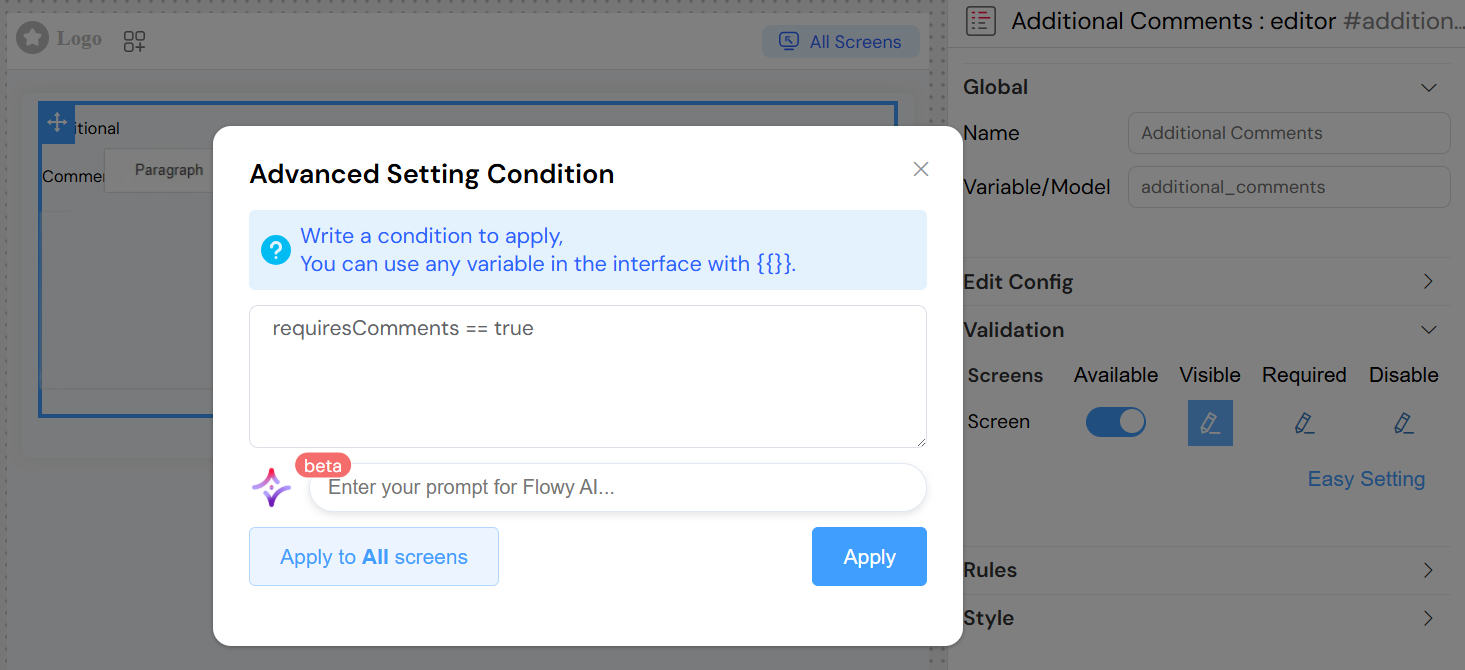
- Advanced Conditions: Support for conditional requirements using JavaScript expressions
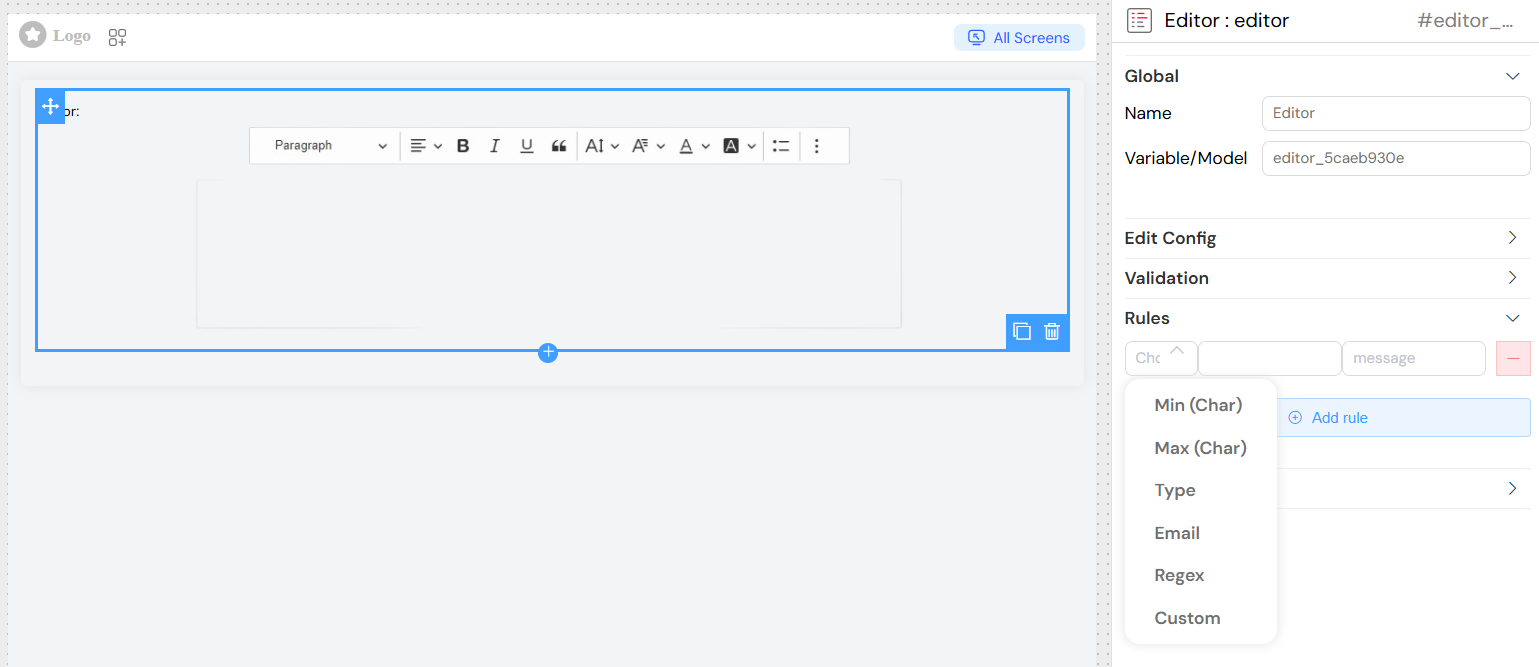
Custom Validation RulesDirect link to Custom Validation Rules
- Location: Rules section in widget configuration
- Types Available:
- Length validation (minimum/maximum characters)
- Pattern matching (regular expressions)
- Custom JavaScript validation functions
- Error Messages: Customizable validation failure messages
Screen-Based ValidationDirect link to Screen-Based Validation
Visibility ControlDirect link to Visibility Control
- Available: Whether widget appears on specific screens
- Visible: Dynamic visibility based on conditions
- Required: Whether field is mandatory on each screen
- Disabled: Whether field is read-only on specific screens
Advanced ConditionsDirect link to Advanced Conditions
- JavaScript Expressions: Use template variables in conditions
- Dynamic Evaluation: Conditions re-evaluated when dependent variables change
- Multi-screen Support: Different rules for mobile, tablet, desktop
Styling and LayoutDirect link to Styling and Layout
Placeholder TextDirect link to Placeholder Text
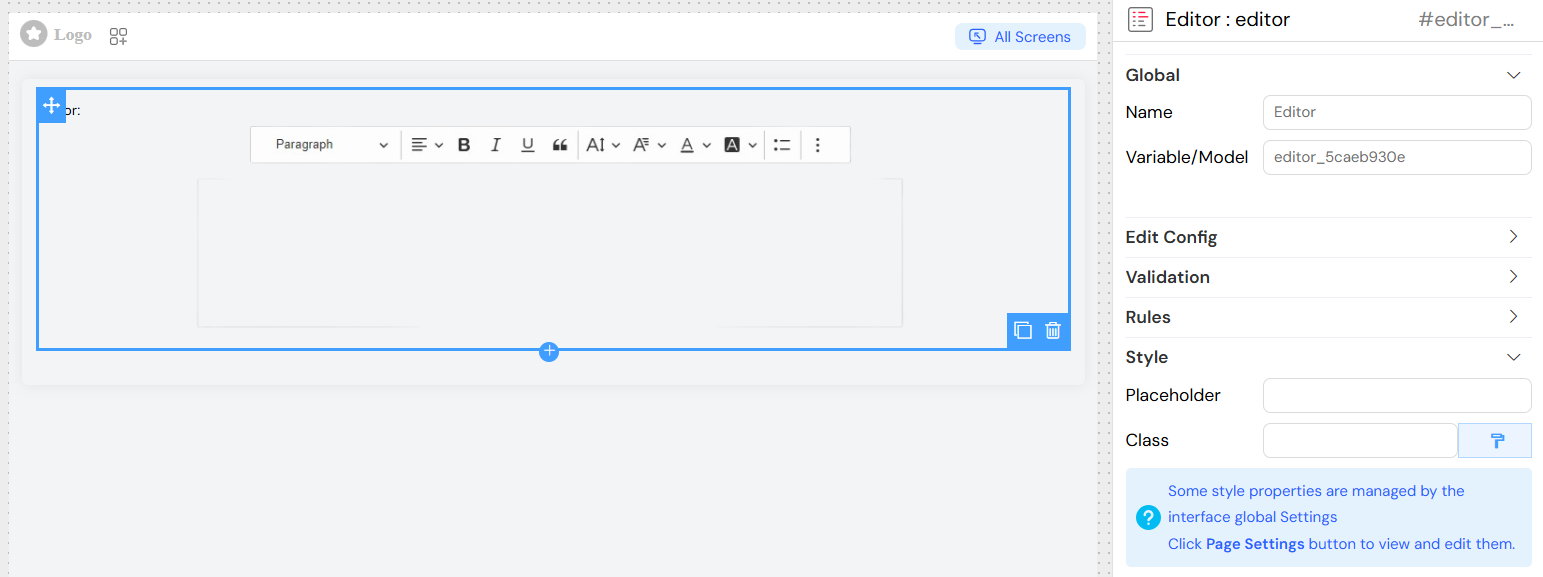
- Field: Placeholder (under Style section)
- Description: Text displayed when editor is empty
- Usage: Provides guidance to users about expected content
Appearance OptionsDirect link to Appearance Options
DimensionsDirect link to Dimensions
- Width: Custom width specification (CSS units)
- Height: Custom height specification (CSS units)
- Layout: Block or inline display mode
- Border: Toggle border display
CSS CustomizationDirect link to CSS Customization
- Class Names: Add custom CSS classes
- Dynamic Classes: Conditional class application based on data
- Theme Integration: Inherits from global interface styling
Responsive DesignDirect link to Responsive Design
- Screen Adaptation: Automatically adjusts to different screen sizes
- Touch Support: Optimized for touch interactions on mobile devices
- Toolbar Responsiveness: Toolbar adapts to available space
Advanced ConfigurationDirect link to Advanced Configuration
Data IntegrationDirect link to Data Integration
Template VariablesDirect link to Template Variables
- Syntax: Use
${}notation for dynamic content - Model Access: Reference other form data in default content
- Global Variables: Access system-wide variables and settings
Form IntegrationDirect link to Form Integration
- Validation Participation: Integrates with form-wide validation
- Submission Handling: Content included in form data submission
- Reset Capabilities: Can be cleared or reset to default values
Accessibility FeaturesDirect link to Accessibility Features
Keyboard NavigationDirect link to Keyboard Navigation
- Full Support: Complete keyboard accessibility
- Tab Order: Proper tabbing sequence
- Shortcuts: Standard editing keyboard shortcuts
Screen Reader SupportDirect link to Screen Reader Support
- ARIA Labels: Proper labeling for assistive technologies
- Semantic HTML: Generated content maintains semantic structure
- Focus Management: Clear focus indicators and management
Usage ExamplesDirect link to Usage Examples
Basic Rich Text EditorDirect link to Basic Rich Text Editor

Dynamic Content EditorDirect link to Dynamic Content Editor
Conditional EditorDirect link to Conditional Editor
Best PracticesDirect link to Best Practices
Content ManagementDirect link to Content Management
- Structure Content: Use headings and lists for better organization
- Consistent Formatting: Maintain consistent styling throughout content
- Link Management: Ensure all links are valid and properly formatted
- Image Optimization: Keep images appropriately sized for web use
User ExperienceDirect link to User Experience
- Clear Placeholders: Provide helpful placeholder text
- Appropriate Sizing: Size editor appropriately for expected content
- Validation Feedback: Provide clear validation messages
- Save Indicators: Consider adding save status indicators for long content
PerformanceDirect link to Performance
- Content Length: Be mindful of very long content and performance impact
- Image Handling: Optimize images before inserting
- Clean HTML: Regularly clean up unnecessary HTML formatting
- Mobile Optimization: Test editor performance on mobile devices
TroubleshootingDirect link to Troubleshooting
Common IssuesDirect link to Common Issues
Editor Not LoadingDirect link to Editor Not Loading
- Verify CKEditor scripts are properly loaded
- Check for JavaScript errors in browser console
- Ensure proper widget configuration
Content Not SavingDirect link to Content Not Saving
- Verify model variable name is correct and unique
- Check form submission handling
- Ensure proper change event binding
Formatting IssuesDirect link to Formatting Issues
- Check for conflicting CSS styles
- Verify HTML content is properly structured
- Test across different browsers and devices
Validation ProblemsDirect link to Validation Problems
- Verify validation rules syntax
- Check conditional expressions for errors
- Ensure required fields are properly marked
Performance OptimizationDirect link to Performance Optimization
- Limit toolbar options if not needed
- Consider lazy loading for multiple editors
- Optimize default content size
- Regular cleanup of generated HTML
Integration NotesDirect link to Integration Notes
Form IntegrationDirect link to Form Integration
- Participates in form validation cycle
- Content included in form submission data
- Supports form reset and clear operations
API IntegrationDirect link to API Integration
- Content can be sent to backend APIs
- Supports real-time collaboration features
- Can integrate with content management systems
Security ConsiderationsDirect link to Security Considerations
- HTML content should be sanitized on backend
- Consider XSS protection for user-generated content
- Validate content length and structure server-side