Table Widget
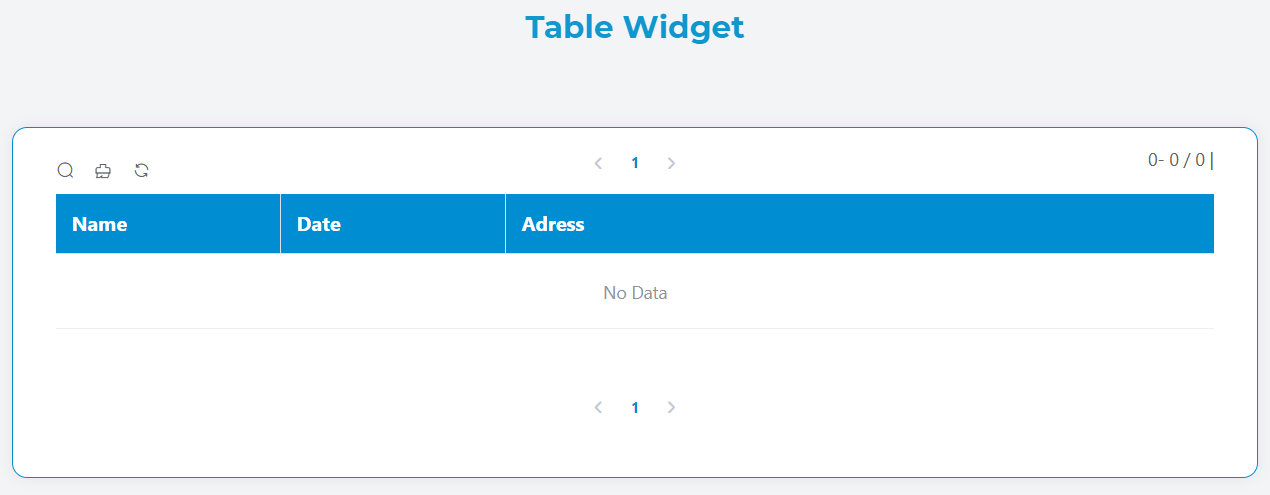
The Table widget provides a powerful and flexible data display component for your applications. It supports various data sources, interactive features, sorting, filtering, pagination, and export capabilities.
OverviewDirect link to Overview
The Table widget allows you to display tabular data with rich formatting options, interactive controls, and responsive design. It can connect to different data sources including collections, reports, external databases, and variables.
Basic ConfigurationDirect link to Basic Configuration
Global SettingsDirect link to Global Settings
NameDirect link to Name
- Field:
Name - Purpose: Sets the display name for the widget
- Usage: Used for identification in the widget list and management
Variable/ModelDirect link to Variable/Model
- Field:
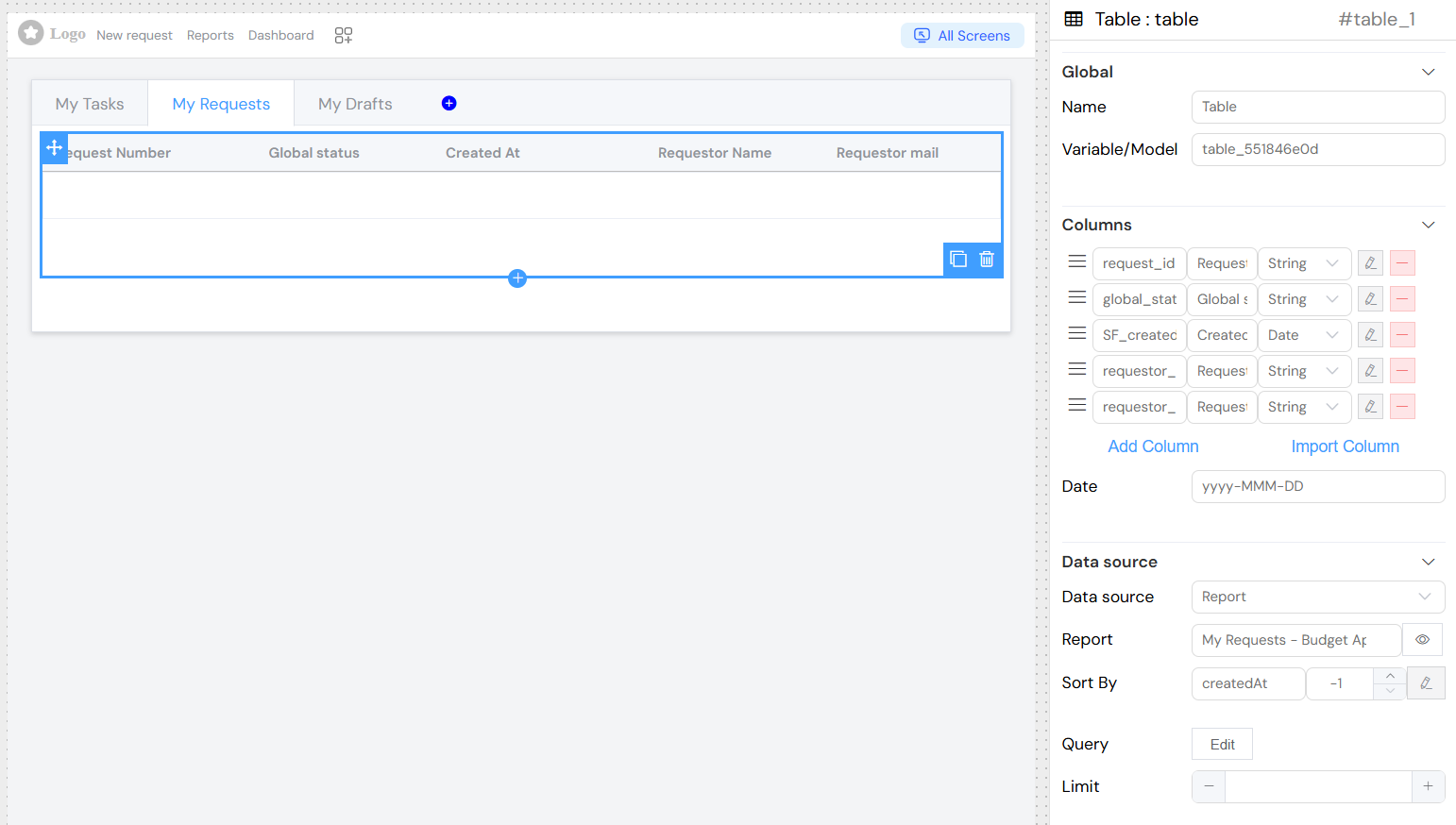
Variable/Model - Purpose: Defines the data model that stores the table data
- Usage: Specify the variable name that will hold the table's data array
- Example:
tableData,users,products

Data Source ConfigurationDirect link to Data Source Configuration
Data Source TypesDirect link to Data Source Types
CollectionDirect link to Collection
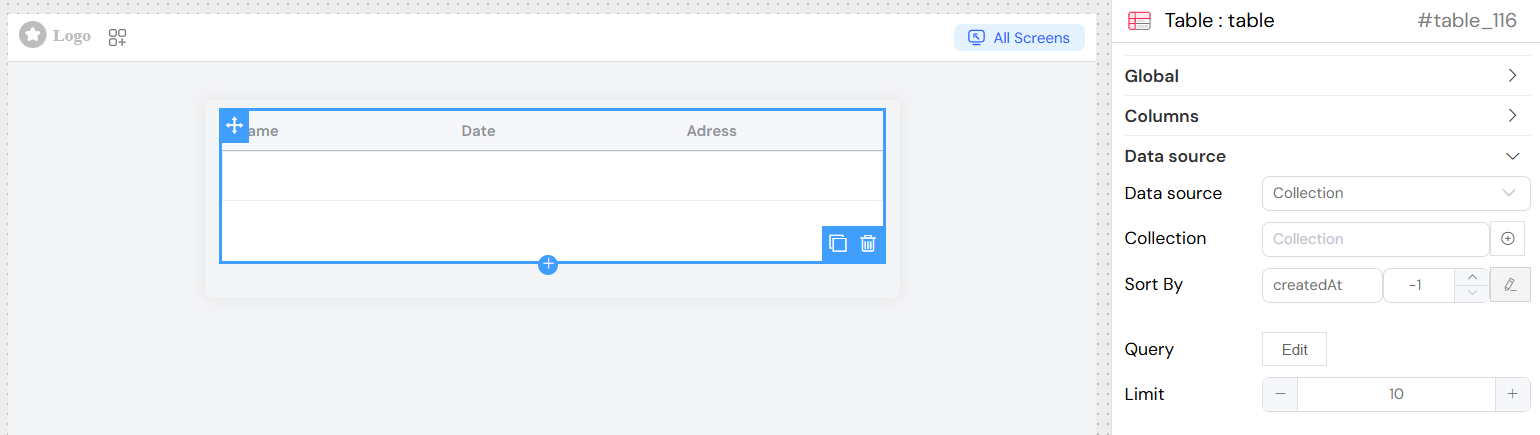
- Option: Collection
- Description: Connect to a database collection
- Configuration:
- Select from available collections in your project
- Direct access to collection data with automatic querying
ReportDirect link to Report
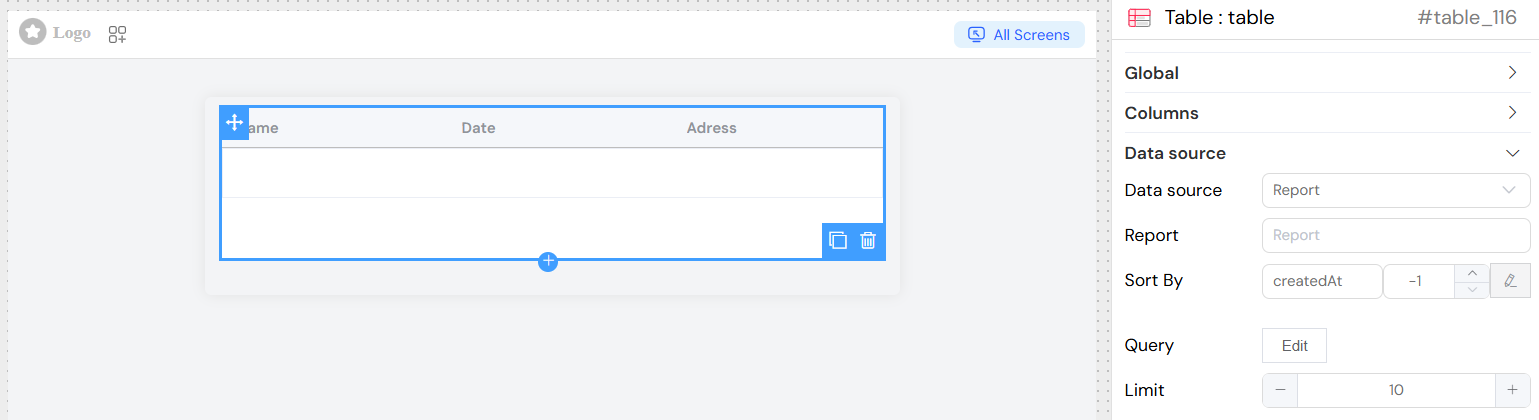
- Option: Report
- Description: Display data from predefined reports
- Configuration:
- Choose from existing reports
- Inherits report structure and calculations
EDS (External Database Source)Direct link to EDS (External Database Source)
- Option: EDS
- Description: Connect to external databases
- Configuration:
- Select configured database connections
- Supports SQL, LDAP, Google Sheets
- Custom query capabilities
](/img/04_ressources/project/web-interface/widgets/tableDataEDS.png)
VariableDirect link to Variable
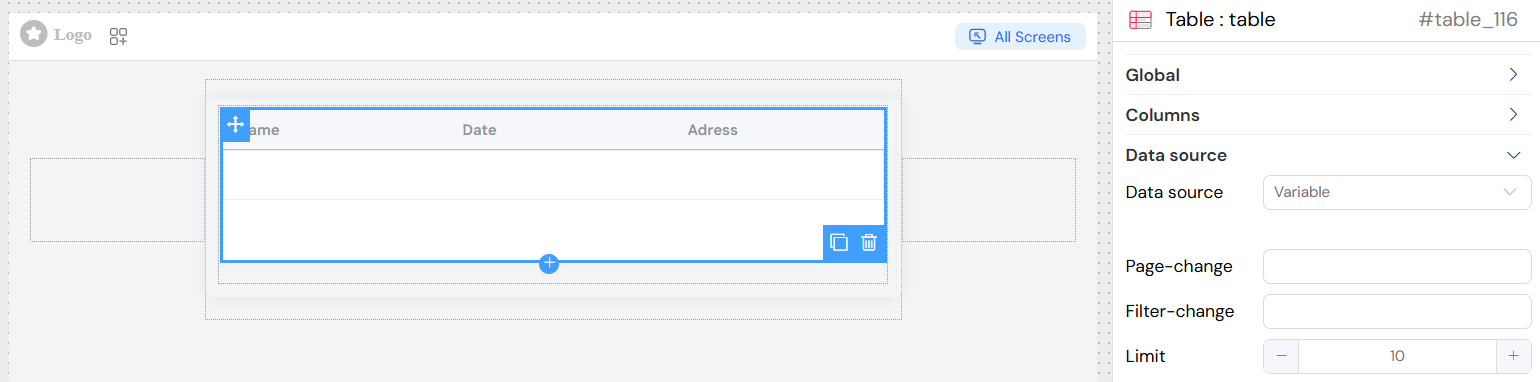
- Option: Variable
- Description: Use data from application variables
- Configuration:
- Bind to existing data models
- Manual data management
- Custom event handling
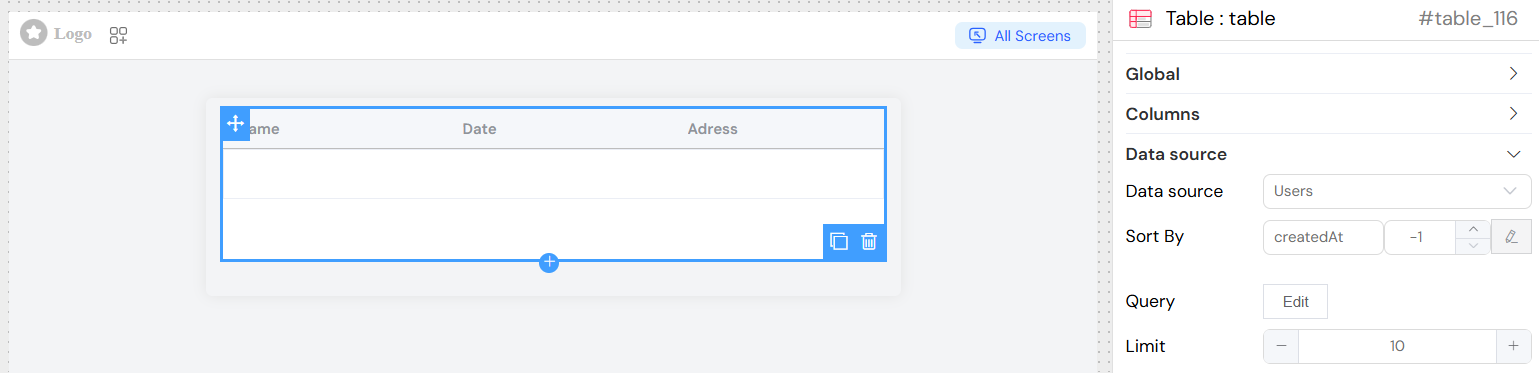
UsersDirect link to Users
- Option: Users
- Description: Display user management data
- Configuration:
- Access to user directory
- Built-in user properties
Query ConfigurationDirect link to Query Configuration
Standard QueryDirect link to Standard Query
- Purpose: Define data filtering and selection criteria
- Format: JavaScript expressions with model variables
- Syntax: Use
{{variableName}}for dynamic values - Example:
{ status: "active", category: {{selectedCategory}} }
Aggregation QueryDirect link to Aggregation Query
- Purpose: Perform data aggregation operations
- Features:
- Group by operations
- Count, sum, average calculations
- Complex data transformations
- Toggle: Enable "Is Aggregation" option
Sort ConfigurationDirect link to Sort Configuration
- Sort By: Field name for default sorting
- Direction:
1for ascending order-1for descending order
- Sort Object: Advanced sorting with multiple fields
LimitDirect link to Limit
- Purpose: Set maximum number of records per page
- Default: 10 records
- Range: Any positive integer
Column ConfigurationDirect link to Column Configuration
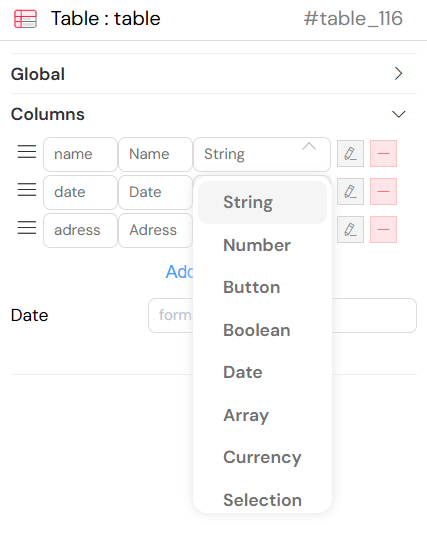
Column TypesDirect link to Column Types
StringDirect link to String
- Description: Text data display
- Features:
- Filterable with text search
- Sortable alphabetically
- Custom HTML formatting
NumberDirect link to Number
- Description: Numeric data display
- Features:
- Numeric filtering (equals, greater than, less than)
- Numeric sorting
- Decimal precision control
DateDirect link to Date
- Description: Date and time display
- Features:
- Date range filtering
- Chronological sorting
- Custom date formatting
- Format: Configure using
dateFormatoption - Example:
YYYY-MM-DD HH:mm:ss
CurrencyDirect link to Currency
- Description: Monetary value display
- Features:
- Automatic currency formatting
- Locale-specific display
- Numeric filtering
- Configuration:
currency_local: Locale (e.g., 'en-US', 'fr-FR')currency: Currency code (e.g., 'USD', 'EUR')
BooleanDirect link to Boolean
- Description: True/false value display
- Features:
- Checkbox representation
- True/False filtering
ArrayDirect link to Array
- Description: Array data display
- Features:
- List formatting
- Array-specific filtering
ButtonDirect link to Button
- Description: Action buttons within table cells
- Features:
- Multiple buttons per column
- Custom actions and styling
- Conditional visibility
SelectionDirect link to Selection
- Description: Row selection checkboxes
- Features:
- Multi-row selection
- Select all functionality
- Selection event handling
Column PropertiesDirect link to Column Properties
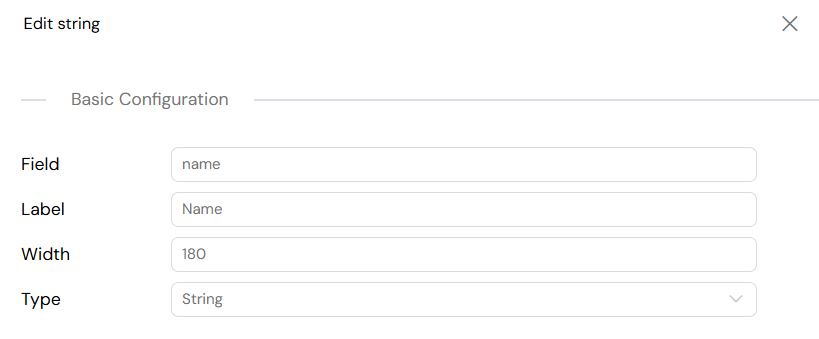
FieldDirect link to Field
- Purpose: Database field name or data property
- Format: Use dot notation for nested properties
- Example:
user.name,product.price
LabelDirect link to Label
- Purpose: Display header for the column
- Localization: Supports translation keys
- Example:
User Name,Product Price
WidthDirect link to Width
- Purpose: Set column width
- Format: Pixels or percentage
- Example:
150px,20%
Column BehaviorDirect link to Column Behavior
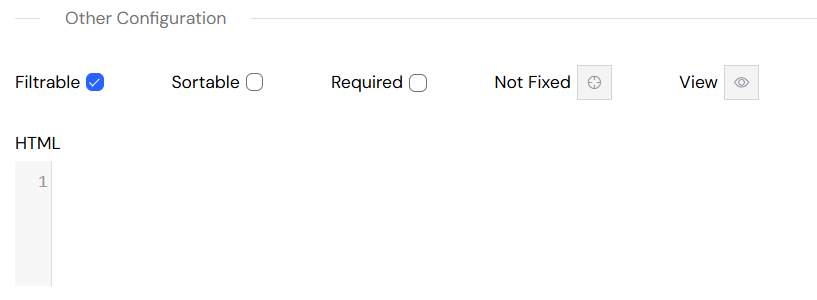
FilterableDirect link to Filterable
- Purpose: Enable filtering for the column
- Features:
- Type-specific filter controls
- Real-time filtering
- Multiple filter operators
SortableDirect link to Sortable
- Purpose: Enable sorting for the column
- Features:
- Click-to-sort headers
- Visual sort indicators
- Multi-column sorting
Fixed PositionDirect link to Fixed Position
- Purpose: Fix column position during horizontal scroll
- Options:
left: Fix to left sideright: Fix to right sidenone: Not fixed
Required (for editable tables)Direct link to Required (for editable tables)
- Purpose: Mark field as required for data entry
- Validation: Prevents empty submissions
VisibilityDirect link to Visibility
- Purpose: Control column display conditionally
- Format: JavaScript expression
- Example:
{{userRole}} === 'admin'
Interactive FeaturesDirect link to Interactive Features
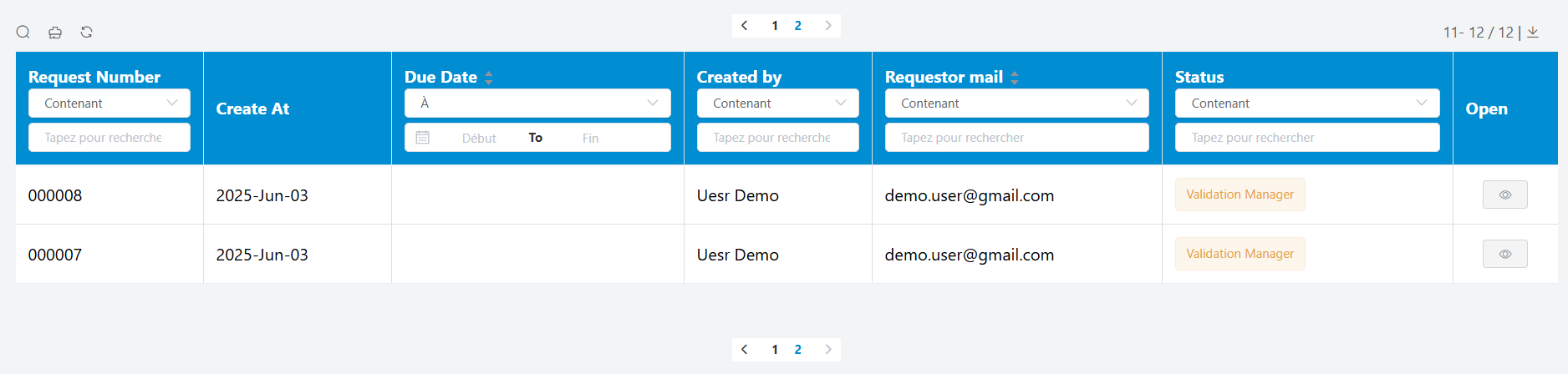
FilteringDirect link to Filtering
- Toggle: Show/hide filter controls
- Per-Column: Individual filter controls
- Filter Types:
- Text search (contains, starts with, ends with)
- Numeric comparison (equals, greater than, less than)
- Date ranges
- Boolean selection
PaginationDirect link to Pagination
- Controls: Previous/Next navigation
- Page Size: Configurable items per page
- Display: Current page and total records
- Position: Top and bottom navigation
SortingDirect link to Sorting
- Click Headers: Sort by clicking column headers
- Visual Indicators: Sort direction arrows
- Multi-Column: Advanced sorting capabilities
Export OptionsDirect link to Export Options
CSV ExportDirect link to CSV Export
- Value Separator: Comma, semicolon, or tab
- Decimal Separator: Point or comma
- Date Format: Customizable date formatting
- File Name: Custom export filename
Excel ExportDirect link to Excel Export
- Sheet Name: Custom worksheet name
- File Name: Custom export filename
- Formatting: Preserves data types
Selection HandlingDirect link to Selection Handling
- Row Selection: Checkbox-based selection
- Selection Events: Handle selection changes
- Bulk Actions: Operate on selected rows
Advanced FeaturesDirect link to Advanced Features
Aggregation SupportDirect link to Aggregation Support
- Group By: Data grouping operations
- Calculations: Sum, count, average functions
- Nested Data: Hierarchical data display
Real-time UpdatesDirect link to Real-time Updates
- Data Binding: Automatic updates when source data changes
- Refresh Controls: Manual refresh capabilities
- Loading States: Visual feedback during data operations
Mobile OptimizationDirect link to Mobile Optimization
- Responsive Layout: Automatic mobile adaptation
- Touch Controls: Touch-friendly interactions
- Collapsible Details: Expandable row details on mobile
Usage ExampleDirect link to Usage Example
Best PracticesDirect link to Best Practices
PerformanceDirect link to Performance
- Use appropriate limits for large datasets
- Implement server-side filtering for big data
- Consider pagination for user experience
User ExperienceDirect link to User Experience
- Provide clear column headers
- Use consistent data formatting
- Include loading states for better feedback
AccessibilityDirect link to Accessibility
- Ensure proper keyboard navigation
- Use semantic HTML structure
- Provide alternative text for visual elements
Data ManagementDirect link to Data Management
- Validate data before display
- Handle error states gracefully
- Implement proper data refresh strategies
TroubleshootingDirect link to Troubleshooting
Common IssuesDirect link to Common Issues
Data Not LoadingDirect link to Data Not Loading
- Check data source configuration
- Verify query syntax
- Ensure proper permissions
Formatting ProblemsDirect link to Formatting Problems
- Validate column type settings
- Check date/currency format configurations
- Verify CSS class applications
Performance IssuesDirect link to Performance Issues
- Reduce page size for large datasets
- Optimize query complexity
- Consider server-side processing
Debug TipsDirect link to Debug Tips
- Use browser developer tools
- Check console for error messages
- Test queries independently
- Verify data source connectivity