Time Widget
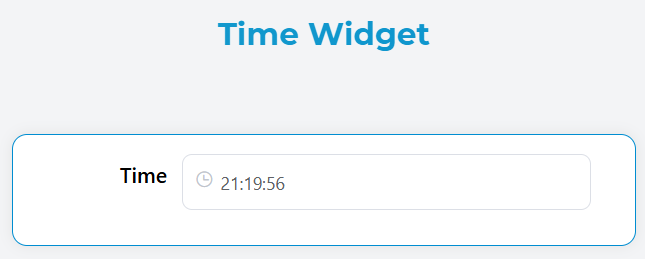
The Time widget allows users to select and input time values with a user-friendly time picker interface. It supports both single time selection and time range selection with extensive customization options.
OverviewDirect link to Overview
The Time widget provides an intuitive way for users to select time values in your forms. It features a clean interface with optional arrow controls, customizable formatting, and support for time ranges. The widget includes built-in validation and can be easily integrated into forms with other components.
Configuration OptionsDirect link to Configuration Options
Global SettingsDirect link to Global Settings
Basic ConfigurationDirect link to Basic Configuration
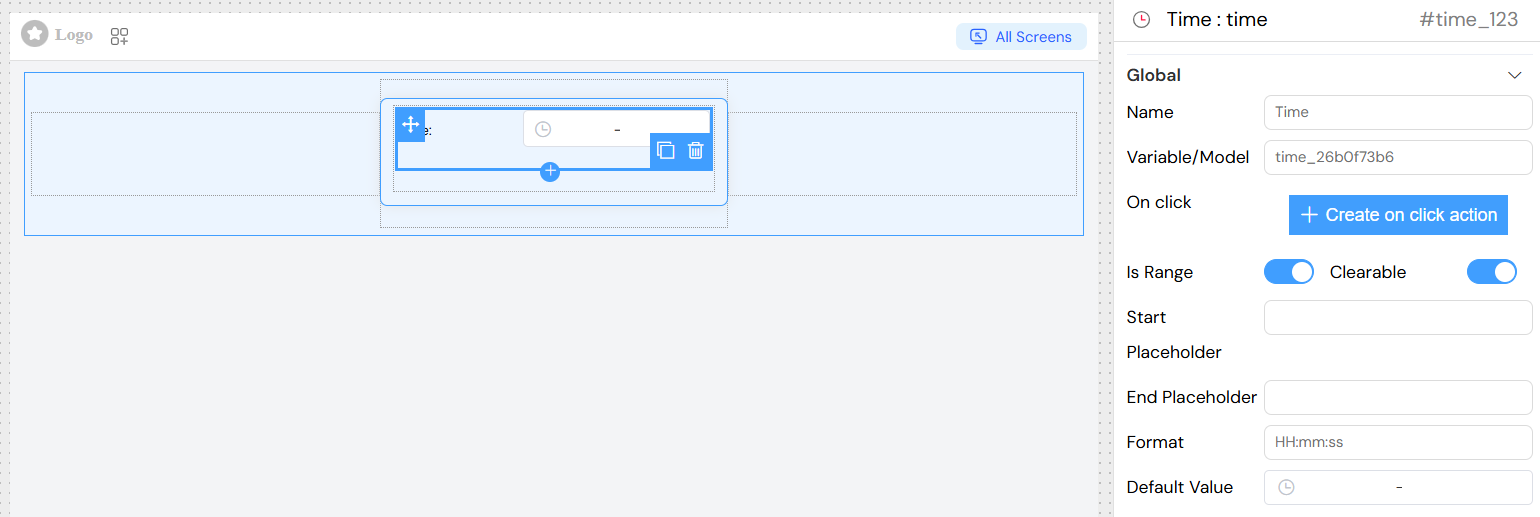
- Name: Display name for the widget field
- Variable/Model: The data model property where the selected time will be stored
- Default Value: Pre-selected time value when the widget loads
Time Type SettingsDirect link to Time Type Settings
- Is Range: Enable to allow selection of time ranges (start time and end time)
- When enabled, users can select both a start and end time
- When disabled, only a single time can be selected
Format and DisplayDirect link to Format and Display
- Format: Time display format (e.g., "HH:mm", "HH:mm:ss")
HH:mm- 24-hour format with hours and minutesHH:mm:ss- 24-hour format with hours, minutes, and secondshh:mm A- 12-hour format with AM/PM
- Arrow Control: Enable arrow controls for easier time selection
- Clearable: Allow users to clear the selected time
Placeholder ConfigurationDirect link to Placeholder Configuration
- Placeholder: Text shown when no time is selected (for single time selection)
- Start Placeholder: Text shown for the start time field (when Is Range is enabled)
- End Placeholder: Text shown for the end time field (when Is Range is enabled)
ValidationDirect link to Validation
Screen-based ValidationDirect link to Screen-based Validation
Configure different validation rules for different application screens:
- Available: Control if the widget appears on specific screens
- Visible: Control the visibility of the widget based on conditions
- Required: Make the time selection mandatory
- Disabled: Disable the widget to prevent user interaction

Validation RulesDirect link to Validation Rules
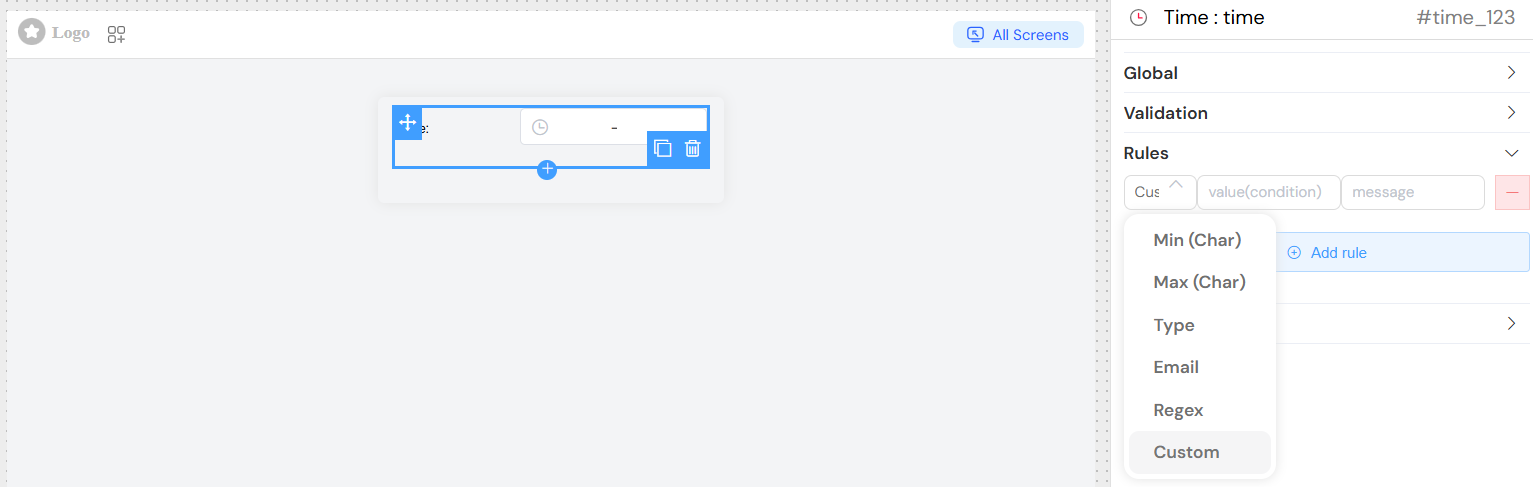
Add custom validation rules:
- Custom Rules: Define specific validation logic with custom error messages
- Built-in Validation: Automatic validation for required fields
Style ConfigurationDirect link to Style Configuration
Layout OptionsDirect link to Layout Options
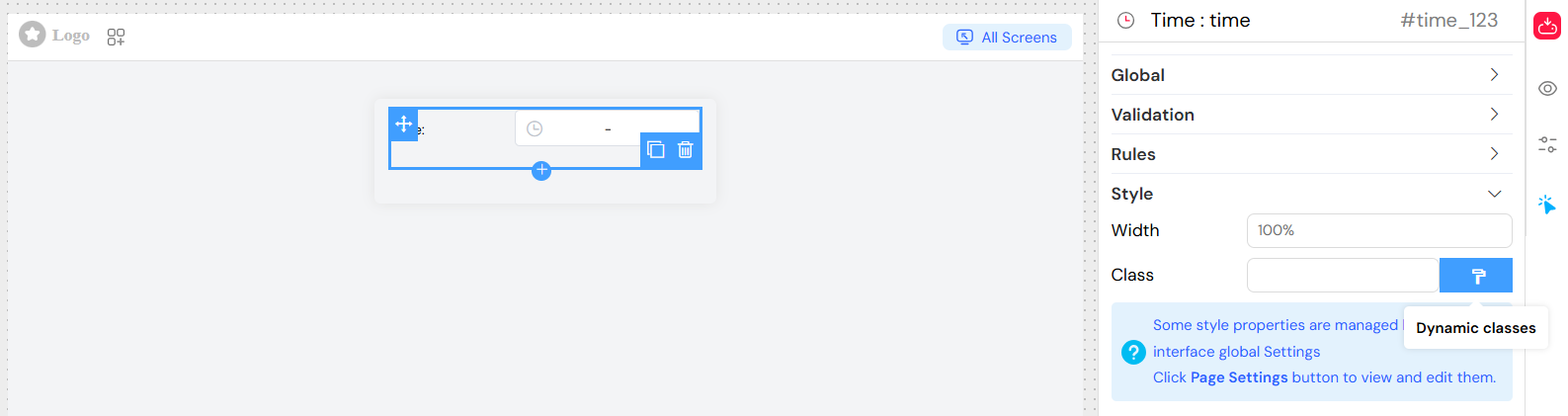
- Width: Set the widget width (e.g., "100%", "300px")
- Class Names: Add custom CSS classes for styling
- Dynamic Classes: Apply conditional CSS classes based on form state
Responsive DesignDirect link to Responsive Design
- The widget automatically adapts to different screen sizes
- Supports responsive width settings
ActionsDirect link to Actions
- Triggered when the user selects or changes a time value
- Access the selected time value in your action handlers
- Use for real-time form validation or dependent field updates
- Configure custom actions when users interact with the widget
- Integrate with form workflows and business logic
](/img/04_ressources/project/web-interface/widgets/timeActions.png)
Time FormatsDirect link to Time Formats
Common Format OptionsDirect link to Common Format Options
- HH:mm - 24-hour format (e.g., 14:30)
- HH:mm:ss - 24-hour format with seconds (e.g., 14:30:45)
- hh:mm A - 12-hour format with AM/PM (e.g., 2:30 PM)
- hh:mm:ss A - 12-hour format with seconds and AM/PM
Custom FormatsDirect link to Custom Formats
You can define custom time formats based on your application requirements. The widget supports standard time formatting patterns.
Data HandlingDirect link to Data Handling
Single Time ValueDirect link to Single Time Value
When isRange is false, the widget returns a single time string in the specified format.
Time Range ValueDirect link to Time Range Value
When isRange is true, the widget returns an array with two elements:
[0]- Start time[1]- End time
Default ValuesDirect link to Default Values
- Single Time: Provide a time string in the specified format
- Time Range: Provide an array with start and end times
Best PracticesDirect link to Best Practices
Time Format SelectionDirect link to Time Format Selection
- Use 24-hour format (HH:mm) for international applications
- Use 12-hour format (hh:mm A) for region-specific applications
- Include seconds only when precision is required
User ExperienceDirect link to User Experience
- Provide clear placeholder text indicating expected format
- Use arrow controls for easier time selection
- Enable clearable option for optional time fields
ValidationDirect link to Validation
- Set appropriate validation rules for business requirements
- Provide clear error messages for validation failures
- Consider time zone implications for your application
PerformanceDirect link to Performance
- Use default values strategically to improve user experience
- Consider the impact of real-time validation on performance
- Optimize change event handlers for complex forms
TroubleshootingDirect link to Troubleshooting
Common IssuesDirect link to Common Issues
- Format Mismatch: Ensure default values match the specified format
- Range Validation: When using ranges, validate that end time is after start time
- Time Zone: Consider time zone handling in your application logic
DebuggingDirect link to Debugging
- Check browser console for validation errors
- Verify that the model property is correctly bound
- Ensure placeholder text is properly configured for range selections