Input Widget
OverviewDirect link to Overview
The Input widget is a versatile form component that allows users to enter and edit text, numbers, and other data types. It provides comprehensive validation, formatting, and styling options to create robust form interfaces.
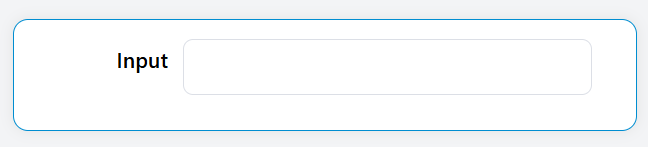
Basic ConfigurationDirect link to Basic Configuration
Global SettingsDirect link to Global Settings
| Field | Description | Required |
|---|---|---|
| Name | Display label for the input field | Yes |
| Variable/Model | Variable name to bind the input value | Yes |
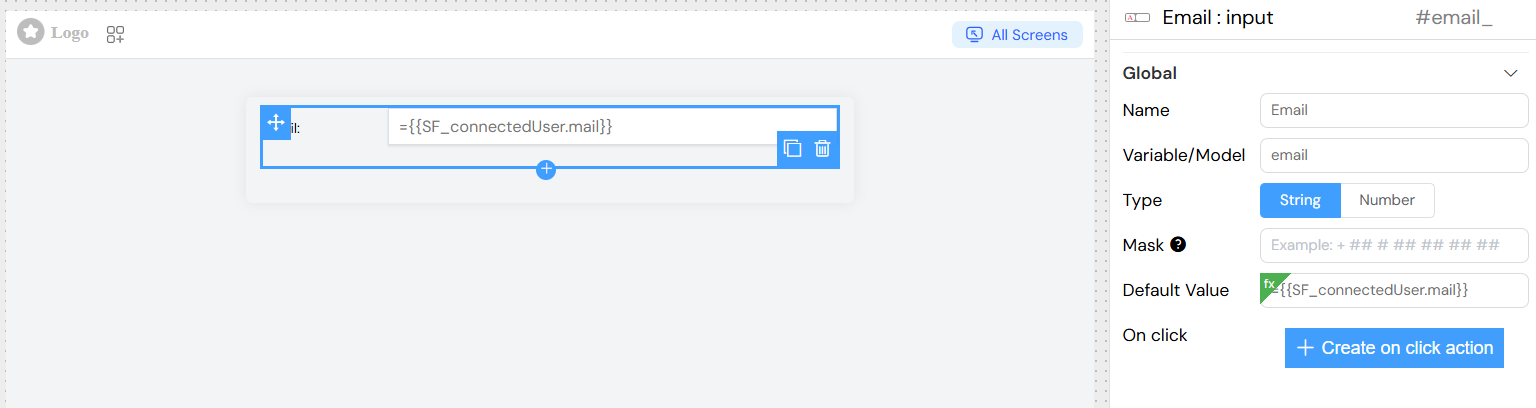
| Default Value | Initial value when the component loads | No |
Data TypesDirect link to Data Types
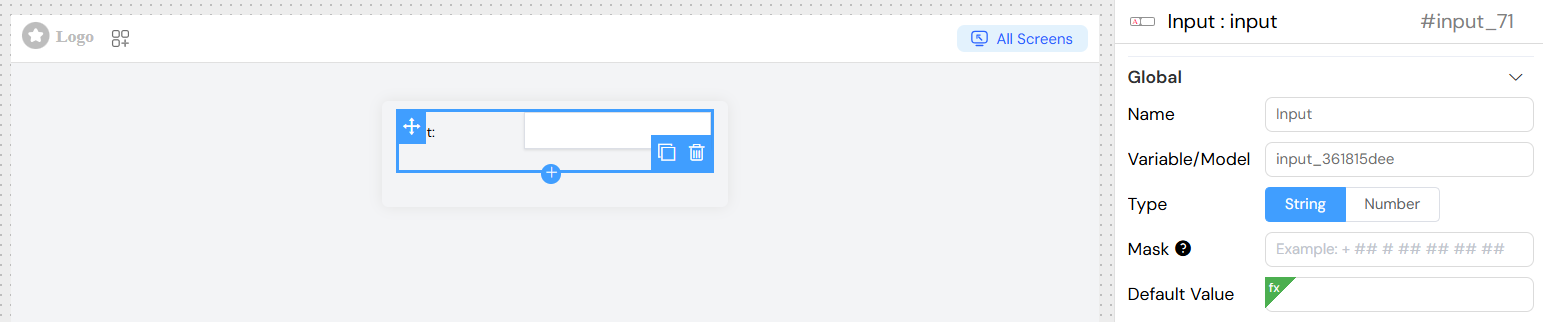
The input widget supports two primary data types:
String TypeDirect link to String Type
- Use Case: Text input, formatted strings, masked inputs
- Features:
- Input masking for formatted entries
- Text validation rules
- Custom placeholder text
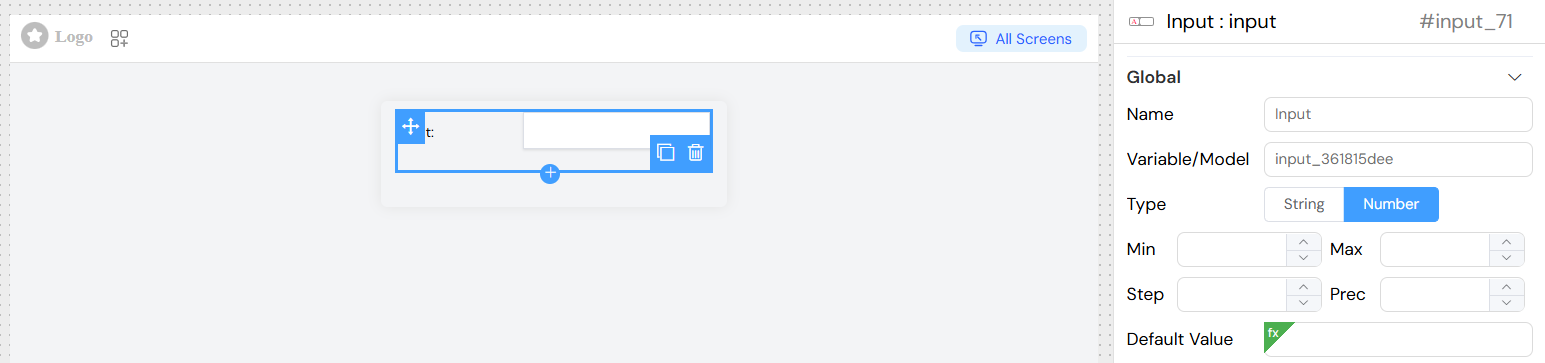
Number TypeDirect link to Number Type
- Use Case: Numeric input with validation
- Features:
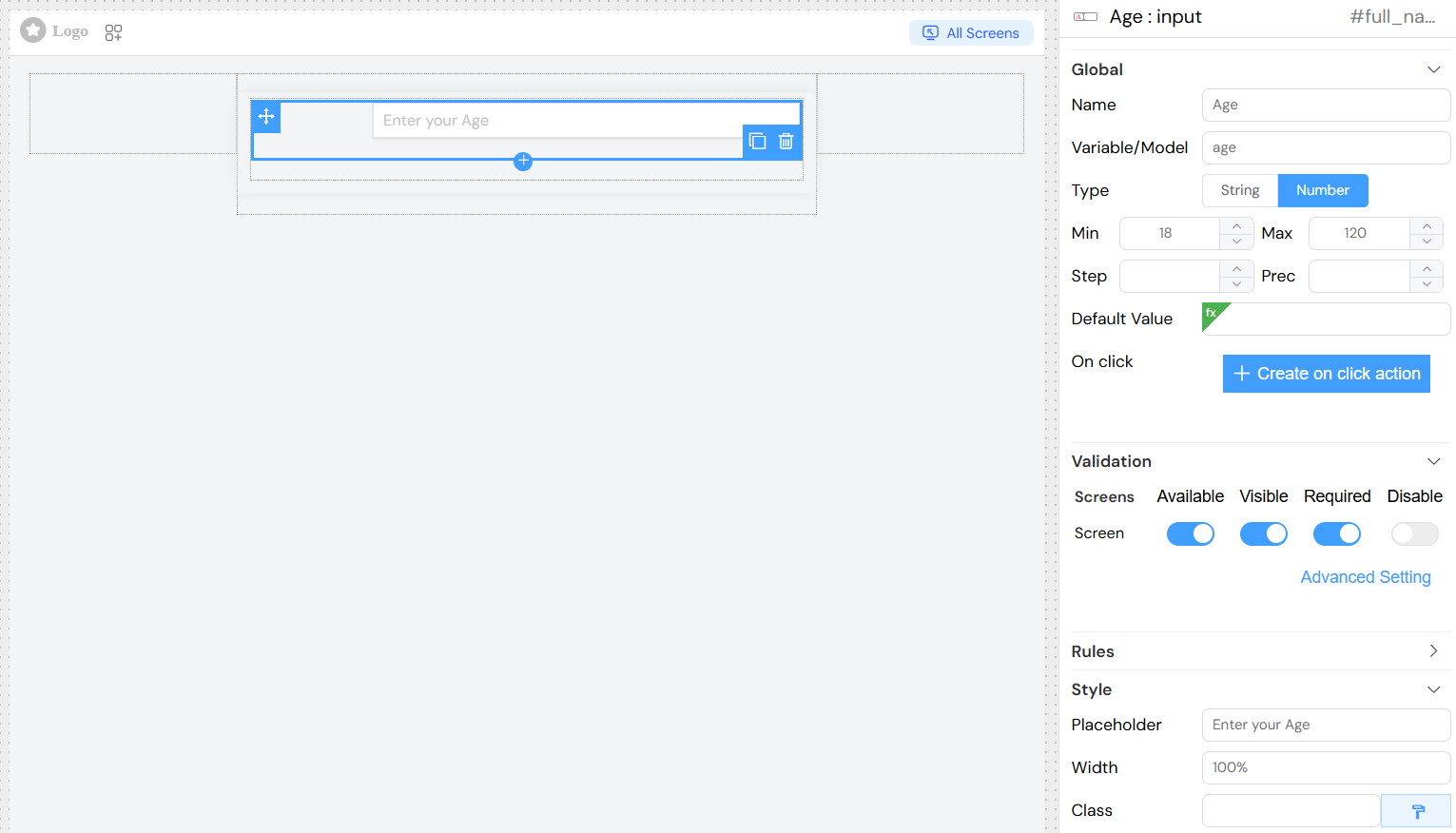
- Min/Max value constraints
- Step increment control
- Precision settings for decimal places
Data Type ConfigurationDirect link to Data Type Configuration
String ConfigurationDirect link to String Configuration
Input MaskingDirect link to Input Masking
Use masks to format user input automatically:
| Mask Character | Pattern | Description |
|---|---|---|
# | /\d/ | Numeric digit |
X | /[0-9a-zA-Z]/ | Alphanumeric character |
S | /[a-zA-Z]/ | Alphabetic character |
A | /[a-zA-Z]/ | Uppercase alphabetic |
a | /[a-zA-Z]/ | Lowercase alphabetic |
! | Escape character | Literal character |
Example Masks:
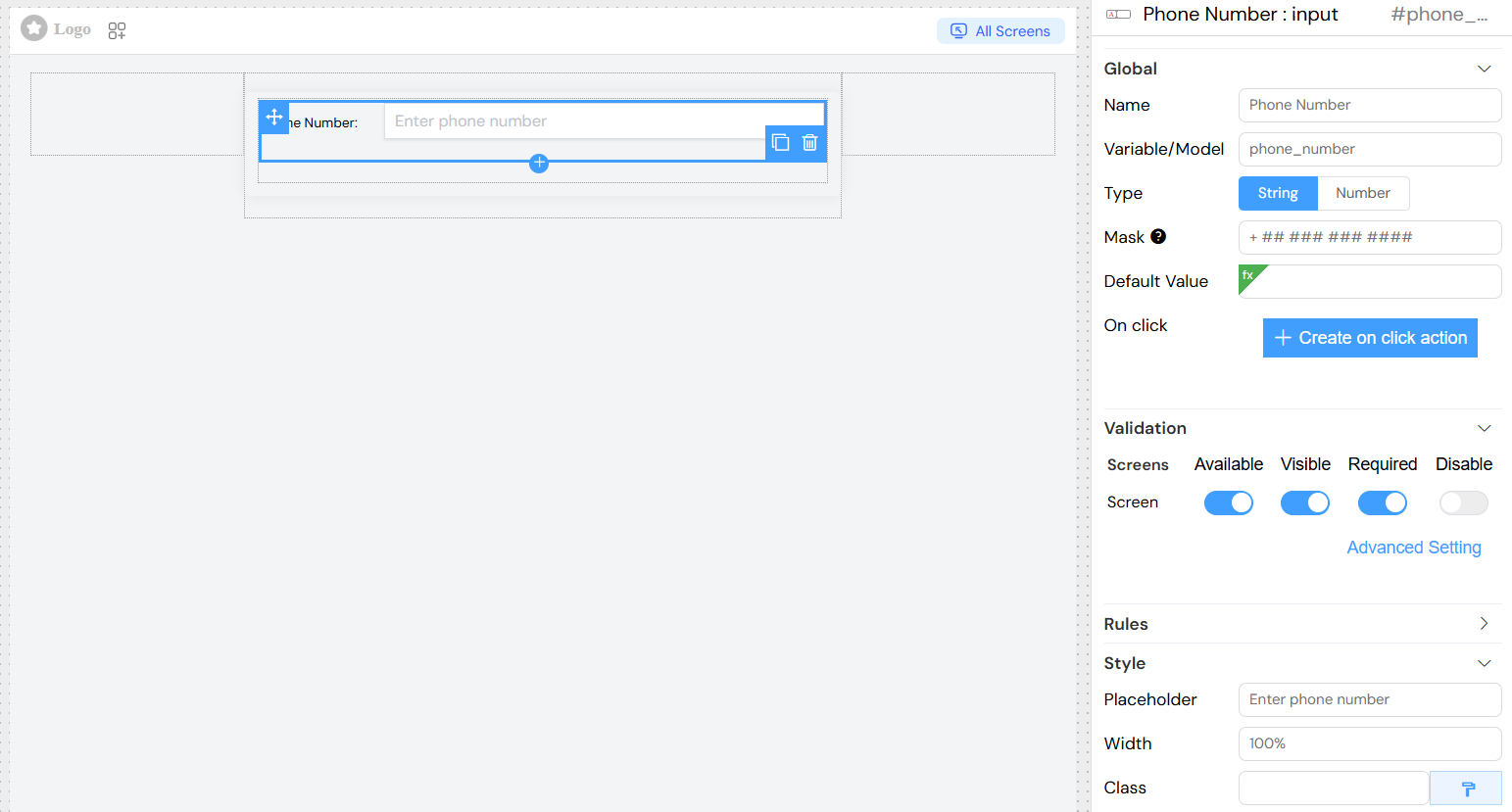
- Phone Number:
+ ## # ## ## ## ## - Credit Card:
#### #### #### #### - Date:
##/##/####
Number ConfigurationDirect link to Number Configuration
| Setting | Description | Default |
|---|---|---|
| Min | Minimum allowed value | None |
| Max | Maximum allowed value | None |
| Step | Increment/decrement step | 1 |
| Precision | Decimal places | None |
Validation and RulesDirect link to Validation and Rules
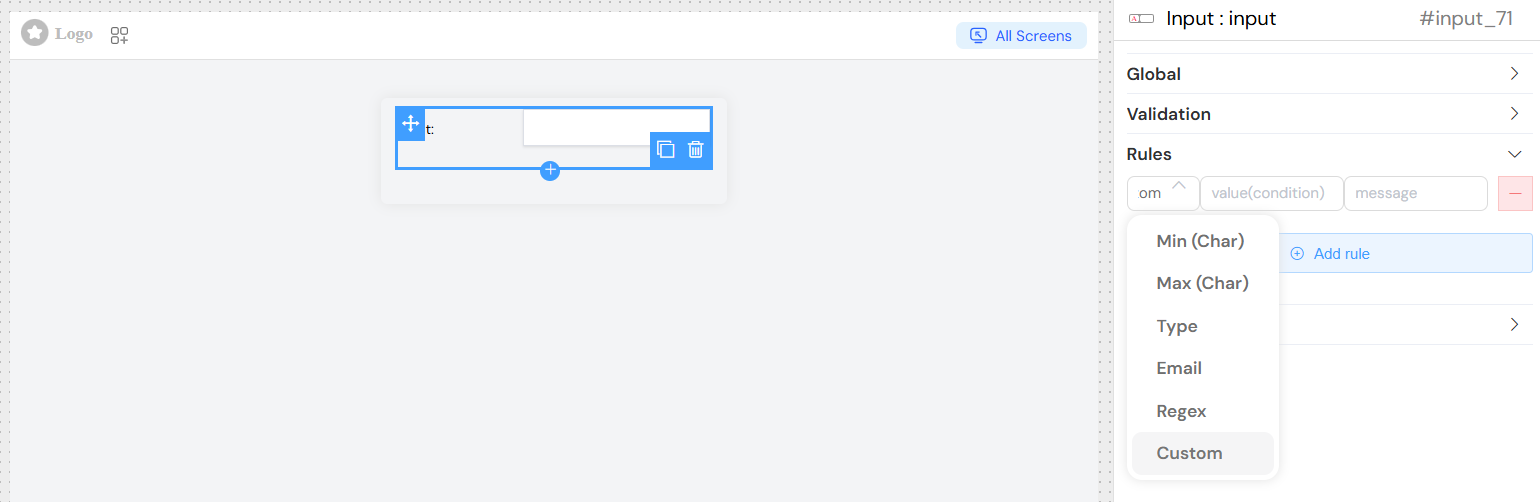
Custom Validation RulesDirect link to Custom Validation Rules
Add custom validation rules with:
- Rule Type: Select from predefined validation patterns
- Value: Validation parameter (e.g., minimum length)
- Message: Custom error message to display
Screen-based ValidationDirect link to Screen-based Validation
Configure different validation behaviors for different screens:
| Property | Description |
|---|---|
| Available | Whether the widget appears on this screen |
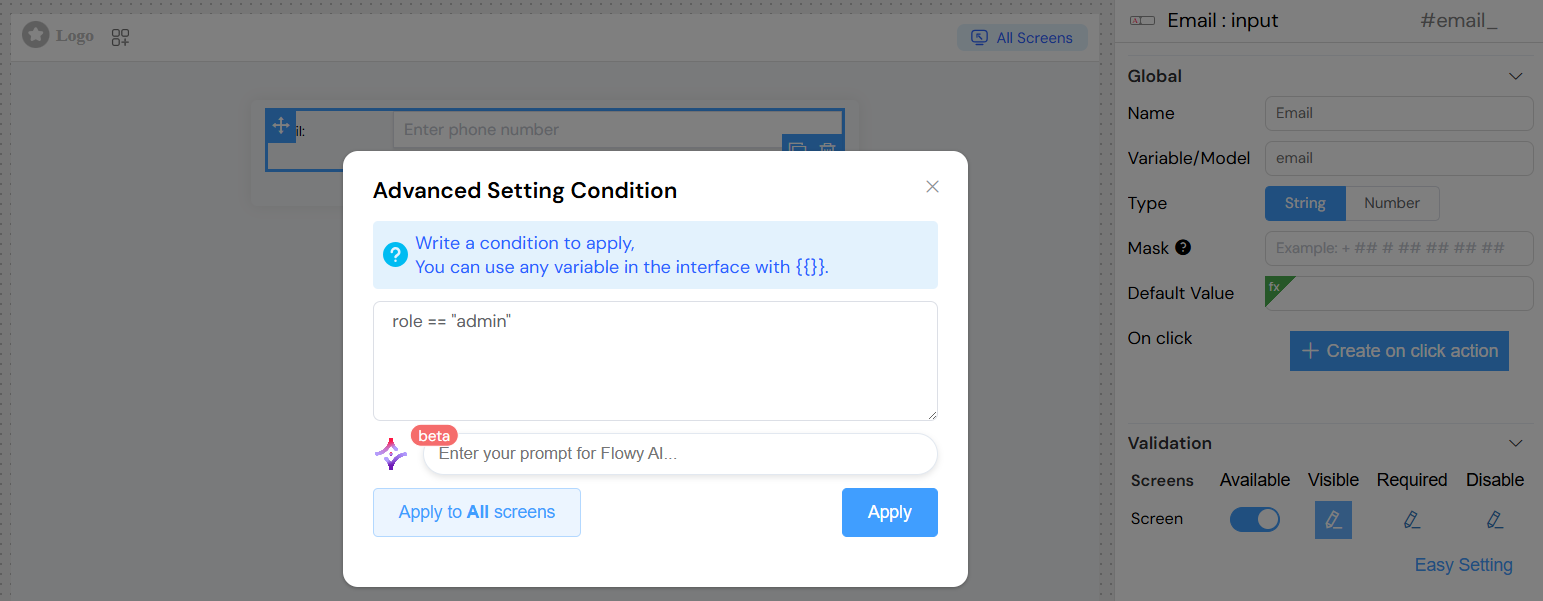
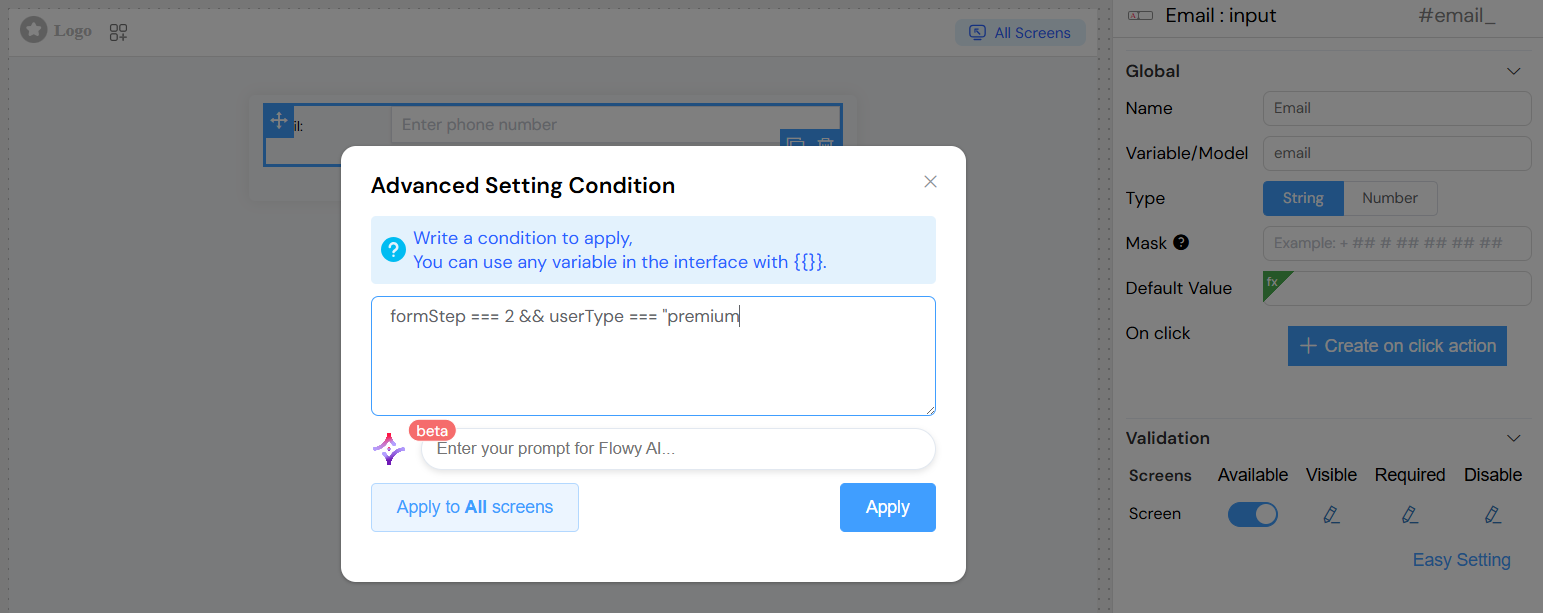
| Visible | Whether the widget is visible (can use conditions) |
| Required | Whether the field is mandatory |
| Disabled | Whether the field is read-only |

Styling OptionsDirect link to Styling Options
Basic StylingDirect link to Basic Styling
| Property | Description | Example |
|---|---|---|
| Placeholder | Hint text displayed when empty | "Enter your name" |
| Width | Component width | "100%", "200px" |
| Class Names | CSS classes for custom styling | "custom-input, large" |
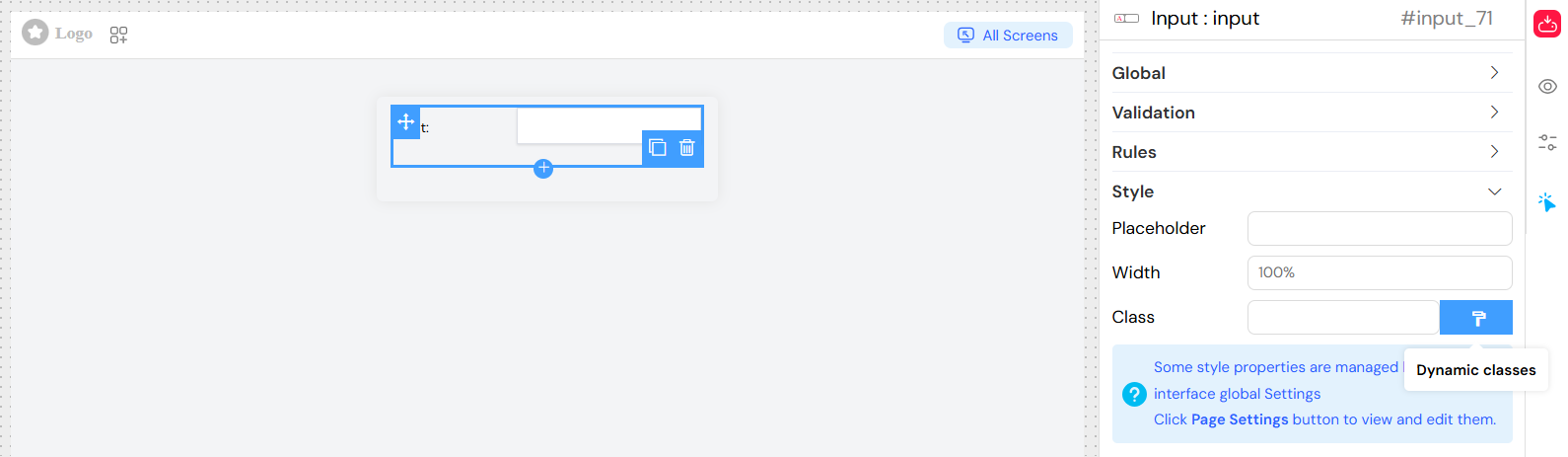
Dynamic ClassesDirect link to Dynamic Classes
Configure classes that change based on conditions:
- Use the dynamic classes editor
- Reference form variables and data
- Apply conditional styling
Advanced FeaturesDirect link to Advanced Features
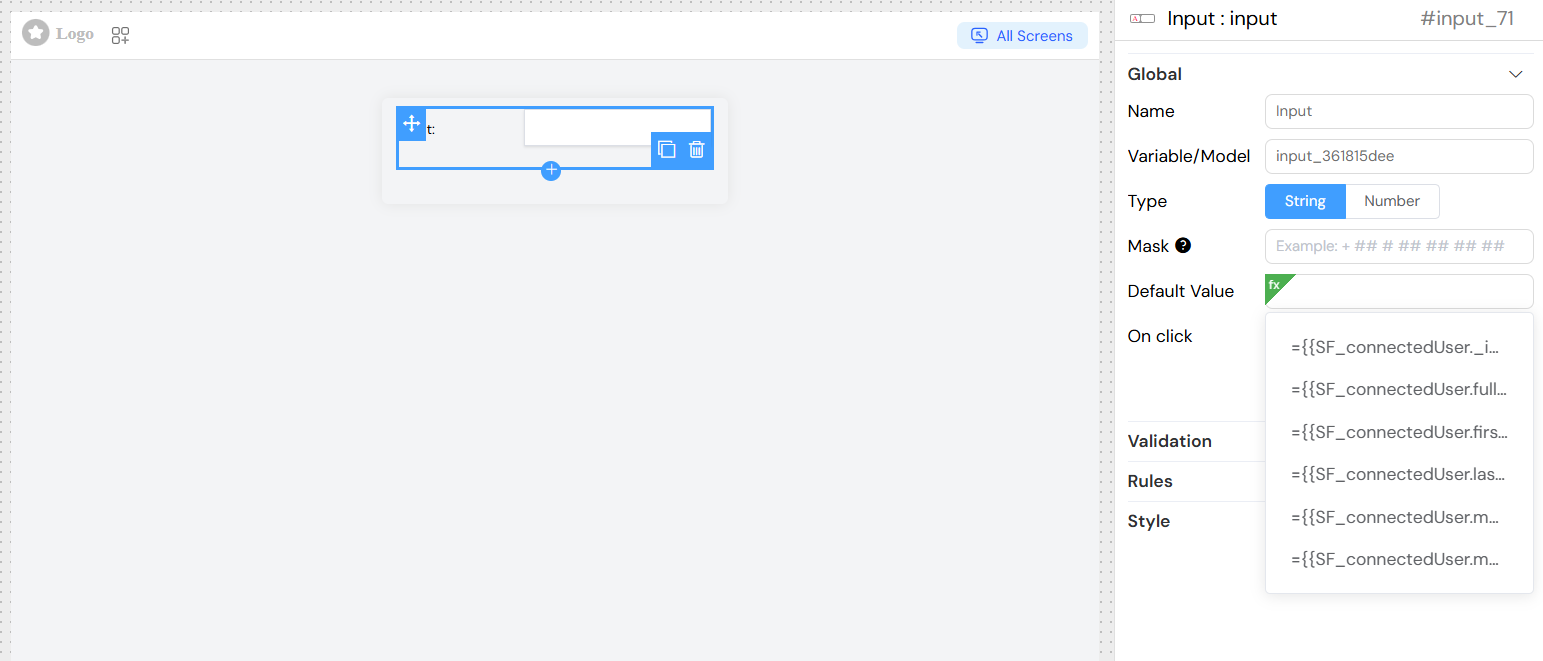
Dynamic Default ValuesDirect link to Dynamic Default Values
Set default values that can reference other form data:
Event HandlingDirect link to Event Handling
onChange EventDirect link to onChange Event
Triggered when the input value changes:
- Access the new value via event parameter
- Automatically enforces min/max constraints for numbers
- Can trigger custom actions and functions
Working with Actions and SF_inputDirect link to Working with Actions and SF_input
Attaching Actions to onChange EventDirect link to Attaching Actions to onChange Event
You can attach custom actions to the input widget's onChange event to respond to value changes in real-time. This is useful for:
- Updating other fields based on the input value
- Triggering calculations or validations
- Fetching related data from the backoffice
- Implementing cascading field updates
How to Attach an ActionDirect link to How to Attach an Action
- Navigate to the Global section in the widget configuration
- Find the On Change event Button
- You can attach actions to the widget
- The system will execute your code whenever the input value changes
Accessing Values with SF_inputDirect link to Accessing Values with SF_input
When working with onChange events, you have access to the SF_input object that contains information about the value change:
SF_input Structure for Input WidgetDirect link to SF_input Structure for Input Widget
{
  value: /* The value after the change */,
  SF_currentIndex:  /*  The index of the loop where the change has been done, This is only available for Inputs inside a loop */
}
Best Practices for ActionsDirect link to Best Practices for Actions
- Keep Actions Lightweight: Avoid heavy computations in onChange events
- Debounce API Calls: If fetching data, consider debouncing to avoid excessive requests
- Handle Errors: Always include error handling in your action code
- Validate Input: Check if values exist before using them
- Use Clear Variable Names: Make your code readable for future maintenance
Currency SupportDirect link to Currency Support
Special handling for currency inputs:
- Automatic formatting based on locale
- Currency symbol display
- Decimal precision control
Integration FeaturesDirect link to Integration Features
Form IntegrationDirect link to Form Integration
When used within a form:
- Automatic form validation
- Submit/reset handling
- Parent form state management
Loop IntegrationDirect link to Loop Integration
When used in loops:
- Access to loop index via
SF_currentIndex - Independent validation per loop item
- Dynamic field naming
Action IntegrationDirect link to Action Integration
Configure onClick actions:
- Custom JavaScript functions
- API calls and data operations
- Navigation and UI interactions
Usage ExamplesDirect link to Usage Examples
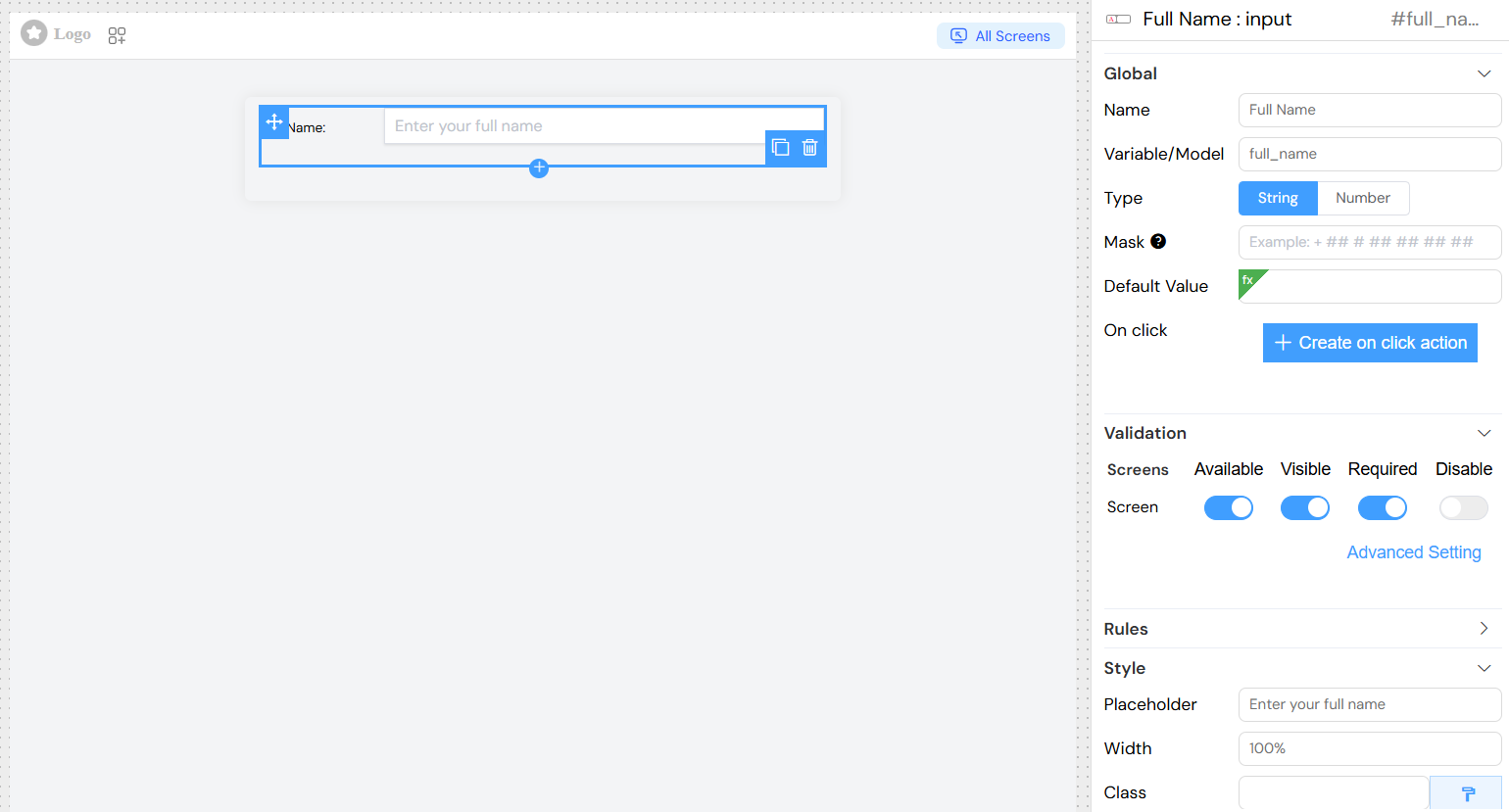
Basic Text InputDirect link to Basic Text Input
Phone Number with MaskDirect link to Phone Number with Mask
Numeric Input with ConstraintsDirect link to Numeric Input with Constraints
Dynamic Default ValueDirect link to Dynamic Default Value
Conditional VisibilityDirect link to Conditional Visibility
Simple ConditionsDirect link to Simple Conditions
Complex ConditionsDirect link to Complex Conditions
Best PracticesDirect link to Best Practices
Field NamingDirect link to Field Naming
- Use descriptive variable names
- Follow consistent naming conventions
- Avoid spaces and special characters in variable names
ValidationDirect link to Validation
- Provide clear error messages
- Use appropriate data types
- Set reasonable min/max constraints
User ExperienceDirect link to User Experience
- Use meaningful placeholders
- Group related fields logically
- Provide immediate feedback on validation
PerformanceDirect link to Performance
- Avoid complex default value expressions
- Use efficient validation rules
- Minimize unnecessary re-renders
TroubleshootingDirect link to Troubleshooting
Common IssuesDirect link to Common Issues
Validation Not Working
- Check required field configuration
- Verify custom validation rules syntax
- Ensure proper screen validation setup
Mask Not Applied
- Verify mask syntax using supported characters
- Ensure string data type is selected
- Check for conflicting CSS styles
Default Values Not Loading
- Verify variable references exist
- Check expression syntax
- Ensure referenced data is available
Styling Issues
- Verify CSS class names
- Check width/height values
- Ensure proper CSS specificity
Debug TipsDirect link to Debug Tips
- Use browser developer tools to inspect generated HTML
- Check console for JavaScript errors
- Verify form data binding in Vue DevTools
- Test validation rules independently
Browser CompatibilityDirect link to Browser Compatibility
The input widget is compatible with:
- Chrome 60+
- Firefox 55+
- Safari 12+
- Edge 79+
Related ComponentsDirect link to Related Components
- Textarea Widget: For multi-line text input
- Select Widget: For dropdown selections
- Date Widget: For date/time input
- Currency Widget: For specialized currency handling