Widget UserPicker
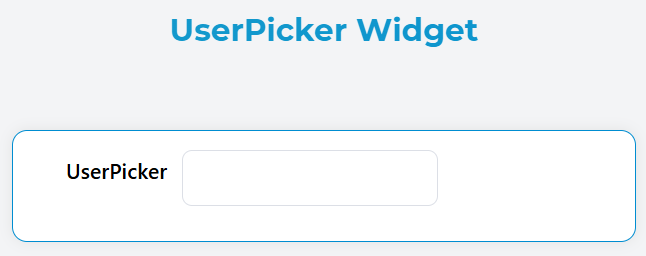
The UserPicker widget provides a searchable dropdown interface for selecting one or multiple users from your application's user base. It supports remote search, group filtering, and flexible display options.
OverviewDirect link to Overview
The UserPicker widget renders as an Element UI select component with remote search capabilities. Users can search and select from the application's user directory with real-time filtering and group-based restrictions.
Configuration PropertiesDirect link to Configuration Properties
Basic PropertiesDirect link to Basic Properties
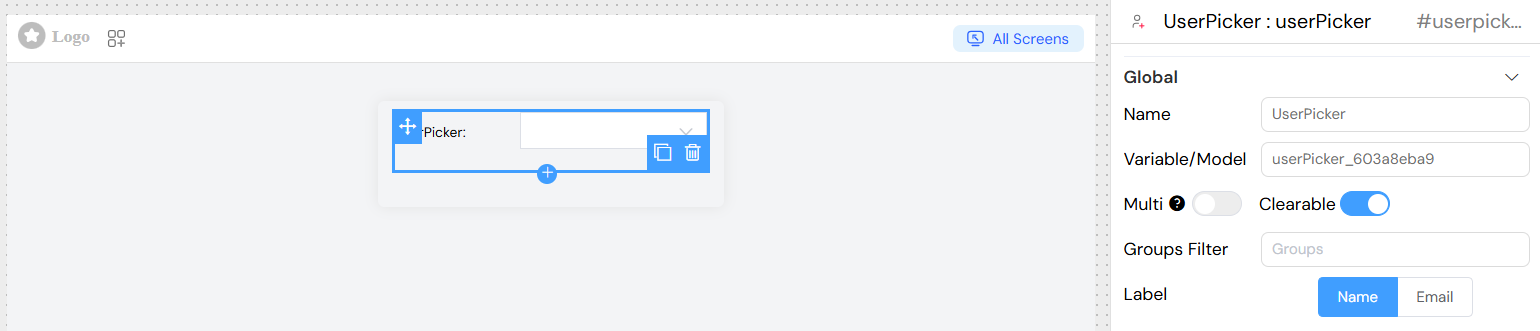
NameDirect link to Name
- Description: Display label for the widget
- Type: String
- Default: "Select a user"
- Usage: Appears as the form label above the selection field
Variable/ModelDirect link to Variable/Model
- Description: The data model variable name that will store the selected user(s)
- Type: String
- Required: Yes
- Format: Must be a valid variable name (e.g.,
selectedUser,assignedUsers)
Selection OptionsDirect link to Selection Options
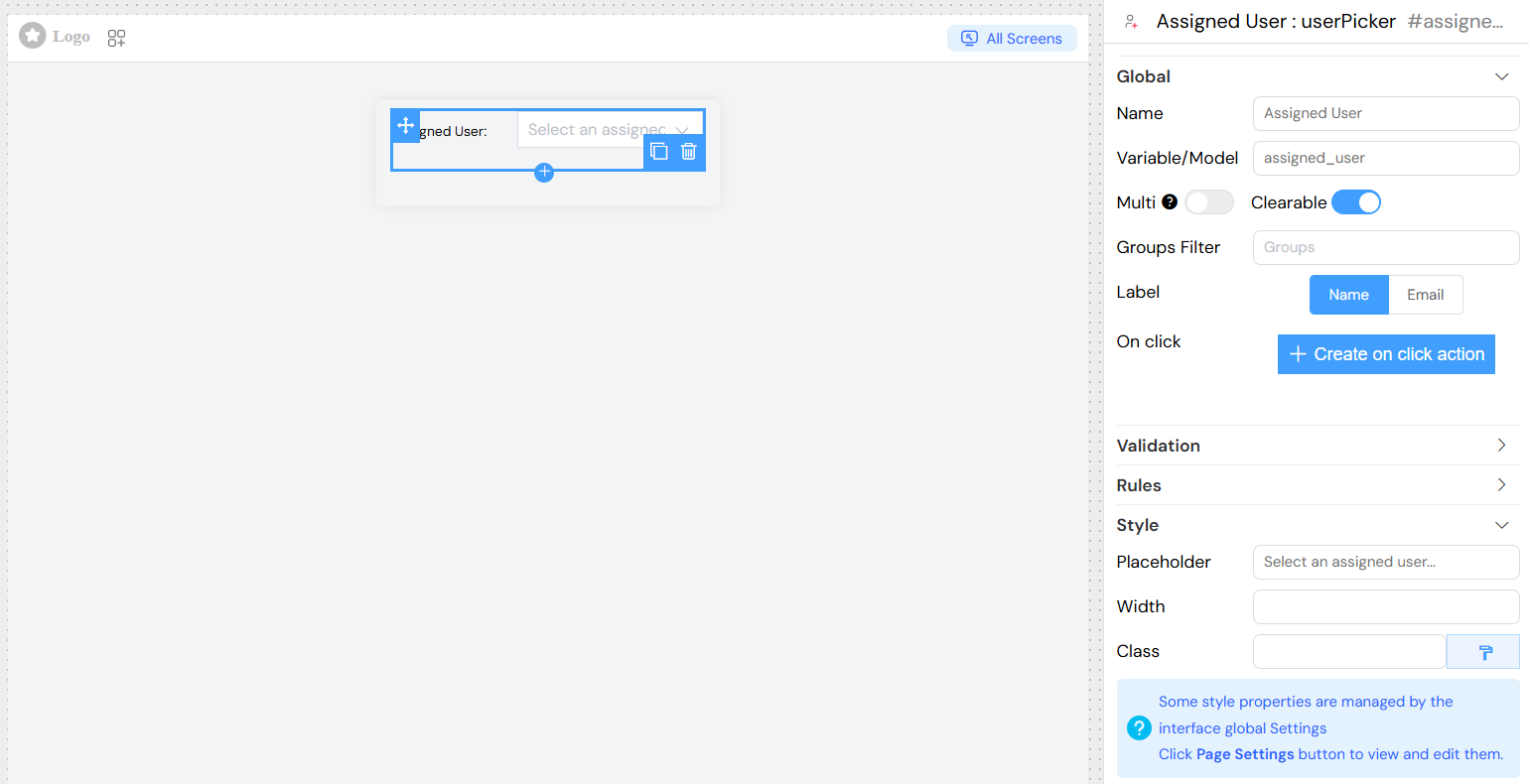
Multiple SelectionDirect link to Multiple Selection
- Property:
multiple - Type: Boolean
- Default:
false - Description: Enable selection of multiple users
- When enabled: Returns an array of selected user emails
- When disabled: Returns a single user email string
ClearableDirect link to Clearable
- Property:
clearable - Type: Boolean
- Default:
false - Description: Adds a clear button to remove all selections
User FilteringDirect link to User Filtering
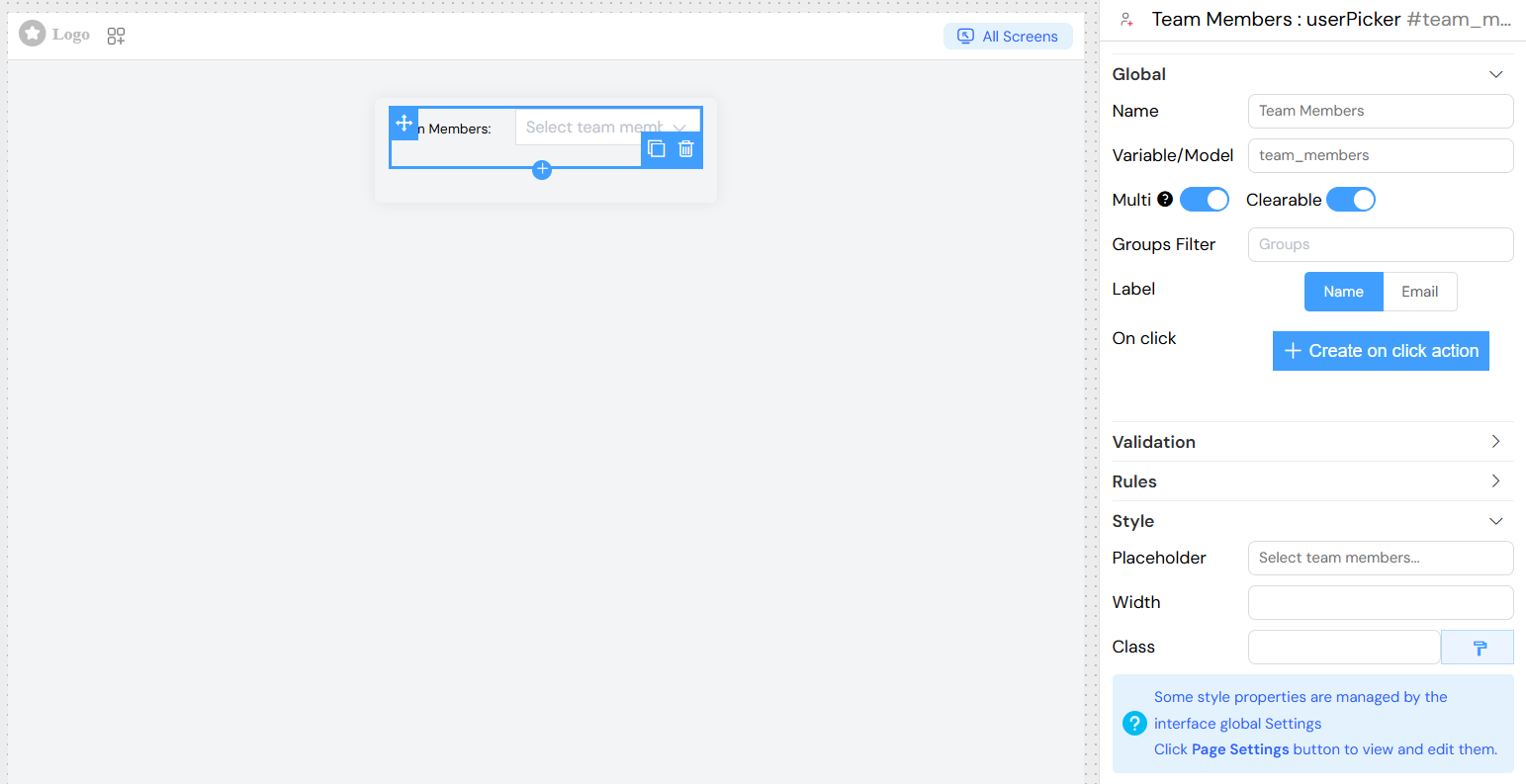
Groups FilterDirect link to Groups Filter
- Property:
groupes - Type: Array of Group Objects
- Description: Restrict user selection to specific groups
- Configuration: Select one or more groups from the dropdown
- API Behavior: Only users belonging to the selected groups will appear in search results
Label DisplayDirect link to Label Display
- Property:
label - Type: String
- Options:
"name": Display user's first name + last name"Email": Display user's email address
- Default:
"Email" - Description: Determines how users are displayed in the dropdown options
Validation and VisibilityDirect link to Validation and Visibility
Screen-Based ConfigurationDirect link to Screen-Based Configuration
The title widget supports different configurations for different screens/contexts:
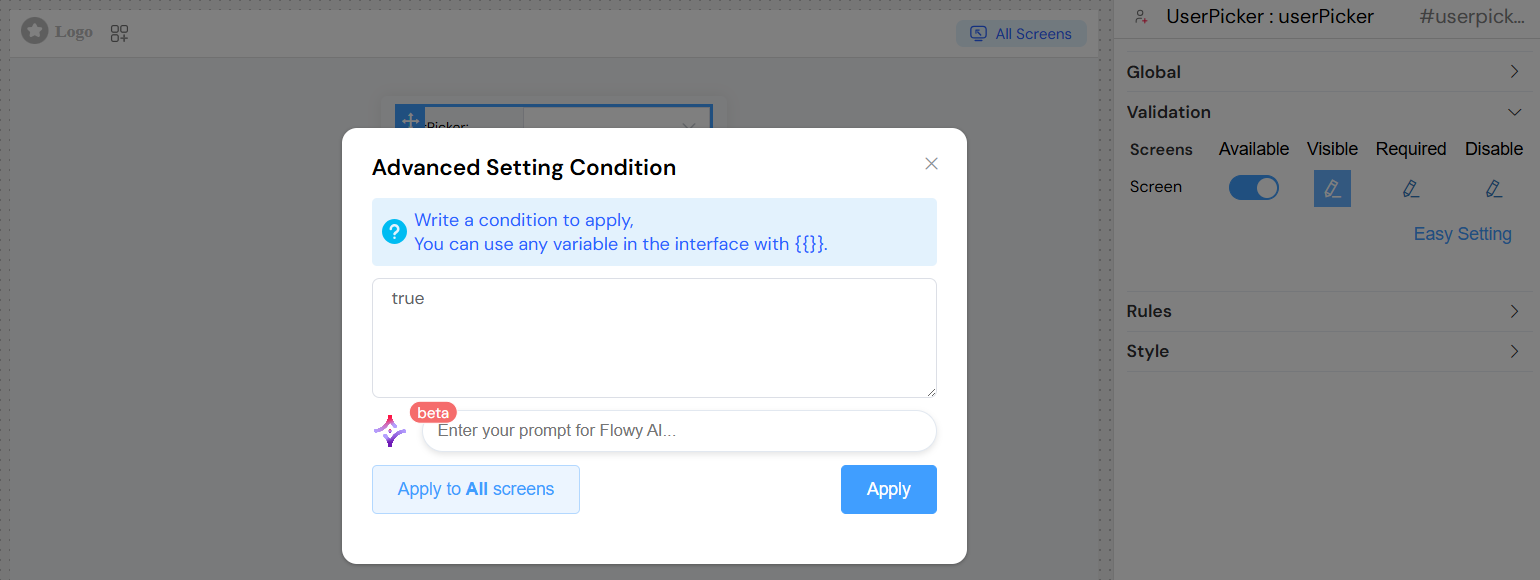
- Available: Controls widget visibility on the interface
- Visible: Controls widget visibility on the interface
- Required: Makes user selection mandatory for form submission
- Disable: Disables the widget preventing user interaction

Advanced Visibility ConditionsDirect link to Advanced Visibility Conditions
Use JavaScript expressions for complex visibility logic:
Style and AppearanceDirect link to Style and Appearance
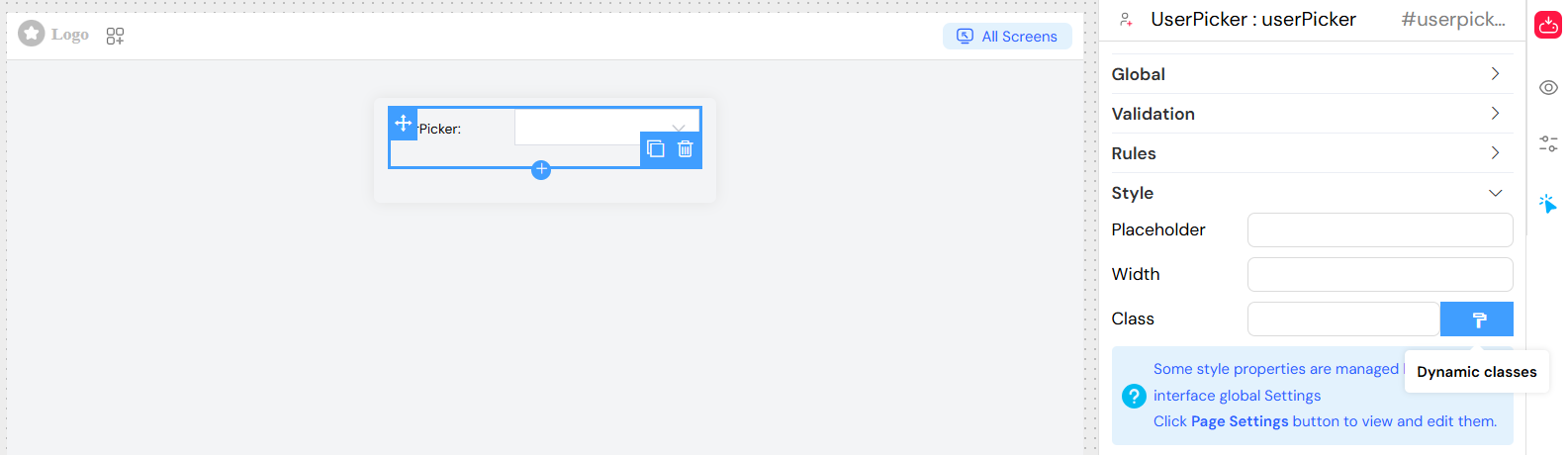
Placeholder TextDirect link to Placeholder Text
- Property:
placeholder - Type: String
- Default: "Search for a user..."
- Description: Placeholder text displayed when no selection is made
WidthDirect link to Width
- Property:
width - Type: String
- Default: "100%"
- Examples:
"300px","50%","auto" - Description: Controls the width of the selection field
CSS ClassesDirect link to CSS Classes
- Property:
classNames - Type: String
- Description: Custom CSS classes for styling
- Format: Space-separated class names
Dynamic ClassesDirect link to Dynamic Classes
- Property:
classes - Type: JavaScript Object
- Description: Conditional CSS classes based on form state
- Usage: Advanced styling based on data conditions
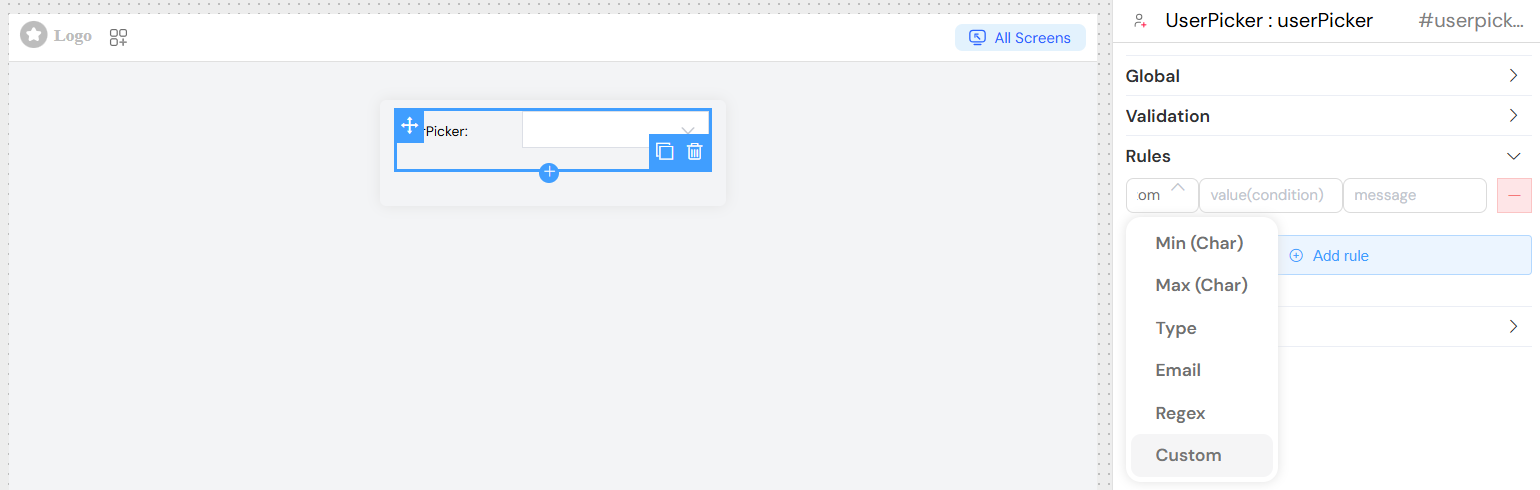
Validation RulesDirect link to Validation Rules
Add custom validation rules beyond basic required validation:
Rule TypesDirect link to Rule Types
- Pattern: Regular expression validation
- Custom: JavaScript function validation
- Length: Minimum/maximum selection count (for multiple selection)
Usage ExamplesDirect link to Usage Examples
Basic Single User SelectionDirect link to Basic Single User Selection
Multiple User Selection with Group FilterDirect link to Multiple User Selection with Group Filter
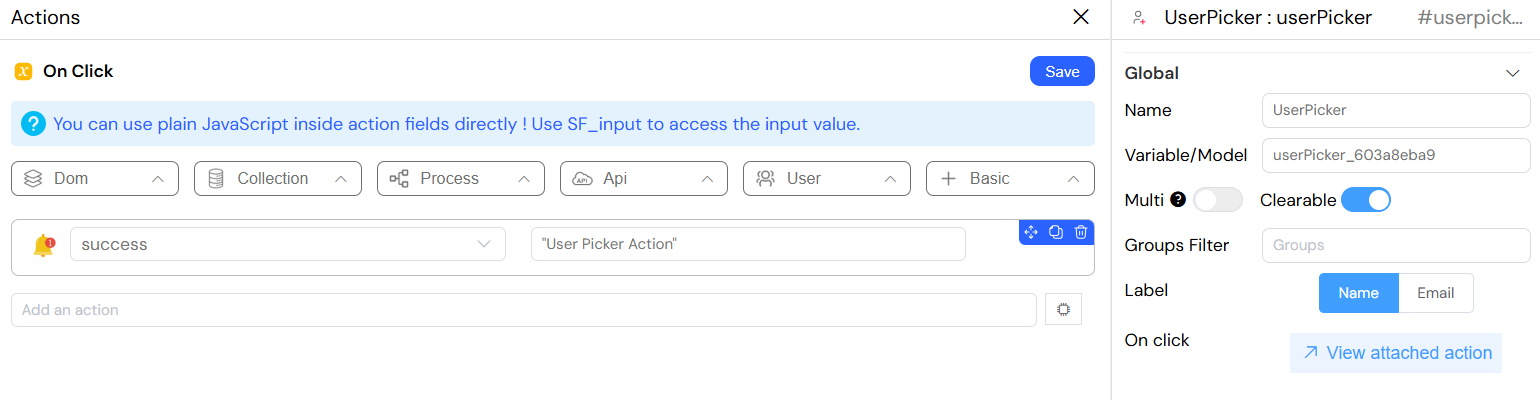
Events and InteractionsDirect link to Events and Interactions
onChange EventDirect link to onChange Event
- Trigger: When user selection changes
- Data Available:
SF_input.value: Selected user email(s)SF_input.SF_data: Complete user object(s)SF_input.SF_currentIndex: Current loop index (if in a loop)
Data StructureDirect link to Data Structure
Input Data (Selected Values)Direct link to Input Data (Selected Values)
// Single selection
"user@example.com"[
  // Multiple selection
  ("user1@example.com", "user2@example.com", "user3@example.com")
];
Complete User Objects (Available in SF_data)Direct link to Complete User Objects (Available in SF_data)
{
  "email": "john.doe@example.com",
  "firstName": "John",
  "lastName": "Doe",
  "_id": "user_id_123",
  // Additional user properties
}
API IntegrationDirect link to API Integration
User Search EndpointDirect link to User Search Endpoint
- URL:
/api/v1/user - Method: GET
- Parameters:
limit: Maximum results (default: 10)groups: Comma-separated group IDs for filteringkey: Search query stringSF_mode: Application mode parameter
Group FilteringDirect link to Group Filtering
When groups are configured, the API request automatically includes group filters to restrict results to users belonging to the specified groups.
Best PracticesDirect link to Best Practices
Performance OptimizationDirect link to Performance Optimization
- Use group filtering to reduce search result size
- Set appropriate search limits for large user bases
- Consider caching frequently accessed user data
User ExperienceDirect link to User Experience
- Provide clear placeholder text indicating the selection purpose
- Use descriptive labels that match your use case
- Enable clearable option for better user control
- Choose appropriate label format (name vs email) based on context
Validation StrategyDirect link to Validation Strategy
- Use required validation for critical selections
- Implement conditional validation based on form context
- Provide meaningful error messages for validation failures
AccessibilityDirect link to Accessibility
- Ensure proper labeling for screen readers
- Maintain keyboard navigation support
- Use semantic HTML through Element UI components
TroubleshootingDirect link to Troubleshooting
Common IssuesDirect link to Common Issues
No Users AppearingDirect link to No Users Appearing
- Check group filter configuration
- Verify user API endpoint availability
- Ensure users exist in the specified groups
Selection Not SavingDirect link to Selection Not Saving
- Verify model/variable name is correctly configured
- Check for form validation errors
- Ensure proper data binding in parent form
Performance IssuesDirect link to Performance Issues
- Reduce group scope if too many users
- Implement pagination for large datasets
- Optimize search query parameters