Checkbox Widget
The Checkbox widget allows users to select one or multiple options from a predefined list. It provides flexible data sourcing options and comprehensive validation capabilities.
OverviewDirect link to Overview
The checkbox widget renders as a group of checkboxes that users can interact with to make selections. It supports various data sources including static lists, database collections, reports, and external databases.

Basic ConfigurationDirect link to Basic Configuration
Global SettingsDirect link to Global Settings
Name: The display label for the checkbox group Variable/Model: The data model variable that will store the selected values Default Value: Pre-selected options when the widget loads
Data Source ConfigurationDirect link to Data Source Configuration
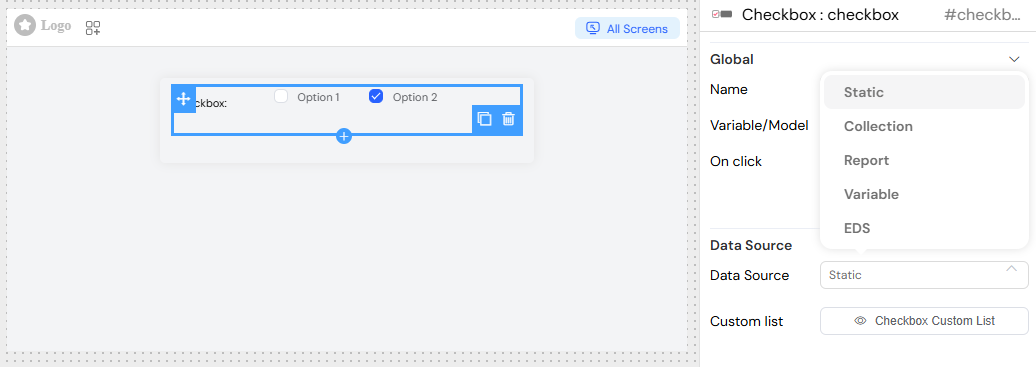
The checkbox widget supports multiple data source types:
Static DataDirect link to Static Data
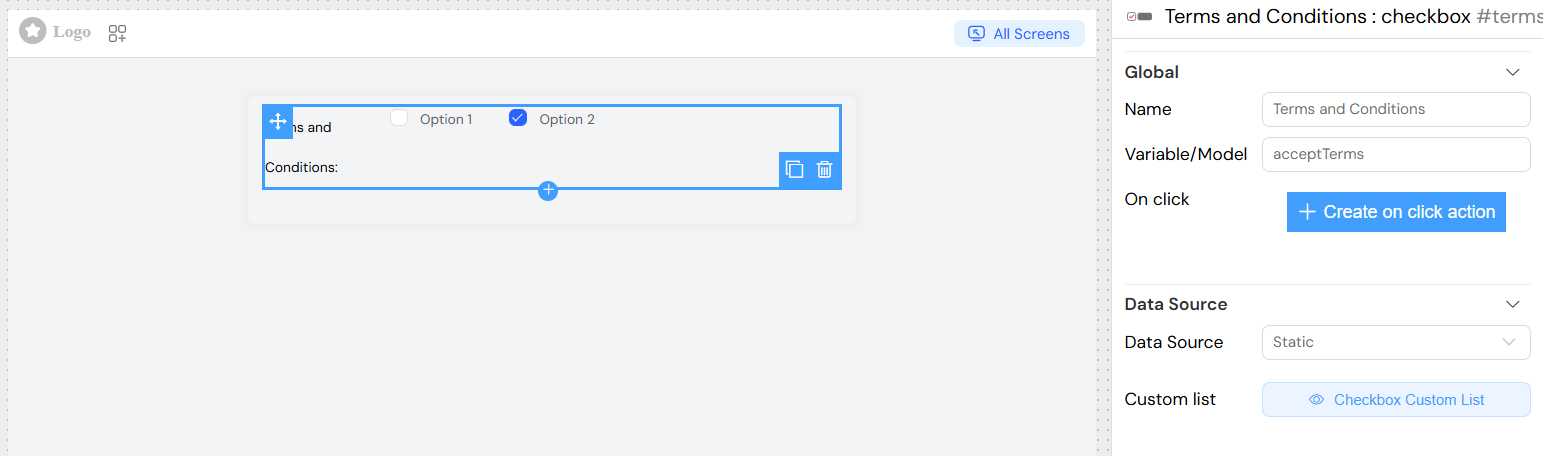
- Custom List: Select from predefined static lists
- Configure label and value properties for each option
Collection DataDirect link to Collection Data
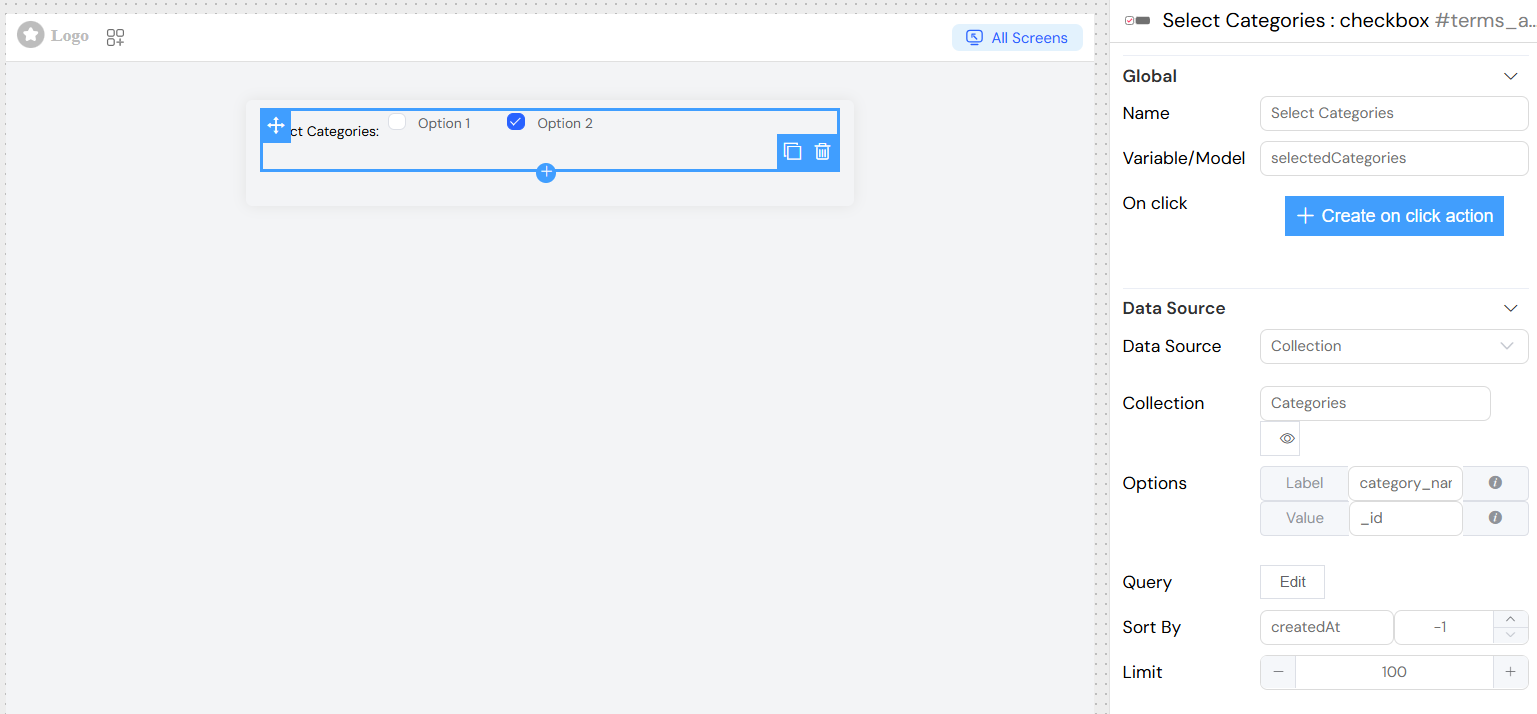
- Collection: Connect to database collections
- Query: Filter and customize data retrieval
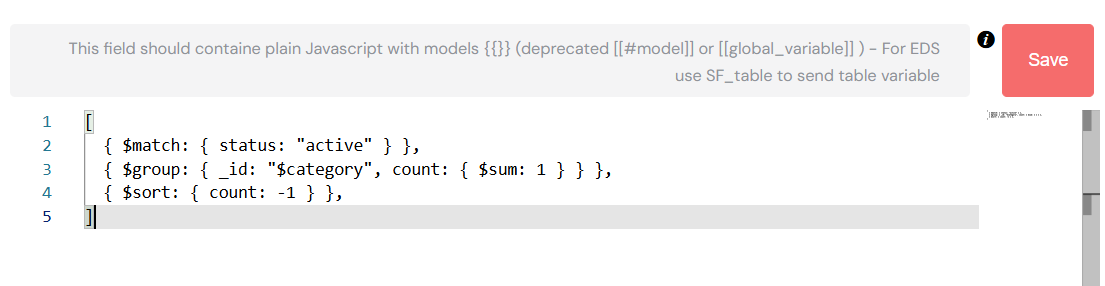
- Aggregation: Use advanced aggregation queries for complex data processing
- Sort By: Define sorting field and direction (1 for ascending, -1 for descending)
- Limit: Restrict the number of options displayed
Report DataDirect link to Report Data
- Report: Connect to existing reports
- Query: Apply filters to report data
- Aggregation: Use aggregation pipelines on report data
External Database (EDS)Direct link to External Database (EDS)
- Database: Connect to external database connections
- EDS Source: Define SQL queries or database-specific operations
Variable DataDirect link to Variable Data
- Use existing interface variables as data source
- Automatically binds to
{model}_vbvariable
Properties ConfigurationDirect link to Properties Configuration
Label Property: Define which field contains the display text
- Static use:
firstName - Dynamic use:
$.firstName + ' - ' + $.lastName
Value Property: Define which field contains the stored value
- Static use:
ref - Dynamic use:
$.ref + ' - ' + $.name
Validation & RulesDirect link to Validation & Rules
Screen-Based ValidationDirect link to Screen-Based Validation
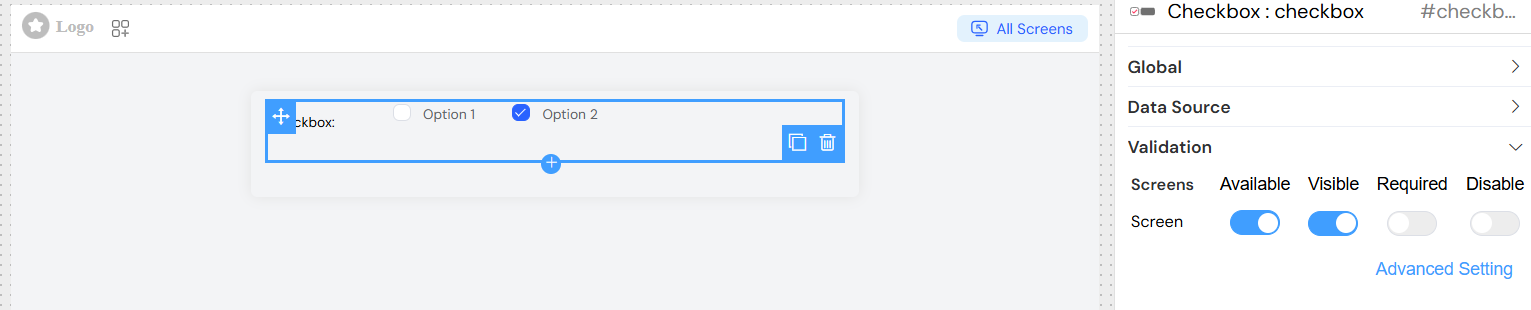
Configure widget behavior across different screens:
Available: Control widget availability per screen
Visible: Show/hide widget conditionally
Required: Make selections mandatory
Disabled: Prevent user interaction
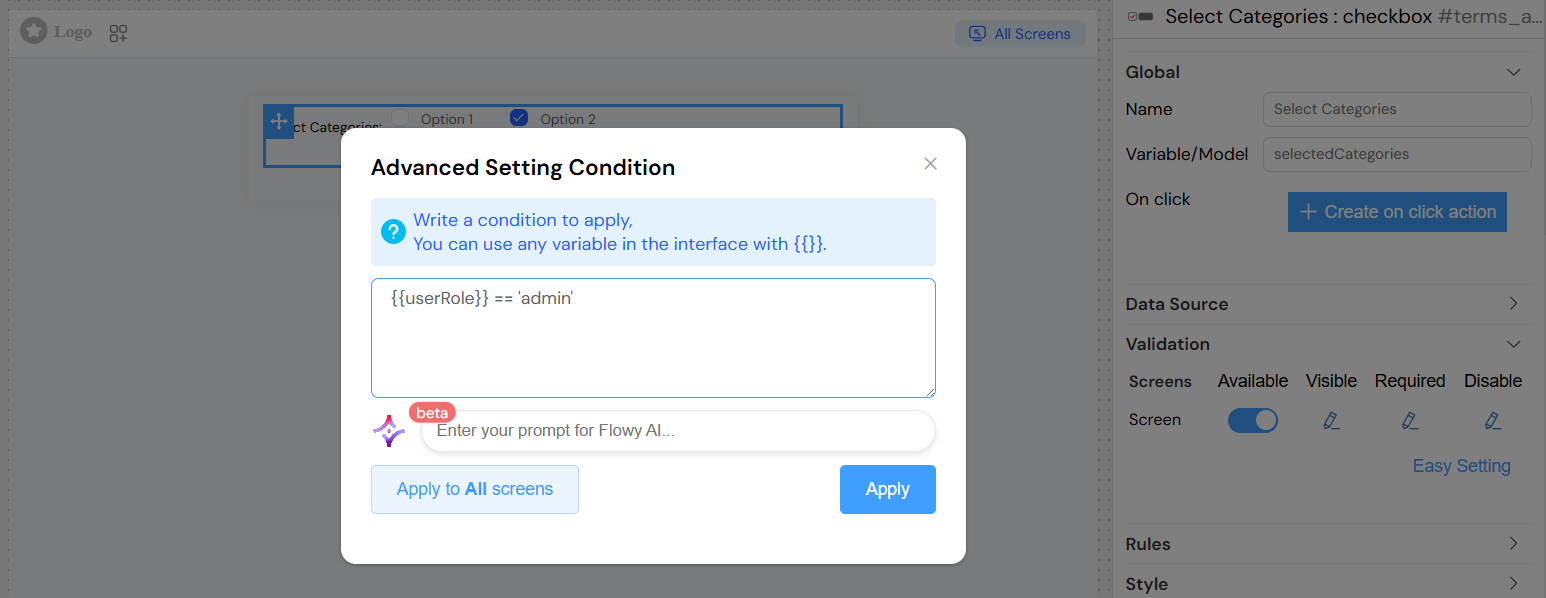
Advanced conditions can be set using variables with {{variable_name}} syntax.
Validation RulesDirect link to Validation Rules
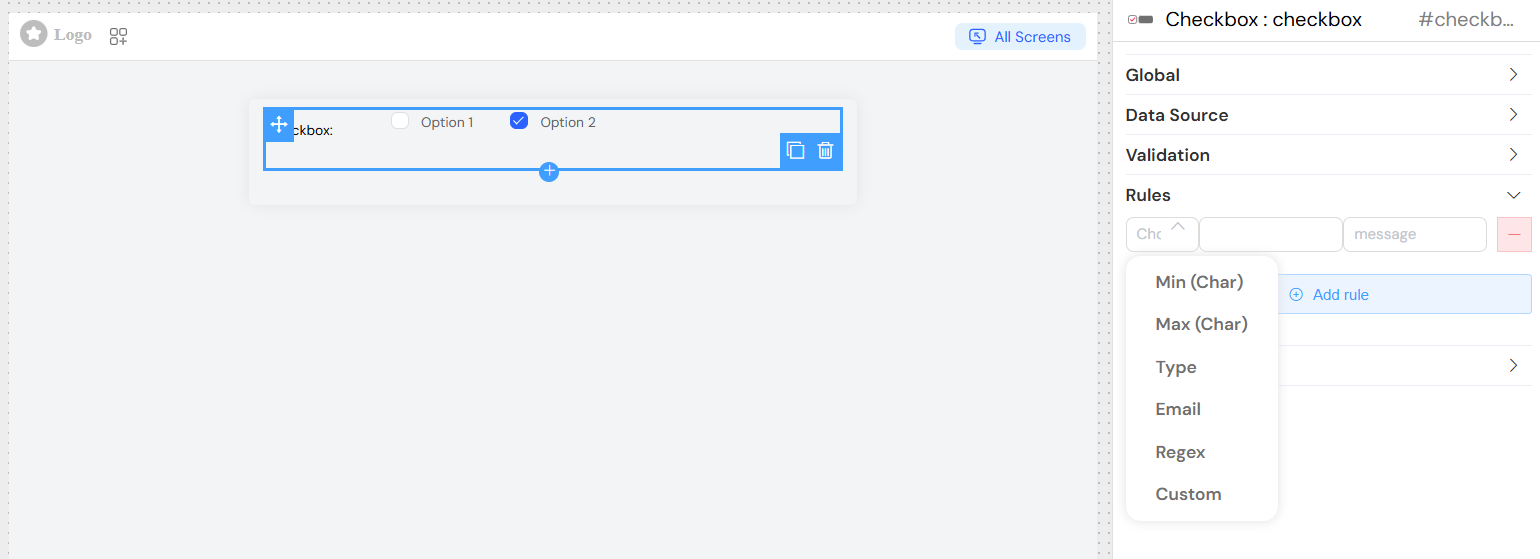
Add custom validation rules:
- Required: Ensure at least one option is selected
- Min/Max Selection: Control selection count (for multiple selection)
- Custom Rules: Define specific validation logic
- Error Messages: Customize validation feedback
Style ConfigurationDirect link to Style Configuration
Layout OptionsDirect link to Layout Options
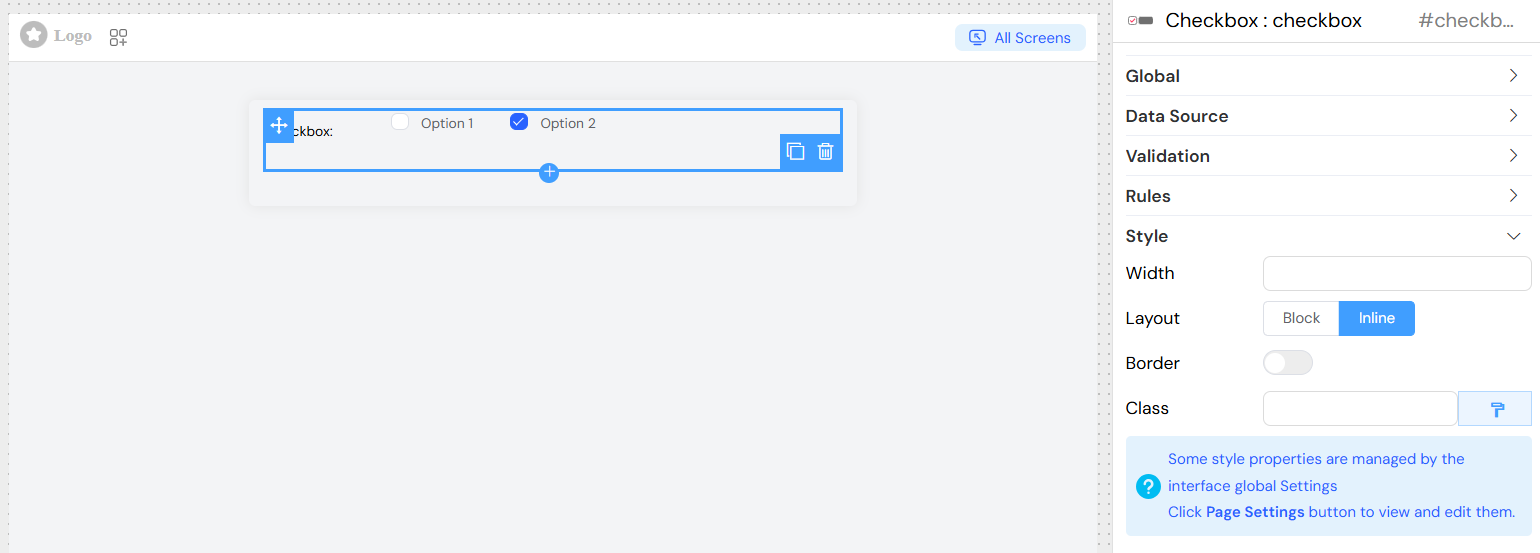
- Layout: Choose between Block or Inline display
- Border: Add borders around checkbox options
- Width: Set widget width (e.g., "100%", "300px")
CSS CustomizationDirect link to CSS Customization
- Class Names: Add custom CSS classes
- Dynamic Classes: Use conditional styling based on data
EventsDirect link to Events
The checkbox widget supports several events:
onChangeDirect link to onChange
Triggered when checkbox selection changes
// Access selected values and data
SF_input.value; // Selected values array
SF_input.SF_data; // Selected objects array
SF_input.SF_currentIndex; // Current loop index
onClickDirect link to onClick
Custom click handler with access to:
- Selected values
- Complete data objects
- Current context information
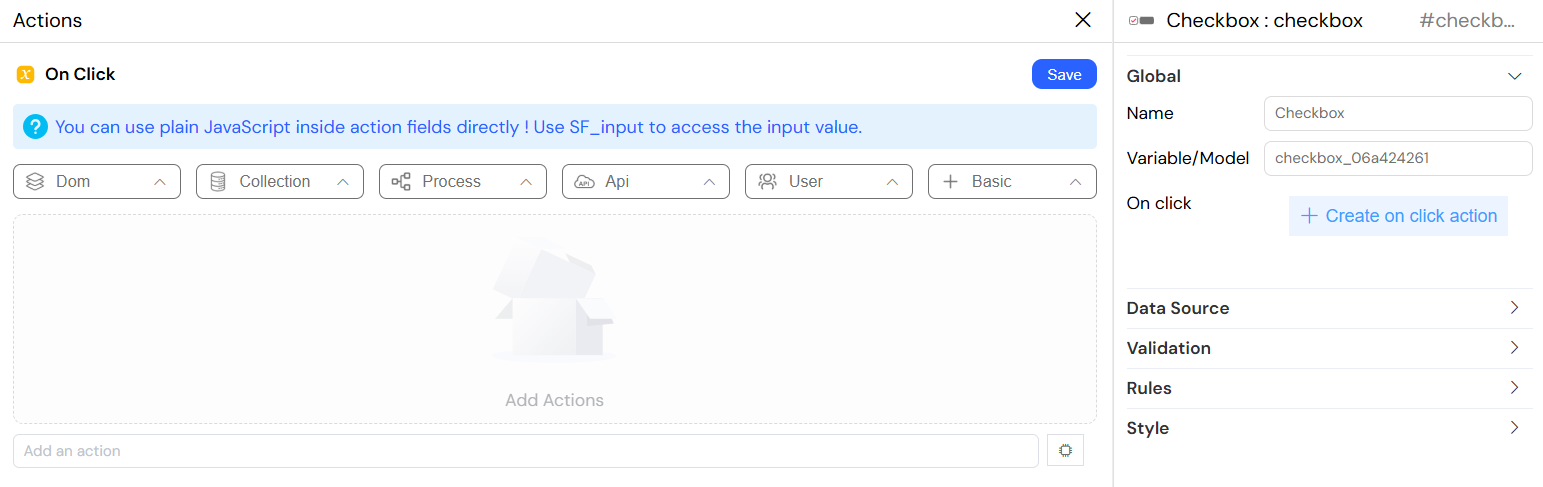
Working with Actions and SF_inputDirect link to Working with Actions and SF_input
Attaching Actions to onChange EventDirect link to Attaching Actions to onChange Event
The checkbox widget's onChange event allows you to execute custom Actions whenever the user changes their selection. This is particularly useful for:
- Filling related fields with data from selected options
- Triggering cascading updates in other form fields
- Fetching additional data from the backoffice based on selection
- Implementing conditional logic based on selected values
How to Attach an ActionDirect link to How to Attach an Action
- Navigate to the Global section in the checkbox widget configuration
- Find the On Change event field (or On Click depending on your interface version)
- Write plain JavaScript directly in the action field
- Your code executes automatically when the selection changes
Accessing Values with SF_inputDirect link to Accessing Values with SF_input
The checkbox widget provides rich data access through the SF_input object. Unlike simple input fields, checkboxes can return both the selected values and the complete data objects from your data source.
SF_input Structure for Checkbox WidgetDirect link to SF_input Structure for Checkbox Widget
{
  value: [/* Array of selected values */],
  SF_data: [/* Array of complete selected objects */],
  SF_currentIndex: /* Loop index if widget is inside a loop */
}
Understanding SF_input PropertiesDirect link to Understanding SF_input Properties
| Property | Description | Example |
|---|---|---|
| value | Array of selected values based on your "Value Property" configuration | ['opt1', 'opt2'] |
| SF_data | Array of complete JSON objects for each selected item | [{id: 'opt1', name: 'Option 1', ...}, {...}] |
| SF_currentIndex | The current iteration index if the widget is in a loop | 0, 1, 2, ... |
Practical ExamplesDirect link to Practical Examples
Example 1: Access Selected ValuesDirect link to Example 1: Access Selected Values
// Get the array of selected values
console.log(SF_input.value);
// Output: ['value1', 'value2', 'value3']

// Check how many items are selected
const selectionCount = SF_input.value.length;

// Check if a specific value is selected
const isSelected = SF_input.value.includes('value1');
Example 2: Access Complete JSON Objects (SF_data)Direct link to Example 2: Access Complete JSON Objects (SF_data)
This is the most powerful feature - accessing the full data objects, not just the values:
// Access the complete data objects for selected items
console.log(SF_input.SF_data);
// Output: [
//   { id: '001', name: 'Product A', price: 100, category: 'Electronics' },
//   { id: '002', name: 'Product B', price: 200, category: 'Clothing' }
// ]

// Extract specific properties from selected items
const selectedNames = SF_input.SF_data.map(item => item.name);
const totalPrice = SF_input.SF_data.reduce((sum, item) => sum + item.price, 0);

// Use the first selected item's data
if (SF_input.SF_data.length > 0) {
  const firstItem = SF_input.SF_data[0];
  model.selected_category = firstItem.category;
  model.selected_supplier = firstItem.supplier;
}
Best PracticesDirect link to Best Practices
Always Check SF_data Length: Before accessing SF_data, verify it's not empty
if (SF_input.SF_data && SF_input.SF_data.length > 0) {
  // Your code here
}
Use SF_data for Rich Information: When you need more than just the value, always use SF_data to access the complete object
Handle Multiple Selections: Remember that checkbox returns arrays, so use array methods appropriately
Validate Data Existence: Check if properties exist before accessing nested data
const supplierName = SF_input.SF_data[0]?.supplier?.name || 'Unknown';Performance Considerations: For large datasets or complex operations, consider debouncing your onChange actions
Clear Documentation: Comment your action code to explain the business logic for future maintenance
Configuration ExamplesDirect link to Configuration Examples
Basic Static CheckboxDirect link to Basic Static Checkbox
Collection-Based CheckboxDirect link to Collection-Based Checkbox
Advanced FeaturesDirect link to Advanced Features
Query CustomizationDirect link to Query Customization
For collection and report data sources, you can define custom queries:

Aggregation QueriesDirect link to Aggregation Queries
Enable aggregation for complex data operations:
Conditional VisibilityDirect link to Conditional Visibility
Set advanced visibility conditions:
Best PracticesDirect link to Best Practices
- Data Source Selection: Choose the appropriate data source type based on your needs
- Performance: Use limits and efficient queries for large datasets
- User Experience: Provide clear labels and meaningful validation messages
- Responsive Design: Consider mobile layouts when choosing inline vs block display
- Accessibility: Ensure proper labeling for screen readers
TroubleshootingDirect link to Troubleshooting
Empty Options: Verify data source configuration and query syntax
Selection Not Saving: Check model variable name and validation rules
Performance Issues: Implement pagination or filtering for large datasets
Styling Issues: Verify CSS class names and responsive design settings