File Upload Widget
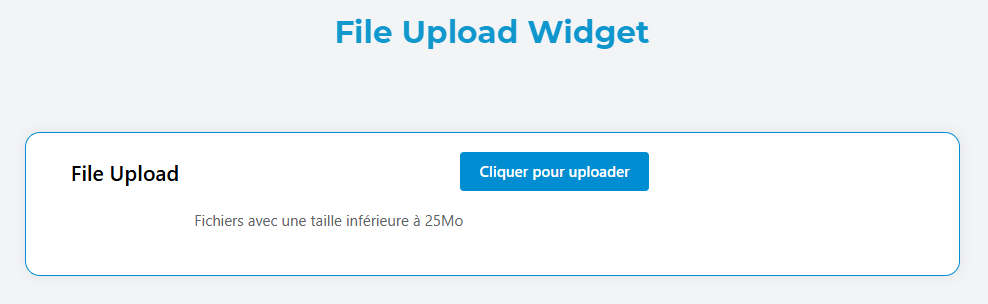
The File Upload widget allows users to upload one or multiple files to your application with advanced configuration options for file validation, storage, and user experience.
OverviewDirect link to Overview
The File Upload widget provides a robust file upload interface with support for:
- Multiple file uploads
- File type validation
- File size limitations
- Drag and drop functionality
- Cloud storage integration (AWS S3)
- Custom styling and validation
Basic ConfigurationDirect link to Basic Configuration
Global SettingsDirect link to Global Settings
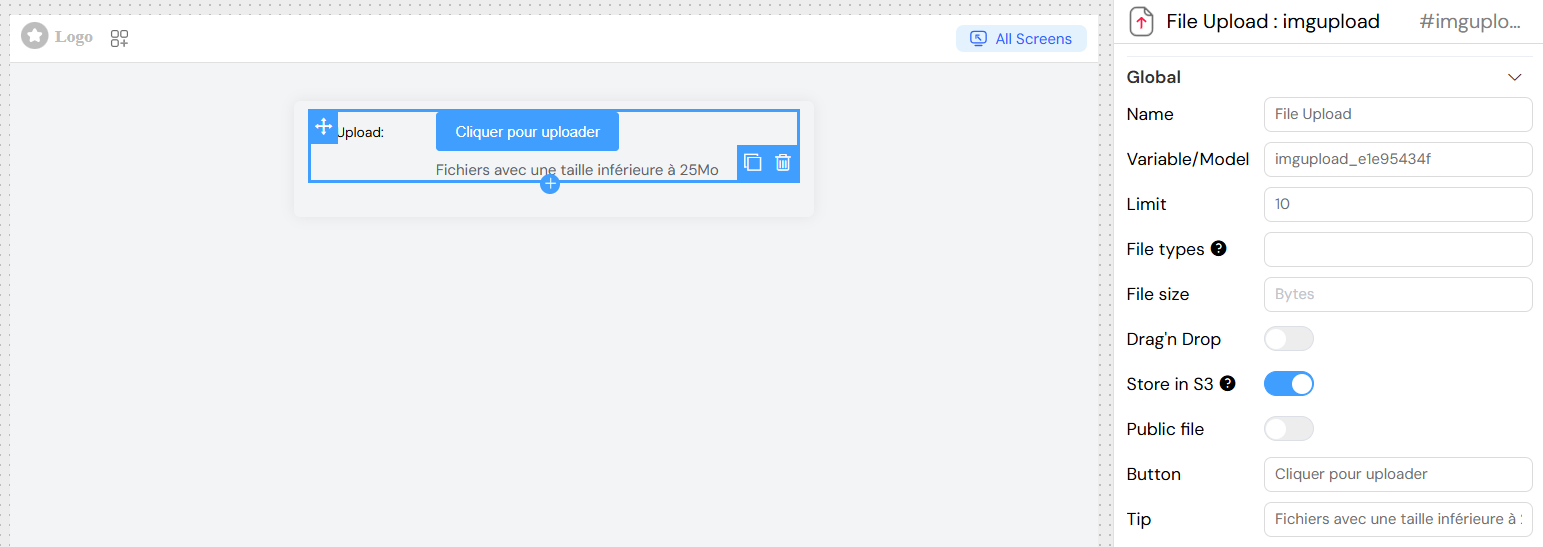
NameDirect link to Name
- Field: Name
- Description: Display name for the widget
- Type: Text input
- Required: Yes
Variable/ModelDirect link to Variable/Model
- Field: Variable/Model
- Description: The data model property that will store the uploaded files array
- Type: Text input
- Required: Yes
- Example:
uploadedFiles

Upload ConfigurationDirect link to Upload Configuration
File LimitDirect link to File Limit
- Field: Limit
- Description: Maximum number of files that can be uploaded
- Type: Number input
- Default: No limit
- Example:
5(allows up to 5 files)
File TypesDirect link to File Types
- Field: File types
- Description: Acceptable file MIME types
- Type: Text input
- Format: Comma-separated MIME types
- Examples:
image/*(all image types)image/jpeg,image/png,image/gif(specific image types)application/pdf(PDF files only)image/*,application/pdf(images and PDFs)
- Reference: MDN MIME Types
File SizeDirect link to File Size
- Field: File size
- Description: Maximum file size allowed per file
- Type: Number input
- Unit: Bytes
- Example:
26214400(25MB in bytes) - Note: Server limit is 25MB by default
Upload InterfaceDirect link to Upload Interface
Drag and DropDirect link to Drag and Drop
- Field: Drag'n Drop
- Description: Enable drag and drop file upload interface
- Type: Toggle switch
- Default: Disabled
- When Enabled: Shows a drop zone with upload icon
- When Disabled: Shows a button for file selection
Button TextDirect link to Button Text
- Field: Button
- Description: Text displayed on the upload button
- Type: Text input
- Default: "Choose Files"
- Example: "Upload Images"
Tip TextDirect link to Tip Text
- Field: Tip
- Description: Helper text displayed below the upload area
- Type: Text input
- Example: "Supported formats: JPG, PNG, PDF. Max size: 25MB"
AWS S3 StorageDirect link to AWS S3 Storage
- Field: Store in S3
- Description: Store uploaded files in AWS S3 bucket instead of local storage
- Type: Toggle switch
- Default: Disabled
- Requirements: S3 bucket must be configured in your account
- Note: This will be the default option in future releases
Public File AccessDirect link to Public File Access
- Field: Public file
- Description: Make uploaded files publicly accessible
- Type: Toggle switch
- Default: Disabled
- Effect: Files can be accessed without authentication
Validation and RulesDirect link to Validation and Rules
Built-in ValidationDirect link to Built-in Validation
The widget automatically validates:
- File type against accepted MIME types
- File size against maximum size limit
- Number of files against the limit
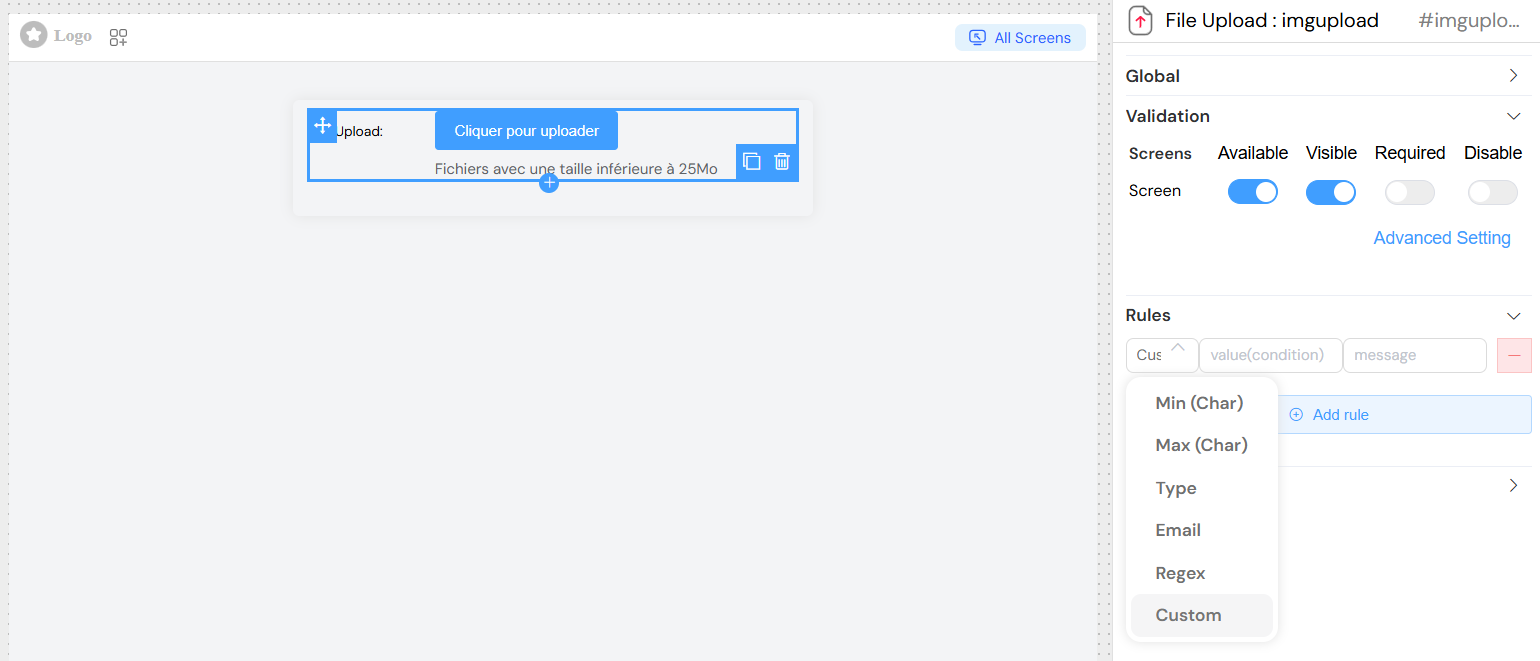
Custom Validation RulesDirect link to Custom Validation Rules
You can add custom validation rules in the Rules section:
- Required: Make the field mandatory
- Custom Rules: Add JavaScript validation functions
Screen-based ValidationDirect link to Screen-based Validation
Configure widget behavior per screen in the Validation section:
- Available: Show/hide widget on specific screens
- Visible: Control visibility with conditions
- Required: Make field required on specific screens
- Disable: Disable widget on specific screens
Styling and LayoutDirect link to Styling and Layout
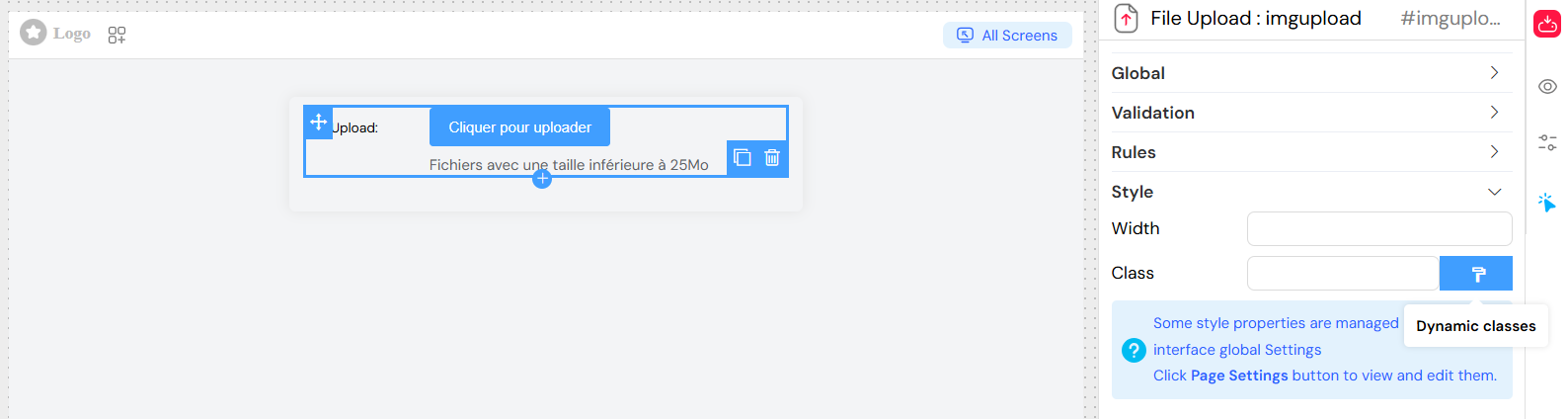
Basic StylingDirect link to Basic Styling
- Width: Set widget width (CSS units)
- Class: Add custom CSS classes
- Dynamic Classes: Set classes based on conditions
Layout OptionsDirect link to Layout Options
- Layout: Choose between block or inline display
- Border: Enable/disable border around widget
Events and ActionsDirect link to Events and Actions
On Click EventDirect link to On Click Event
- Field: On click
- Description: JavaScript function executed when files are uploaded/removed
- Context: Access uploaded files via the model variable
- Available Variables:
SF_input: Object containing file informationSF_currentIndex: Index in loop contexts
](/img/04_ressources/project/web-interface/widgets/fileuploadActions.png)
Usage ExamplesDirect link to Usage Examples
Basic File UploadDirect link to Basic File Upload
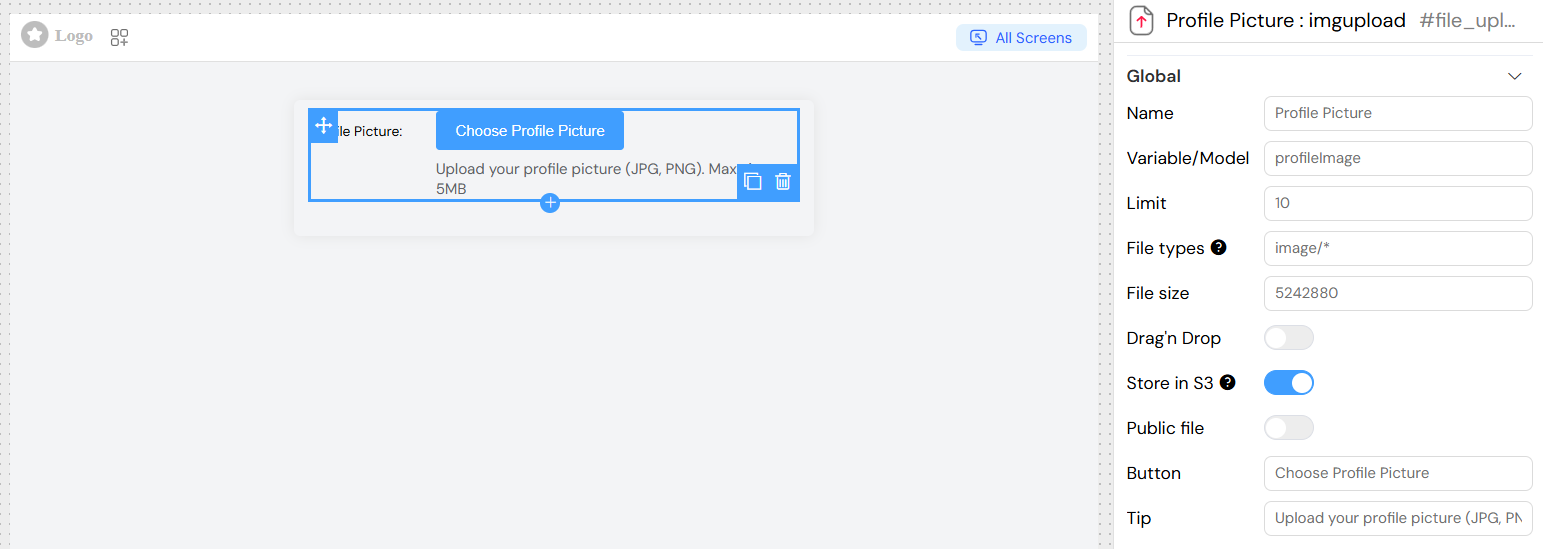
Document Upload with Multiple FilesDirect link to Document Upload with Multiple Files
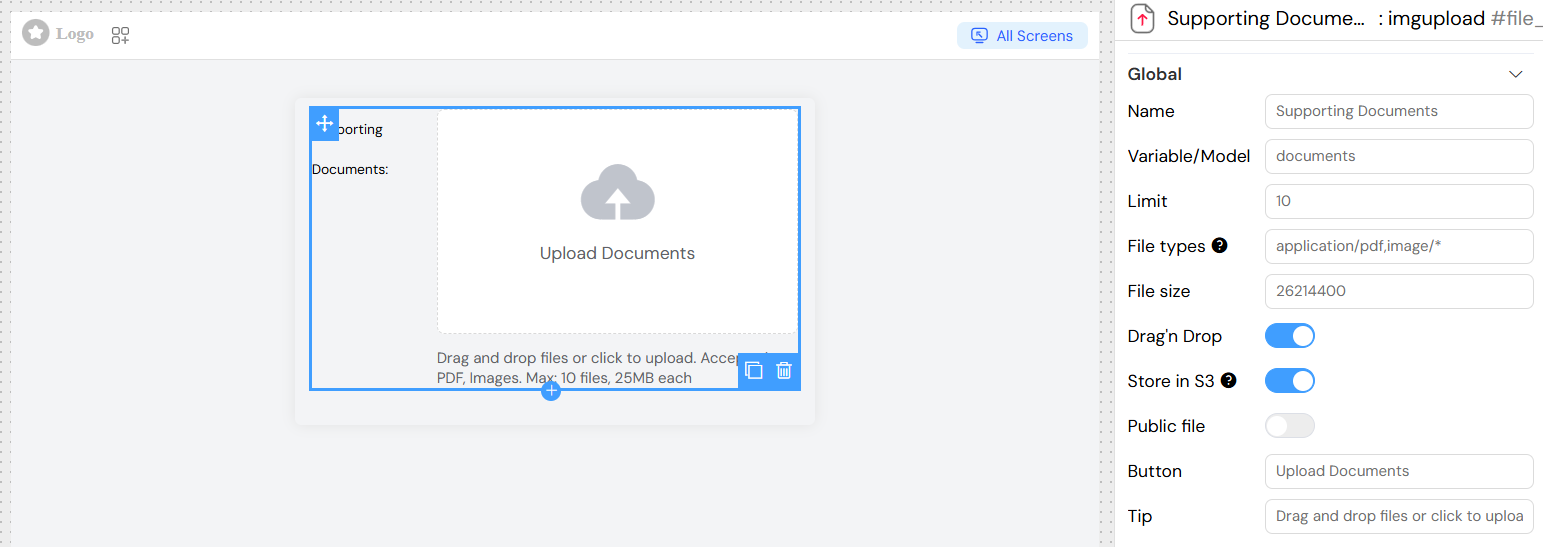
S3 Storage ConfigurationDirect link to S3 Storage Configuration
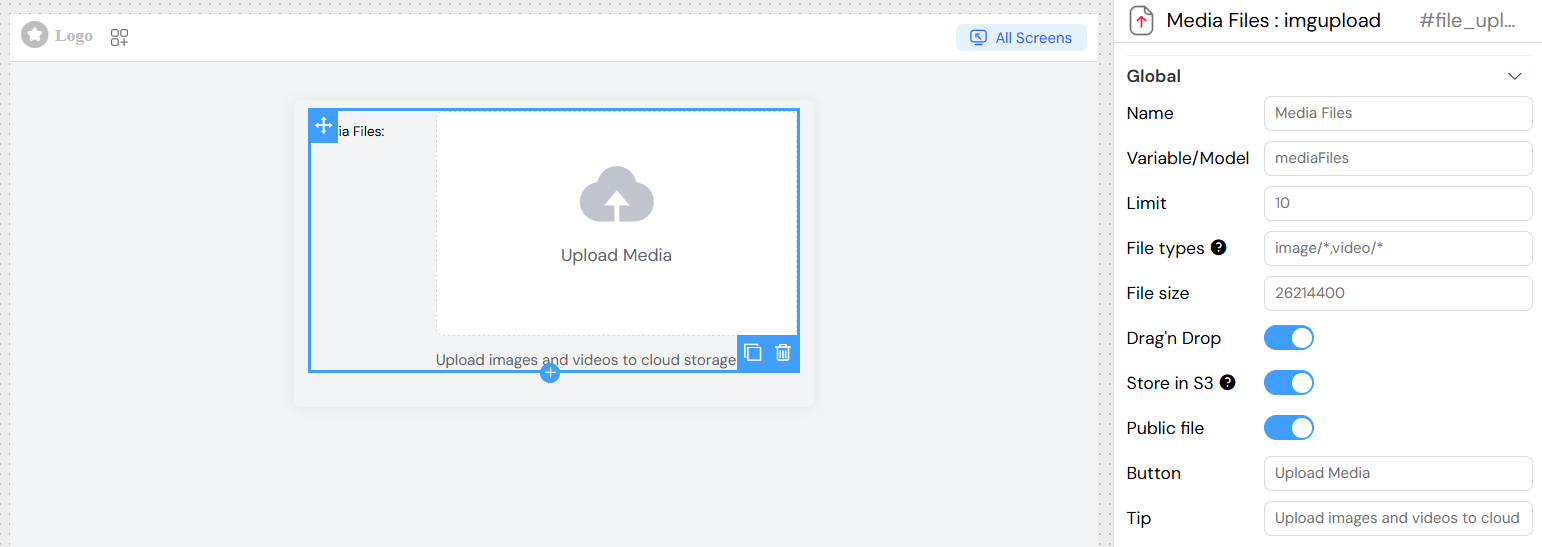
Advanced ConfigurationDirect link to Advanced Configuration
Conditional VisibilityDirect link to Conditional Visibility
Set the widget to show/hide based on other form values:
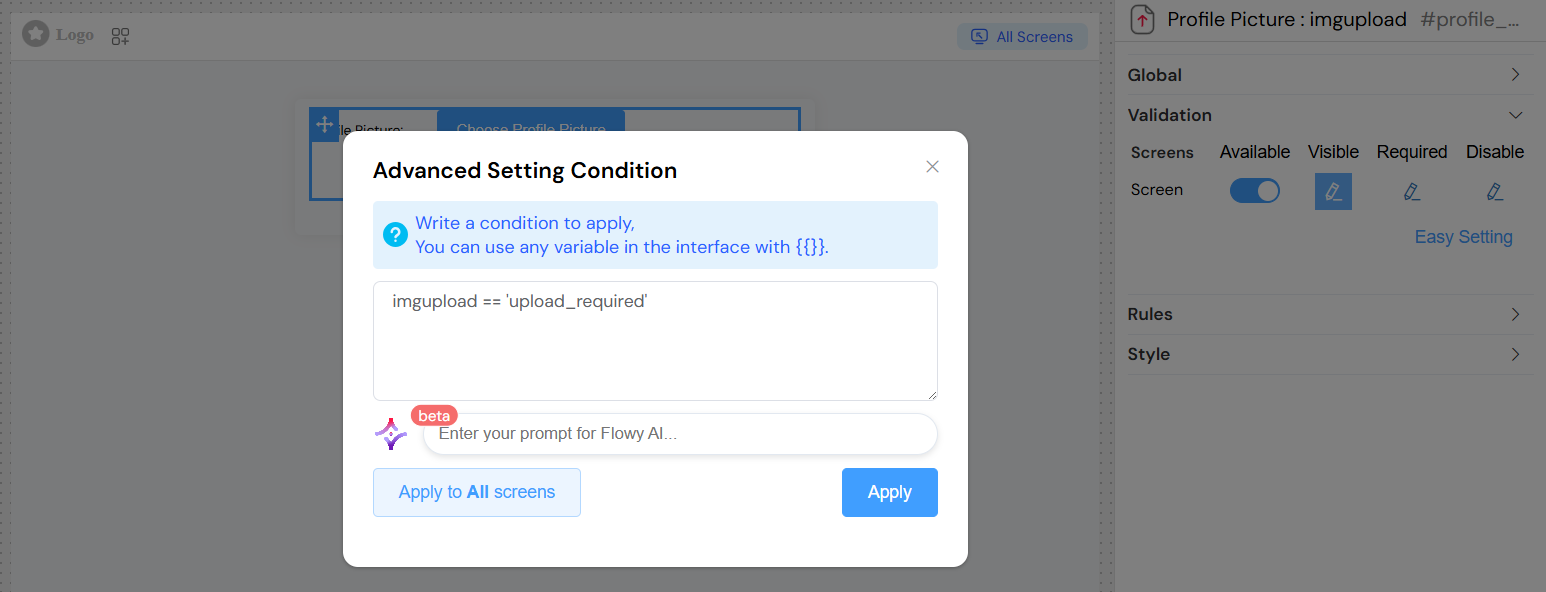
Error HandlingDirect link to Error Handling
Common Error ScenariosDirect link to Common Error Scenarios
- File Type Not Accepted: "Type file not acceptable!"
- File Too Large: "File size can not exceed [maxSize] Bytes!"
- Too Many Files: "Limit is [limit][files](/docs/en/ressources/global/files) !!"
- Server Error: "La taille du fichier à télécharger dépasse la limite de 25Mo."
Best PracticesDirect link to Best Practices
- File Limits: Set reasonable file limits based on your server capacity
- User Feedback: Always provide clear tip text about accepted formats and sizes
- Validation: Use both client-side and server-side validation
- Storage: Consider using S3 for better performance and scalability
- Security: Be cautious with public file settings
- UX: Use drag and drop for better user experience
- Error Messages: Provide clear, actionable error messages