Sub Process
SubProcesses in Softyflow allow you to modularize your workflow by calling other processes from within a main process. This enables better organization, reusability, and the ability to run multiple instances in parallel.
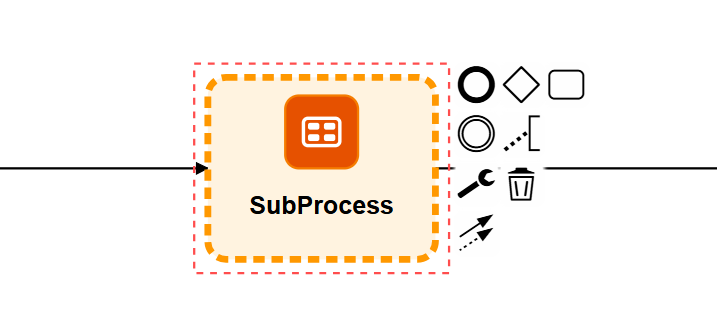
The SubProcess element visually represents an embedded process within your workflow, allowing you to create modular, reusable workflow components that simplify complex process designs and improve maintainability.
1. OverviewDirect link to 1. Overview
A SubProcess is a BPMN element that represents the execution of another complete process within the current process flow. When the execution reaches a SubProcess element, Softyflow:
- Pauses the current process
- Launches the specified SubProcess with the provided variables
- Waits for the SubProcess to complete
- Resumes the parent process with the SubProcess results
2. ConfigurationDirect link to 2. Configuration
2.1. Basic SubProcess ConfigurationDirect link to 2.1. Basic SubProcess Configuration
To configure a SubProcess in the Process Modeler:
- Select the SubProcess Element: Click on the SubProcess element in your BPMN diagram
- Configure Sub Process Settings: In the widget configuration panel, expand the "Sub Process Configuration" section
- Choose the Process: Select the process you want to execute as a SubProcess from the dropdown
2.2. SubProcess SelectionDirect link to 2.2. SubProcess Selection
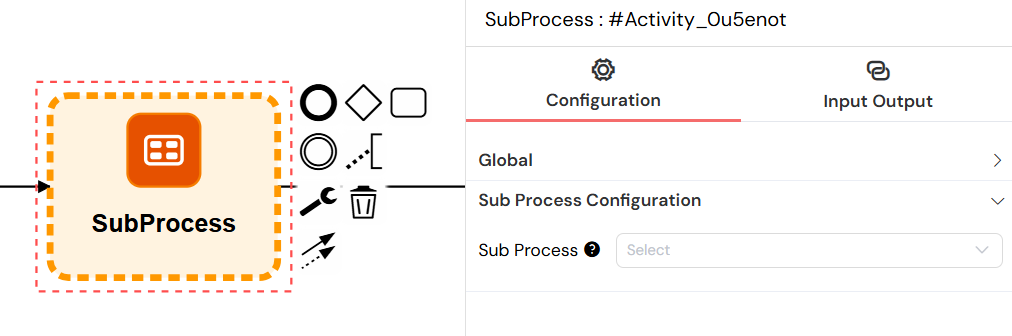
This configuration panel provides options for selecting the SubProcess to execute and enabling parallel multi-instance execution, allowing a single SubProcess element to process multiple data items concurrently.
The SubProcess dropdown shows all available processes in your project:
- Process names are displayed for easy identification
- Only processes within the same project are available
- The selected process will be executed with the current process variables
3. Variable PassingDirect link to 3. Variable Passing
3.1. Input VariablesDirect link to 3.1. Input Variables
When a SubProcess is launched, it receives:
- All current process variables: The complete variable context from the parent process
- Special variables:
SF_mode: The execution mode (test/uat/prod)SF_version: The version IDSF_initiator: The user who initiated the parent processSF_loop_variables: Contains the current array element data in multi-instance executionSF_loop_index: Contains the current iteration index (0-based) in multi-instance execution
3.2. Output VariablesDirect link to 3.2. Output Variables
When a SubProcess completes, its results are passed back to the parent process:
SF_sub_process_data: Contains the final variables from the SubProcessSF_sub_process_res: Array containing results from multiple SubProcess instances (for parallel execution)
4. Parallel Multi-Instance ExecutionDirect link to 4. Parallel Multi-Instance Execution
Softyflow supports parallel execution of SubProcesses using BPMN Multi-Instance Loop Characteristics.
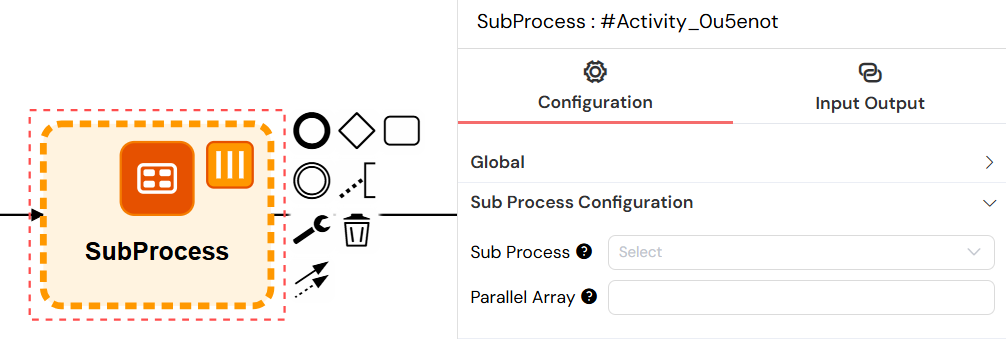
The parallel multi-instance configuration transforms a single SubProcess into a powerful parallel processing engine, creating and executing multiple SubProcess instances simultaneously, each processing a different element from your data array.
4.1. ConfigurationDirect link to 4.1. Configuration
- Enable Multi-Instance: Configure the SubProcess element with Multi-Instance Loop Characteristics
- Set Parallel Array: Specify a variable that contains an array of values
- Configure Array Variable: Each array element will be used to start a separate SubProcess instance
4.2. Parallel Array SetupDirect link to 4.2. Parallel Array Setup
In the SubProcess configuration:
- Parallel Array Field: Enter the name of a variable containing an array
- Variable Usage: Each array element becomes available as
SF_loop_variablesin the SubProcess - Index Access: The current array index is available as
SF_loop_index
4.3. Important NotesDirect link to 4.3. Important Notes
- Variable Name Only: Don't use
{{}}or${}syntax in the array field - just the variable name - Array Validation: If the variable is not an array, Softyflow treats it as a single-element array
[{}] - Parallel Execution: All SubProcess instances run simultaneously
- Result Collection: Results from all instances are collected in
SF_sub_process_resarray
5. Best PracticesDirect link to 5. Best Practices
Variable NamingDirect link to Variable Naming
- Use clear, descriptive names for SubProcess variables
- Prefix SubProcess-specific variables to avoid conflicts
- Document expected input and output variables
Error HandlingDirect link to Error Handling
- Implement error handling in both parent and SubProcess
- Use boundary events for timeout scenarios
- Consider retry mechanisms for failed SubProcess instances
Performance ConsiderationsDirect link to Performance Considerations
- Limit parallel SubProcess instances to avoid resource exhaustion
- Monitor SubProcess execution times
- Use appropriate timeout values for long-running SubProcesses
TestingDirect link to Testing
- Test SubProcesses independently before integration
- Use test mode to validate variable passing
- Verify parallel execution behavior with different array sizes
6. Monitoring and DebuggingDirect link to 6. Monitoring and Debugging
6.1. Instance TrackingDirect link to 6.1. Instance Tracking
Softyflow provides tools to monitor SubProcess execution:
- Parent-Child Relationships: View the relationship between processes in the instance details
- Execution Status: Monitor the status of each SubProcess instance
- Variable Flow: Track how variables are passed and modified
6.2. Common IssuesDirect link to 6.2. Common Issues
- Variable Not Found: Ensure the array variable exists and is properly named
- SubProcess Not Starting: Verify the SubProcess ID and permissions
- Performance Issues: Monitor parallel execution limits
- Variable Conflicts: Use unique variable names to avoid overwrites
7. Advanced ConfigurationDirect link to 7. Advanced Configuration
7.1. Conditional SubProcess ExecutionDirect link to 7.1. Conditional SubProcess Execution
Use gateway conditions to execute SubProcesses conditionally:
// Gateway condition example
{{ approvalRequired }} == true && {{ documentType }} == 'contract'
7.2. Dynamic SubProcess SelectionDirect link to 7.2. Dynamic SubProcess Selection
Use variables to dynamically select which SubProcess to execute:
// Dynamic SubProcess ID
{
  {
    "process_" + documentType + "_approval";
  }
}
7.3. Timeout ConfigurationDirect link to 7.3. Timeout Configuration
Configure timeouts for SubProcess execution using boundary timer events:
- Timer Duration: Set appropriate timeout values
- Timeout Actions: Define what happens when SubProcess times out
- Escalation: Implement escalation procedures for delayed SubProcesses
8. ConclusionDirect link to 8. Conclusion
SubProcesses in Softyflow provide powerful capabilities for:
- Modularization: Breaking complex processes into manageable components
- Reusability: Using the same SubProcess in multiple parent processes
- Parallel Processing: Executing multiple instances simultaneously for improved performance
- Maintainability: Easier updates and testing of individual process components
By following the configuration guidelines and best practices outlined in this documentation, you can effectively leverage SubProcesses to build robust, scalable workflow solutions in Softyflow.