Input Output
Input/Output parameters allow you to process and transform data before and after task execution in your process workflows. This powerful feature supports three types of operations: Scripts, Expressions, and Actions.
Input/Output parameters are available for:
- Empty Tasks (Normal Tasks)
- User Tasks (Manual Tasks)
- Send Tasks (Email Tasks)
- Sub Processes
1. Parameter TypesDirect link to 1. Parameter Types
| Type | Description | Use Case |
|---|---|---|
| Script | JavaScript code executed server-side | Complex logic, calculations, API calls |
| Expression | String Value | Variable with a static string value |
| Action | Visual function builder | UI operations, database queries, file handling |
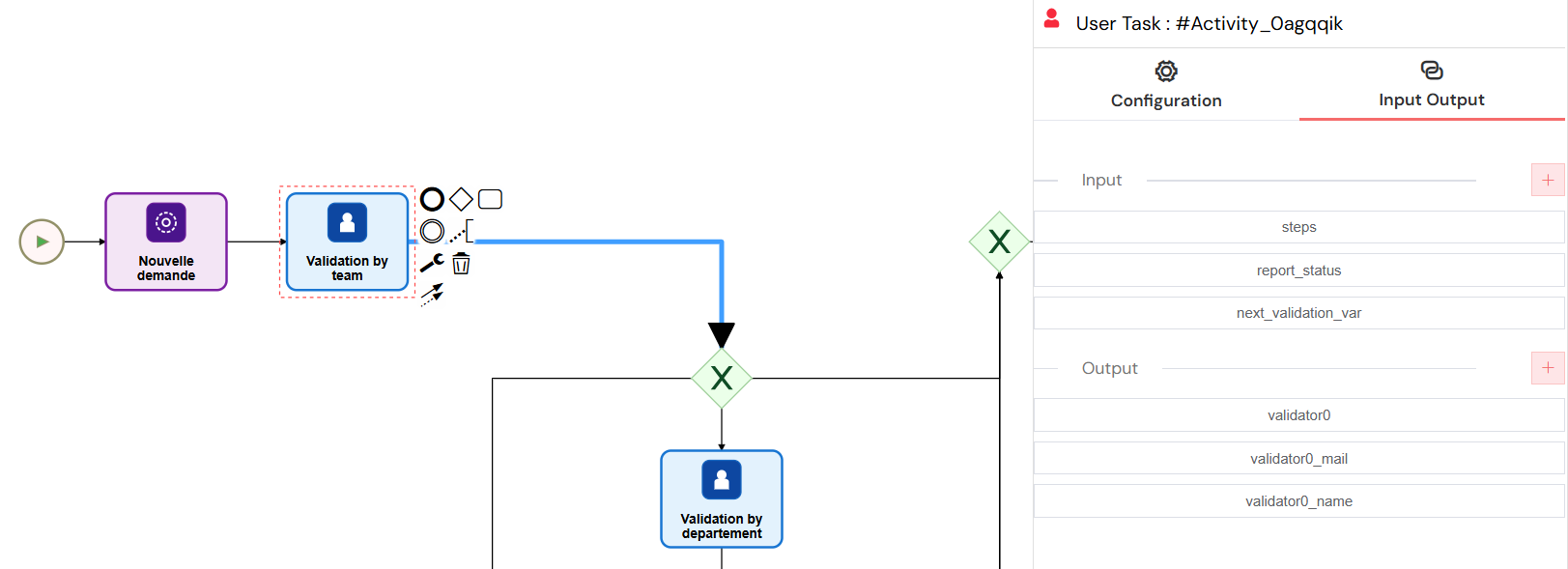
The Input/Output parameters interface provides a centralized location for managing data transformations before and after task execution, with support for scripts, expressions, and visual action builders.
2. Input ParametersDirect link to 2. Input Parameters
Input parameters are executed before the task runs, allowing you to:
- Transform external data for task consumption
- Set up task-specific variables
- Prepare data from previous tasks
- Initialize default values
3. Output ParametersDirect link to 3. Output Parameters
Output parameters are executed after the task completes, allowing you to:
- Process task results
- Transform data for the next steps
- Update process variables
- Save results to databases
4. Script ParametersDirect link to 4. Script Parameters
Scripts use JavaScript and run in a secure server-side environment with access to the Softyflow SDK.
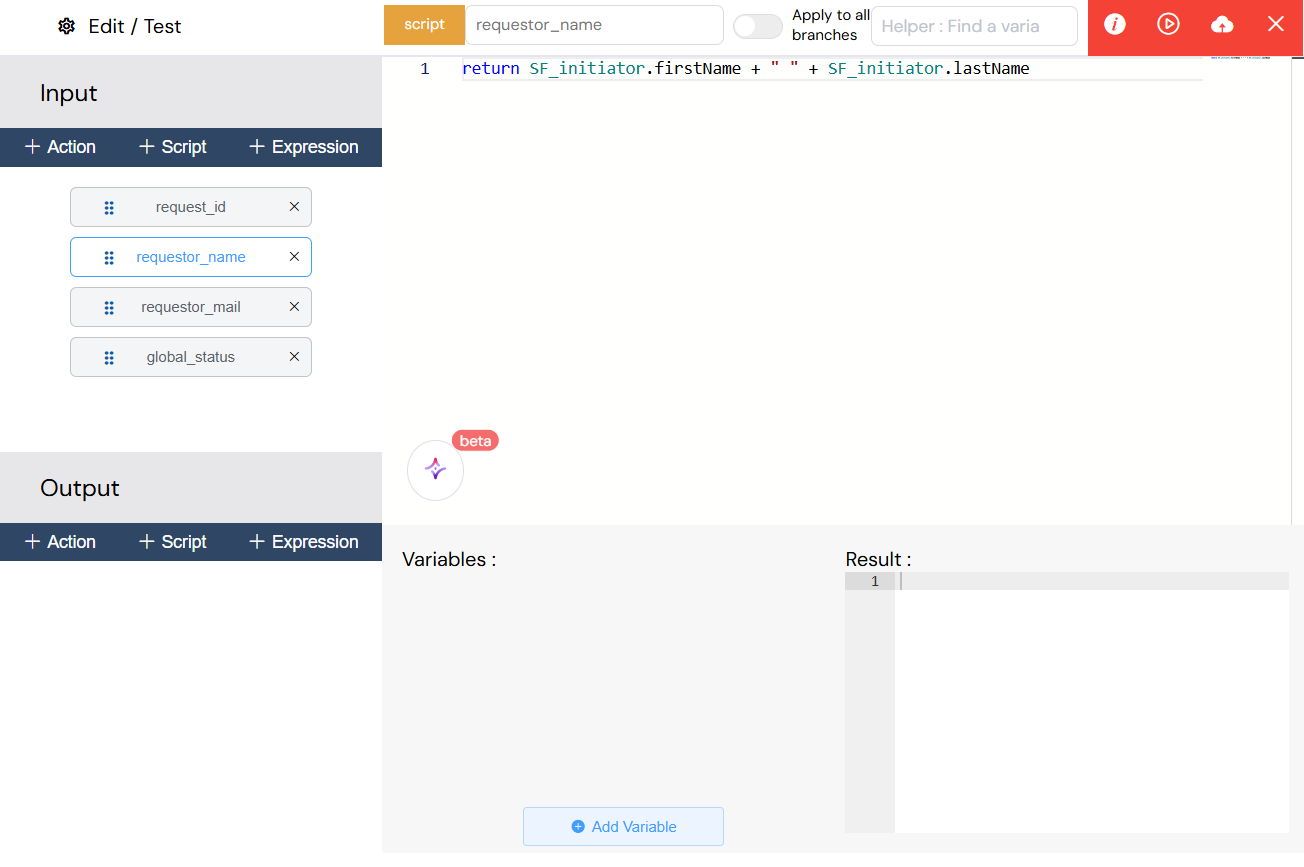
The script parameter editor offers a complete JavaScript development environment with syntax highlighting, variable access, and SDK integration for implementing complex business logic and data transformations.
4.1. Available Variables in ScriptsDirect link to 4.1. Available Variables in Scripts
The following variables are globally available in the script execution context:
- Process Variables: All variables currently active in the process instance.
SF_initiator: An object containing information about the user who started the process.SF_latestValidator: An object with details about the user who last validated a task.volt: A global object for accessing configuration variables.SF: The Softyflow SDK instance, providing access to a wide range of backend functionalities.
4.2. SDK Function ExamplesDirect link to 4.2. SDK Function Examples
Here are a few examples of what you can do with the SDK:
// --- Database Operations ---
// Find active users in the "users" collection
const activeUsers = SF.collection.find("users", { status: "active" });
// Insert a new document into the "orders" collection
SF.collection.insertOne("orders", { product: "New Laptop", quantity: 1 });

// --- File Operations ---
// Upload a file
const fileId = SF.file.upload(fileData);
// Download a file
const downloadedFile = SF.file.download(fileId);

// --- User Operations ---
// Retrieve a user by their ID
const user = SF.user.getUserById(userId);
// Update a user's metadata
SF.user.updateUserMetadata(userId, "preference", "dark_mode");

// --- Process Operations ---
// Launch a new process instance
SF.instance.launchProcess("process_definition_key", {
  initialVariable: "value",
});
// Validate a user task and pass data
SF.instance.validateTask(taskId, { taskResult: "approved" });
5. Expression ParametersDirect link to 5. Expression Parameters
Expressions are simple text expressions.

The expression parameter interface enables simple string value assignments without complex scripting, ideal for static values, basic variable mapping, and straightforward text assignments.
6. Action ParametersDirect link to 6. Action Parameters
Actions provide a visual interface for building complex functions without writing code.
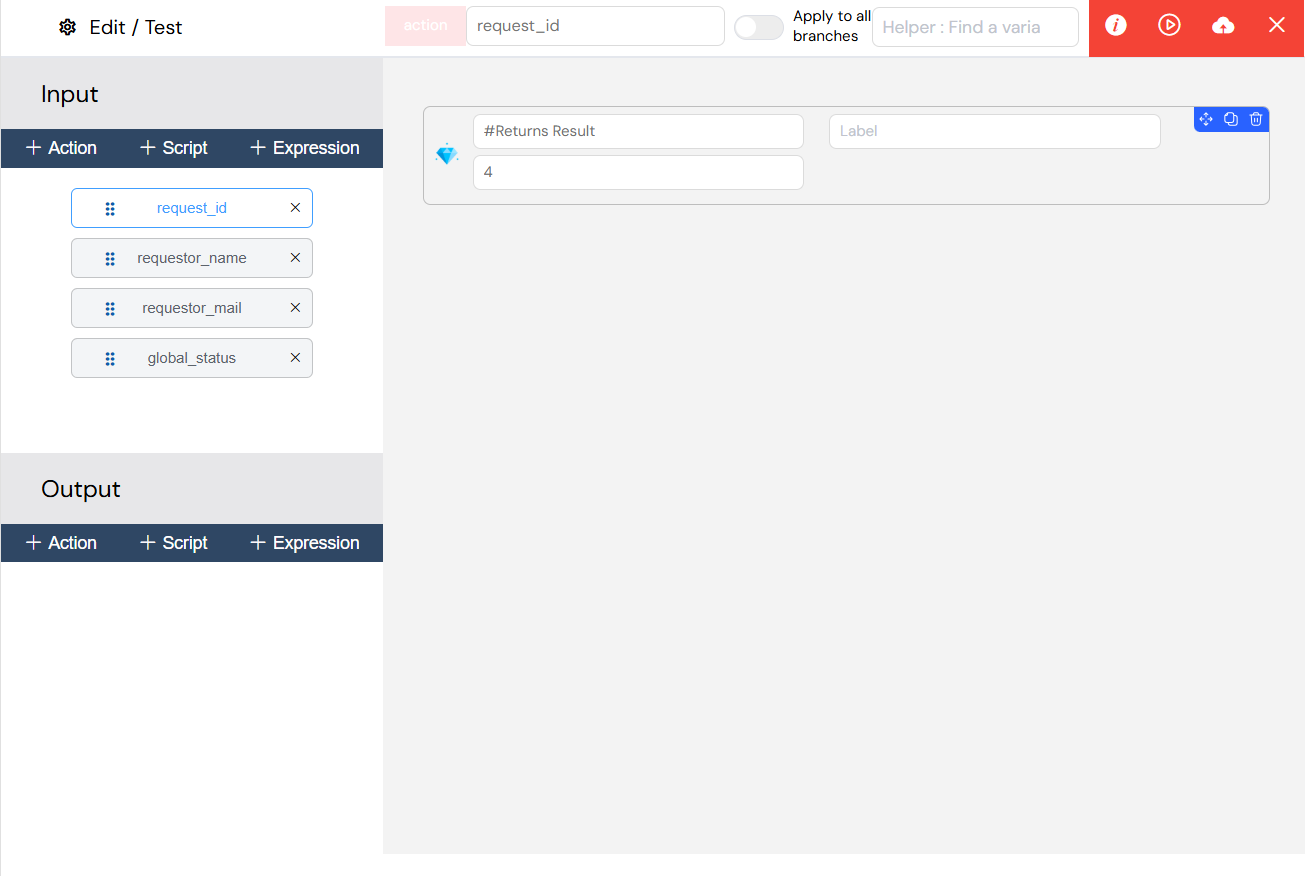
The action builder provides a no-code visual interface for creating complex workflows by connecting pre-built operations like database queries, API calls, and file handling without JavaScript programming.
6.1. Available Action CategoriesDirect link to 6.1. Available Action Categories
Database Actions
- Find Collection: Query database collections
- Insert to Collection: Add new documents
- Update Collection: Modify existing documents
- Delete Document: Remove documents
- Aggregate Collection: Complex database queries
- SQL Operations: Direct SQL database operations
Process Actions
- Launch Process: Start new process instances
- Validate Task: Complete pending tasks
- Get Pending Task: Retrieve task information
- Update Instance Variables: Modify process data
- Get Measures: Retrieve process metrics
User Management Actions
- Find Users: Search user database
- Find User By ID: Get specific user
- Update User Metadata: Modify user preferences
- Get User Metadata: Retrieve user data
Utility Actions
- Get Next Value: Generate sequential numbers
- Call API: External API integration
- Generate PDF: Create PDF documents
- Send Email: Email notifications
7. Configuration InterfaceDirect link to 7. Configuration Interface
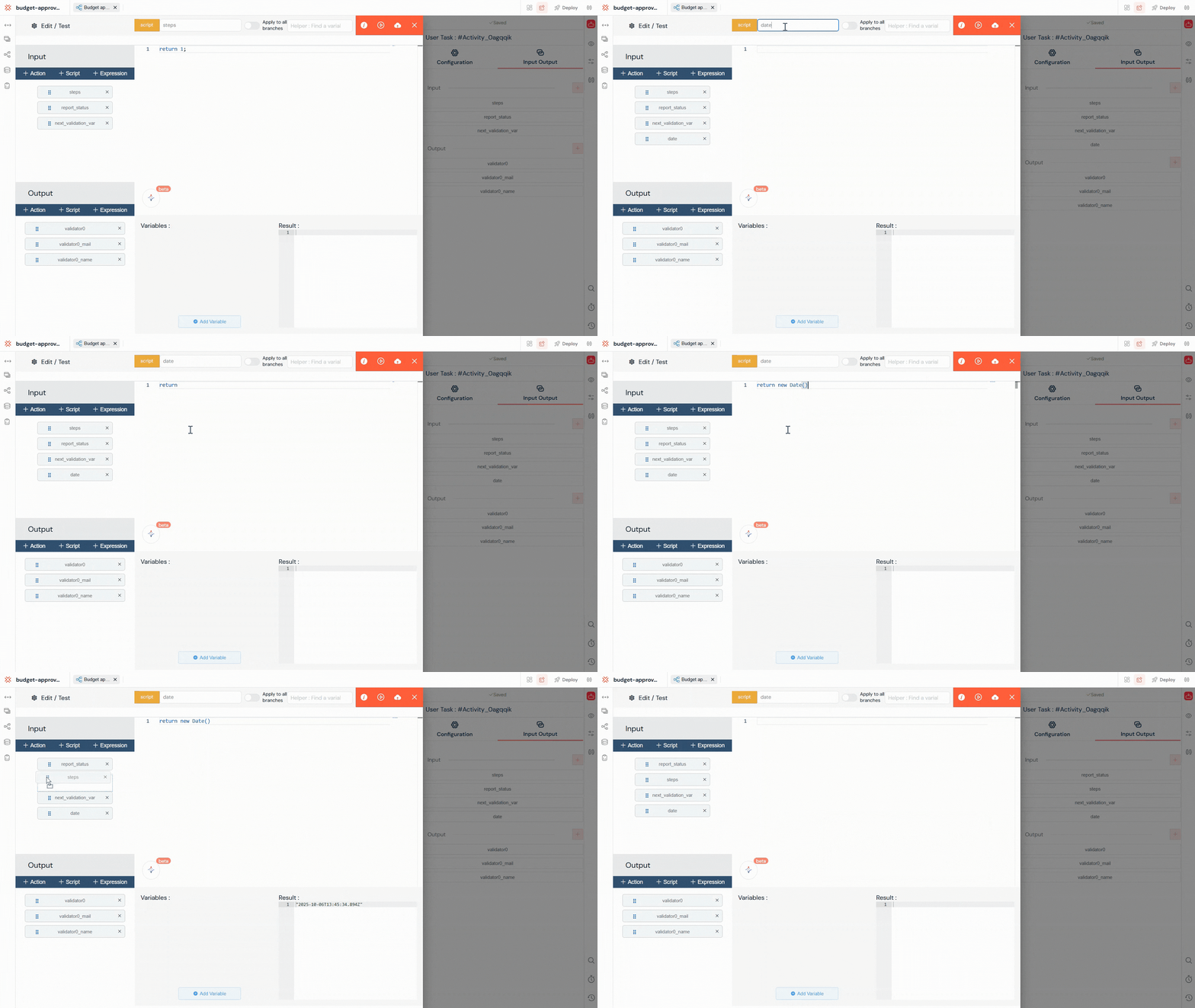
This comprehensive configuration panel offers drag-and-drop parameter management, real-time testing capabilities, and validation tools to ensure your data transformations work correctly before deployment.
7.1. Adding ParametersDirect link to 7.1. Adding Parameters
- Open Task Configuration: Select any task in the process modeler
- Access Input/Output Section: Scroll to the Input/Output section
- Add Parameters: Use the
+buttons to add new parameters:- Add Script: For JavaScript code
- Add Expression: For simple expressions
- Add Action: For visual function building
7.2. Parameter ManagementDirect link to 7.2. Parameter Management
7.2.1. Drag & Drop OrderingDirect link to 7.2.1. Drag & Drop Ordering
Parameters execute in order from top to bottom. Use the drag handle to reorder:
📋 Parameter 1 (executes first)
📋 Parameter 2 (executes second)
📋 Parameter 3 (executes last)
8. Best PracticesDirect link to 8. Best Practices
8.1. Performance OptimizationDirect link to 8.1. Performance Optimization
- Use expressions for simple operations.
- Use scripts for complex logic.
- Use actions for database operations.
- Minimize external API calls in critical paths.
8.2. Error HandlingDirect link to 8.2. Error Handling
A robust script should always include error handling to prevent process failures.
try {
  let result = complexCalculation(inputData);
  return result;
} catch (error) {
  console.error("Calculation failed:", error);
  // Provide a fallback value or re-throw the error
  return defaultValue;
}
8.3. Variable Naming ConventionsDirect link to 8.3. Variable Naming Conventions
- Descriptive Names: Use clear and descriptive variable names (e.g.,
customerEmailinstead ofemail). - Consistent Convention: Follow a consistent naming convention, such as
camelCase. - Avoid System Prefixes: Do not use system-reserved prefixes like
SF_to avoid conflicts.
9. Advanced FeaturesDirect link to 9. Advanced Features
9.1. Dynamic Variable NamesDirect link to 9.1. Dynamic Variable Names
// Set variables dynamically
let variableName = "user_" + userId;
variables[variableName] = userData;
9.2. Conditional ExecutionDirect link to 9.2. Conditional Execution
// Only execute if conditions are met
if (orderTotal > 1000) {
  return applyDiscountLogic();
}
return orderTotal;
9.3. Multi-Instance ProcessingDirect link to 9.3. Multi-Instance Processing
For sub-processes with parallel instances:
// Access loop variables in sub-process
let currentItem = SF_loop_variables;
let itemIndex = SF_loop_index;
9.4. System VariablesDirect link to 9.4. System Variables
The following system variables are always available in both scripts and expressions, providing important contextual information about the running process:
SF_initiator: Information about the user who initiated the process.SF_latestValidator: Details of the user who last validated a task.SF_mode: The current execution mode, which can betestorprod.SF_version: The version of the process definition.instanceId: The unique identifier for the current process instance.projectId: The identifier of the project to which the process belongs.
10. TroubleshootingDirect link to 10. Troubleshooting
10.1. Common IssuesDirect link to 10.1. Common Issues
Variable Not Found:
Error: Cannot read property 'name' of undefined- Solution: Check variable names and ensure they exist in the process context before use.
Syntax Errors in Scripts:
Error: Unexpected token- Solution: Validate your JavaScript syntax. Use the built-in testing interface to catch errors early.
Action Parameter Errors:
Error: Missing required parameter- Solution: Ensure all required parameters for an action are correctly configured.
Timeout Errors:
Error: Operation timed out- Solution: Optimize long-running scripts and actions. Consider breaking them down into smaller, more efficient operations.
10.2. Debugging TipsDirect link to 10.2. Debugging Tips
- Use Console Logging: Add
console.log()statements within your scripts to inspect variable values at different execution stages. - Test Incrementally: Start with simple expressions and gradually build up to more complex logic.
- Check Variable Values: Use the variable finder in the interface to see what data is available in the current scope.
- Validate Data Types: Ensure that variables contain the data types you expect (e.g.,
string,number,object). - Use Try-Catch Blocks: Wrap potentially failing operations in
try-catchblocks to handle errors gracefully.
This comprehensive input/output system provides powerful data transformation capabilities while maintaining simplicity for common use cases. Whether you need simple variable mapping or complex business logic, the combination of scripts, expressions, and actions covers all process automation needs.