Number Widget
OverviewDirect link to Overview
The Number tile of the palette (Form group) adds a numeric field. It is the Input widget with its Type already set to Number; the header of the configuration panel shows the Number badge. Set Type to String and the same widget becomes a text field.
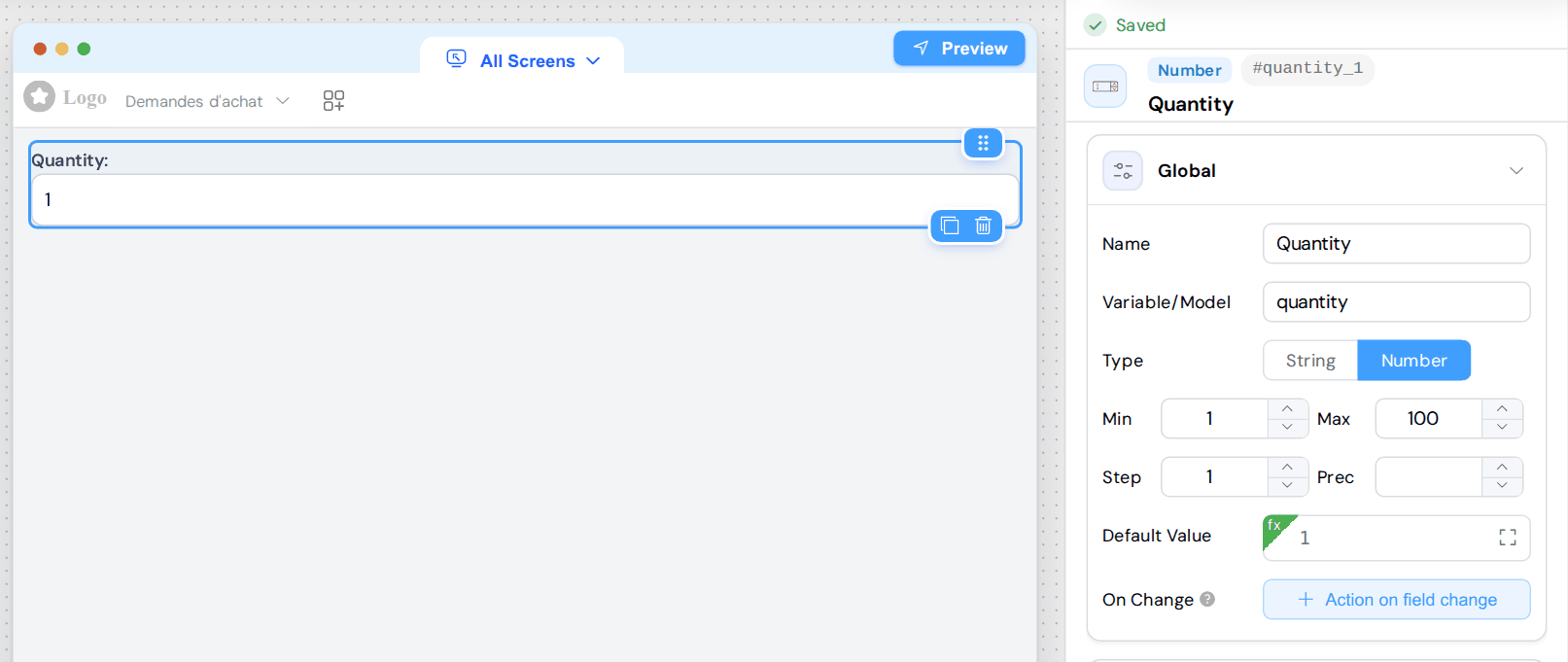
ConfigurationDirect link to Configuration
The Global card holds the settings of the widget:
| Setting | Description |
|---|---|
| Name | Label of the field. |
| Variable/Model | Page variable that holds the value. |
| Type | Number for this tile. String turns the widget into a text field. |
| Min, Max | Limits of the value. Empty: no limit. |
| Step | Amount added or removed by the arrows of the field. Default: 1. |
| Prec | Has no effect on the page (see below). |
| Default Value | Initial value: a number (12, 2.5), a variable ({{budget}}) or a formula (={{budget}}*2). A variable or a formula is computed again when its variables change. A value that is not a number is ignored and the field starts empty. See Dynamic Default Values. |
| On Change | Action run when the user changes the value. |
The Validation, Rules and Style cards are those of the Input widget: see Validation and Rules and Styling Options.
Behavior on the PageDirect link to Behavior on the Page
- Typing: Chrome and Edge ignore letters typed in the field, except
e(scientific notation:12e3becomes12000when the user leaves the field). - Min and Max apply when the user leaves the field: with Max at 100, a typed
150becomes100. - Step only drives the arrows. A typed value is kept as it is: with Step at 5,
7stays7. - Prec is not applied: with Prec at 2,
3.14159stays3.14159. To set the number of decimals, use the Precision setting of the Currency widget. - Number or text: the variable holds a number once the user has left the field. Until then it holds text, and On Change receives text too (
SF_input.valueis'12'): useNumber(SF_input.value)to compute with it. - Empty field: the variable is empty (
null) until the user touches the field. When the user leaves an empty field, the value becomes0. A field that the user has emptied takes the value of Min when Min is above 0.
Required and the value 0
A Required Number field is accepted as soon as the user has clicked in it and left it, because its value is then 0. To refuse this value, add a Custom rule in the Rules card, with the value SF_input > 0 and a message.