Captcha Widget
The Captcha widget protects a form against bots. It shows an image with a random code and a field where the user types that code; the server checks the typed code, and a wrong code is refused with the Error message of the widget. Use it on pages open to everybody, sign-up or contact forms, or before starting a process from a public page. Read the limits in version 8.6 before relying on it.

Adding a CaptchaDirect link to Adding a Captcha
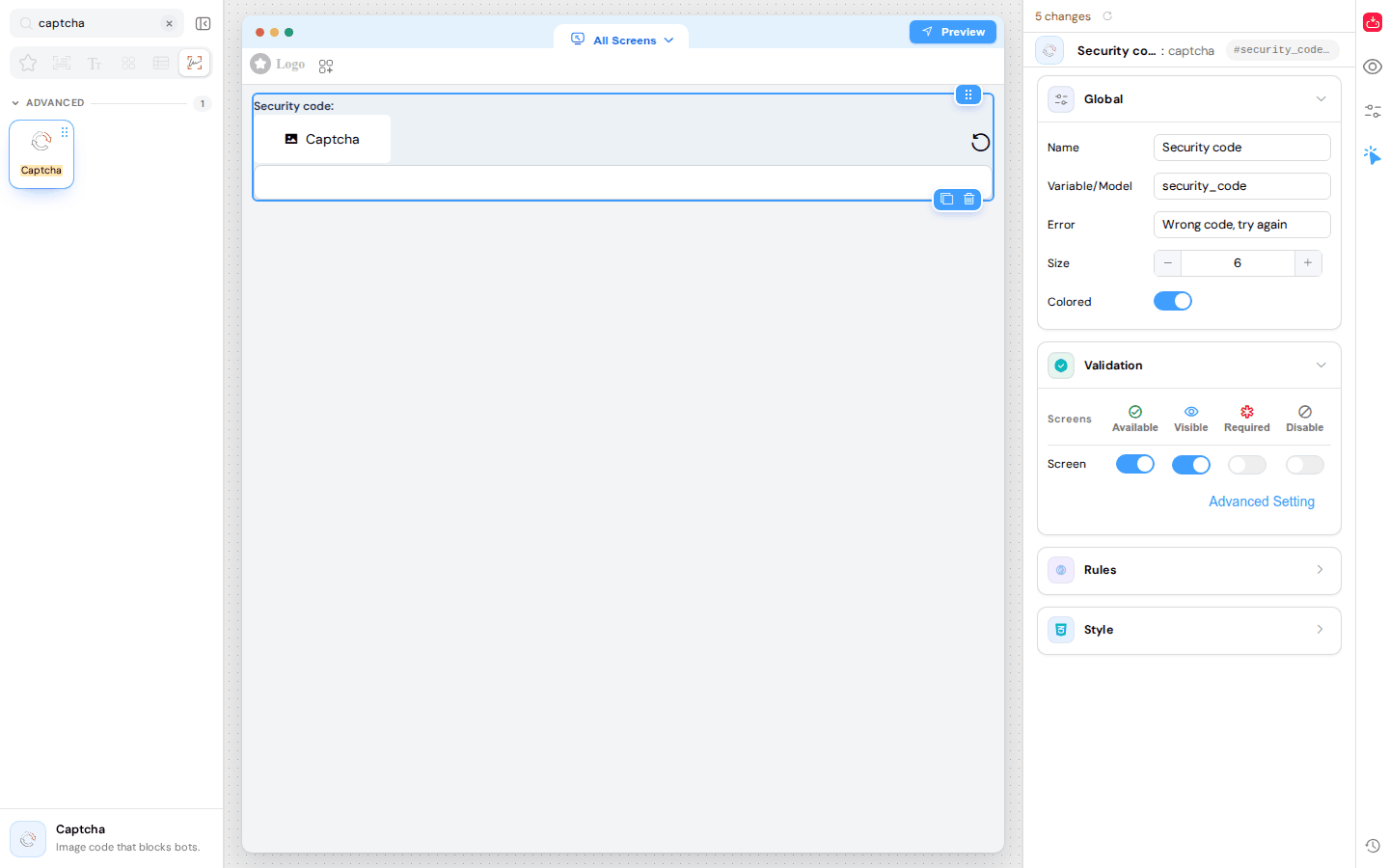
The Captcha is in the Advanced group of the widget palette (or type captcha in Search widgets); its description reads Image code that blocks bots. Drag it onto the page, then select it to open its configuration.
On the builder canvas, the widget only shows a placeholder (a picture icon and the word Captcha) above the input field: the real image is drawn when the page is opened.
ConfigurationDirect link to Configuration
GlobalDirect link to Global
- Name: the label of the field. It is also used in the message shown when the field is empty: the name followed by is required (for example Security code is required).
- Variable/Model: the variable that receives the text typed by the user. It never contains the expected answer.
- Error: the message shown under the field when the typed code is wrong, for example Wrong code, try again. The Captcha needs it to block anything: when Error is empty (the default when the widget is dropped), a wrong code turns the field red, without any text, but does not stop the validation of the form — the action goes on as if the code were right. Like the Name, it is translated with the page dictionary (see Multi-language).
- Size: the number of characters of the code (4 by default). The builder accepts 4 or more; the server draws at most 10 characters, so a higher value gives a 10-character code.
- Colored: draws each character in its own colour instead of grey.
ValidationDirect link to Validation
As for the other fields, the Validation card sets, for each screen, whether the Captcha is available, visible, required or disabled (columns Available, Visible, Required and Disable), with Advanced Setting for conditions (see Rules Manager & Validation).
An empty Captcha is always refused when it is checked, even if Required is off: the user sees the name followed by is required. To skip the Captcha on a screen, make it not available or not visible on that screen.
RulesDirect link to Rules
Add rule adds extra validation rules to the field, as for any input.
StyleDirect link to Style
- Placeholder: the hint shown in the empty field, for example Type the code above.
- Width: the width of the widget (
100%by default). - Class: CSS classes for the widget; the format painter button sets conditional classes. The other style settings are managed in the page settings.
Behaviour at RuntimeDirect link to Behaviour at Runtime
- The image (150 × 50 pixels) is drawn by the server each time the page is opened. The code mixes upper-case letters, lower-case letters and digits, crossed by a noise line.
- The circular arrow at the right of the image draws a new code and empties the field. Users can click it when the code is hard to read.
- The typed code is sent to the server for checking when the user leaves the field, and checked again each time the form that holds the Captcha is validated — for example by the startProcess or update actions. A wrong code turns the field red and shows the Error message under it. Whether the action stops depends on the limits below.
- The comparison is case-sensitive:
aB3xandab3xare two different answers. - The messages are:
- empty field: the name followed by is required, in the language of the page;
- wrong code: the Error message (no text when Error is empty);
- expired code: The captcha expired: a new one was generated, please type it. A new image is drawn at the same time (see below).
Limits in Version 8.6Direct link to Limits in Version 8.6
- The validation of the form does not wait for the server's answer. When an action validates the form while the typed code is still being checked — typically when the user types the code and clicks the button straight away — the action goes on even if the code is wrong, and the other fields of the same form are not checked before it either. The action only stops on a code that the server has already refused (red field with the Error message under it).
- Without an Error message, a wrong code is never refused: the field turns red, but the form stays valid (see Error above).
Do not count on the Captcha alone to stop a form: check the data on the server side too.
How the Code Is CheckedDirect link to How the Code Is Checked
Up to version 8.5, the expected answer was sent to the browser with the image and compared inside the page. Since version 8.6, the answer never leaves the server.
- When the page is drawn, it only receives the image and a signed token; the answer itself is not in the page.
- To check a code, the page sends the typed text and the token to the server (
POST /api/v1/captcha/verify), which only answers whether the code is valid. Each typed value is checked once per image. - The refresh button asks the server for a new image and a new token (
POST /api/v1/captcha). Both calls are public: they also work for visitors who are not signed in. - Nothing is stored on the server: the token carries its own signature and expiry date, so the check works on servers with several workers and after a restart.
- A captcha stays valid for 12 hours. When a page has been left open longer, the next check draws a new captcha by itself and asks the user to type it (expired code message above), instead of saying the code is wrong.
Captcha Widget or reCAPTCHA?Direct link to Captcha Widget or reCAPTCHA?
SoftyFlow also supports reCAPTCHA v3 from Google. The two can be used together:
| Captcha widget | reCAPTCHA v3 | |
|---|---|---|
| What the user sees | An image code to type | Nothing to type (the visitor gets an invisible score); Google's reCAPTCHA badge appears on public pages |
| Where it is set | On the page, like any widget | Keys in Settings › Keys & secrets, then the reCAPTCHA option of the process (public start) and the Use reCAPTCHA option of the user task (public tasks) |
| What it protects | The validation of the form in the page | The start of a public process and the validation of public tasks by visitors who are not signed in, checked by the server |
With reCAPTCHA there is nothing to add to the page: for a visitor who is not signed in, the SDK functions startProcess and validateTask get a reCAPTCHA token from Google by themselves (SDK function validateCaptcha), and the server refuses the request when the score is below the Minimum score set in Keys & secrets.
The Captcha widget only acts on the form in the page, within the limits in version 8.6; it does not protect a process or an API called directly, without the page. For a process that anonymous visitors can start, also turn on reCAPTCHA.
Best PracticesDirect link to Best Practices
- Always fill in Error: without it, the Captcha blocks nothing — a wrong code is accepted by the validation of the form.
- Keep the code short: 4 to 6 characters are enough to stop bots without discouraging users.
- Mention the refresh button in the Placeholder or a text next to the widget for users who cannot read the code.
- Place it just before the submit button, in the form that the action validates: only the form that holds the Captcha checks it.
- Do not rely on the Captcha alone for public processes: add reCAPTCHA and the usual checks on the server side.
TroubleshootingDirect link to Troubleshooting
- The field turns red but no message appears, and the form is sent anyway: the Error field of the widget is empty; fill it in.
- "… is required" although Required is off: an empty Captcha is always refused when it is checked; hide the widget on the screens where it must not be checked.
- A correct-looking code is refused: check upper and lower case, or click the refresh button for a clearer code.
- "The captcha expired": the page stayed open more than 12 hours; type the new code that was just drawn.
- A wrong code did not stop the action: first check that Error is filled in; otherwise the code was still being checked when the button was clicked (see Limits in version 8.6).