✨ SoftyFlow 8.6 – Flowy AI everywhere, a new IDE and a new portal 🚀
OverviewDirect link to Overview
SoftyFlow 8.6 is the largest release since 8.0. Four themes run through it:
- Flowy AI builds with you. Flowy is now the IDE home page, works in a panel docked beside every editor, builds complete applications (interfaces, processes, reports, menus, translations, PDF templates, schedules…), tests what it builds and reviews its own work.
- A new IDE. A new navigation (Dock + Hub), redesigned builders, editors and workspace pages, a new Settings area, and many time savers: global search, table user views, instance restart from the diagram, users Excel import/export, version migration.
- Notifications on each user's terms. Each user can receive their process e-mails grouped into one digest, at the frequency and time they choose.
- A new portal for your users. A V2 home page, My tasks and My settings pages, and V2 sign-in pages, each in four designs (SoftyFlow, Google, Microsoft, Apple) coloured with your brand. Your own CSS always has the last word.
8.6 also opens SoftyFlow to AI assistants: any API can become a tool for Claude, ChatGPT or Copilot through the Model Context Protocol (MCP), with OAuth 2.1 consent.
Front (IDE) versions: 8.5.61 → 8.6.8 Back (engine/API) versions: 8.5.37 → 8.6.10
🤖 Flowy AIDirect link to 🤖 Flowy AI
Flowy is the IDE home pageDirect link to Flowy is the IDE home page
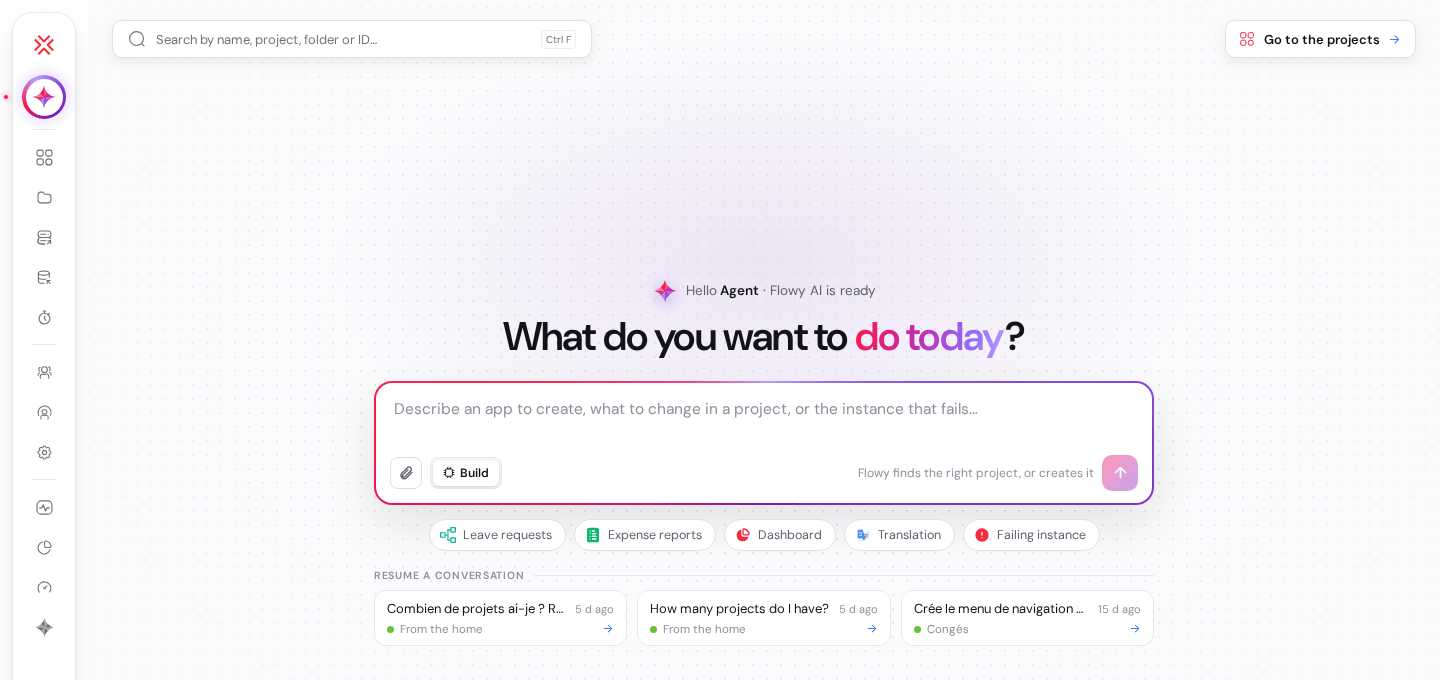
/ide/ now opens on Flowy. Describe an application to create, a change to make in an existing project, or an instance that fails ("the process DDC-00010 is stuck"): Flowy picks the right project, opens it or creates it, and starts working. Recent conversations can be resumed from the home page. The projects list moved to Applications (/ide/projects).
Flowy knows its limits and says so: it does not deploy to production, and it only touches users, roles and data in TEST.
A panel docked beside every editorDirect link to A panel docked beside every editor
In the builder, on an instance page and on the external databases page, Flowy opens in a panel on the right (Ctrl+I) that pushes the page instead of covering it. Answers are formatted, every new message scrolls into view, "Flowy is thinking…" shows while a run works, and a gauge shows how full the conversation context is. Plan mode writes a plan you can review before Build.
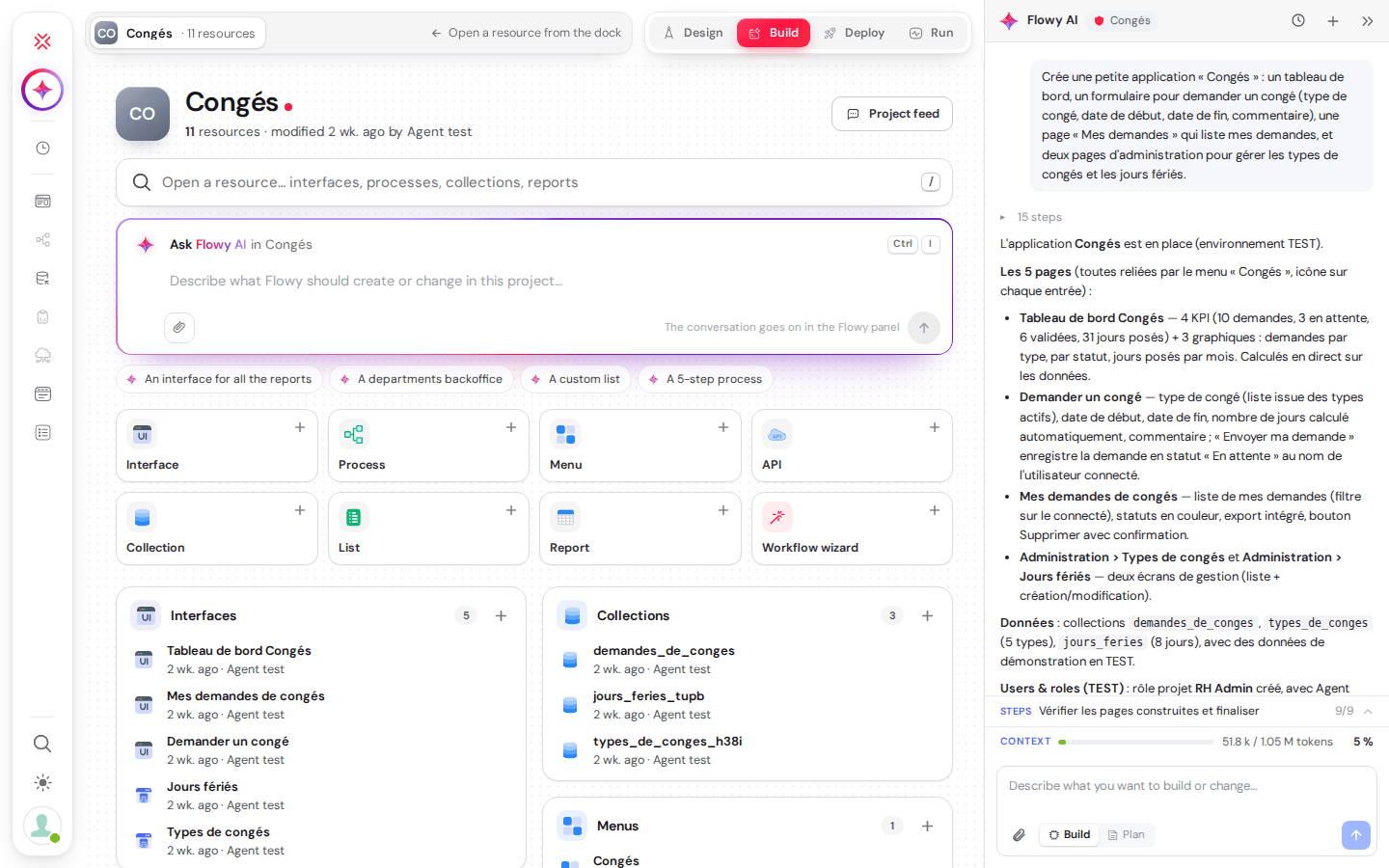
What Flowy builds in 8.6Direct link to What Flowy builds in 8.6
| Area | New in 8.6 |
|---|---|
| Interfaces | Page texts, button bars, flexible table widths, render check of every page it builds |
| Translations | Multi-language pages, custom lists and menus |
| Menus | An icon on every menu entry |
| Documents | PDF templates, PDF preview action, PDF attachments in process e-mails |
| Data | External databases (EDS): discovery and testing |
| Processes | Sub-processes with a data contract, start roles (who can launch a process) |
| Users & roles | Test users and role members (TEST only) |
| Automation | Schedules and Volts (TEST and UAT only) |
| Testing | Runs API calls, launches test processes, reads report rows, updates test data, cleans up TEST instances |
The main agent can now run up to 200 iterations and each executor up to 100, with parallel delegations.
Your choice of model and your own skillsDirect link to Your choice of model and your own skills
- Settings › Flowy AI lets you pick Flowy's model from OpenRouter's weekly ranking.
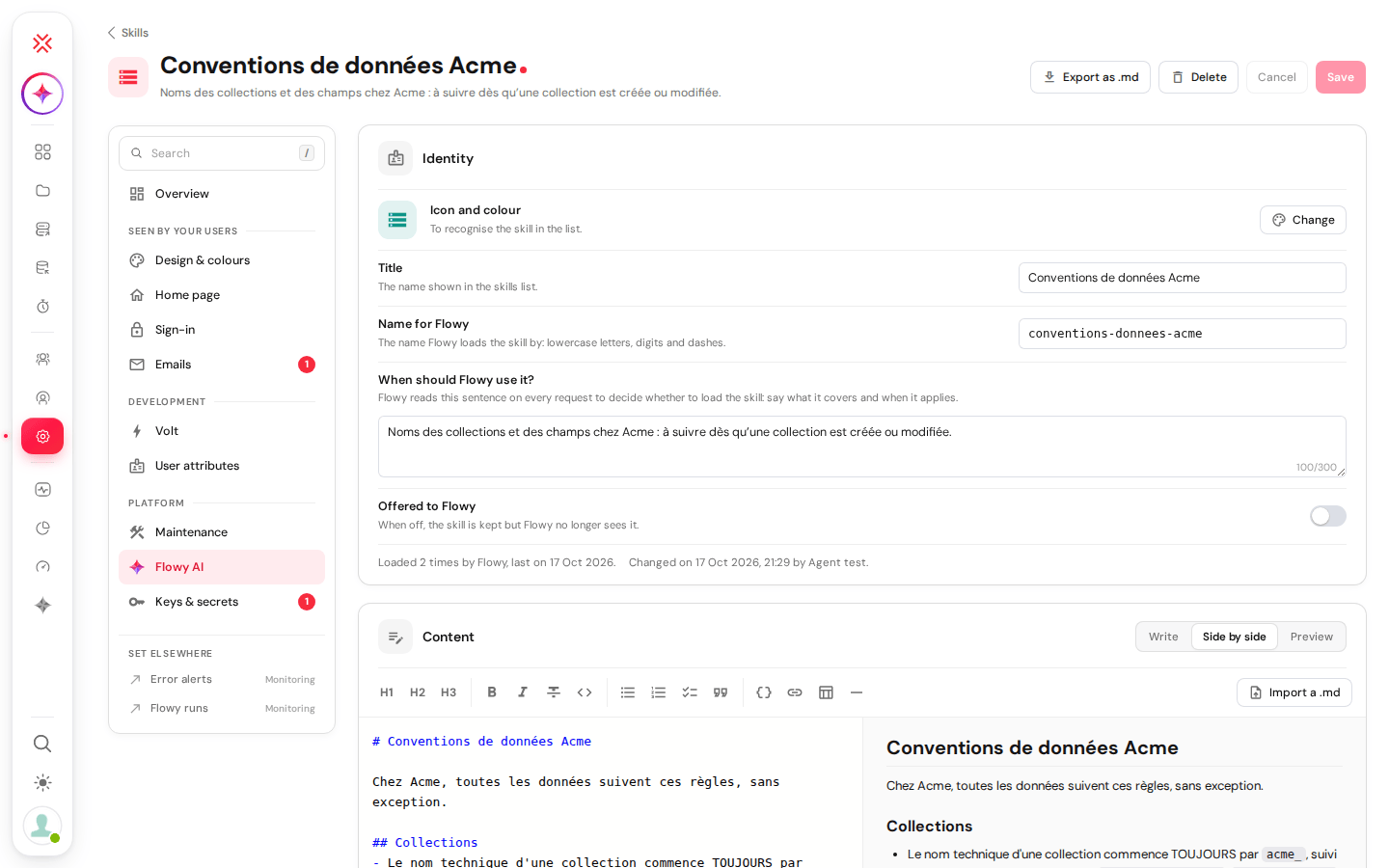
- Company skills: write your own Markdown skills (naming rules, house style, business rules). Flowy lists them and loads the right one when a request needs it. Up to 30 active skills,
.mdimport/export.
Flowy reviews its own runsDirect link to Flowy reviews its own runs
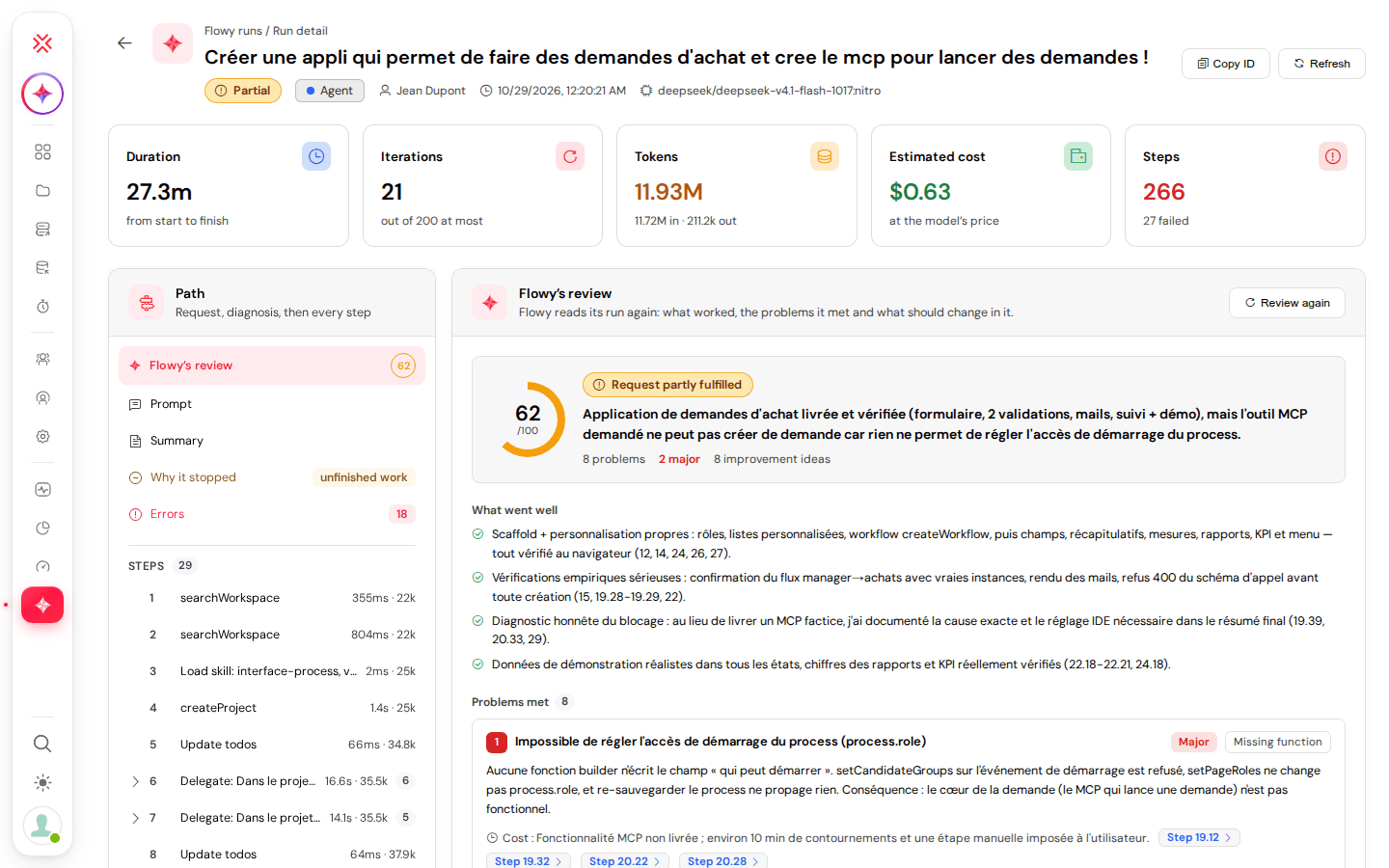
After each run, Flowy writes a review: what went well, the problems it met, and improvement ideas. The Flowy runs page (/ide/ai-runs) was redesigned around these reviews, with summary cards and insights, and now loads in under a second.
The older inline AI prompts of the editors and the documentation chat were removed in favour of Flowy. Flowy now has its own icon, the origami star, everywhere in the IDE.
🧭 A new IDEDirect link to 🧭 A new IDE
Dock + Hub navigationDirect link to Dock + Hub navigation
The top bar and side rail are replaced by a floating Dock on the left and a full-screen Hub (Ctrl+/) that lists every workspace page with live counts and your recent items. Press G then a letter to jump to a page (G P projects, G U users, G M instance tracking…), and Ctrl+K for the global search across projects, interfaces, processes, collections, roles and logs. The IDE also has a dark theme.
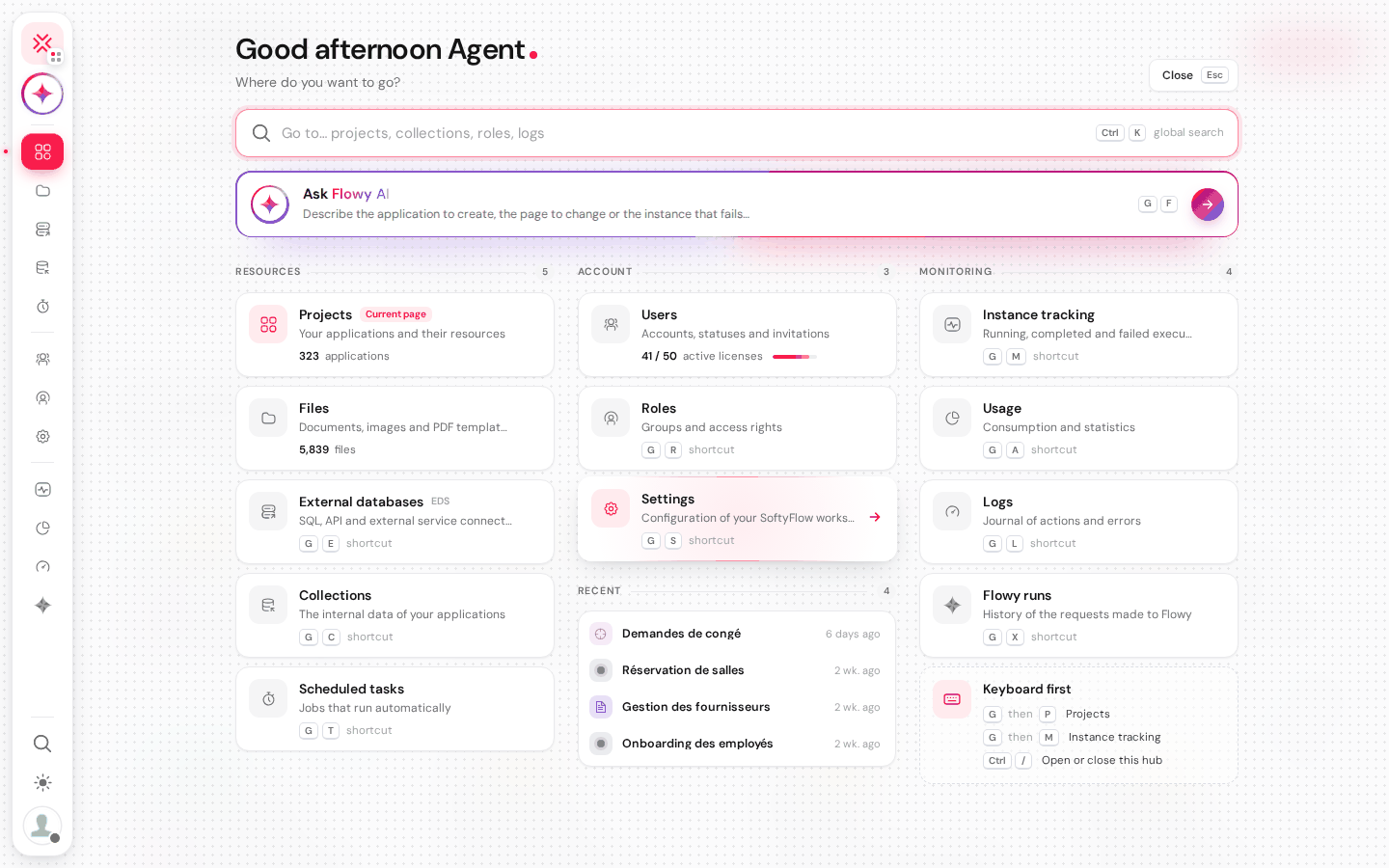
Inside a project, the dock lists your recent resources and the seven resource types, editors open as tabs, and the Design / Build / Deploy / Run bar (Alt+1…4) switches mode in the same browser tab. Each mode has its own dock: Run shows its notifications and measures, Deploy its versions.
📖 Getting started · Project setup
Redesigned builders and editorsDirect link to Redesigned builders and editors
- Interface builder: new widget palette, framed canvas, configuration panel in cards, page settings in cards with a live preview and an icon library, a new Code page (triggers, scripts, version history, editor theme). A new dialog creates an interface with its access rights and an AI-generated icon. The "Form" interface type is now deprecated.
- Menu editor: drag and drop, with an icon on each entry, shown in the applications.
- Process builder: modern cards, events, gateways and flows, new palette and zoom controls.
- API, report, collection, custom list and role editors rebuilt on the same layout, with test panels and usage search.
- External databases (EDS): examples, SQL schema, a tester and a results panel.
- Default Value: Input, Text Area, Date, Dropdown, Radio and now Currency get a large editor with suggestions, a result preview and a message that says what the page will really do.
- Configuration panel: the header shows the kind of widget, its
#idand its name; widget lists of the actions editor show a type badge. The Collection list shows the project of each collection, the open project first. - Tabs widget: one card per tab, with Add a tab and a delete button.
- Custom lists: import a CSV or JSON file, export CSV or JSON, filter the values in the builder drawer; generated values merge underscores (
A & Bgivesa_b).
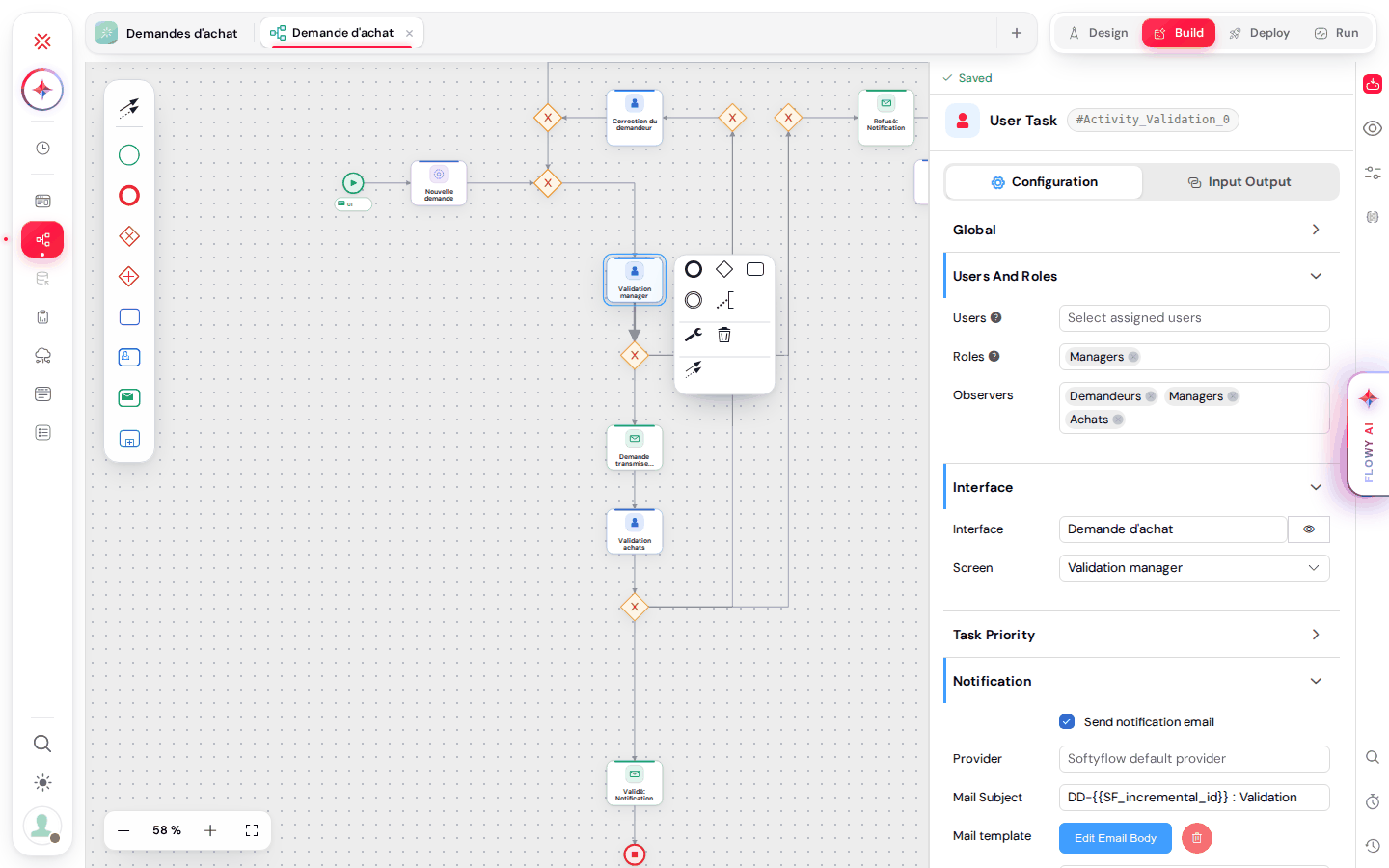
📖 Web interface design · Process design · External databases
Tables: user views, columns and data sourceDirect link to Tables: user views, columns and data source
- User views (option "User views"): each user saves their own filters, column order and widths, and picks a default view, from a selector in the table toolbar. Existing tables keep their exact behaviour until you switch the option on.
- Columns are configured as cards with a drawer per column; the data source is chosen from tiles, with a query popup that tests the query in place.
- Row buttons and Row Click are configured in the actions drawer.
- In the query popup, the option (Aggregation, SQL statement) now comes first, above the help and the editor.
New action: openTaskDirect link to New action: openTask
openTask opens a human task from its ID, in the same tab or a new one. It is the natural row action of a "My tasks" table (SF_input._id), and the workflow wizard now adds a "View task" button by default.
Restart an instance from the diagramDirect link to Restart an instance from the diagram
On an instance page, each step the instance already went through shows a Restart from here button on the diagram. Choose Run this step again (the step runs again, then what follows) or, for a step still waiting or in error, Skip this step (it counts as done and the instance goes on). The card lists what will be done before you click Run again or Skip the step, ticks each step as it runs, and tells you if the step fails again.
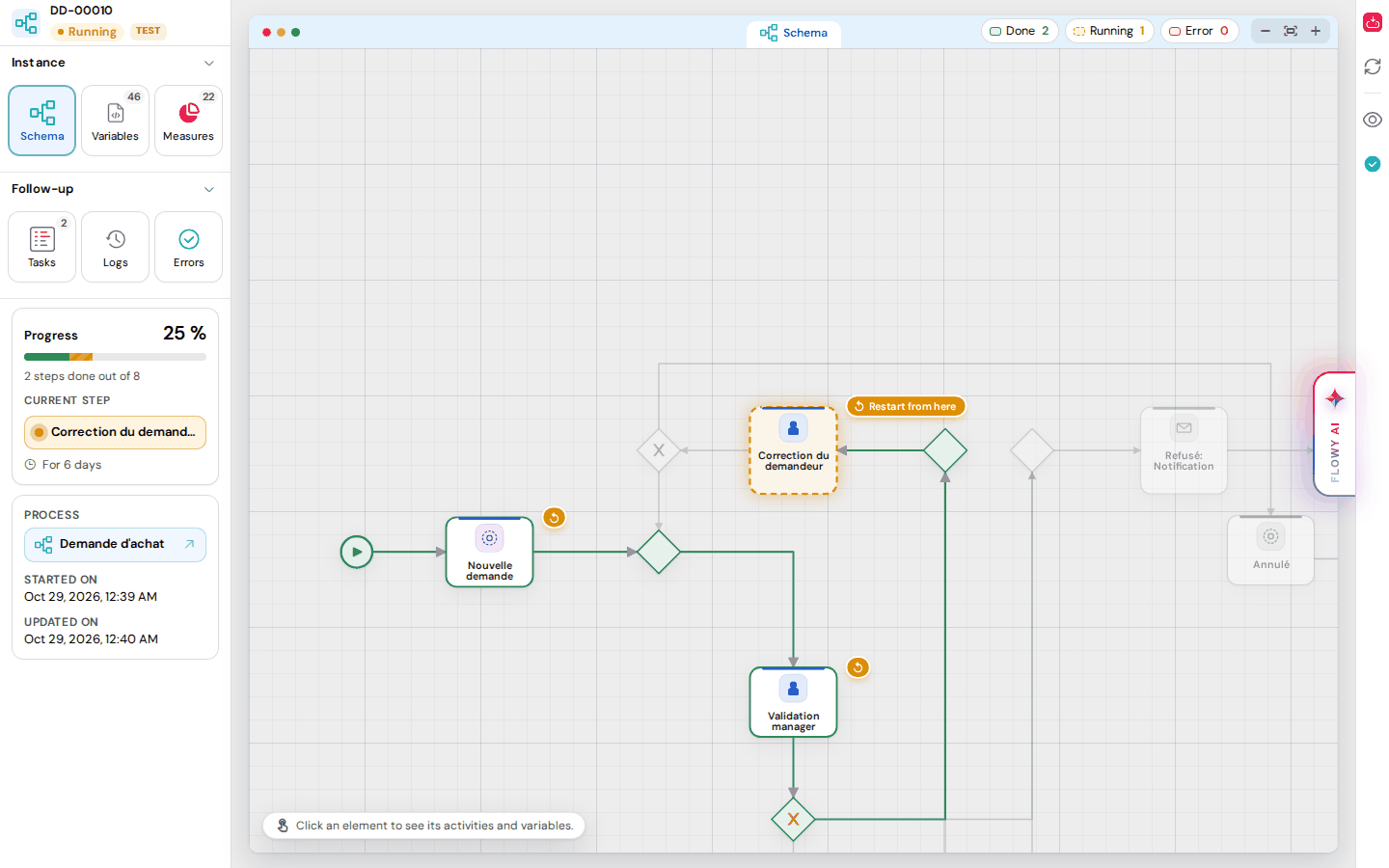
📖 Monitor & Run › Restart from here
Versions: duplicate, migrate, archiveDirect link to Versions: duplicate, migrate, archive
- Duplicate a version.
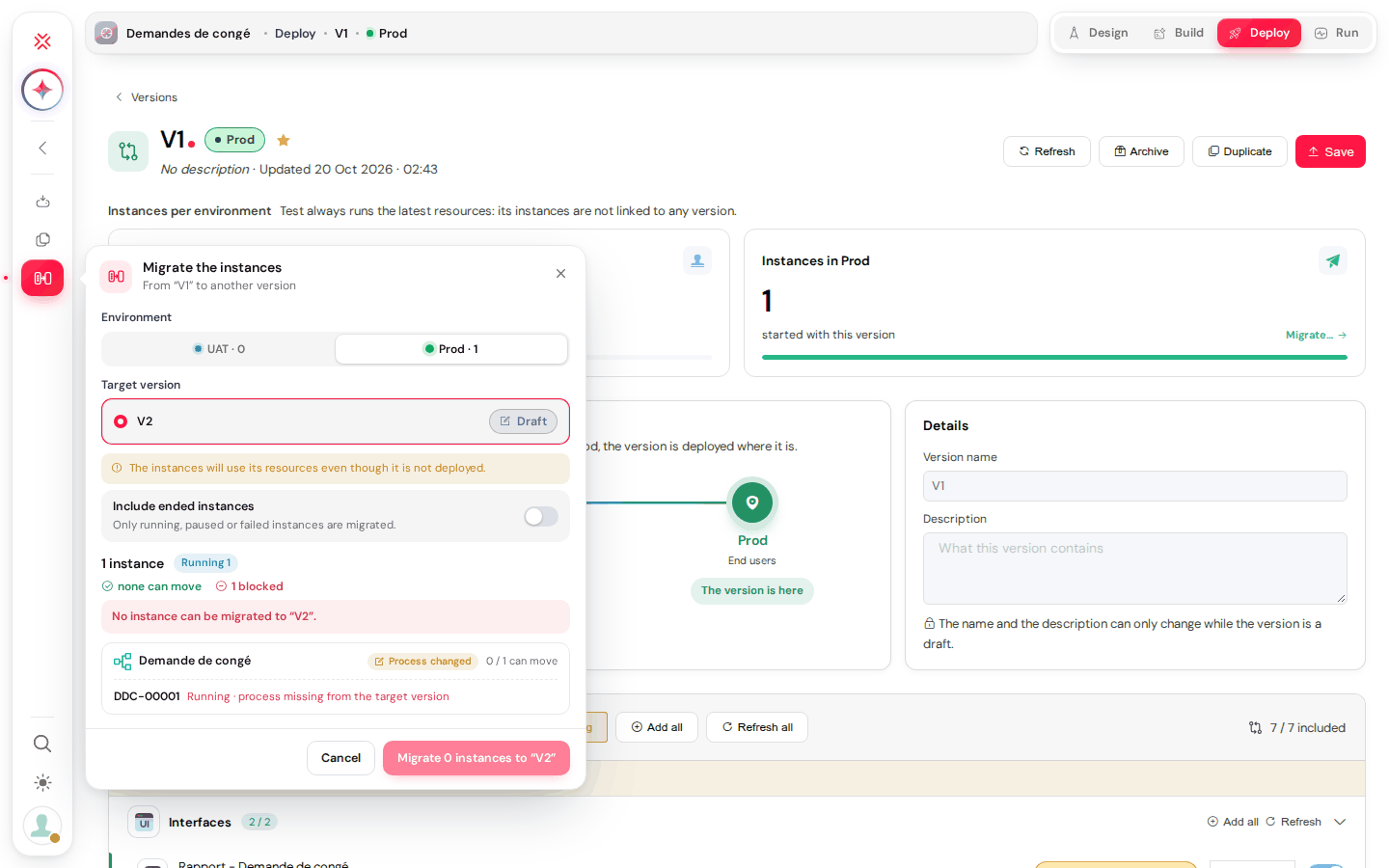
- Migrate the UAT / PROD instances of a version to another version, with a dry run that lists which instances can move and why the others are blocked, then logs.
- Archive old versions; production counts are live.
A new Settings areaDirect link to A new Settings area
Settings now live in /ide/settings, with a searchable sidebar, an overview, and one page per topic: Design & colours, Home page, Sign-in (SAML, OpenID, password rule), Emails, Volt, User attributes, Maintenance, Flowy AI, Keys & secrets. Changes save immediately, with an Undo button. Old URLs redirect.
📖 Settings
Workspace pagesDirect link to Workspace pages
Users, Roles, Files, Logs, External databases, Collections, Schedules, Usage and Instance tracking were redesigned with readable status pills, clearer tables and the same dialogs everywhere.
🎨 A new portal for your usersDirect link to 🎨 A new portal for your users
V2 home, My tasks and My settingsDirect link to V2 home, My tasks and My settings
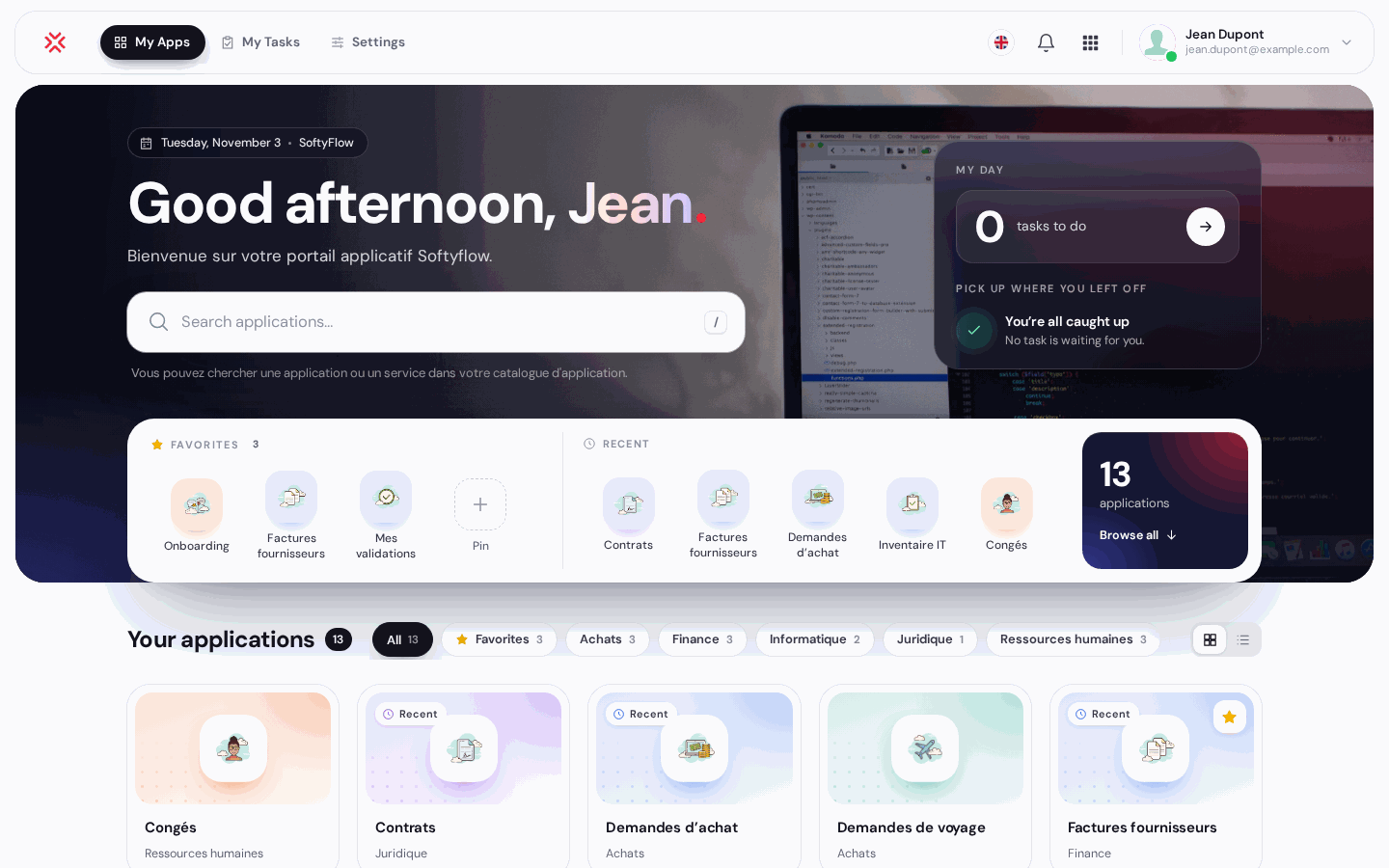
The V2 home page greets the user with your banner, an instant search, a "My day" card (tasks to do, work to resume), favourites and recent apps, and a catalogue in grid or list view. My tasks (filters, search, calendar) and My settings (profile, password, photo, delegations, e-mail digest, AI apps) follow the same design.
Four designs, your brand coloursDirect link to Four designs, your brand colours
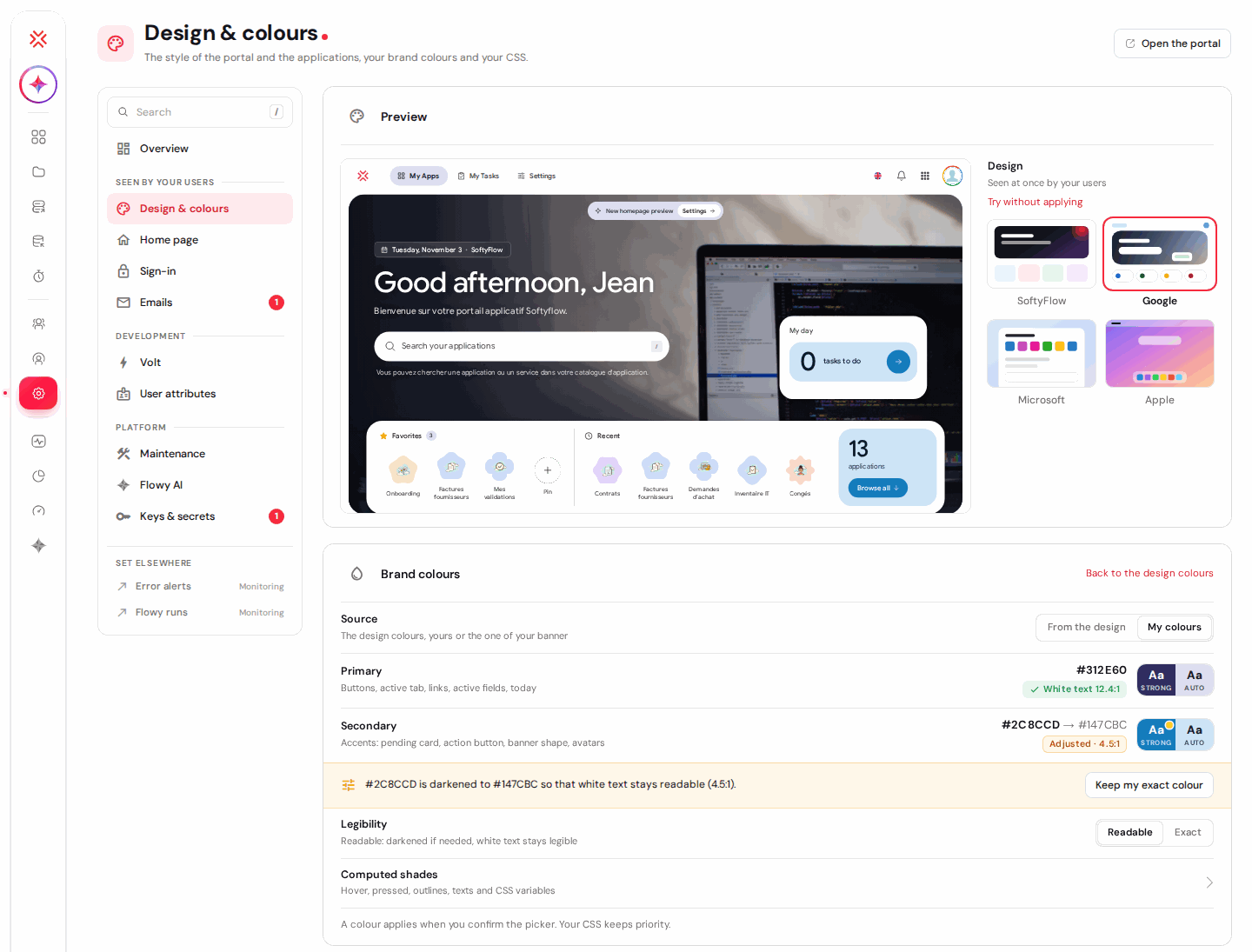
Choose SoftyFlow, Google, Microsoft or Apple in Settings › Design & colours, try it without applying, and optionally apply it to your applications too. One brand colour is enough: the brand colours engine computes readable shades for buttons, links and active items. Your own CSS is always loaded last, so it always wins.
V2 sign-in pagesDirect link to V2 sign-in pages
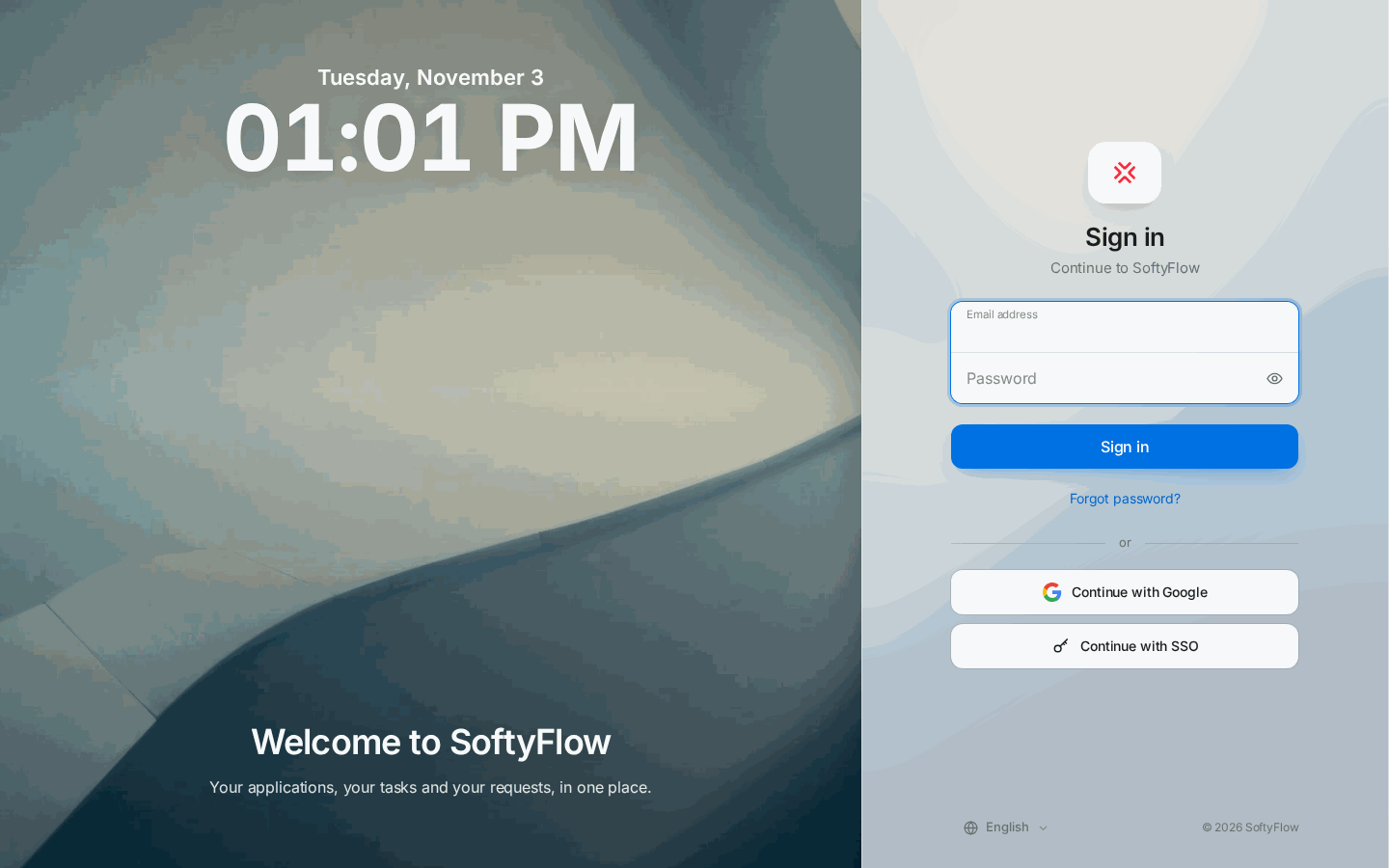
Sign-in, forgotten password, password reset and first password pages are available in the portal design, with the form on the left, centre or right, and a preview from the IDE. The classic pages remain the default; switch in Settings › Sign-in. New trial accounts start directly on the V2 pages.
📖 Home page & redirection · Authentication
In the applicationsDirect link to In the applications
- Titles and text widgets are translated through the page dictionary, and custom lists support 16 languages (already available since 8.5.35).
- Dates without a time are stored at 12:00 UTC, so they no longer shift by one day across time zones.
- Pages load faster: the rich-text editor and QR code libraries load only when a page uses them, and Volts are cached for 60 seconds (about 43% faster on a cold load).
- A broken expression no longer blanks a page, and error pages return the right HTTP status.
📬 Notifications per user: the e-mail digestDirect link to 📬 Notifications per user: the e-mail digest
Requested by our customers: users who receive many process e-mails can now group them into one digest instead of one e-mail per notification.
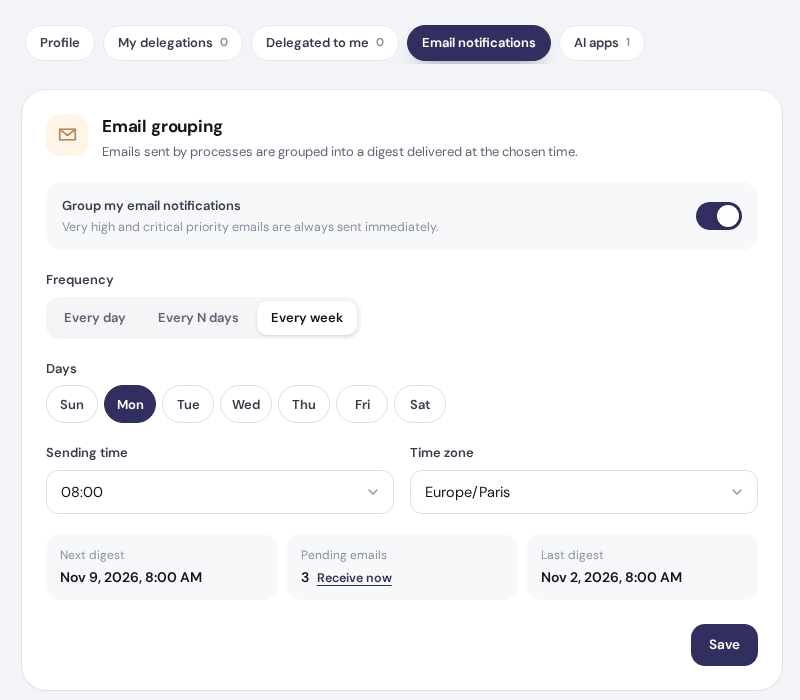
- Each user chooses in the portal, My settings › Email notifications: every day, every N days (2 to 30) or on chosen days of the week, at the time and in the time zone they want.
- Administrators can set it for any account in the IDE, Users › user › Notifications tab, and switch the feature on for the platform in Settings › Emails › Individual sending and mail digest (off by default).
- Both screens show the next digest, the e-mails waiting and the last digest. When e-mails are waiting, a button sends them at once: Receive now in the portal, Send the pending mails now in the IDE.
- Urgent e-mails are never delayed: Very High and Critical priorities, password, welcome and error e-mails, and TEST / UAT e-mails are always sent immediately. The digest only groups production process e-mails.
- The digest marks the tasks already handled or deleted since the e-mail was sent, and keeps the attachments (up to 15 MB per digest).
📖 Mail management › Process e-mails and the digest · User management › Notifications
👥 Users, integration and AI assistantsDirect link to 👥 Users, integration and AI assistants
Users Excel export and importDirect link to Users Excel export and import
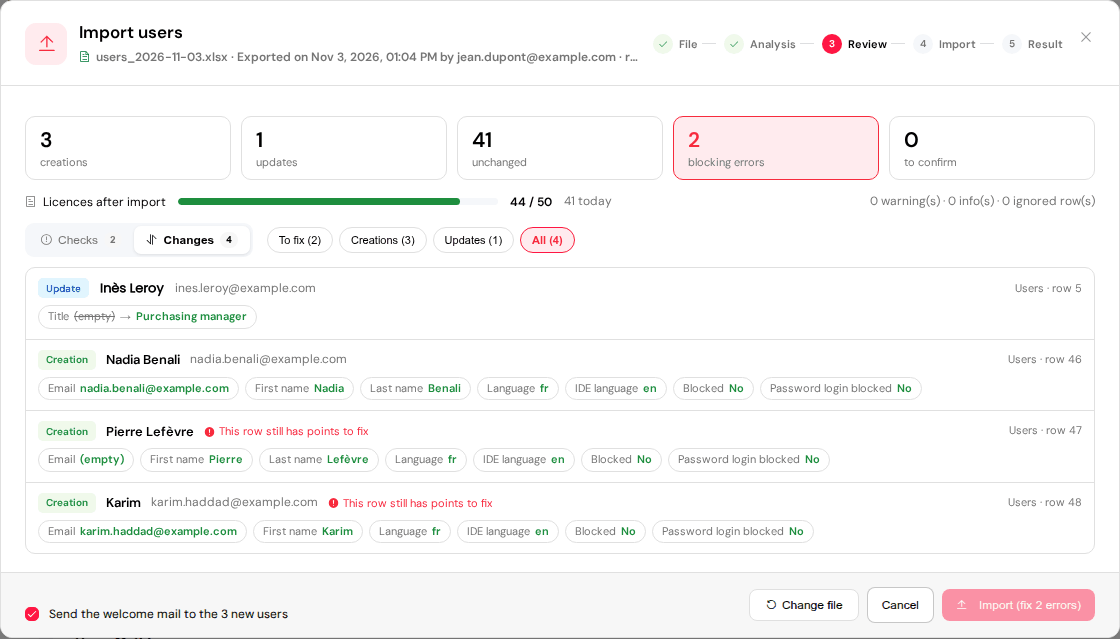
Export all users to one Excel workbook (a Users sheet, then Roles and Attributes sheets per environment, with drop-down lists), edit it, and import it back. SoftyFlow shows a validation report of every change before applying it in the background with a progress bar. Rows marked Create add new users. The file never grants IDE rights or creates roles. This requires the "Users and roles" right.
APIs as tools for AI assistants (MCP)Direct link to APIs as tools for AI assistants (MCP)
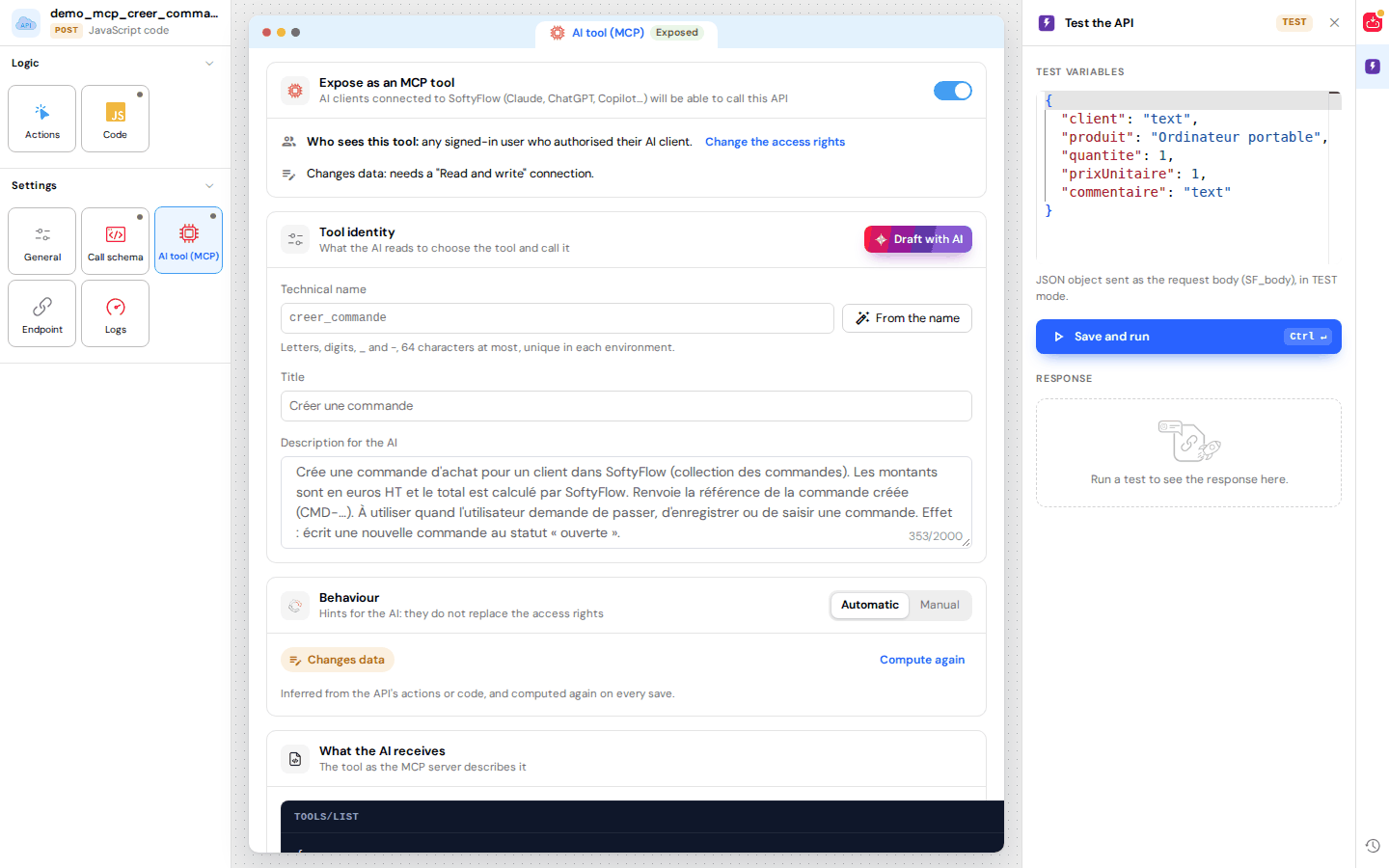
Every API now has a call schema (no-code drag and drop or JSON Schema, with descriptions written for AI, and an AI draft). One switch exposes the API as an MCP tool. Choice lists can come from custom lists or collections, per environment.
Your users then connect Claude, ChatGPT, Copilot or any MCP client to your SoftyFlow MCP server (one URL per environment). They sign in with OAuth 2.1, choose the projects and read-only or read-and-write access, and can revoke the connection at any time in My settings › AI apps.
📖 APIs · Integration › AI assistants
SoftyTablesDirect link to SoftyTables
Five critical stability fixes, and the generation and update of the List and Detail screens of a SoftyTable.
🔒 SecurityDirect link to 🔒 Security
SoftyFlow 8.6 continues to strengthen the security of the platform.
Your public resources, under controlDirect link to Your public resources, under control
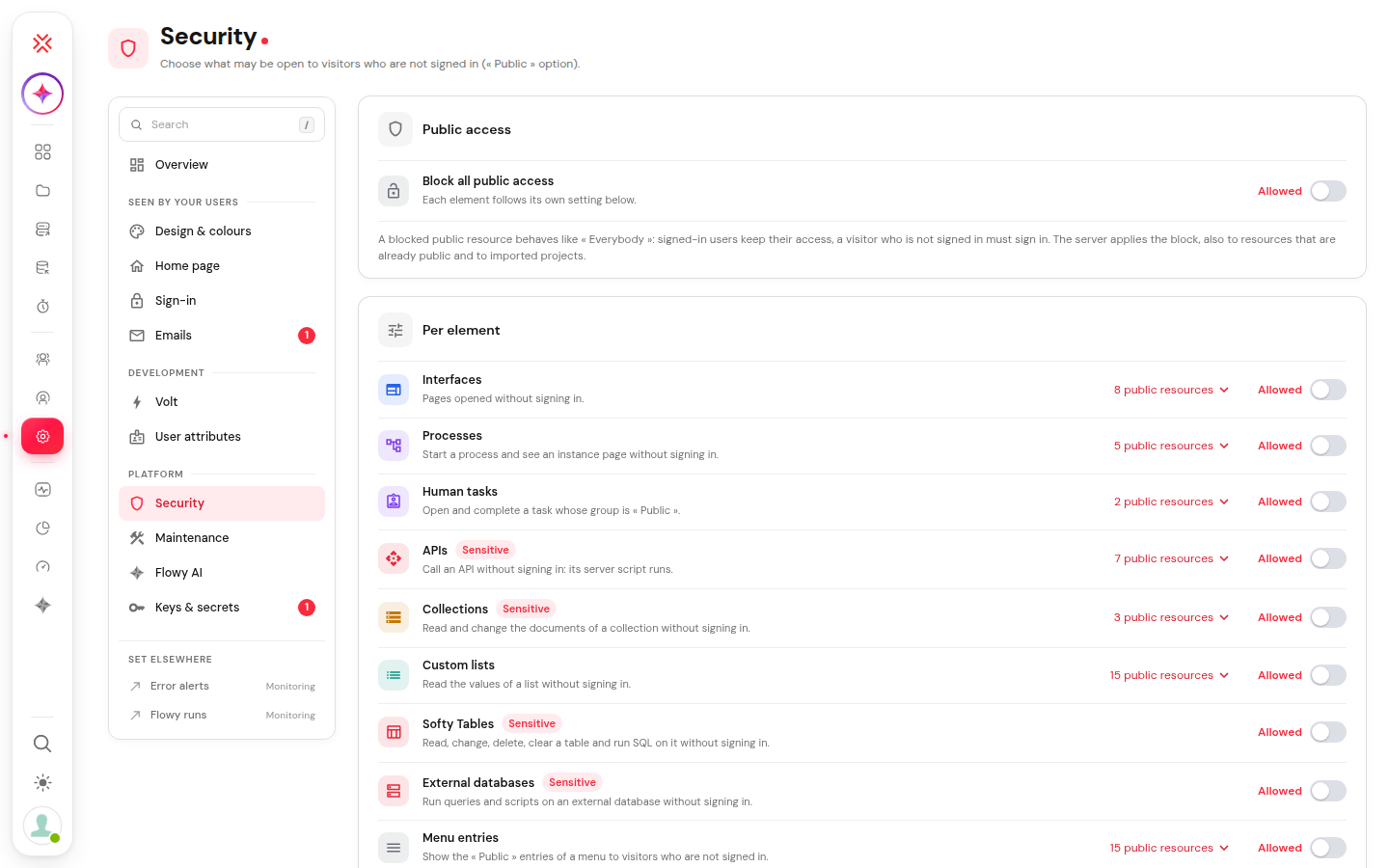
With the « Public » option, some resources are open to visitors who are not signed in: an online request, a contact form, a document to download… The new Settings › Security page shows, for each type of resource, how many are public and which ones, and lets you decide whether access without signing in stays allowed.
- Nothing changes when you update: what is public today stays public until you decide otherwise.
- One setting per type: interfaces, processes, tasks, APIs, collections, lists, Softy Tables, external databases, menu entries, files. A single switch can also set them all at once.
- Your users keep their access: a resource whose public access is closed stays open to signed-in users; a visitor is simply asked to sign in.
- File uploads without signing in: allowed, limited to the formats you choose, or closed, with an optional invisible anti-robot check (Google reCAPTCHA).
- The MCP servers are also turned on from this page.
⚠️ Before you upgradeDirect link to ⚠️ Before you upgrade
| Change | What to do |
|---|---|
| The classic home and sign-in pages stay the default | Switch to V2 in Settings › Home page and Settings › Sign-in when you are ready. Preview first from the IDE. |
| Home page redirection rules apply to the classic home only | Check your redirection rules before switching to the V2 home. |
| The "Form" interface type is deprecated | Existing forms keep working; create new screens with the other interface types. |
| The editors' inline AI prompts and the documentation chat were removed | Use Flowy (IDE home page or the docked panel). |
| Dates without a time are now stored at 12:00 UTC | Values saved before 8.6 are unchanged; check scripts that compare dates at midnight. |
| Table user views are off on existing tables | Switch on "User views" on the tables where users need them. |
Settings moved to /ide/settings | Old URLs redirect automatically. |
| The e-mail digest is off for the platform | Switch on Settings › Emails › Individual sending and mail digest; users then choose their digest. Note that each recipient then receives their own e-mail. |
Behaviour changes for developersDirect link to Behaviour changes for developers
Pages, actions and scripts built before 8.6 keep working, but the server now checks more of what they send. Review these points in your projects, in TEST first:
| Change | What to do |
|---|---|
| The Group Picker stores the role ID | Its value is now the role _id (an array of IDs with multiple selection), and the role name goes to <model>_label: tasks and e-mails can be assigned to the selected role directly. Values saved before 8.6 (role names) are still displayed. Rules, scripts and reports that compare the value with a role name must read <model>_label. See Group Picker. |
| Some operations sent from pages are refused | Pages can only read through aggregations and criteria. If a pipeline is refused (Aggregation refused: …), move it into a process script or an API. See Rules applied by the server. |
| Mass updates and deletes need a selection | On a SQL EDS, an update or a delete with an empty selection is refused (Empty selection): use the query "1=1" to reach every row on purpose. On a SoftyTable, updateMany and deleteMany refuse an empty criteria: give an explicit criteria, or use clear to empty a table. Outside TEST, a SoftyTable column not yet published in that environment refuses values: publish the table there first. See What Softyflow enforces. |
| SQL sent from pages depends on the rights on the EDS | Depending on the user's rights on a SQL EDS, a page may be limited to read statements. If the SQL of a page is refused, check the rights of its roles. See EDS › What a page may send to a SQL EDS. |
| Upserts need the Create right | Creating documents through an upsert needs the Create right on the collection. Give it to the roles that must create documents. See What Softyflow enforces and massUpsert. |
| PDF generation needs a signed-in user and a PDF template | The Generate PDF action (previewPDF) works for a signed-in user, with a PDF template made in the IDE PDF editor. Generate the PDF after sign-in or in the process. See previewPDF. |
| In a Loop, rules read the row and ids are set per row | Inside a Loop, a rule (visible, required, disabled, CSS classes) that names a field of the loop row with {{field}} or #field now reads the value of that row, not a page variable with the same name. The loop rows and their widgets get their own ids: row 0 keeps <id>, the next rows get <id>_1, <id>_2…, and every row carries data-sf-id="<id>". Check the loop rules that read a page variable named like a row field; to reach every row from code or CSS, use the selector [data-sf-id="<id>"]. See Loop. |
| Blocked and deleted accounts no longer receive process e-mails | They are skipped even when named as recipient, in Cc or as a role member; the delegates of a blocked role member still receive the e-mail, and external addresses are not affected. Unblock the accounts (a shared mailbox, for example) that must keep receiving notifications. See Who receives a process e-mail. |